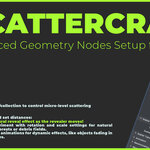
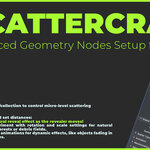
Scattercraft - Advanced Geometry Nodes Setup For Blender
 Fantisal


✨ 1. Installation
Step-by-Step Guide to Get Started 🌟
- Download: Grab the ScatterCraft .blend file from Superhive Market. 📥
- Open Blender: Launch Blender and navigate to File > Append.
- Locate File: Select the downloaded ScatterCraft.blend file, then open the "Collection" folder and choose the "Procedural System" Collection. Click Append. ✅
- (Optional) Asset Browser: Mark ScatterCraft as an asset in Blender for drag-and-drop access in future projects. 📚
- Tip: Right-click the node group in the Asset Browser and select "Mark as Asset."
🎨 2. Setup
Bringing ScatterCraft to Your Scene 🛠️
- Add the Node:
- Select your target object (e.g., a ground plane) in your Blender scene.
- Add a Geometry Nodes modifier, click "New," and search for the "ScatterCraft" node group. 🎯
- Target Surface:
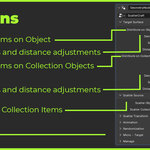
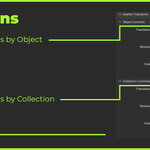
- Distribute on Object:
- Choose your target object in the "Object" field.
- Adjust Density (50,000), Seed (0), and Distance (0.1m). 🌱
- Distribute on Collection:
- Select a collection to scatter on.
- Enable "Separate Children" and "Reset Children" (both on by default) for child object management. 👶
- Scatter Source:
- Scatter Object: Pick an object to scatter (e.g., a rock, tree). 🌳
- Scatter Collection: Optionally, select a collection of objects for varied scattering. 📂
⚙️ 3. Customization
Unleash Your Creativity 🎨
- Scatter Transform:
- Object Controls:
- Translation (X/Y/Z: 0m), Rotation (X/Y/Z: 0°), Scale (X/Y: 0.8, Z: 1.0).
- Collection Controls:
- Translation (X/Y/Z: 0m), Rotation (X/Y/Z: 0°), Scale (X/Y/Z: 1.0).
- 🔧 Adjust for perfect alignment!
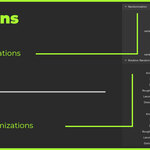
- Randomization:
- Enable Scale Object/Collection: Set min/max scale (0.5 to 1.0) for size variety.
- Enable Rotation Object/Collection: Tweak rotation parameters:
- Animate: 1.0
- Scale: 1.0
- Detail: 15.0
- Roughness: 0.0
- Lacunarity: 2.0
- Distortion: 2.0
- 🎲 Ideal for natural landscapes!
- Micro - Target:
- Assign an influence object/collection to control micro-level scattering (default influence: 50,000). 🎯
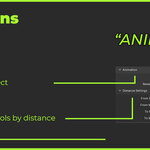
- Animation:
- Enable Reveal Animation:
- Select a revealer object and set distances:
- From Min: 1.5, From Max: 0.5
- To Min: 0.0, To Max: 1.0
- 🎬 Creates a stunning procedural reveal effect as the revealer moves!
💡 4. Tips for Best Results
Maximize Your Experience 🌟
- Performance: High-density scattering (50,000 instances) can strain resources. Optimize your target mesh (reduce poly count) for smoother performance. ⚡
- Randomization: Experiment with rotation and scale settings for natural distributions—perfect for forests or debris fields. 🌳💥
- Animation: Use reveal animations for dynamic effects, like objects fading in as the revealer object moves. 🎥
🛠️ 5. Troubleshooting
Quick Fixes for Common Issues 🔧
- Objects Not Scattering: Verify the target object/collection and scatter source are correctly assigned in the modifier panel. ✅
- Performance Lag: Lower the density or use simplified scatter objects (e.g., proxies for complex assets). ⚡
- Unnatural Distribution: Tweak the seed or minimum distance to prevent clustering or overlapping. 🌱
🤝 Support
Encounter issues or have questions? Reach out via Superhive Market’s messaging system or my Patreon! I’m here to ensure you master ScatterCraft. 🎉
🌍 Why Choose ScatterCraft?
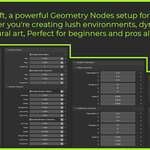
ScatterCraft blends power and simplicity, offering a procedural scattering solution for beginners and pros alike. With extensive customization, animation capabilities, and micro-targeting, it’s perfect for crafting realistic environments or stylized procedural art. 💼 Save time and unlock your creativity with ScatterCraft today! 🚀
Have questions about this product?
Login to message
| Published | over 1 year ago |
| Blender Version | 4.4 |
| Render Engine Used | Cycles, Eevee |
| License | Creative Commons |