 CGBlenz



Scene Configurator – Blender Add-on
Ever find yourself constantly hiding objects, moving them back into place, or redoing the same setup over and over?
Scene Configurator takes that hassle away—so you can focus on creating, not repeating.
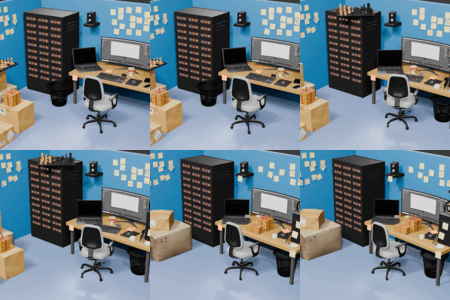
With just a couple of clicks, you can save your scene setup and instantly switch back to it whenever you need. Whether you’re staging a product, preparing animation shots, or testing design variations, Scene Configurator keeps everything organized and at your fingertips.
Why You’ll Love It
-
Work Faster – Save object transforms and visibility once, and jump back to them anytime. No more tedious manual resets.
-
Stay Flexible – Experiment freely with different arrangements, knowing your original setup is just one click away.
-
Automate with Ease – Attach Python snippets to your configurations and let Blender handle repetitive tasks automatically.
-
Keep it Simple – Create and apply configurations in just 2 clicks.
Imagine setting up multiple camera shots, trying different lighting setups, or showcasing variations of a design—all without ever losing track of your scene. That’s what Scene Configurator is built for: saving you time and making your workflow smoother.
Spend less time managing scenes, and more time bringing them to life.
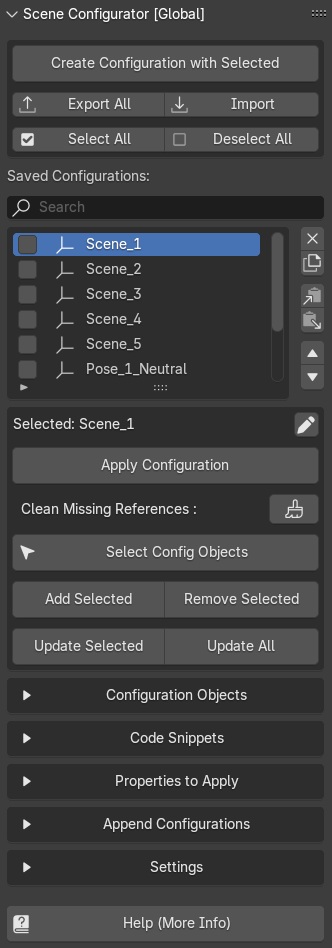
Scene configurator [Global]
Scene configurator add-on stores transformation and visibility data of the object.
And you can arrange objects in different manner and store their transforms in configuration.
Example Workflow
- Select the objects and press Create Configuration with Selected.
- Organize objects differently, and duplicate previously created configuration.
- Select duplicated configuration and click on Update All.
- Or instead of duplicating configuration, click on Select Config Objects and then directly create another configuration with selected objects
Sections Explained :
Configuration Objects : Shows list of objects of selected configuration.
Code Snippets : Used to run small codes which can change active camera or strength of light or material property or even toggle gravity. And it can also run big python scripts.
Examples :
Change Active Camera :
bpy.data.scenes["Scene"].camera = bpy.data.objects["Camera"]
Hide Collections :
bpy.data.collections["MyCollection"].hide_viewport = True
Modify Text :
bpy.data.objects["Text"].data.body="Wow!"
Run python programs directly :
import bpy; [bpy.ops.mesh.primitive_cube_add(location=(i * 3, 0, 0)) for i in range(3)];
Run Text file scripts :
exec(bpy.data.texts["example"].as_string())
Properties to Apply :
This section has three properties which you can apply.
- Transform
- Visibility (Viewport & Render)
- Armature Bone Transformation
Append Configurations :
One configuration can be appended to another. Suppose, if you have scene in which multiple different collection of elements are present and you have made different configurations for each type of collection, then in the end you can combine all of them to create a master configuration.
And the usefulness of master configuration is you just have to apply one configuration to the scene.
Settings :
There are some important settings in which be very careful when making changes.
There is Evaluation Passes = 2, If objects in the scene which are added in the configuration are not working properly according to configuration then you may need to increase this value.
But, it can only happen if your scene is very big containing thousands of objects. So be careful because this takes lots of processing.
For more detailed explanation, check out YouTube Tutorial
Scene configurator [Local]
Scene configurator local works the same way as global.
But each configuration is local to a parent configuration container.
Example Workflow
- Eligibility of an object to be a container is it should be a parent.
- Container configurations affect the childrens of the container.
- Container configurations work local to the parent.
- Select a parent and click on Create container configuration.
- It will store transformation of all its childrens.
- These containers along with their childrens can be duplicated and will not lose any unique ID.
- So, single type of containers can share their configurations.
- For example, you have a table with elements like plate, knife, spoon, cake, dishes, drink and you can duplicate them multiple times, And if you create configuration in a single one, then those configurations will be accessible across all those tables.
- When nothing is selected then a panel shows up which has import / export option and also shows all the container configurations of the project.
