Select Polygons By Angle
 3D CADence



Select Polygons By Angle
Documentation
1. Introduction
Welcome to the documentation for the Select Polygons By Angle addon for Blender. This addon is designed to fundamentally improve and accelerate the process of selecting polygons in Edit Mode. It offers tools for selection based on the angles between normals, the direction of polygon loops, and a smart system for saving and managing selection sets.
The core philosophy of the addon is built around an innovative interactive angle preview system. It allows you to see the precise angle between the polygon under your cursor and adjacent selected polygons in real-time, complementing this with a clear 3D visualization directly in the viewport. Furthermore, on your next click, the addon will automatically set this measured angle as the new selection threshold. This eliminates the need to manually guess the optimal angle and significantly speeds up work with complex geometry.
This guide will help you install the addon, understand all its features in detail, configure it to your needs, and use it effectively in your workflow.
2. Installation
The addon is installed in the standard Blender way:
- Download the
.ziparchive with the addon. Do not unzip the archive! - In Blender, open
Edit > Preferences.... - Go to the
Add-onstab. - Click the
Install...button. - In the file browser that opens, find and select the downloaded
.ziparchive. ClickInstall Add-on. - Activate the addon by checking the box to the left of its name.
3. Interface Location
The main control panel for the addon is located in the 3D Viewport:
-
Location: UI Panel (the sidebar opened with the
Nkey) >3D CADenceTab. -
Panel Name:
Select Polygons by Angle.
This panel groups all the main mode toggles, threshold settings, and tools for managing saved selections.
4. Feature and Mode Descriptions
Main Control Sliders
The main panel features three key sliders that control the selection process:
- Angle Threshold: The primary parameter for all selection modes. It defines the maximum allowable angle (in degrees) between adjacent polygons for them to be considered part of the same group.
- Angle Tolerance: Used exclusively by the Interactive Preview feature. This value (in degrees) is automatically added to the measured angle when calibrating the threshold. For example, if the measured angle is 15° and the tolerance is 5°, the new threshold will be 20°. This helps capture surfaces with slight irregularities.
-
Angle Incr. (Prefs): Displays the current step value used by hotkeys to adjust the
Angle Threshold. This value is configured in the addon preferences.
Select by Angle (Flood Fill)
-
Activation: The
Select by Anglebutton (Icon:MOD_SKIN) on the panel. -
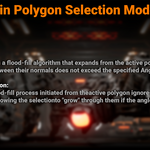
Principle: Operates on a "flood fill" basis, expanding the selection from the active polygon to adjacent polygons whose angle difference is within the
Angle Threshold. -
Aggressive Expand Option: Activated by the
TRACKINGicon button. This allows the flood fill to "grow through" previously selected polygons, not treating them as barriers.
Directional Loop Selection
-
Activation: The
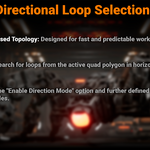
Enable Direction Modebutton in theDirectional Selectionsection. - Principle: Designed specifically for quad-based topology. It initiates a search for face loops from the active quad in horizontal and/or vertical directions.
-
Controls: The main toggle is
Enable Direction Mode, further refined by theHorizontal LoopandVertical Looptoggles.
Interactive Preview: The Core Feature
This is the central feature of the addon, turning tedious angle guesswork into a fast, interactive process.
- Activation: The eye icon button (👁️) on the main panel.
-
Capabilities:
-
Contextual UI at Cursor: Provides real-time feedback with icons and colors:
- 👁️ green eye: Displays the precise measured angle.
- 🚫 red warning: A "Not connected to selection" warning.
- ✓ grey checkmark: A "Part of selection" info message.
- ★ star: An "Active Polygon" indicator.
- ⚠️ Red Text: A "No selection" warning if nothing is selected.
-
Automatic Threshold Setting: After previewing an angle, simply click to select a polygon. The addon will automatically update the
Angle Thresholdto the measured value (plus tolerance), eliminating manual input. -
3D Visualization: For ultimate clarity, the addon draws visual aids directly in the viewport (can be disabled in preferences):
- A semi-transparent cyan highlight over the polygon currently under the cursor.
- A bright blue highlight on the shared edge with a selected neighbor.
-
Contextual UI at Cursor: Provides real-time feedback with icons and colors:
Saved Selections Management
-
Location: The
Save Selectionssection on the panel. -
Features:
-
Smart Naming: Clicking
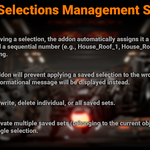
Save Currentautomatically names the selection using the formatObjectName_Number(e.g.,House_Roof_1). -
Safe Application: The addon prevents you from applying a selection saved for one object to another, displaying a
WARNINGand aborting the operation to prevent errors. - Full Control: Create, rename, overwrite, and delete individual or all selection sets.
-
Smart Naming: Clicking
Viewport Header Display
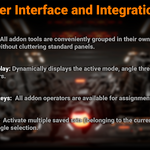
When any addon mode is active, the 3D Viewport header displays an info line with all current parameters for constant awareness.
5. Addon Preferences
To access the addon preferences, go to Edit > Preferences... and find Select Polygons By Angle in the Add-ons tab. The settings are organized into convenient tabs for easy navigation.
- "Links" Tab: Contains a row of buttons with icons for quick access to the product page on Blender Market, Artstation, the Discord support server, and the author's YouTube channel.
-
"General" Tab:
-
"General Settings" Section:
-
Angle Increment: Controls the value (in degrees) by which the
Angle Thresholdchanges when using hotkeys. -
Angle Increment Step Size: Controls the step by which the
Angle Incrementvalue itself is adjusted.
-
Angle Increment: Controls the value (in degrees) by which the
-
"Automation" Section:
- Auto-enable Angle Preview: If checked, the Angle Preview feature will automatically activate whenever you enable one of the main selection modes.
-
Auto-enable Aggressive Expand: If checked, the Aggressive Expand option will automatically activate along with the
Select by Anglemode.
-
"Preview Visuals" Section:
- Enable 3D Visualizer: This checkbox allows you to completely enable or disable the 3D visualization. Enabled by default.
-
"Logging Settings" Section:
- Console Log Level / File Log Level: Allows you to choose the level of log detail.
- Enable File Logging: Enables writing of all addon actions to a text file.
-
"General Settings" Section:
- "Keymaps" Tab: This tab displays a complete list of all addon operators, grouped by functionality, for convenient assignment or modification of hotkeys.
6. Performance
Version 2.0 has been completely re-engineered for performance. Thanks to an advanced caching system and optimized algorithms, the addon ensures a perfectly smooth workflow, even on models with over a million polygons and hundreds of thousands of selected faces.
7. Contact and Support
If you have questions, suggestions, or encounter a bug, the best way to get in touch is via the Discord Server:
-
$15
Individual License
-
$75
License for a studio of up to 10 people
Have questions about this product?
Login to message
Discover more products like this
Select polygons by angle select by angle select polygons by angle select faces