Showroom – One-Click Studio Renders, Turntables & Character Sheets
 Ismail Sadok

Install
- In Blender open Edit › Preferences › Add-ons.
- Click the small arrow at the top right and choose Install from Disk…
- Pick showroom-1.0.0.zip (don't unzip it).
- In the 3D Viewport press N and open the Showroom tab.
Quick start
- Select your model (or nothing, to use everything visible).
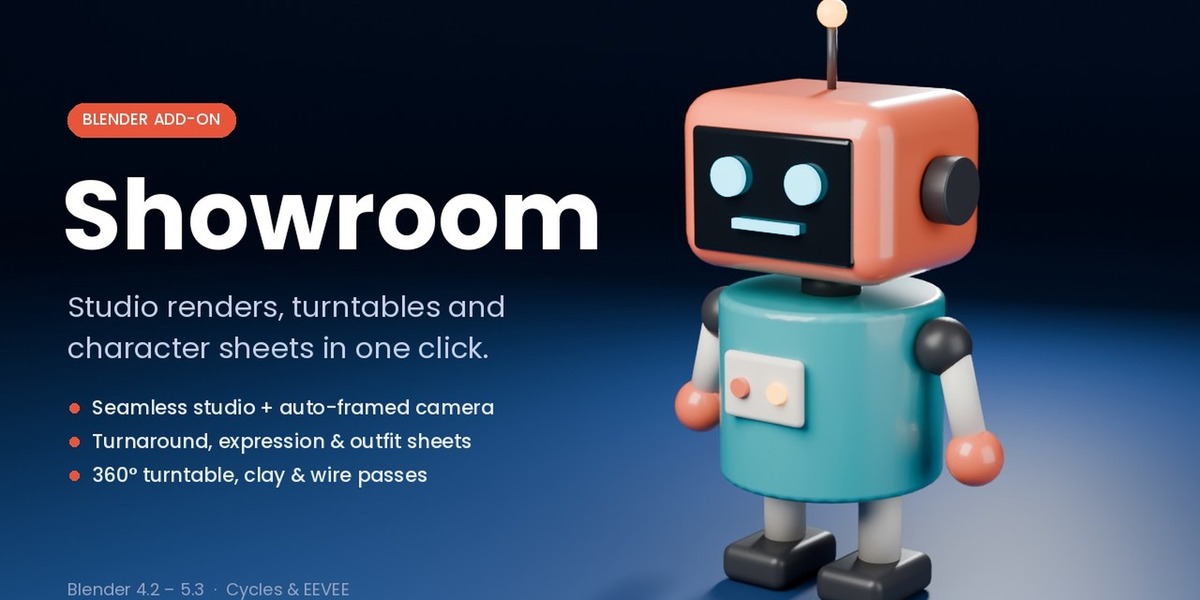
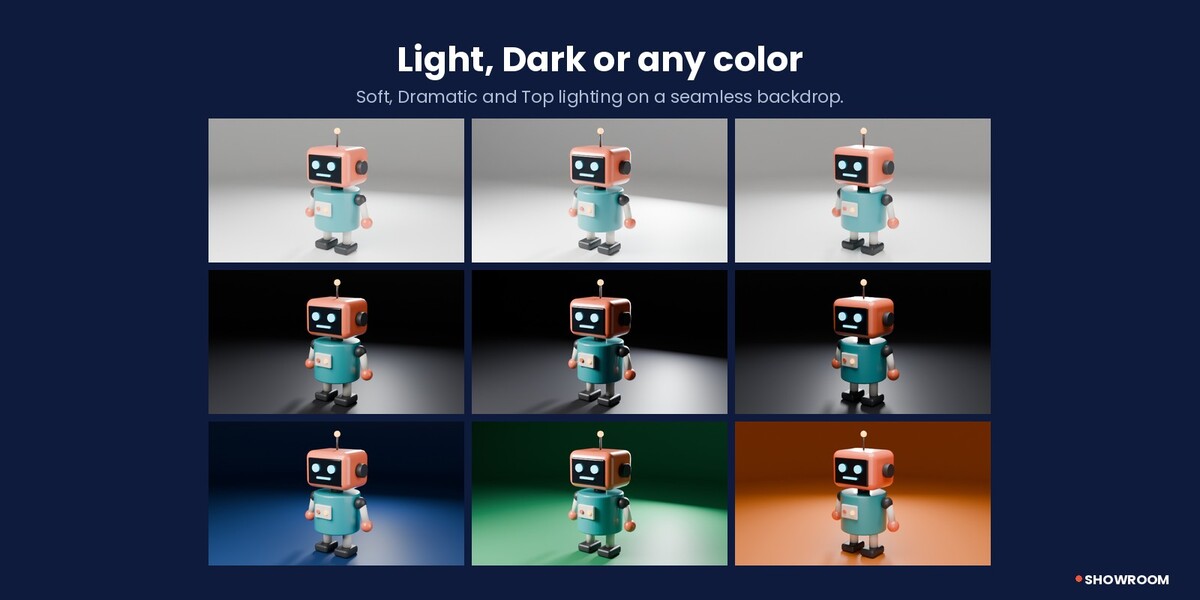
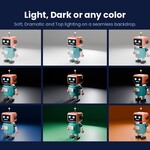
- Click Build Studio. You get a seamless backdrop, three lights and a camera that frames the model.
- Pick a Style (Light, Dark, Color), a Lighting setup (Soft, Dramatic, Top) and an Angle.
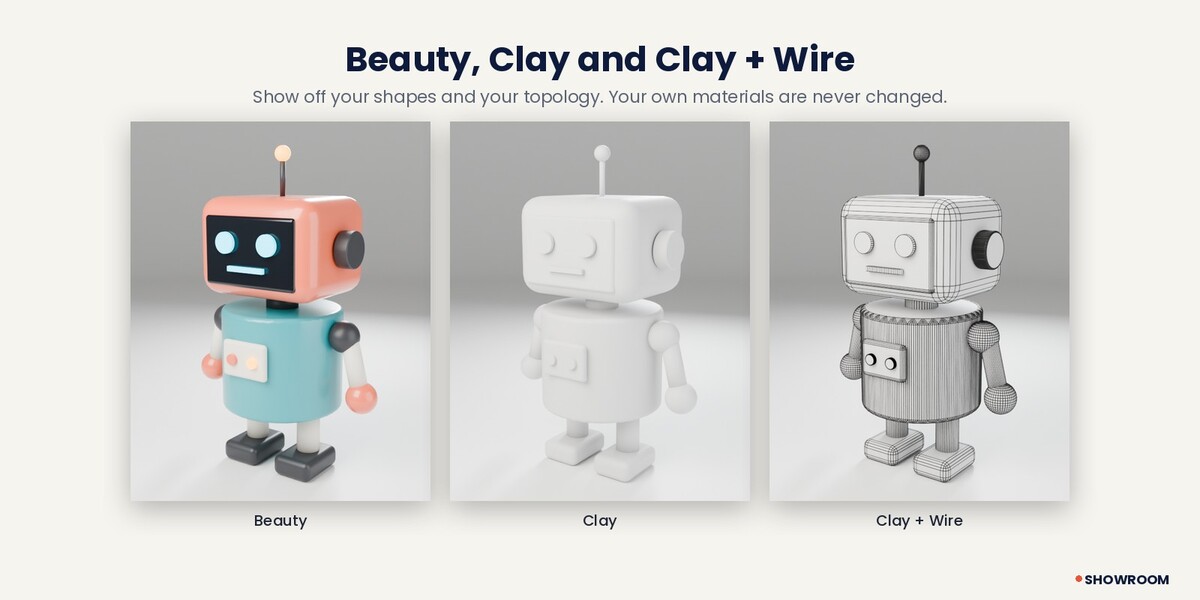
- Click Render Still. PNGs are saved in a showroom folder next to your .blend file.
Character sheets
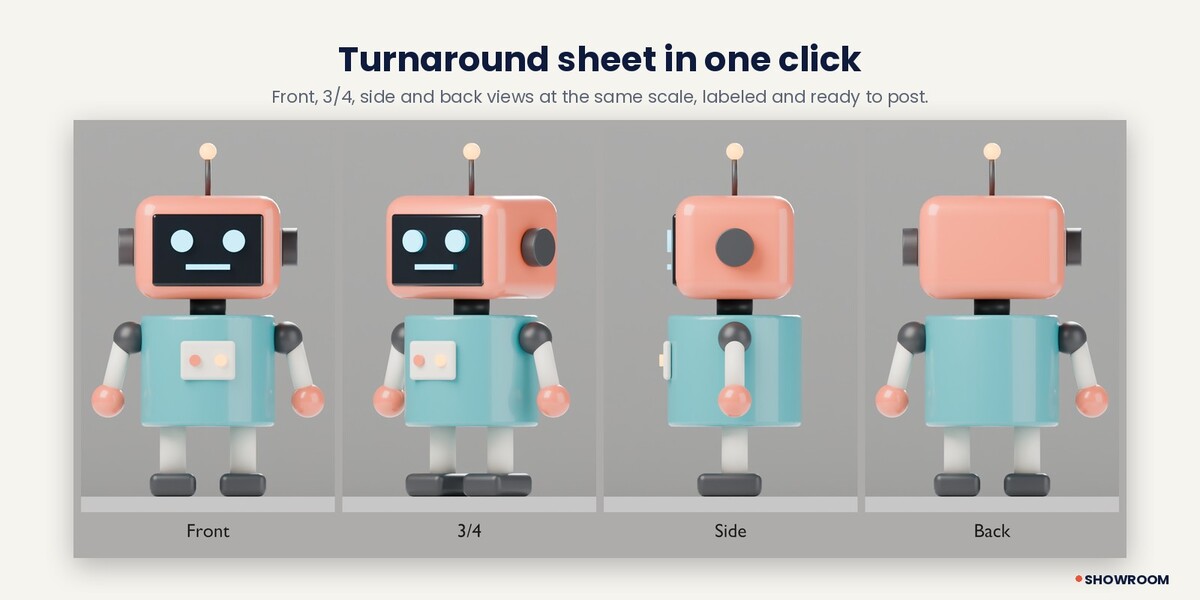
- Turnaround: front, 3/4, side and back at the same scale, labeled.
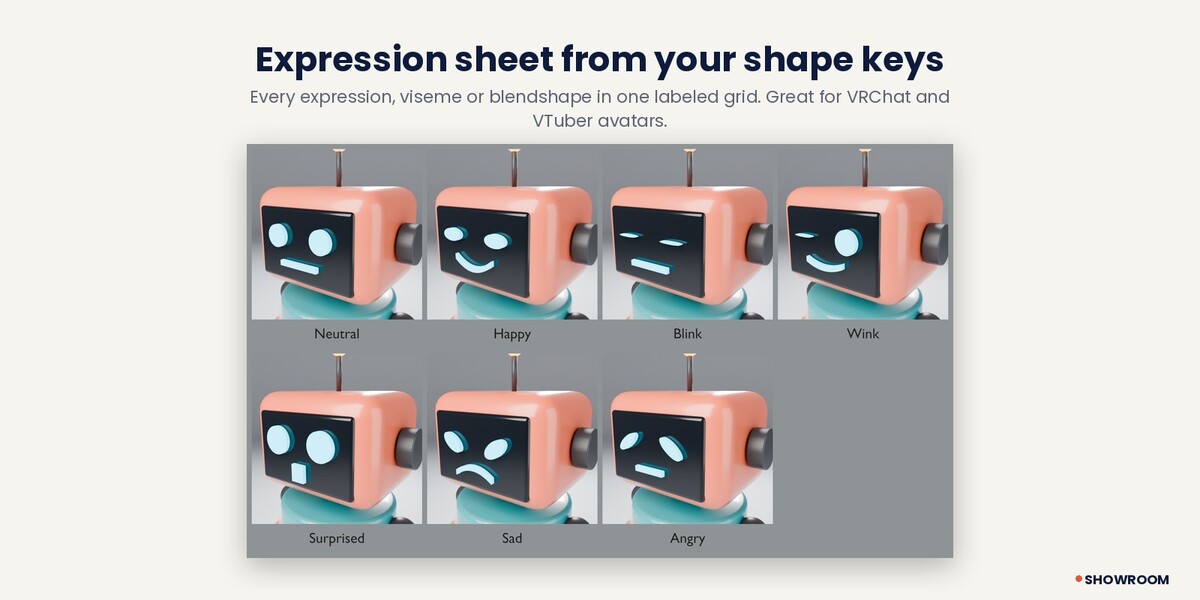
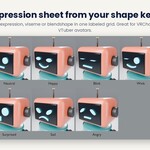
- Expressions: select the mesh with shape keys, use Frame Selection on the face, then Expression Sheet. Use "Only" to filter keys (e.g. smile, blink).
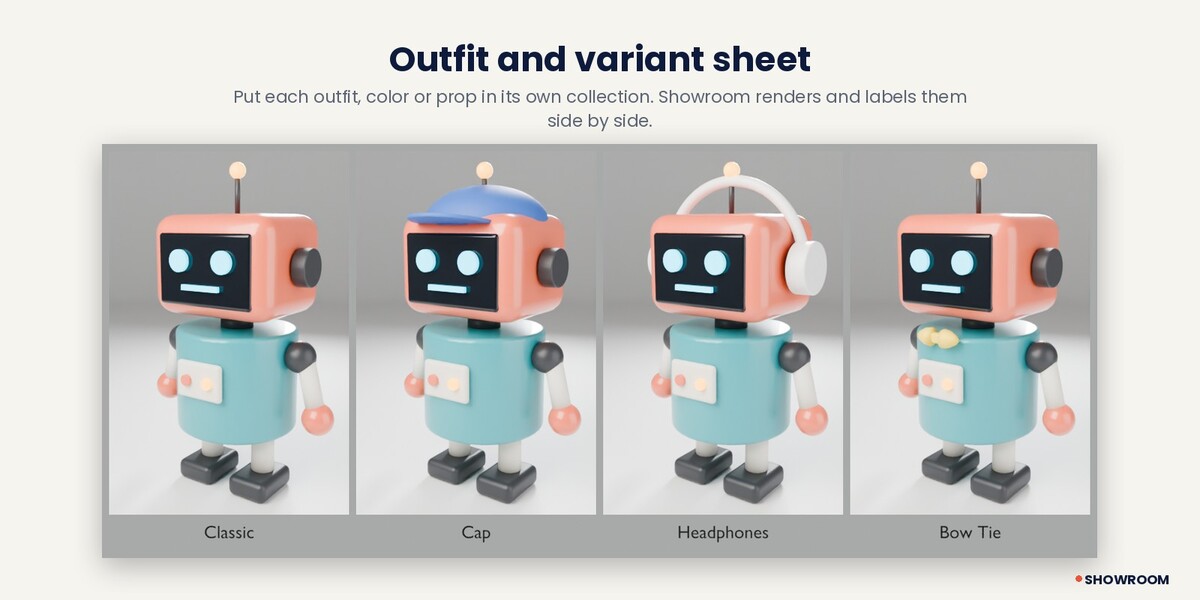
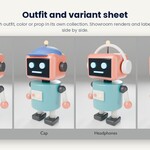
- Variants: put each outfit in its own child collection of one parent collection, pick the parent, then Variant Sheet.
Turntable
Set Up Turntable makes a seamless 360° loop (Space to preview). Render Turntable saves an MP4 or PNG frames.
Remove everything
The trash button next to Rebuild deletes everything Showroom created and restores your camera, world and render settings.
The full PDF guide and a demo scene (robot with expressions and outfits) are included in the download.
Have questions about this product?
Login to message
| Blender Extension Compatible | Yes |
| Published | 1 day ago |
| Blender Version | 4.2 - 5.3 |
| Extension Type | Add-on |
| Render Engine Used | Cycles |
| License | GPL |

Discover more products like this
character sheet camera vrchat turntable render presets shape keys product render turnaround clay-render Studio Lighting portfolio wireframe render