Shutter - 2D Toolset for Blender
 Johnson Martin

Installing Shutter:
To Append nodes into a Blender scene go to File>Append and navigate to the node groups folder within the .blend, select all the desired nodes and click Append.
To save the nodes to your startup file. repeat the process above, and go to File>Save Startup file. Now eatch time you start Blender, Shutter can be accessed using the Add menu in the node editor.
Node Descriptions:
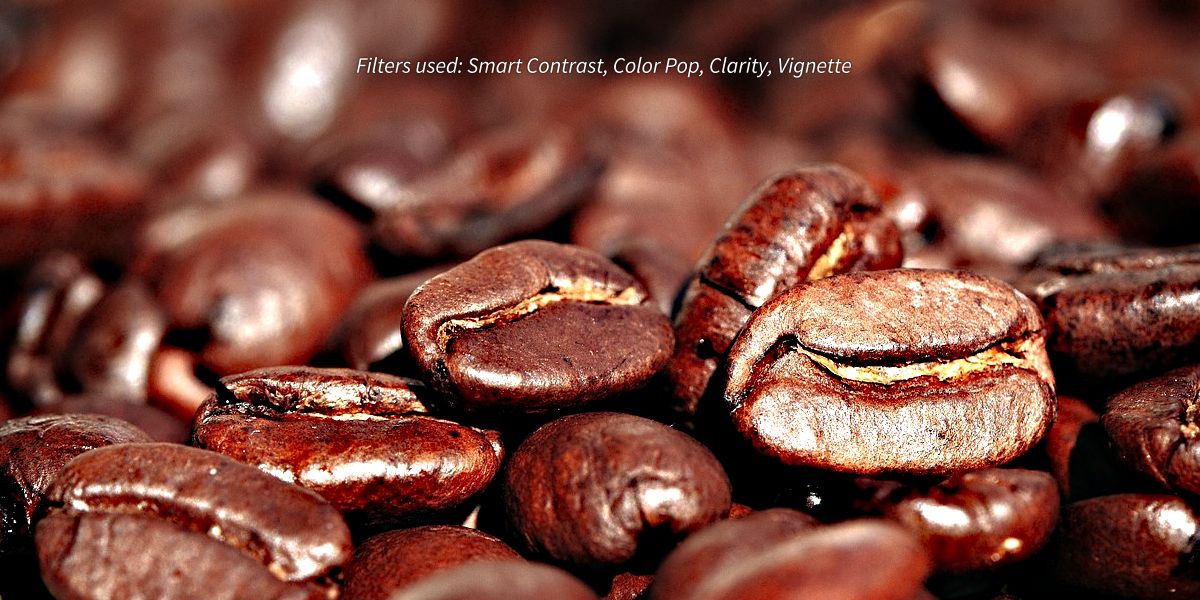
Smart Contrast
Applies both contrast and brightness for optimal contrasting.


Temperature
Useful for changing the mood of the composition/picture to colder or warmer tones.


Tint
Magenta/green color tones can be changed with this node.


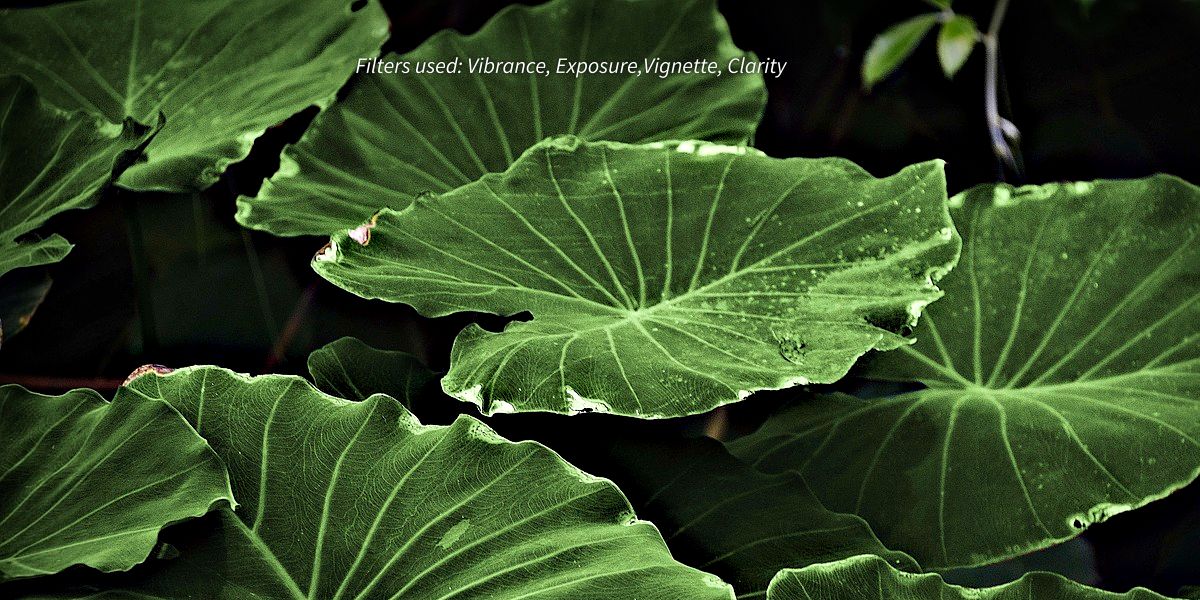
Vibrance
Similar to saturation, but stronger effect in less saturated areas.


Clarity
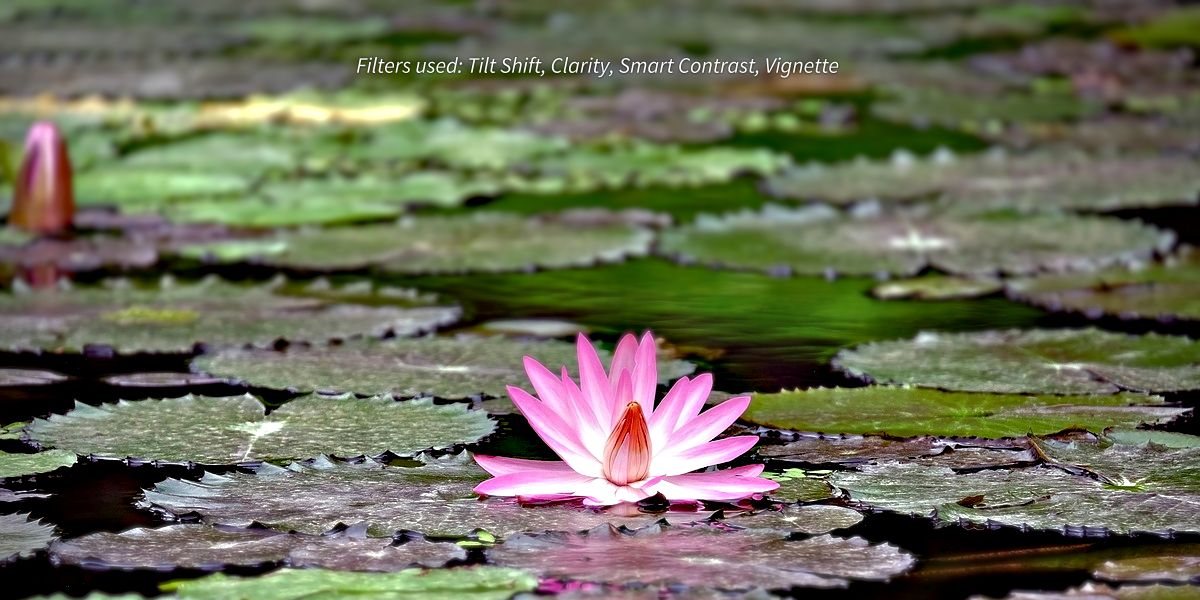
By using large radius sharpening this node enables one to create a deeper and clearer image.


Exposure
Similar to a cameras exposure you can boost or decrease the overall exposure of an image.


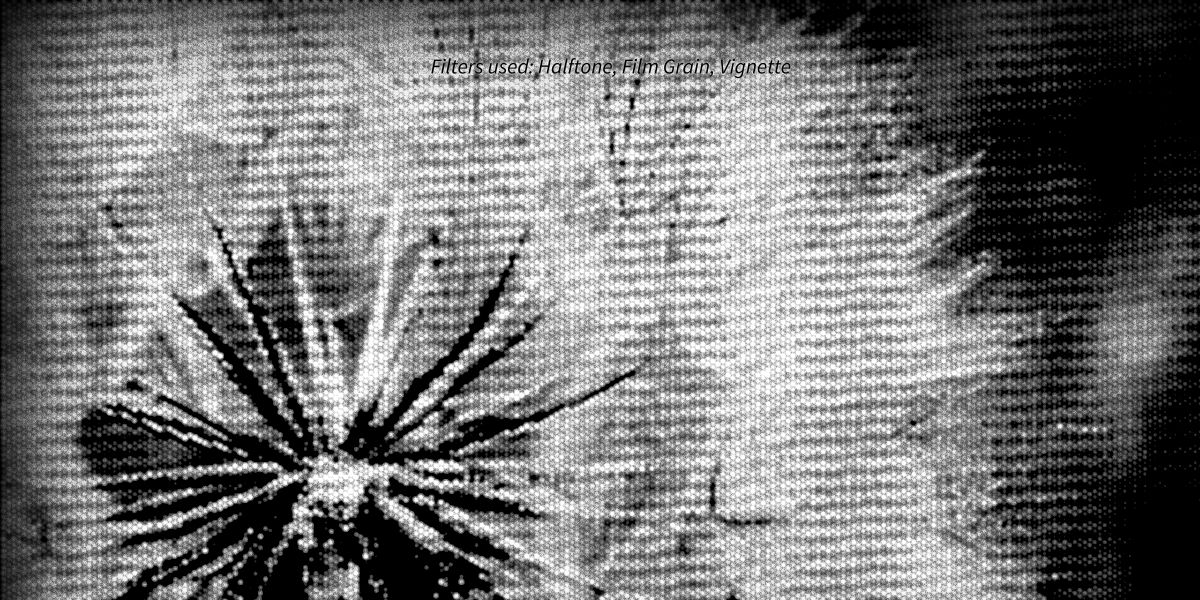
Vignette
The darkening of an image towards the edges is called vignette and can easily be achieved with this node.


Sharpen
A node for sharpening the image using the popular unsharp mask sharpening method.


White Balance
Set the white- and/or blackpoint for quick and easy white balance.


Creative Nodes
Halftone
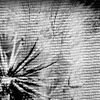
This node creates a dotted black and white version of the input image.


Blur Vignette
Same as the regular vignette, but instead of darkening the edges of the image this node blurs them.


Film Grain
Can be used to add small noise/grain to the image for a more realistic look.


Color Pop
Makes colors pop by desaturating low saturation areas.


Tilt Shift
This node applies the effect of a Tilt Shift lens to the image, by bluring the top/bottom part of it.


Thermal Vision
Name says it all.


Soft Glow
Creates a soft glow, which adds a "dream like" feeling to the image.


Bloom
Classic bloom effect, adds glare to bright areas of an image.


Edge Detect
An edge-detection filter, can be used to create line art from an image.


Utilitiy Nodes
Denoiser
Remove noise from an image using bilateral blur with this node.


Average Color
Returns the average color of an image.


Unsharp Mask
Use the input image to create an unsharp mask which can then be used for other tasks, for example sharpening.


Pixelate
Creates a pixelation effect, the image dimensions are not altered.


Have questions about this product?
Login to message
| Sales | 40+ |
| Dev Fund Contributor | |
| Published | over 10 years ago |
| Blender Version | 2.6x, 2.7x |
| Render Engine Used | Blender Internal |
| License | Royalty Free |
