 peterz



Smart Flow Replay
Record Once. Replay Anywhere. Automate Blender Without Writing Code.
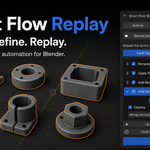
Smart Flow Replay is a no-code workflow automation add-on for Blender. It lets you record repetitive object-processing tasks, refine every step, and replay the complete workflow across individual objects, collections, or large selections.
Think of it as an artist-friendly “Actions” system for Blender: perform a workflow once, save it, and reuse it whenever you need consistent results.
Whether you are preparing game assets, cleaning imported models, building modifier stacks, standardizing object names, publishing assets, or exporting batches of FBX files, Smart Flow Replay helps turn repetitive manual work into a reliable and reusable process.
No Python knowledge is required.
Why Smart Flow Replay?
Blender artists often repeat the same sequence of operations across dozens—or hundreds—of objects:
- Rename every object using the same convention
- Apply transforms
- Add and configure modifiers
- Prepare assets for the Asset Browser
- Export objects to individual FBX files
- Apply different operations depending on object properties
- Repeat the same production checklist in multiple projects
Doing this manually is slow, inconsistent, and easy to get wrong. Traditional scripting can solve the problem, but writing and maintaining Python tools is not practical for every artist.
Smart Flow Replay gives you the benefits of automation through a visual, editable workflow.
Record your actions, review the captured steps, adjust their values, choose your targets, and run.
Key Features
Record Blender Workflows
Click Start Recording, perform your object operations, and let Smart Flow Replay build the workflow for you.
The recorder monitors completed Blender operations and meaningful object-state changes while filtering out irrelevant activity such as viewport navigation, selection-only changes, Undo/Redo, and actions performed inside the add-on itself.
Every detected action is classified as:
- Captured — the operation can be replayed reliably
- Partially Captured — the operation was recorded but should be reviewed
- Not Recorded — the action is unsupported and is excluded from the workflow
A recording completeness summary makes it easy to see exactly what was captured before running the workflow on important assets.
Smart Flow Replay is designed primarily for object-processing workflows performed in Object Mode. Unsupported modes and editor contexts are reported immediately, helping you avoid incomplete or misleading recordings.
Edit Every Step Visually
Recorded workflows are not locked or opaque. Every workflow remains fully editable.
You can:
- Reorder steps
- Duplicate steps
- Temporarily disable steps
- Remove unnecessary steps
- Edit recorded values
- Add new steps manually
- Restore supported parameters to their originally recorded values
- Add conditions that control when individual steps should run
Steps are executed from top to bottom, giving you a clear and predictable view of the complete process.
All important settings remain directly inside the step they affect. For example, Bevel width and segments appear inside the Bevel step, while Mirror axes, clipping, and merge settings stay inside the Mirror step.
There is no need to search through a separate technical configuration screen.
Built-In Workflow Steps
Smart Flow Replay includes artist-friendly steps for common production tasks:
- Rename Object
- Apply Transform
- Move Object
- Rotate Object
- Scale Object
- Add Modifier
- Add to Asset Browser
- Remove from Asset Browser
- Export FBX
- Replay supported advanced Blender actions
Common modifier workflows are supported, including:
- Bevel
- Mirror
- Array
- Solidify
- Subdivision Surface
- Boolean
- Decimate
- Weld
- Weighted Normal
Modifier values remain editable, making it easy to reuse the same workflow with different production settings.
Batch Process Your Scene
A workflow can be applied to more than a single object.
Choose targets from:
- Selected Objects
- A Collection
- All Visible Meshes in the current view layer
For most batch operations, Each Object mode runs the workflow independently on every target. If one object fails, Smart Flow Replay can restore that object and continue processing the rest of the batch.
For operations that depend on relationships between objects, use Selection as a Group. This is particularly useful for Boolean workflows and operations that depend on the active object or the complete selection.
The active-object role card clearly identifies the active object and previews how many selected meshes will be modified.
Smart Conditional Workflows
Not every object should always receive every operation.
Smart Flow Replay lets you attach optional conditions to individual steps. A step can run only when all configured conditions match, or when any one of them matches.
Conditions can check:
- Object type
- Object name patterns
- Current Blender mode
- Existing modifiers
- Assigned materials
- Custom properties
- Minimum selection count
Conditions can also be inverted.
When a condition does not match, the step is safely skipped instead of being treated as a failure. This makes it possible to build flexible workflows that adapt automatically to mixed selections.
For example, one workflow can:
- Apply Decimate only to high-detail meshes
- Add Bevel only to objects with a specific name
- Skip objects that already contain a required modifier
- Run a step only when a material or custom property exists
- Apply a group operation only when enough objects are selected
Adjustable Workflow Parameters
A saved workflow does not have to be a rigid recording.
You can edit values such as:
- Transform values
- Rotation
- Scale
- Modifier width
- Segment count
- Array count
- Subdivision level
- Rename templates
- Export destinations
- Overwrite behavior
This allows one workflow to serve many different projects and asset types.
Powerful Naming and Path Variables
Rename steps and FBX export paths can use dynamic placeholders:
-
{object_name}— the object name at the time the step runs -
{index}— the object’s one-based position in the batch -
{workflow_name}— the current workflow name
Example:
//exports/{object_name}.fbx
These variables make it easy to create numbered asset names, standardized production naming, and automatic per-object exports without manually entering every filename.
Blender-relative paths beginning with // are supported for saved .blend projects.
Automatic Safety Checks
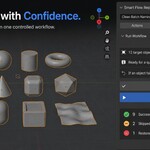
Before execution, Smart Flow Replay validates the workflow and its targets.
The safety check reviews:
- Target availability
- Step configuration
- Editable values
- Step conditions
- Advanced Blender actions
- Output paths
- File overwrite settings
- Selection and active-object requirements
Errors must be corrected before execution can begin. Warnings and notices are presented for review, especially when a workflow includes advanced operations or writes external files.
If the workflow, targets, parameters, or relevant settings change, the previous safety result is invalidated and a new check is performed.
Users who want more control can enable Advanced Controls to run a separate Check Without Running operation before execution.
Failure Recovery and Rollback
Batch automation should not leave your scene in an unpredictable state.
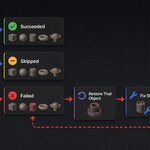
Smart Flow Replay provides three failure-handling strategies:
Restore That Object
If one target fails, changes made to that object during the current run are restored. The remaining targets continue processing.
Restore Entire Batch
The workflow stops after the first failure and restores all batch targets to their state before execution began.
This mode also restores the batch when a multi-object progress run is cancelled.
Keep Partial Changes
Successful changes made before the failure are preserved. This option is useful when partial results are acceptable or when you want to inspect the exact failure state.
Supported restoration includes object names, transforms, affected object data, modifier stacks, and Asset Browser state.
Files already written by export steps are considered external side effects and are never silently deleted.
Responsive Progress and Cancellation
Long multi-object workflows remain responsive between targets.
During execution, Smart Flow Replay displays:
- Current object
- Current step
- Completed object count
- Overall progress
- Failures
- Skipped targets
You can choose Cancel After Current Object or press Escape to stop before the next object begins.
The current object is allowed to finish, preventing the workflow from interrupting it in an unknown Blender state.
Clear Results and Recovery Tools
After execution, Smart Flow Replay presents an easy-to-read result report with:
- Succeeded count
- Failed count
- Skipped count
- Restored object count
Useful recovery actions include:
- Select Failed — select all failed objects still available in the view layer
- Rerun Failed — retry only the failed targets while preserving their original batch indices
- Select Skipped Objects — select targets for which no step was executed
- Open Output Folder — open the first output directory used during the run
- Copy Summary — copy a plain-text report for production notes or support
- Undo Last Run — invoke Blender Undo immediately after the workflow
These tools help you recover from partial batches without manually rebuilding selections or searching through technical logs.
Save and Organize Your Actions
The active workflow is stored inside the Blender scene and saved with the .blend file.
For workflows you want to reuse across multiple projects, choose Save to My Workflows. Saved actions are stored in your Blender user configuration and remain available beyond the current scene.
The Actions view includes:
- Workflow search
- Favorites
- Recently used ordering
- Direct workflow launching
- Quick access to step editing
- Per-workflow management controls
This creates a practical personal library of repeatable Blender production actions.
Share Workflows Safely
Smart Flow Replay workflows can be exported as portable .sfrflow files and shared with other users.
Shared workflow files contain serialized workflow data—not Python source code.
Imported workflows receive a human-readable permission summary that identifies:
- Object changes
- External disk writes
- Advanced Blender operations
- Steps requiring additional review
The first execution is blocked until the imported workflow’s permissions have been reviewed and confirmed.
The importer also limits file size, step count, condition count, and accepted data types. Dangerous operator categories are rejected. Imported workflows cannot execute Python, delete objects, or open and save .blend files.
This makes workflow sharing more transparent and controlled than exchanging arbitrary scripts.
Starter Actions Included
Smart Flow Replay includes built-in Starter Actions that demonstrate practical automation patterns and help new users get productive immediately.
Examples cover workflows such as:
- Clean batch naming
- Transform adjustment and cleanup
- Hard-surface finishing
- Conditional mesh optimization
- Asset Browser publishing
- FBX delivery pipelines
These templates demonstrate features including:
- Editable step values
- Batch numbering
- Relative transforms
- Conditions and skipped steps
- Modifier stacks
- Asset status changes
- External file output
- Safety review
Starter Actions can be used as ready-made utilities, learning examples, or foundations for custom studio workflows.
Ideal For
Smart Flow Replay is useful for:
- 3D artists
- Game asset creators
- Hard-surface modelers
- Environment artists
- Asset Browser users
- Freelancers handling repeated client deliveries
- Small studios without dedicated pipeline developers
- Technical artists building reusable workflows for a team
- Anyone who wants Blender automation without maintaining Python scripts
Typical use cases include:
- Batch asset preparation
- Standardized modifier stacks
- Object naming and numbering
- Transform cleanup
- LOD preparation
- Conditional mesh optimization
- Asset Browser publishing
- Repetitive hard-surface finishing
- Collection-based processing
- Per-object FBX export
- Consistent delivery pipelines
Typical Workflow
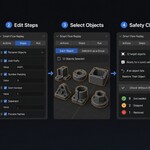
- Create a new workflow or choose a Starter Action.
- Click Start Recording.
- Perform the desired operations in Blender.
- Stop recording and review the captured steps.
- Reorder, edit, disable, duplicate, or remove steps.
- Add optional conditions.
- Save the action for future projects if required.
- Choose selected objects, a collection, or all visible meshes.
- Review the automatic safety check.
- Run the workflow.
- Inspect the result summary and recover or rerun failed targets if necessary.
Compatibility
- Blender 4.2 or later
- Designed primarily for Object Mode and object-processing workflows
- Installed through Blender’s Get Extensions > Install from Disk option
- Available in the 3D Viewport sidebar under the Flow Replay tab
- Workflow files use the
.sfrflowformat - Existing Smart Flow Replay workflow files remain backward compatible
Important Notes
Smart Flow Replay focuses on operations that can be repeated reliably. Some interactive Blender operations depend heavily on a particular editor, mode, selection state, or temporary context and may not be fully recordable.
Partially captured and advanced actions are clearly marked for review. Unsupported contexts are reported instead of being silently converted into unreliable steps.
As with any batch-processing tool, save your .blend file before running a new or imported workflow on important production assets. Testing a new workflow on duplicate objects is also recommended.
Turn Repetition Into a Reusable Production Tool
Smart Flow Replay helps you spend less time repeating routine operations and more time creating.
Record a workflow once. Refine it visually. Save it as an action. Apply it consistently across objects, scenes, and projects—without writing code.
