 Darth Mickey
What is Smart Group
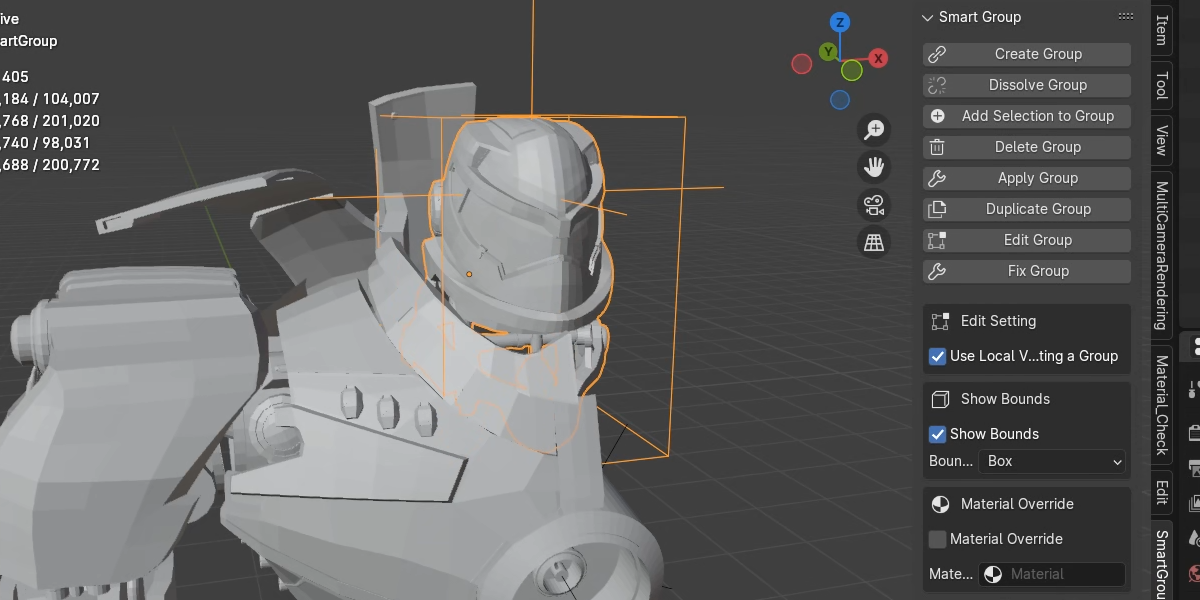
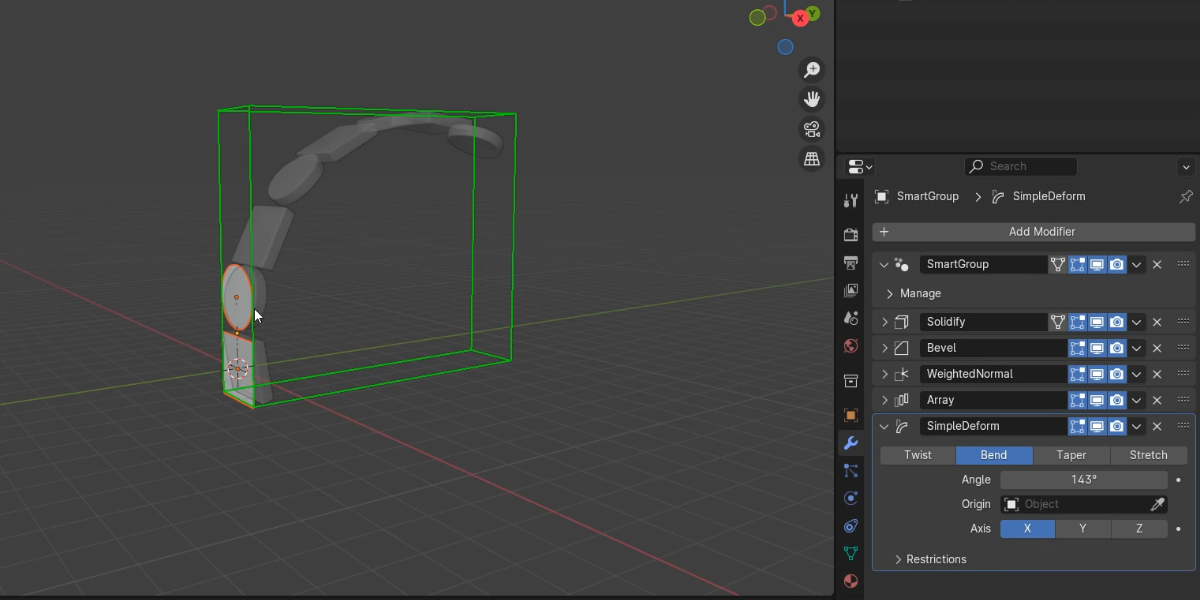
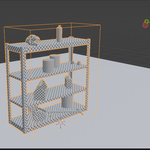
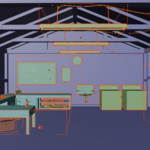
The Smart Group Addon is a tool designed to create group from multiple objects, making it easier to manage items in a scene. It also allows you to add modifiers to the group, which is particularly useful for non-destructive workflows. Additionally, you can override the material of the group. Lastly, it has a better performance in assets management.
Create Group:
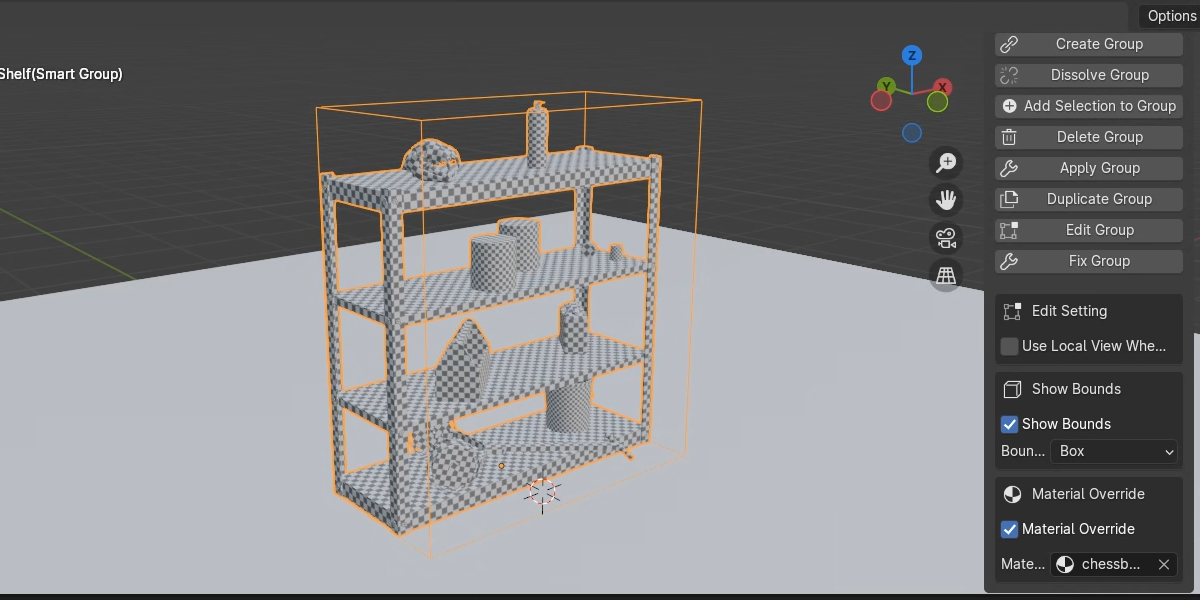
Material Override:
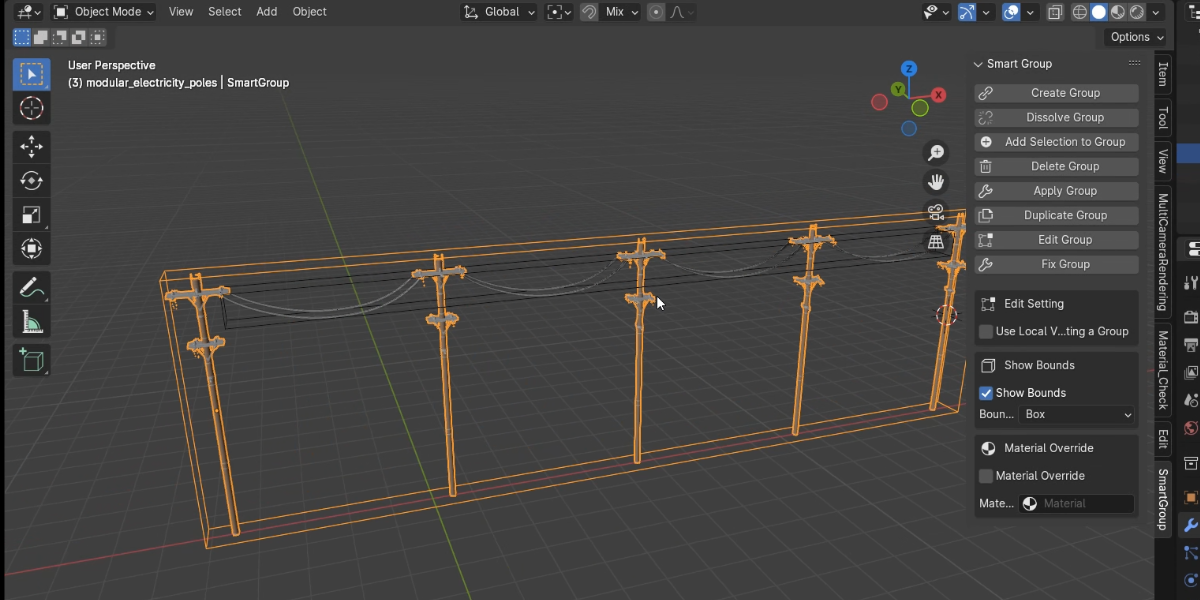
Assets Management:
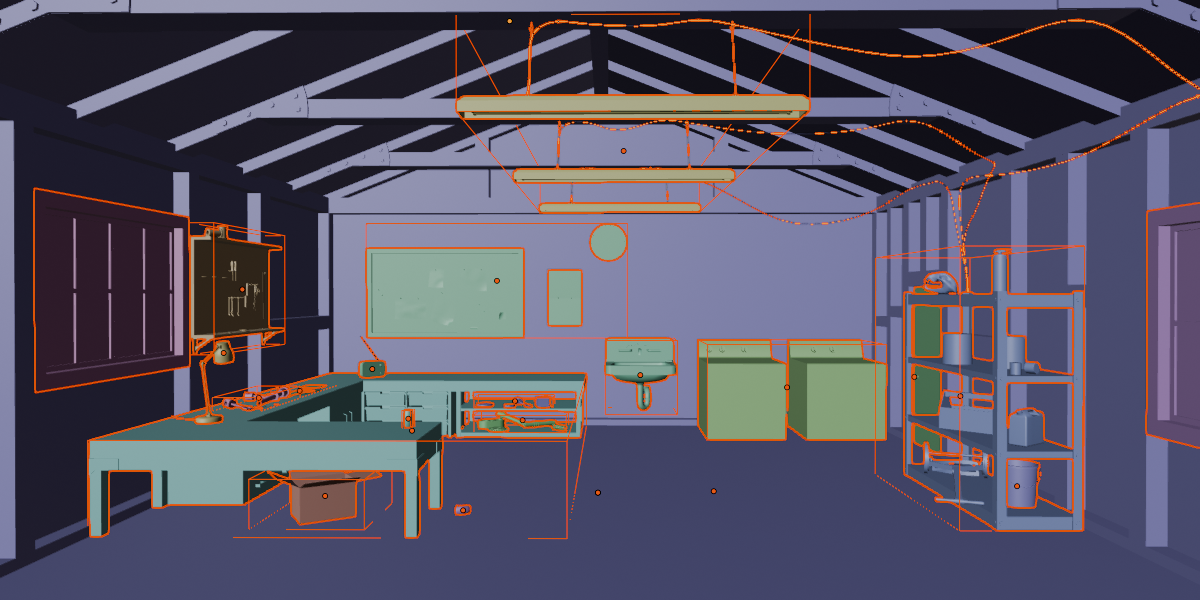
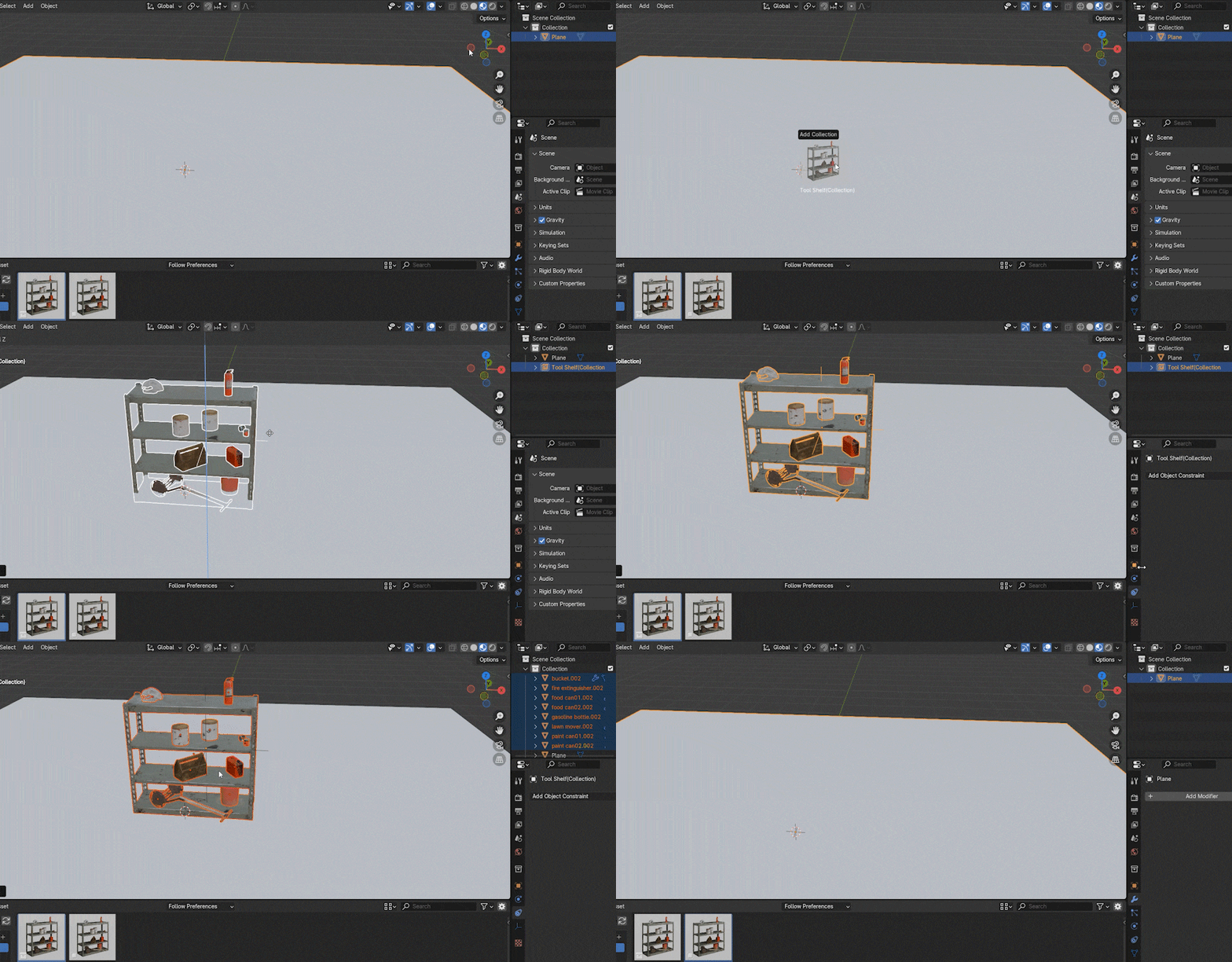
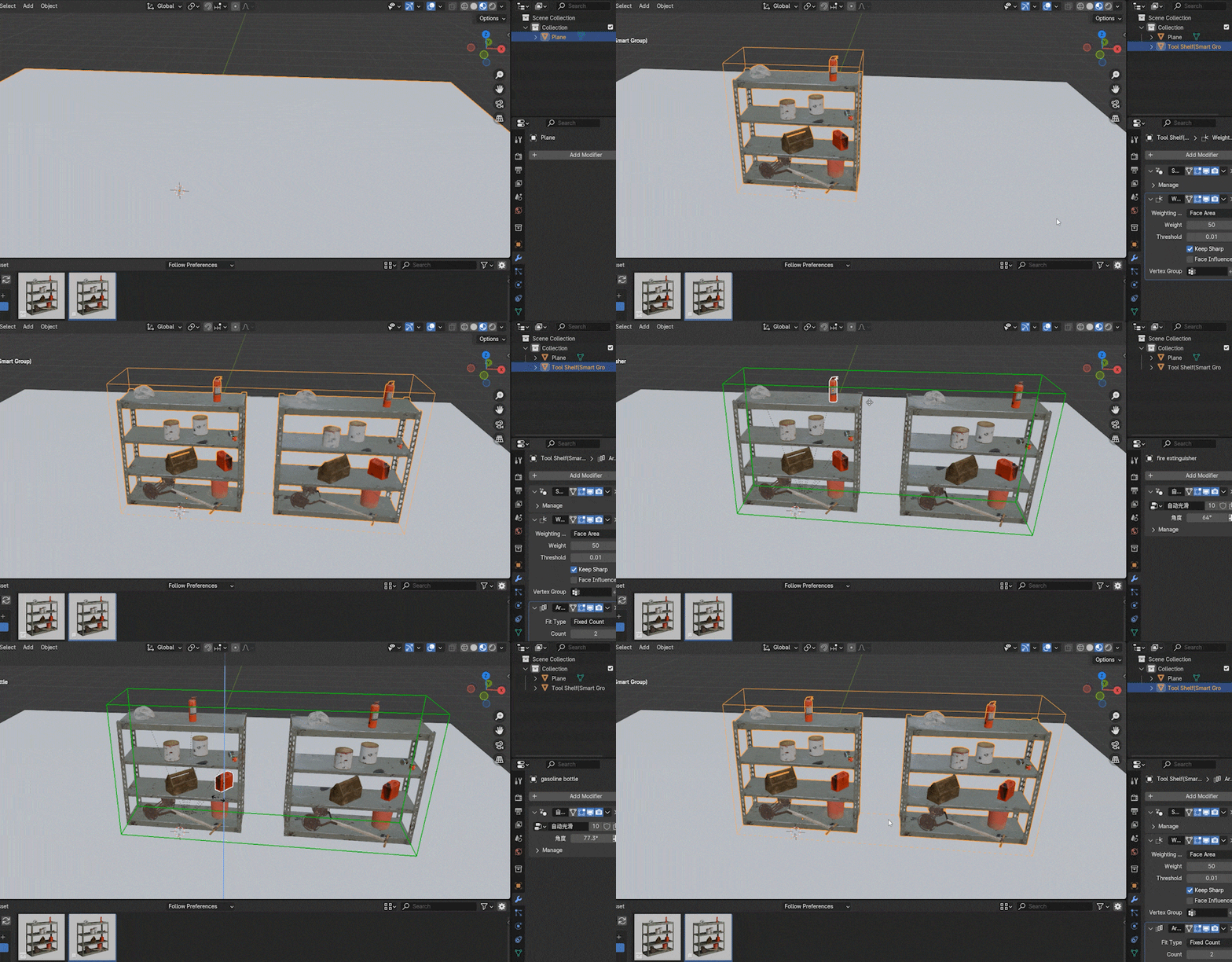
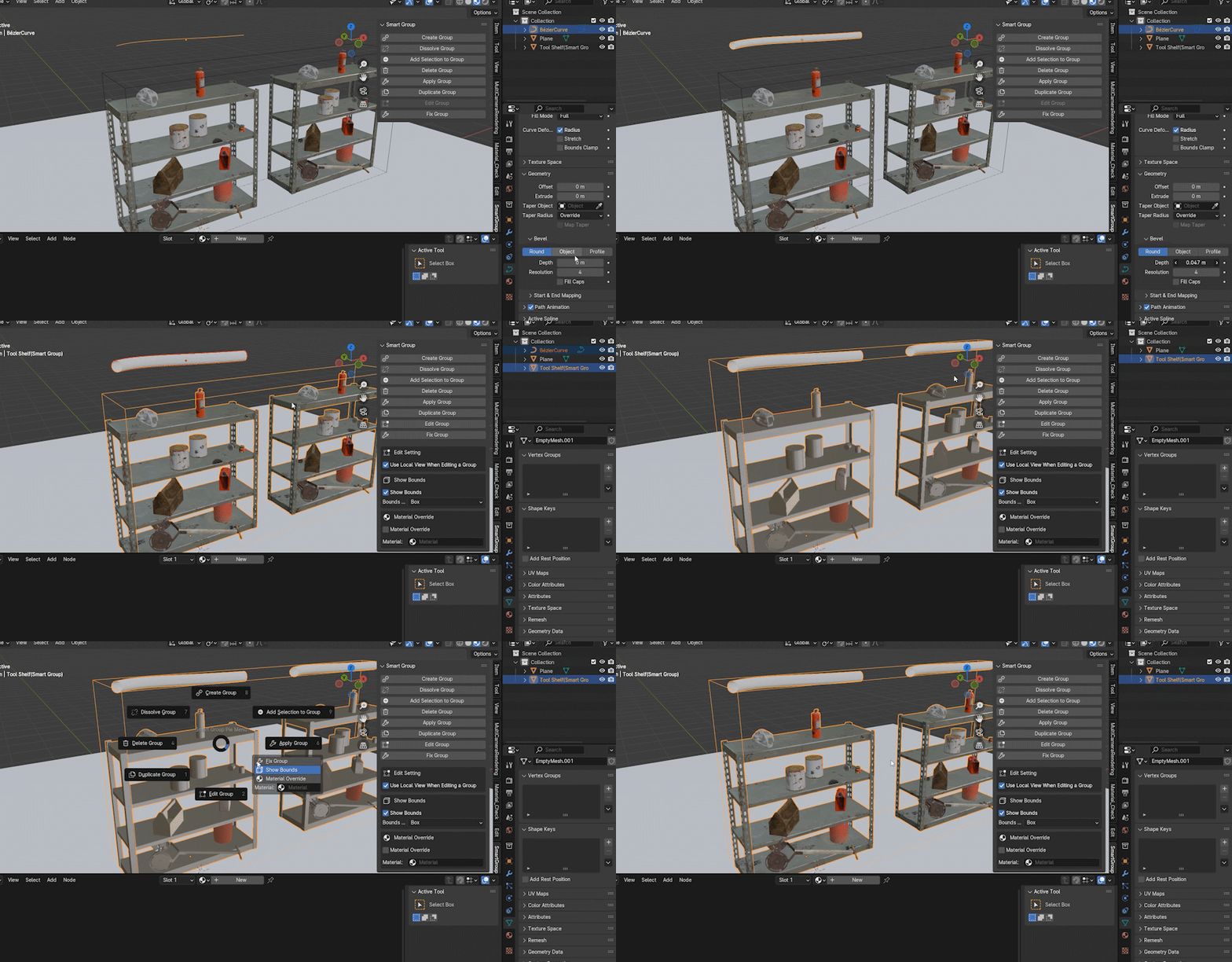
Blender uses collection instance for collection asset(mark collection as asset). But you can't add modifiers to collection instance, also, you have to make instance real to edit them, which is inconvenient. Smart Group can solve this problem.
Collection Asset:
Smart Group Asset:
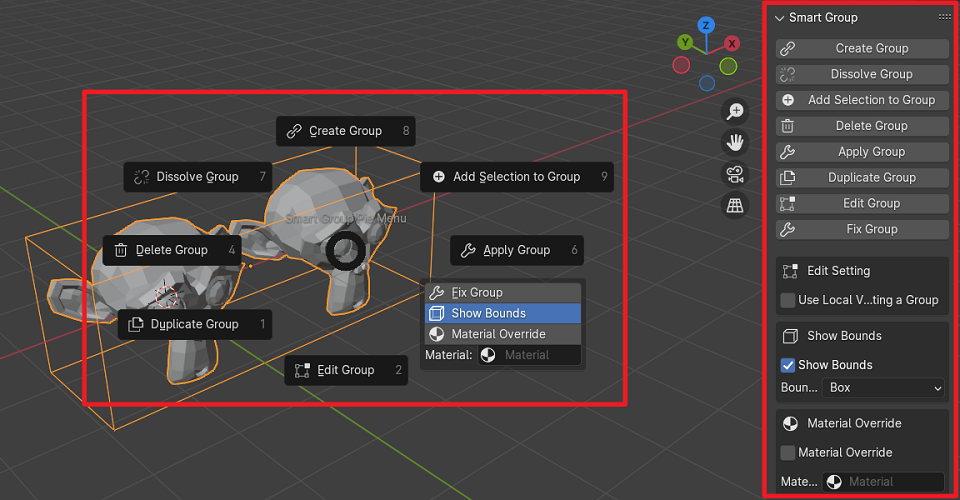
How to use Smart Group
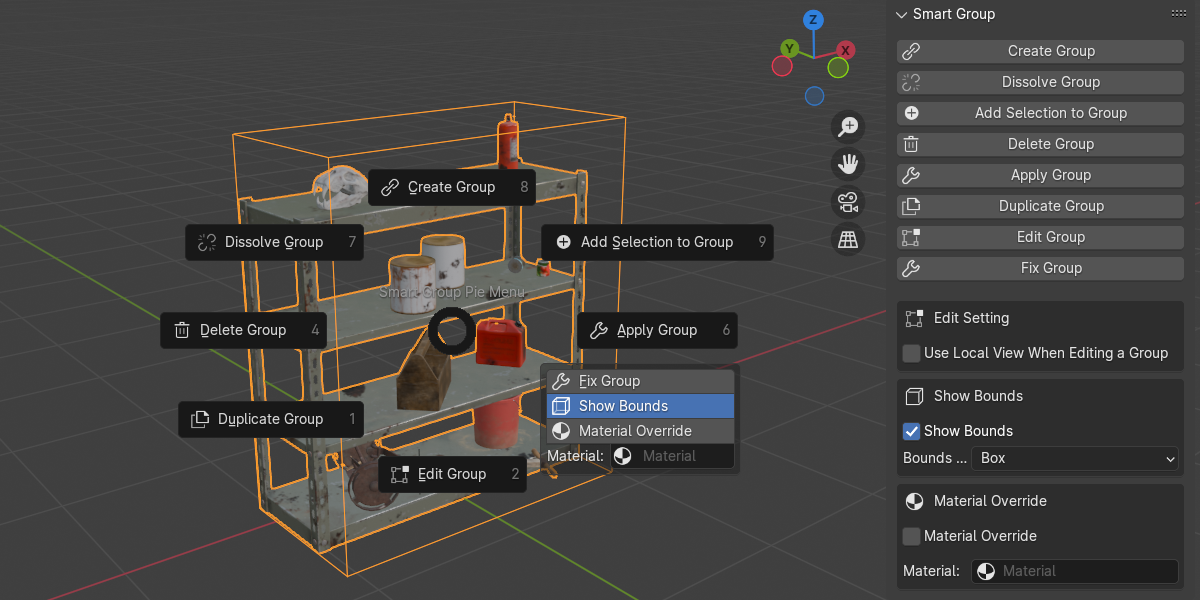
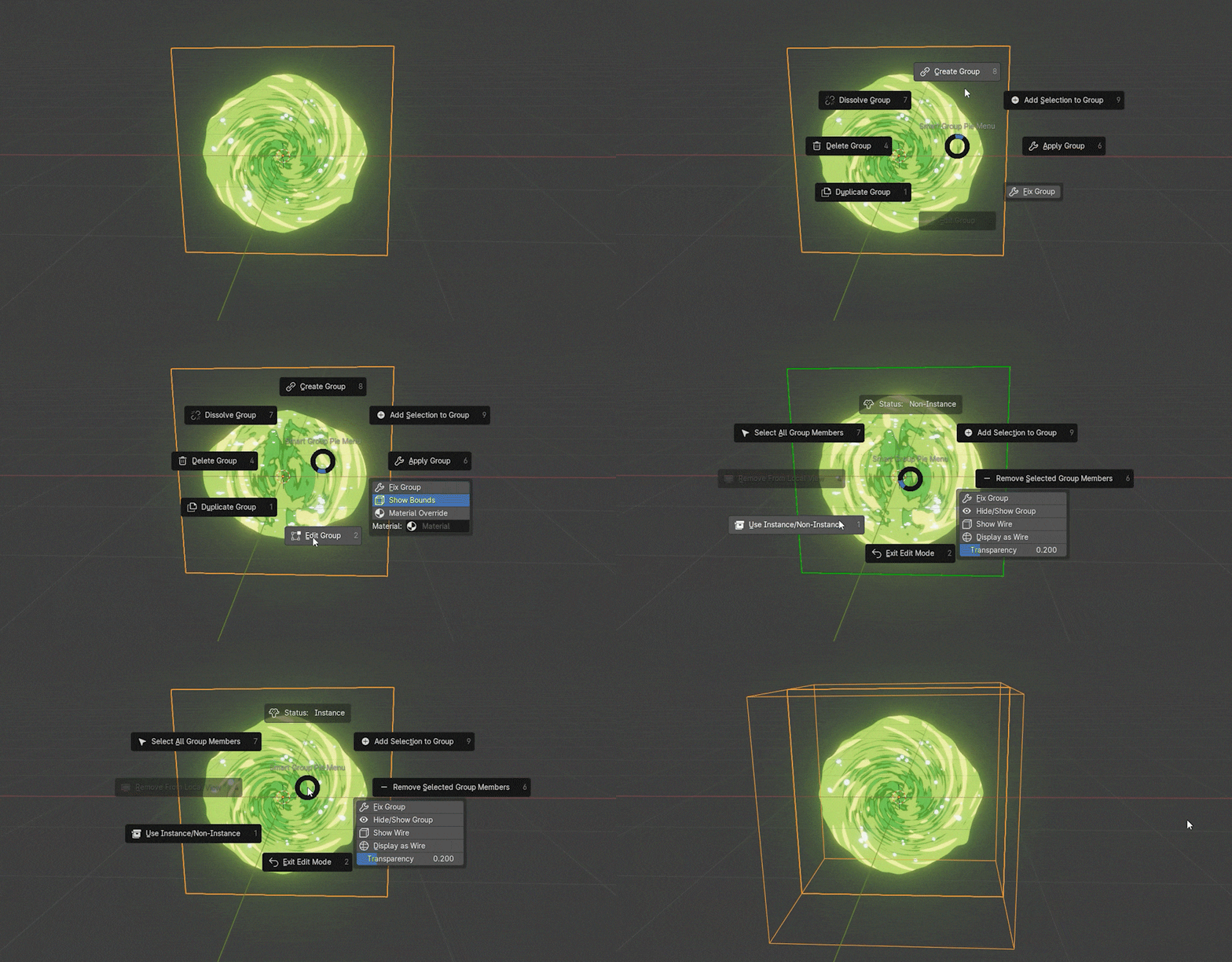
Use the pie menu or n panel, the default shortcut for pie menu is 'Ctrl + G'.
Create Group
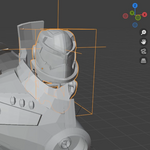
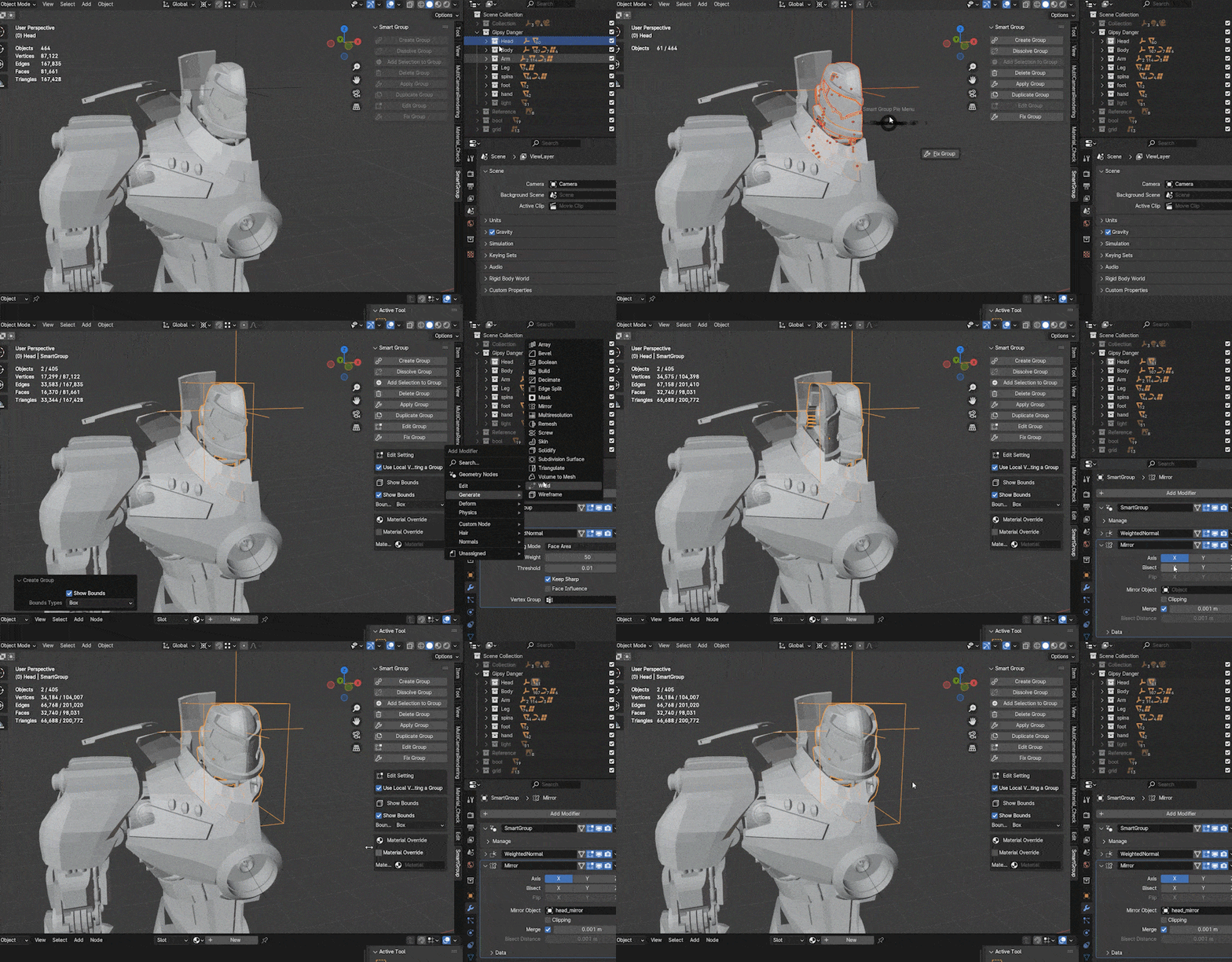
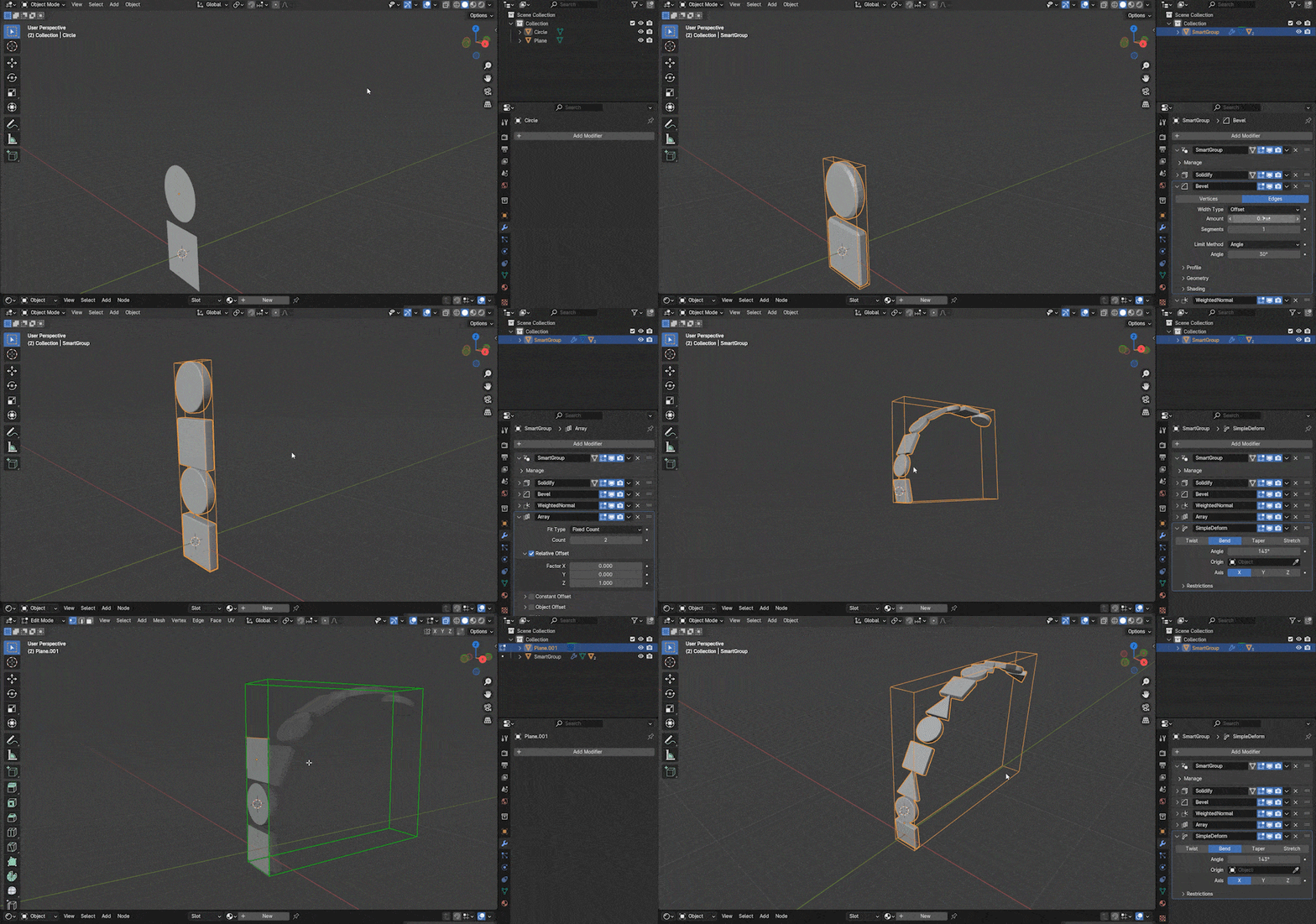
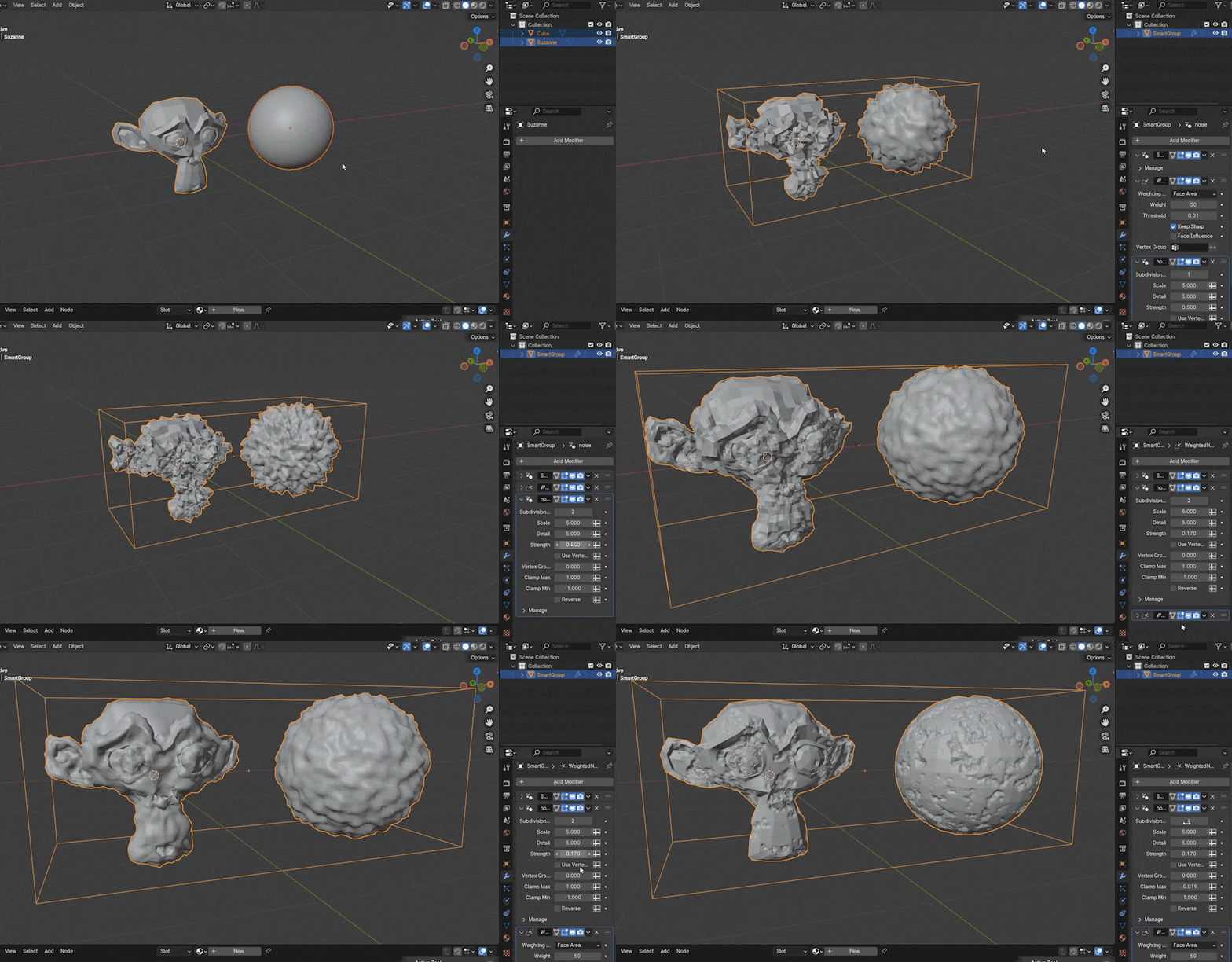
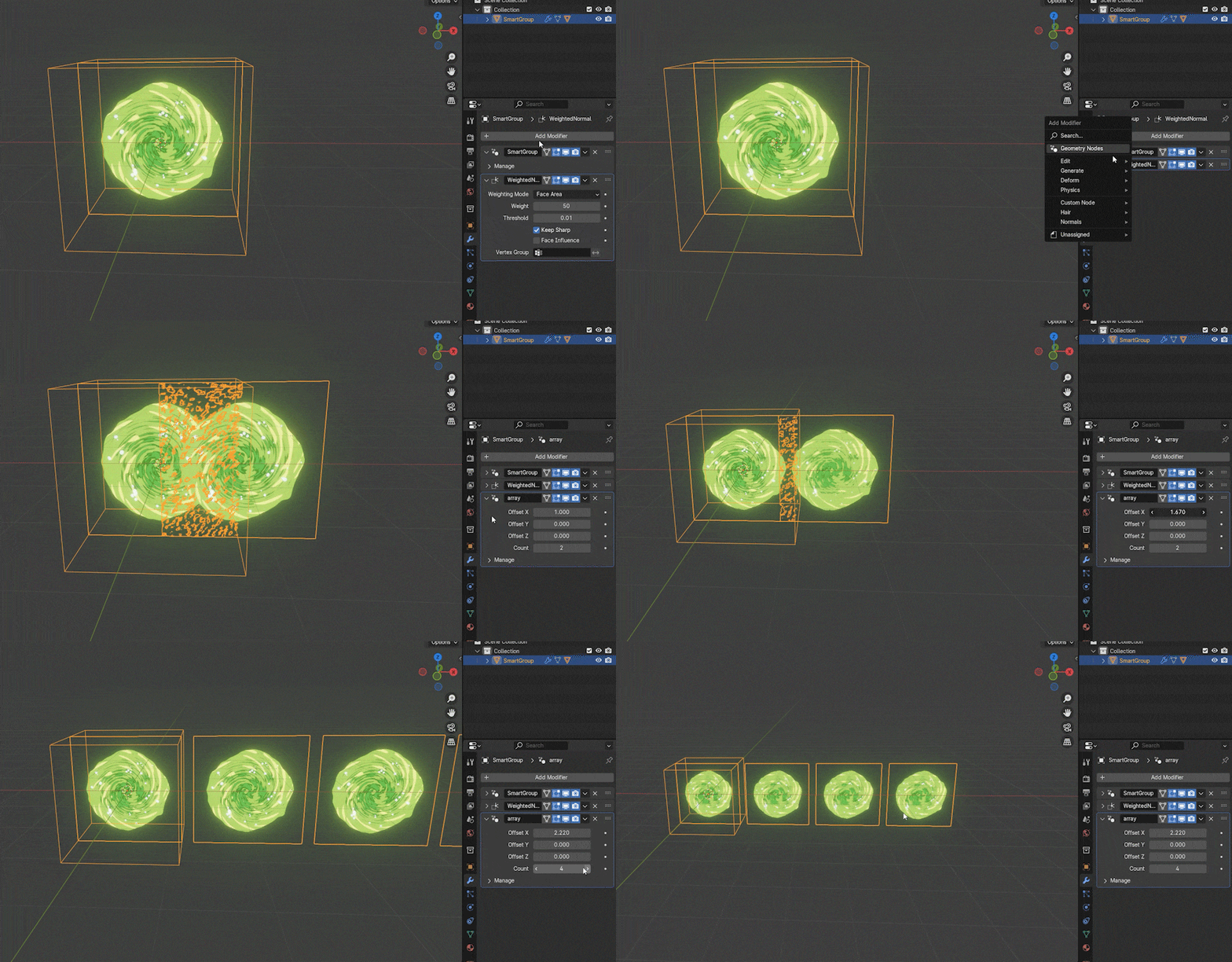
It allows you create a group with selected objects. You can add all kinds of modifiers to the group.
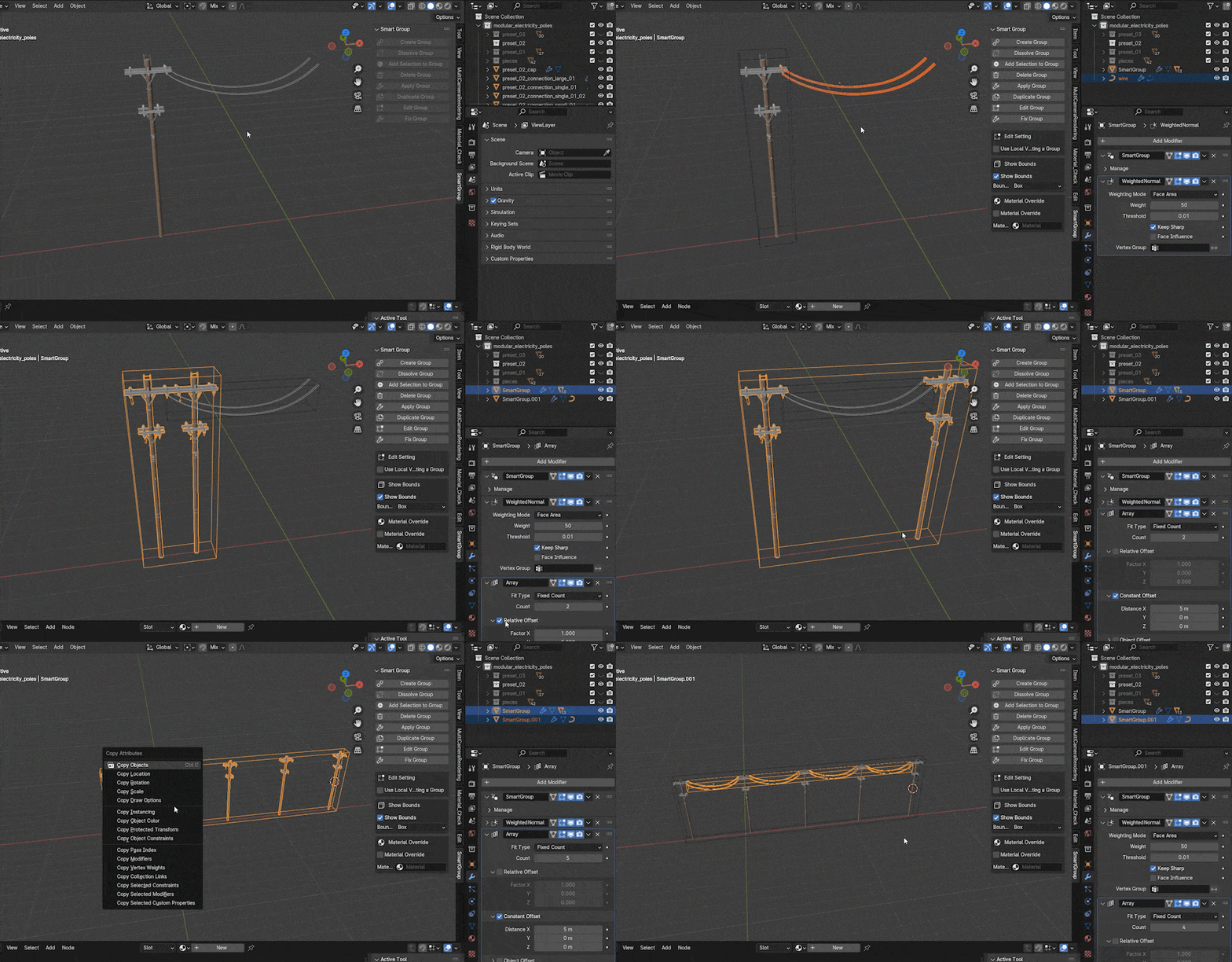
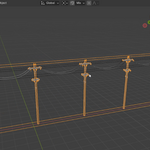
You can also add geometry node modifiers to the group.
Dissolve Group
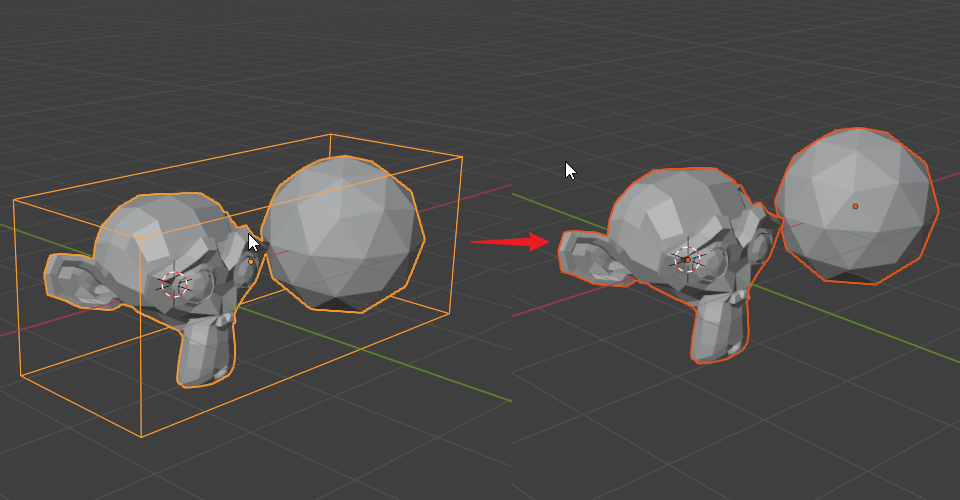
It will dissolve the selected groups into individual objects.
Delete Group
It will delete the selected groups and their group members.
Add Selection to Group
It will add selected objects into the active group.(If the selection includes groups, they will be added into active group as well.)
Duplicate Group
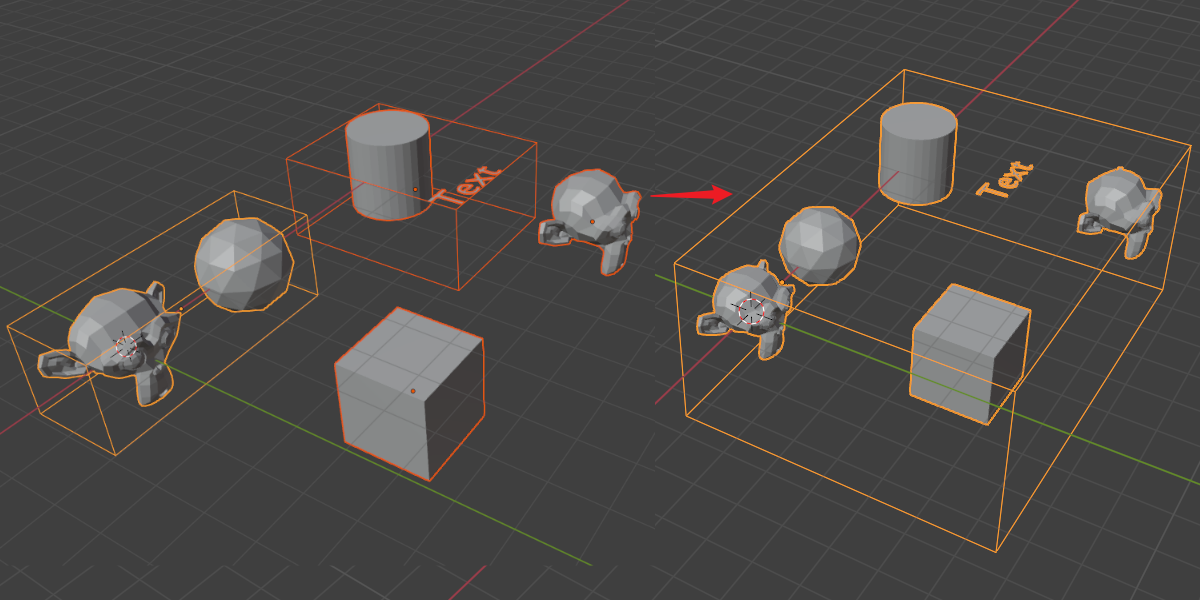
It will duplicate selected groups. The shortcuts for constraint is the same as copying in Blender:
- X - constraint on X-axis
- Y - constraint on Y-axis
- Z - constraint on Z-axis
- Ctrl - snap
- B - snap
Apply Group
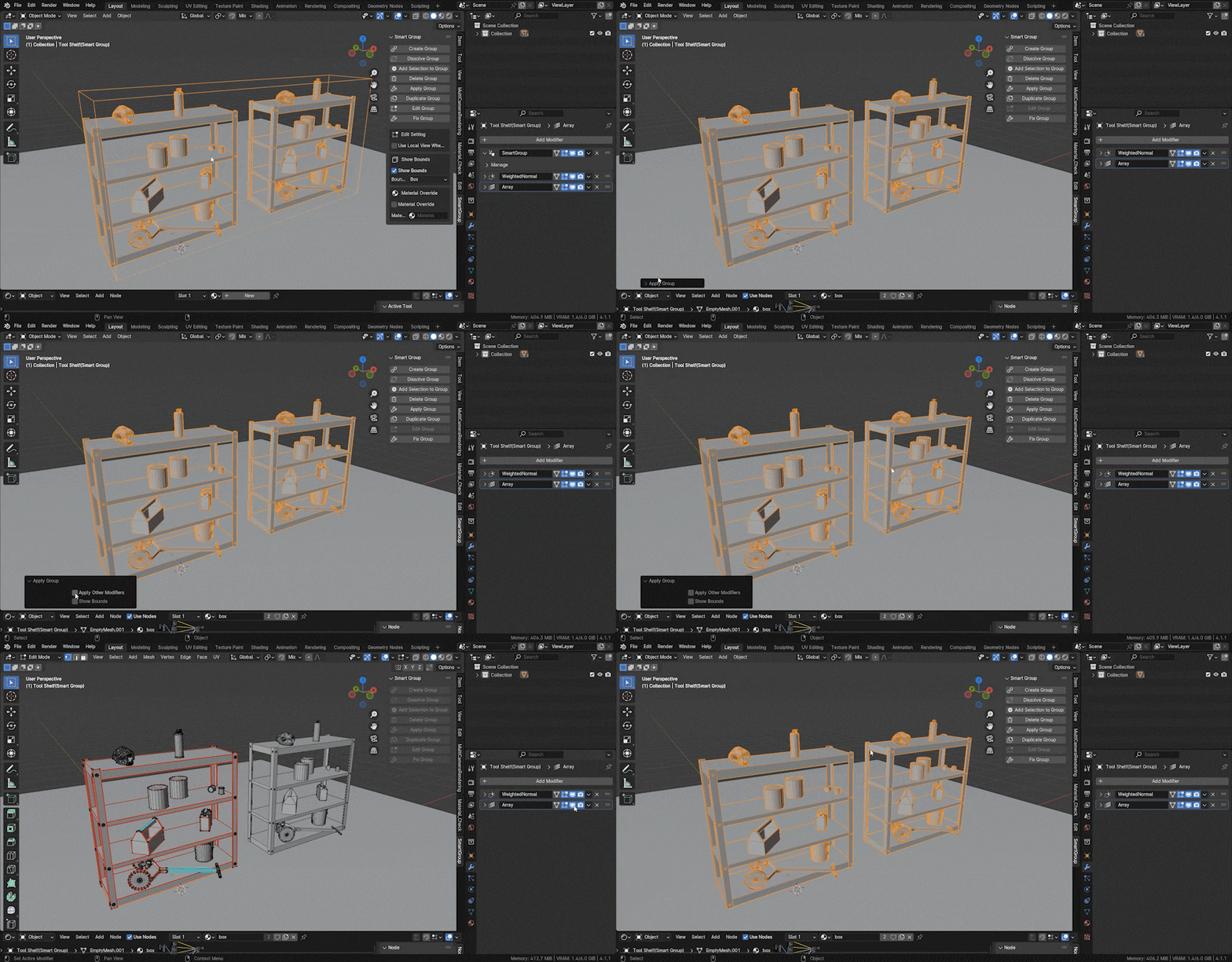
It will apply each selected groups into one object. Applying the modifiers is optional.
Fix Group
When you add some objects that don't have UV maps. It may cause some shading problem. Fix group operator will fix the shading issue.
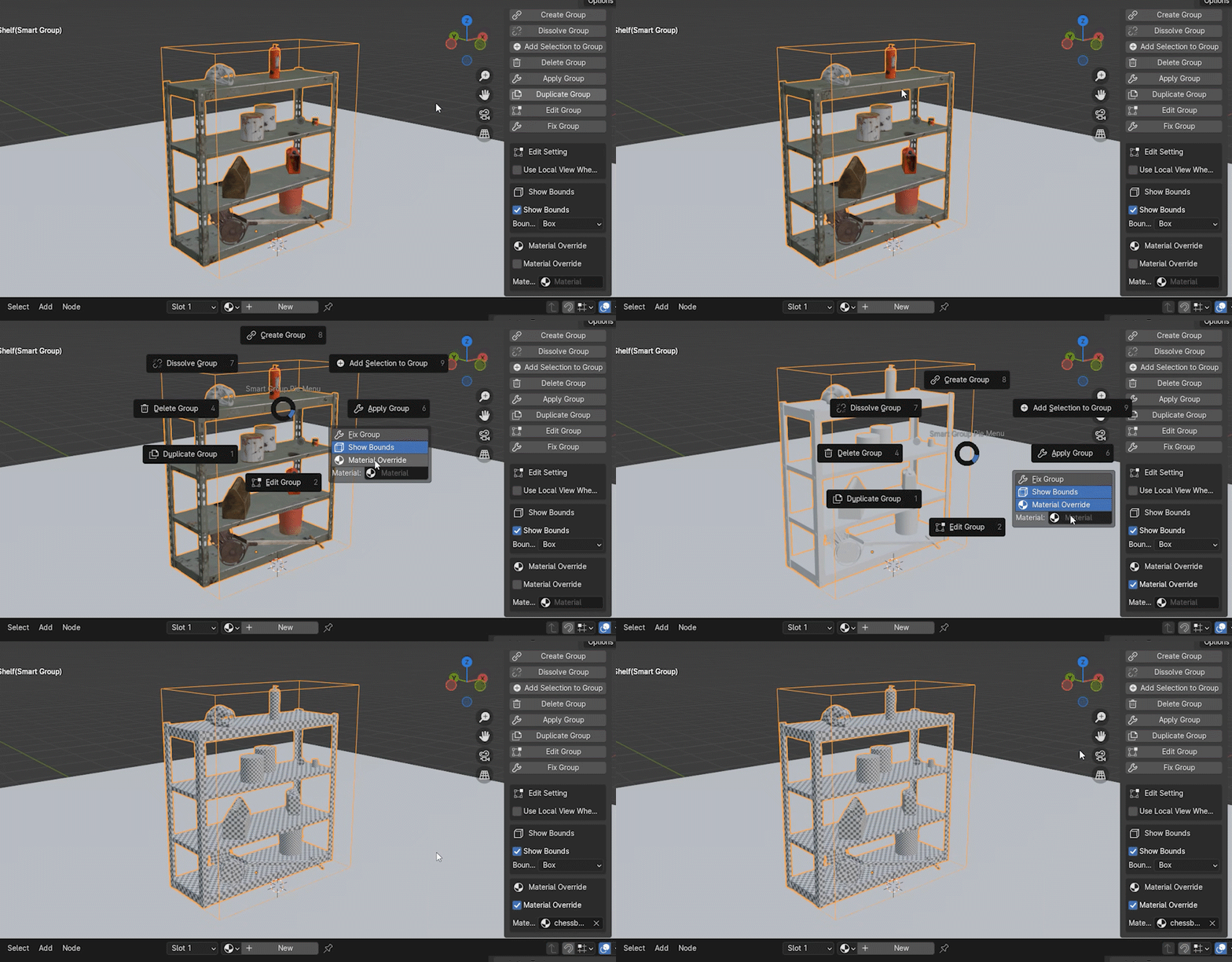
Material Override
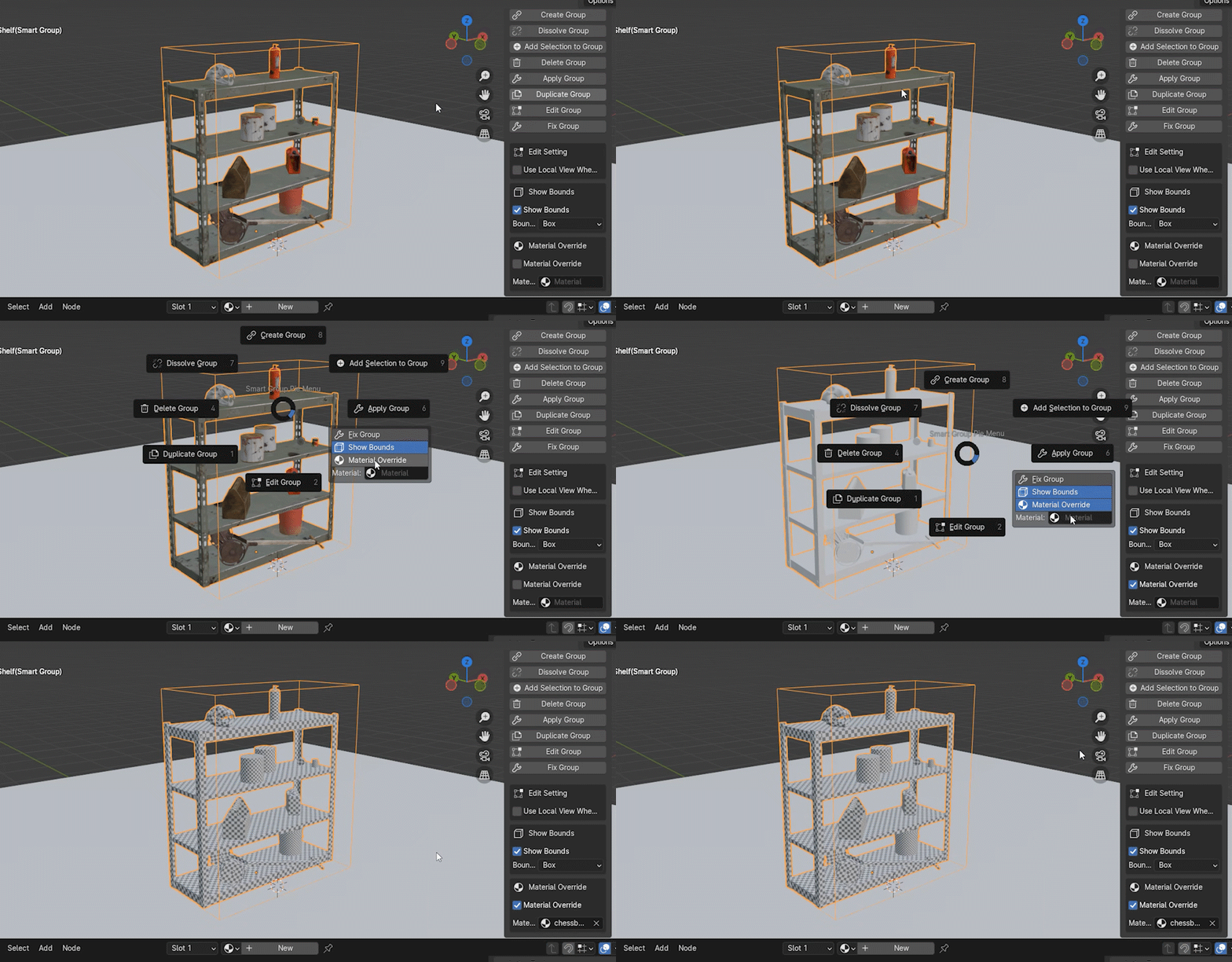
It will override the group's material.
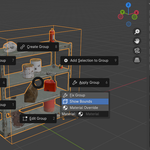
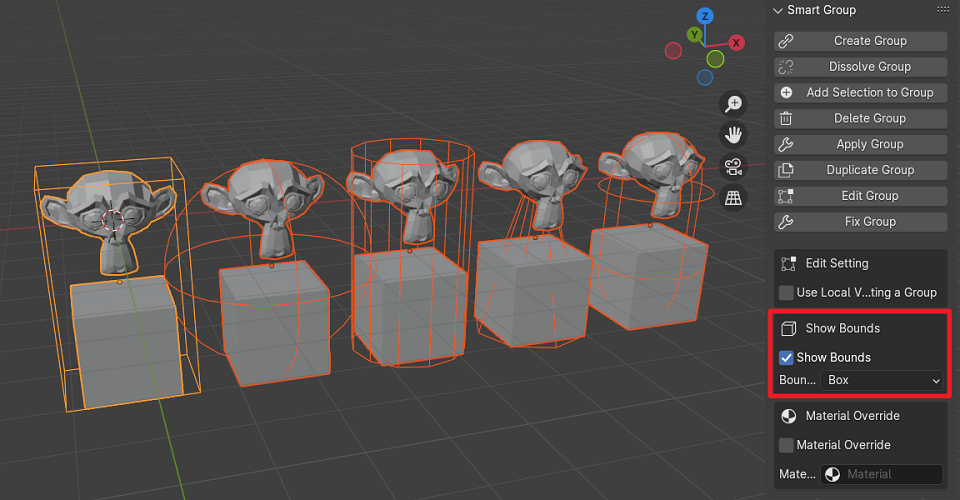
Bounds Setting
It will show the bounds of the group. Bounds types can be changed in n panel.
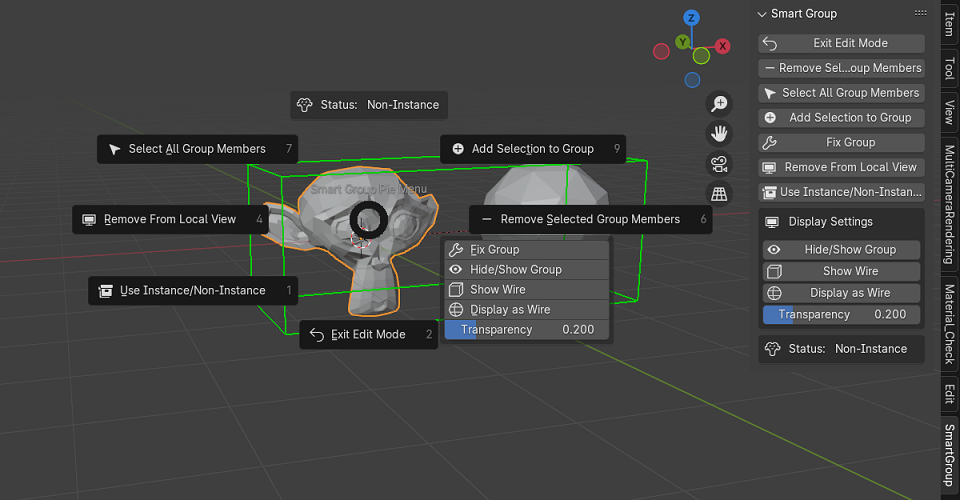
Edit Group
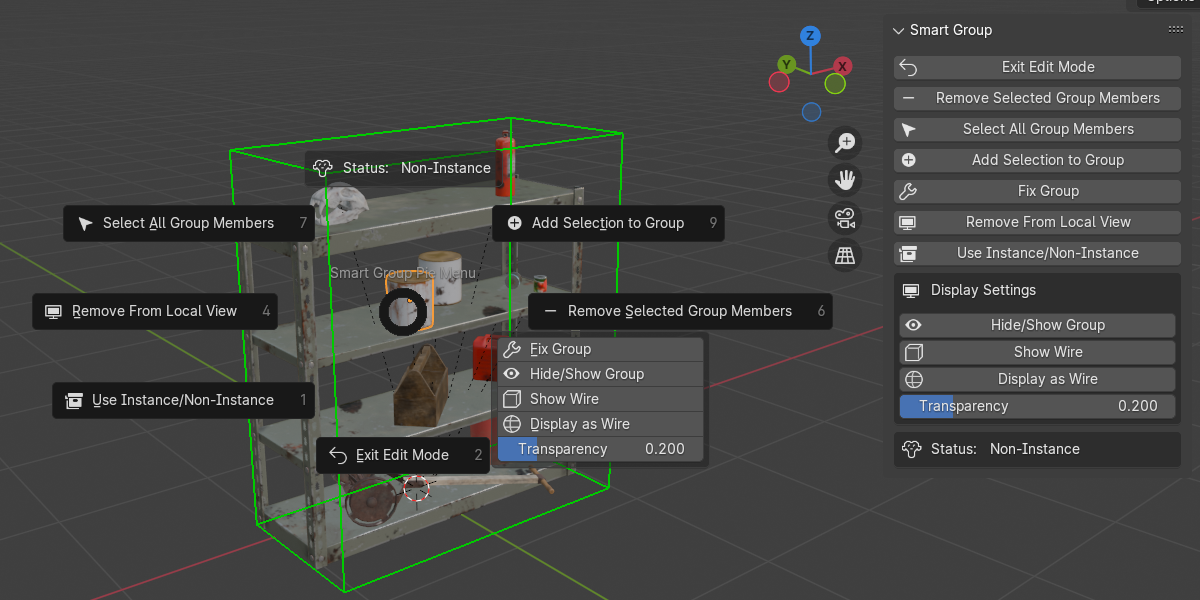
It will go to the group edit mode, where you can edit group members.
Add Selection to Group(Edit Mode)
It will add the selected objects(include group) into the editing group.
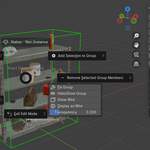
Remove Selected Group Members
It will remove selected group members from group.
Remove From Local View
It will remove selected objects from local view(if it's in local view).
Select All Group Members
It will deselect other objects and select all group members.
Use Instance/Non-Instance
If group member has a procedural material, It may not work correctly. But you can change It's instance type into instance to fix it.
The usual modifiers won't work on instance, but geometry node modifier still work on them.
Edit Mode Display Options
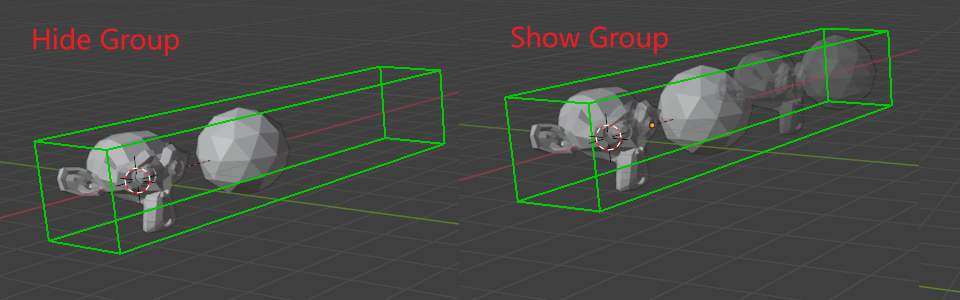
Hide/Show Group
It will hide the group.
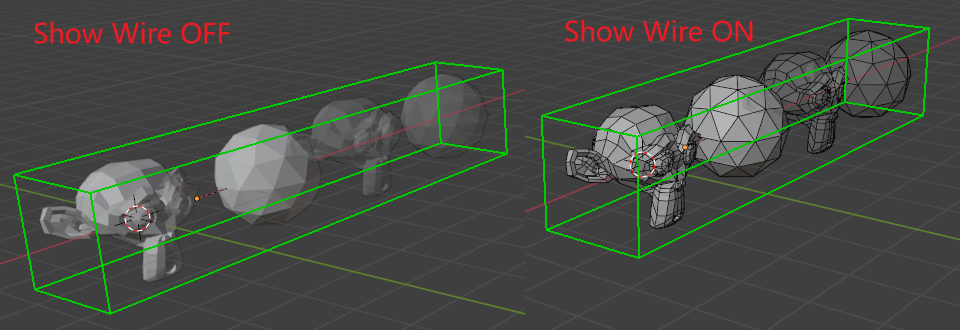
Show Wire
It will show group's wireframe.
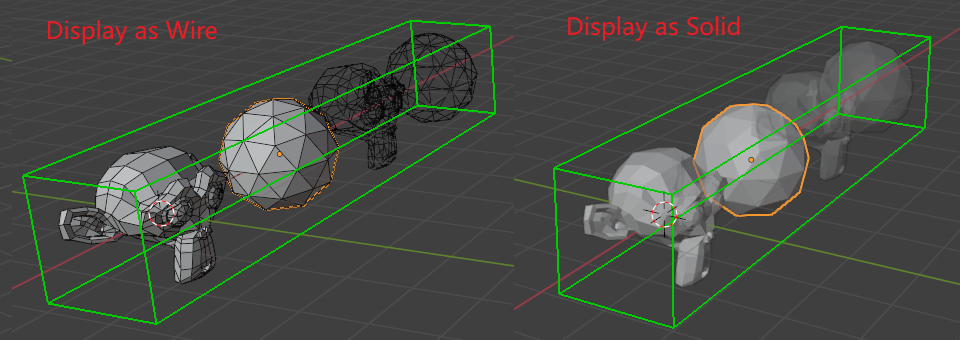
Display as Wire/Solid
It will display the group as wire or solid.
Transparency
Transparency of the group.
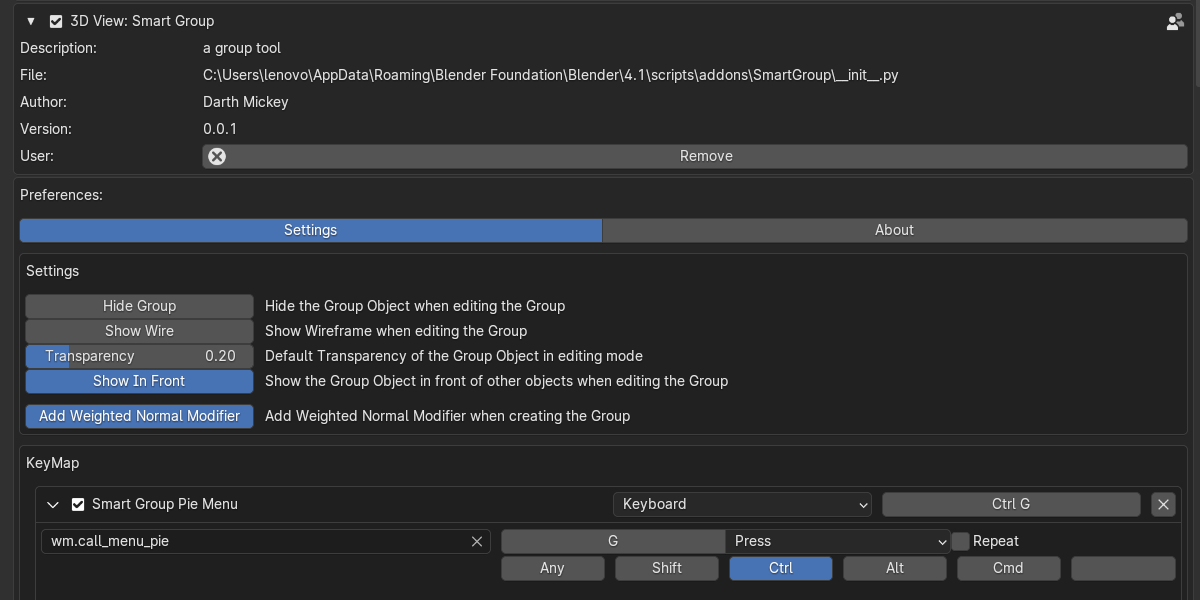
Addon Preference
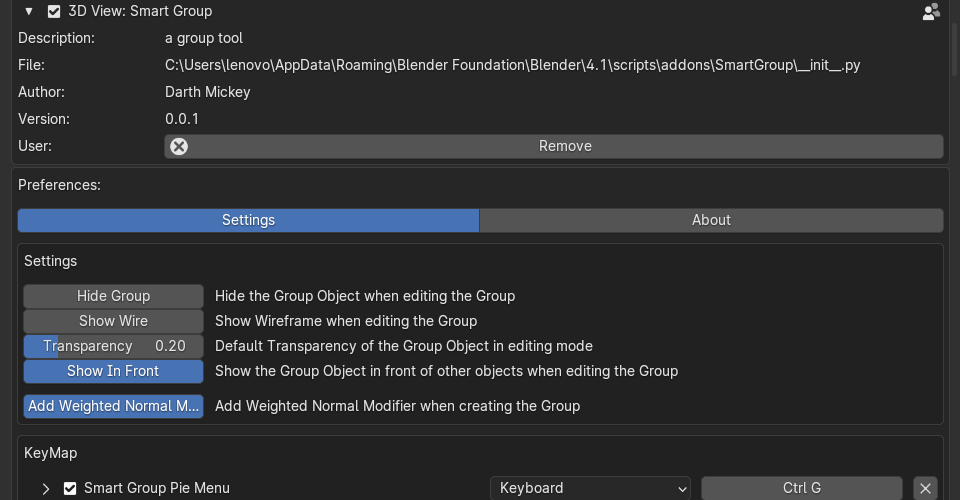
If you have more question check the FAQ or Documentation.
If you have any feedback or other questions, feel free to contact me.
Change Logs
Update - February 18, 2025 - v 0.0.2
- Fixed minor bugs.
Update - April 22, 2025 - v 0.1.0
- Group Origin Position - you can change group's origin when you create a group

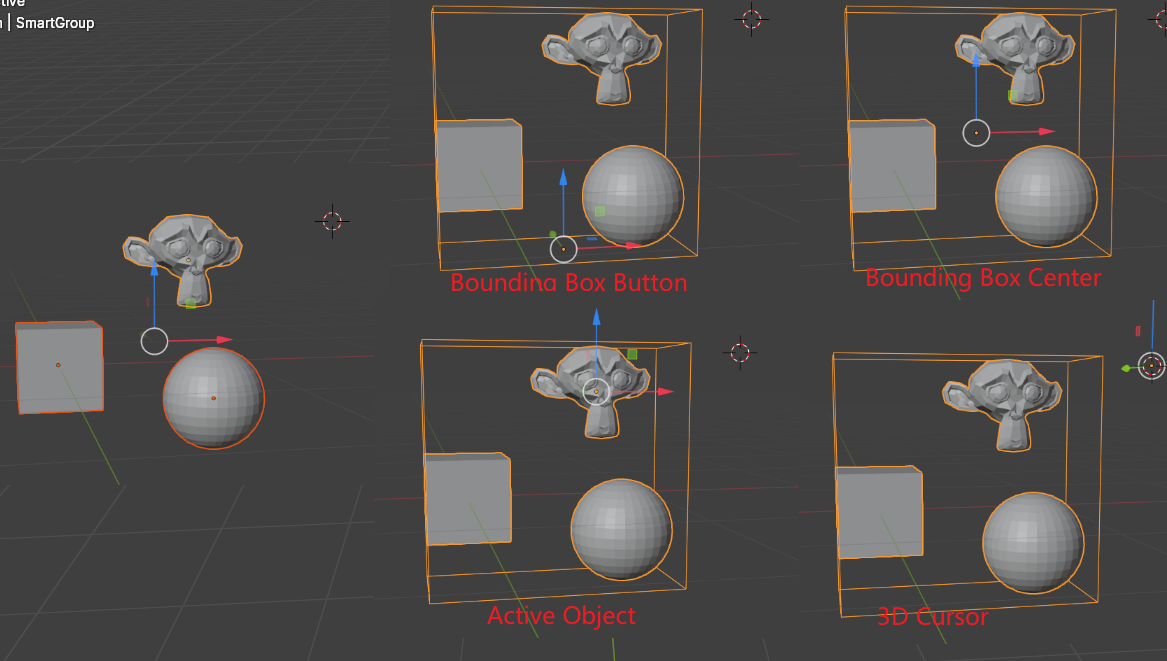
You can also set groups' origin with pie menu or N panel.
- Align Orientation - you can align group's orientation to active object
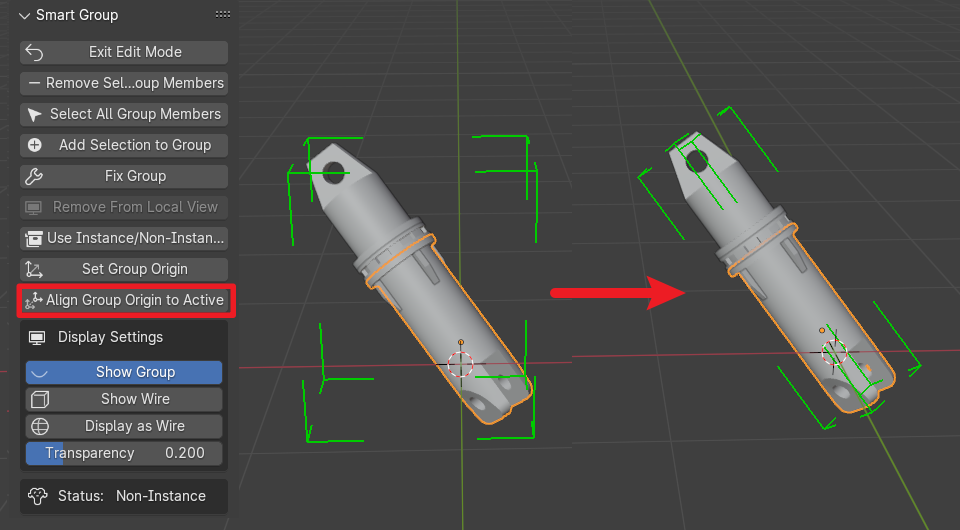
- Edit in Local View - now you can directly edit a group in local view
- Viewport Overlays - new check boxes in viewport overlays to close edit mode bounding box or group bounds
- Customized Edit Mode Bounding Box - you can change edit mode bounding box's color, line width and remove a part of the line
- Fixed minor bugs
Update - August 8, 2025 - v 0.2.1
- Put Group in New Collection - if this function is enabled in preference, newly created groups will be placed in a collection called "group"
- Bounds Options - if this function is enabled in preference,the bounds will only be displayed when a group is selected
- Edit Group Shortcut - you can edit group with shortcut 'Tab'
- Duplicate Linked - linked duplicate groups, the group members will use the same mesh data
- Group Instance - you can create instances for groups
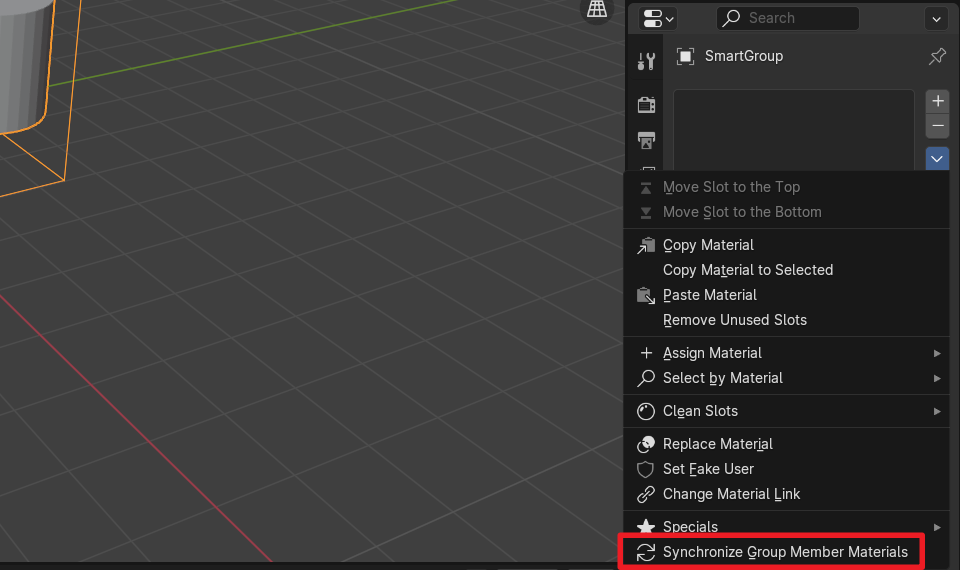
- Synchronize Group Member Material - you can synchronize group members' material to group object
- Fixed minor bugs
Update - January 31, 2026- v 0.3.0
Focus Mode - If enabled in preferences, only the group being edited can be selected, isolating your workflow.
Quick Exit Shortcut - Added the ESC key shortcut to directly exit group edit mode.
Frame / Bounds Display - Group members can now be individually displayed as Wireframe or Bounding Box.
Individual Visibility Control - Group members can now have their Viewport Display and Render Visibility controlled independently.
Group Deletion Shortcut - Quickly delete a group using the X key.
Group Duplication Shortcut - Duplicate group using Alt+D (linked) or Shift+D.
Auto-Addition in Edit Mode - New objects in Edit Mode are automatically added to the group.
Group Object Proxy - Create low-poly for complex groups to improve viewport performance.
Edit Mode Shading Optimizations - Viewport color remains consistent(except single)
Go to Group - Added a "Go to Group" function for instances, making it easier to locate and modify the original group.
Bugs fixed
Update - June 13, 2026 - v 0.4.2
- Apply Group Transform – Quickly apply location, rotation, and scale of a group (Ctrl + A).
- Display as Solid – Temporarily view wireframe or bounding‑box group members as solid (useful for previewing in renders).
- Select All Groups – Available in the Select menu.
- Update Groups – Convert all legacy groups in the scene to the new version (especially recommended for groups in asset libraries).
