Smart Groups
 Techqon core


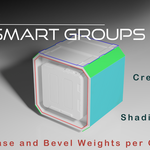


Smart Groups User Manual
Version: 1.0.0
Author: OakenPixel
Blender Version: 4.0.0+
Overview
Smart Groups is a comprehensive add-on for Blender, aimed at streamlining mesh management workflows. With intuitive tools for organizing and editing mesh groups, this add-on empowers users to efficiently control creases, bevel weights, UV seams, and sharpness properties on vertices, edges, and faces.
Key Features
- Group-Based Workflow: Organize vertices, edges, or faces into manageable groups.
- Crease and Bevel Management: Apply custom or preset values for precise modeling.
- UV Seam Toggle: Add or remove seams for better texture mapping.
- Sharpness Adjustment: Smooth or sharpen edges and faces for optimal shading.
- Smart Selection: Instantly select all elements belonging to a group.
Installation
1. Download the Addon
- Obtain the
ZIPfile from Blender Market.
2. Install the Addon
- Open Blender and go to Edit → Preferences → Add-ons.
- Click Install..., locate the downloaded
ZIP-File, and confirm.
3. Enable the Add-on
- In the Add-ons panel, check the box next to Smart Groups.
4. Save Preferences
- Click Save Preferences to retain the add-on for future sessions.
Usage
Accessing the Add-on
- Open the Sidebar in the 3D Viewport (press
N) and navigate to the Smart Groups tab.
Creating and Managing Groups
- Switch to Edit Mode (
Tabkey). - Select the vertices, edges, or faces you want to group.
- Click Create New Group in the add-on panel.
You can also automatically create groups based on mesh features with just a click on the 'Auto Groups' button.
Group Tools
- Select Group: Highlight all elements in a selected group.
- Add to Group: Append selected elements to an existing group.
- Delete Group: Remove a group and its settings.
- Color Overlay: Override mesh display with custom color in viewport.
- Convert to Other Group: Convert selection groups to other feature types (available for selection groups).
- Reset All: Remove all smart groups and custom layers from the mesh.
Crease and Bevel Tools
1. Select a Group
- Use the Select Group button to activate the desired group.
2. Apply Crease or Bevel
- Click the preset buttons (
0.0,0.25,0.5,0.75,1.0) to apply crease or bevel weight.
UV Seam and Sharpness Tools
Toggle UV Seam
- Add or remove UV seams for edges or face boundaries.
Toggle Sharpness
- Adjust shading for faces or mark edges as sharp for optimal rendering.
Smart Selection
- Click Smart Selection to automatically highlight all elements in the active group.
Smart Groups Tutorial
- Click the Smart Groups Tutorial button to access the interactive tutorial system for smart mesh groups. You can choose from different tutorials: Create a Group, Auto Groups, Modify a Group, Selection Tools, Modifier Tools, and Settings & Customization.
Support and Feedback
If you encounter issues or have suggestions, reach out to us:
- Website: www.techqon-core.com
- Blender Market Page: Visit Here
- YouTube Channel: Visit Here
© 2025 Techqon core. All Rights Reserved.
Discover more products like this
modeling auto selection tools mesh Blender productivity group managment Smothing uv bevel groups crease Smothing Groups seams blender helper 3dmodeling