Smart Lod Generator
 Gatyh Interactive



# Smart LOD Generator - Documentation
## What It Does
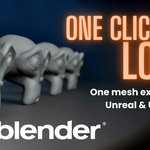
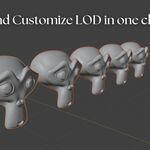
Automatically creates multiple Level of Detail (LOD) versions of your 3D models with reduced polygon counts. Perfect for game development - works with Unreal Engine, Unity, and Godot.
---
## Quick Start
1. **Select your mesh** in Blender
2. **Set a base name** (e.g., "SM_Tree")
3. **Choose LOD count** (1-7 levels)
4. **Click "Generate LODs"**
5. **Click "Prepare for Export"**
6. **Click "Export LODs (FBX)"**
7. **Import in your game engine** - Done!
---
## Main Features
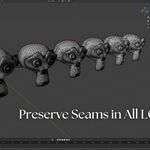
### 🎯 UV Seam Preservation
Prevents texture stretching by protecting UV seams during decimation. Your textures stay crisp on all LOD levels.
**How it works:**
- Detects UV seam edges automatically
- Only decimates non-seam vertices
- Keeps your UV layout intact
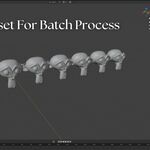
### 💾 Preset System
Save your LOD settings and reuse them on other meshes.
- Click the save icon to save current settings
- Click a preset name to load it
- Click X to delete a preset
### 🎮 Export Modes
**Combined (Unreal Engine):**
- Exports all LODs as one file
- Unreal automatically recognizes them
- Creates a single Static Mesh with all LOD levels
**Split (Unity/Godot):**
- Exports LODs as separate meshes
- Uses naming convention: `_LOD0`, `_LOD1`, `_LOD2`, etc.
- Unity and Godot detect them automatically
---
## Settings Explained
### Base Settings
- **Base Name:** Prefix for your LOD meshes (e.g., "SM_Tree" becomes "SM_Tree_LOD0", "SM_Tree_LOD1")
- **LOD Count:** How many LOD levels to create (1-7)
### Decimation Settings
- **Mode:**
- **Collapse:** Best for most meshes (recommended)
- **Un-Subdivide:** Best for subdivided meshes
- **LOD Ratios:** Percentage of polygons to keep
- LOD1: 60% (default)
- LOD2: 35% (default)
- LOD3: 15% (default)
- And so on...
### Options
- **Keep UVs:** Preserve UV maps (keep enabled)
- **Preserve UV Seams:** Protect UV seams from decimation (recommended)
- **Organize in Collection:** Group LODs in a collection
---
## Workflow Examples
### For Unreal Engine
1. Generate LODs
2. Set Export Mode to **"Combined (Unreal)"**
3. Click "Prepare for Export"
4. Click "Export LODs (FBX)"
5. Import FBX in Unreal - all LODs are automatically configured!
### For Unity/Godot
1. Generate LODs
2. Set Export Mode to **"Split (Unity/Godot)"**
3. Click "Prepare for Export"
4. Click "Export LODs (FBX)"
5. Import FBX in Unity/Godot - LODs are detected automatically!
---
## Common Issues
**"Please select a mesh object"**
- Make sure you have a mesh selected before generating LODs
**"No LOD objects found to export"**
- Generate LODs first before trying to export
**Texture stretching on LODs**
- Mark UV seams in Edit Mode (select edges, press Ctrl+E > Mark Seam)
- Enable "Preserve UV Seams" option
**LODs look too simple/complex**
- Adjust the LOD ratios (higher = more polygons, lower = fewer polygons)
---
## Tips
- **Start with defaults:** The default ratios work well for most meshes
- **Save presets:** Create presets for different mesh types (characters, props, buildings)
- **Mark UV seams:** Always mark UV seams before generating LODs for best results
- **Test in engine:** Import and test in your game engine to see LOD transitions
- **Fewer LODs for high-poly:** Use 3-4 LODs for very high-poly meshes to save memory
---
## Requirements
- Blender 3.0 or higher
- Works on Windows, macOS, and Linux
---
## Version
Current version: **1.4.0**
-
$6.99
-
$19.99
Have questions about this product?
Login to message
| Published | 11 months ago |
| Blender Version | 3.5 - 4.5 |
| Extension Type | N/A |
| Render Engine Used | Cycles, Eevee |
| License | GPL |
