Smart Pivot & Cursor Manager Pro
 Baris Arslan
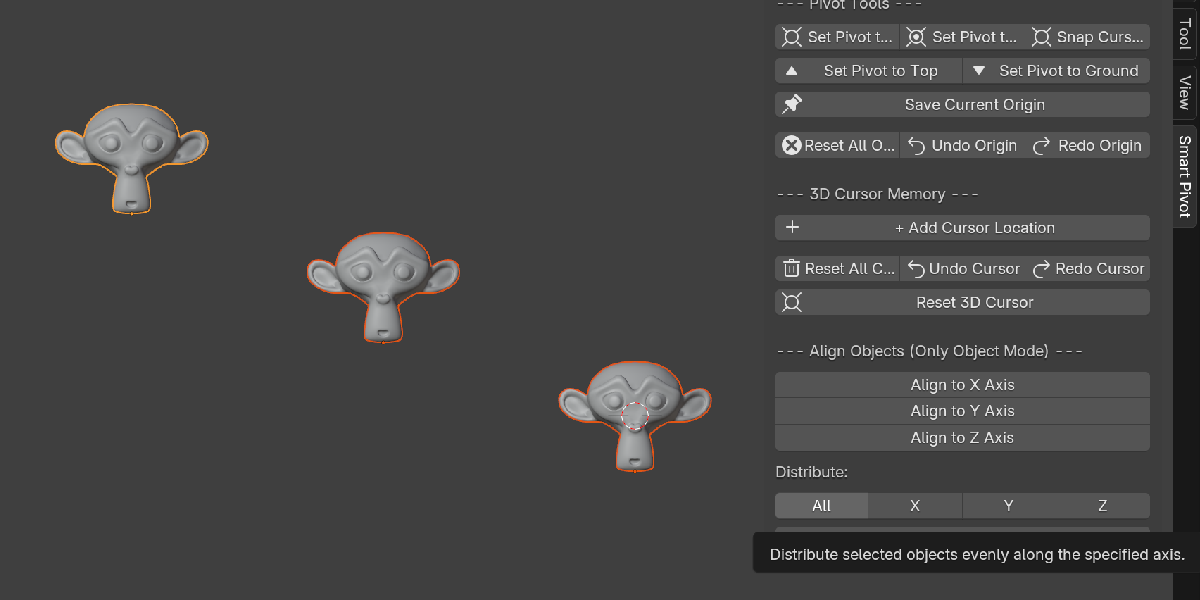
How do I update from an older version?
Disable and remove the previous version from Blender’s Add-ons preferences, then install and enable the new add-on file.
Restarting Blender after updating is recommended. You may also want to keep a backup of important .blend files before updating any add-on.
How do I install the add-on?
Go to Edit → Preferences → Add-ons, click Install, select the downloaded add-on file and enable Smart Pivot & Cursor Manager PRO.
The add-on will then appear under 3D Viewport → N-Panel → Smart Pivot.
Does object distribution depend on selection order?
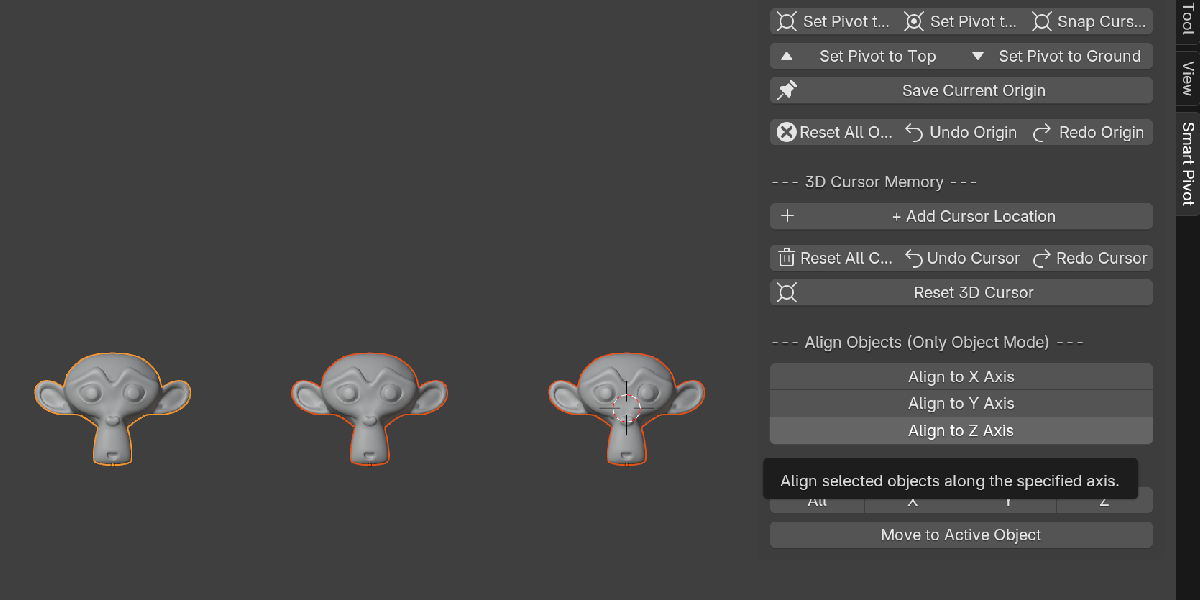
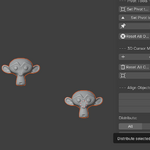
For X, Y or Z distribution, the add-on automatically sorts the selected objects according to their position on the chosen axis before spacing them evenly.
This provides predictable results regardless of the order in which the objects were selected.
Can I move a selection to only one coordinate of the 3D Cursor?
Yes. The dedicated X, Y and Z buttons move the selection to the corresponding global coordinate of the 3D Cursor while preserving its position on the other two axes.
You can also move the selection to the Cursor on all axes at once.
What are the viewport markers?
Viewport markers provide a visual representation of saved Origin and 3D Cursor locations.
Each marker includes an arrow-style Empty and a text label. The active marker is displayed in orange, while inactive markers are gray. Cursor and Origin markers can be shown or hidden independently, and their size can be adjusted from the panel.
Does the add-on support Object Mode and Edit Mode?
Yes. Different tools support different working modes.
Cursor-based movement works with:
Objects in Object Mode
Mesh elements in Edit Mode
Bones in Armature Edit Mode
Pivot placement also supports Mesh and Curve workflows where applicable.
Are saved locations stored in the Blender project?
Yes. Saved Origin and 3D Cursor presets are stored with the Blender scene, so they remain available when you save and reopen the .blend file.
Can I save multiple Pivot, Origin and 3D Cursor locations?
Yes. You can save multiple Origin and 3D Cursor locations, rename them and recall any saved location with one click. Saved 3D Cursor presets also include rotation on supported Blender versions.
Each saved preset can be deleted individually, or you can clear the entire list.
How does the Pivot and 3D Cursor Preview Mode work?
Click Pivot Preview Arrows or 3D Cursor Preview Arrows to create a visual transform handle in the viewport.
While Preview Mode is active:
Press G to move
Press R to rotate
Press Enter to apply
Press Esc to cancel
You can also use Blender’s standard snapping tools for precise placement. Instructions are displayed in the viewport and status bar while Preview Mode is active.
Where can I find the add-on after installation?
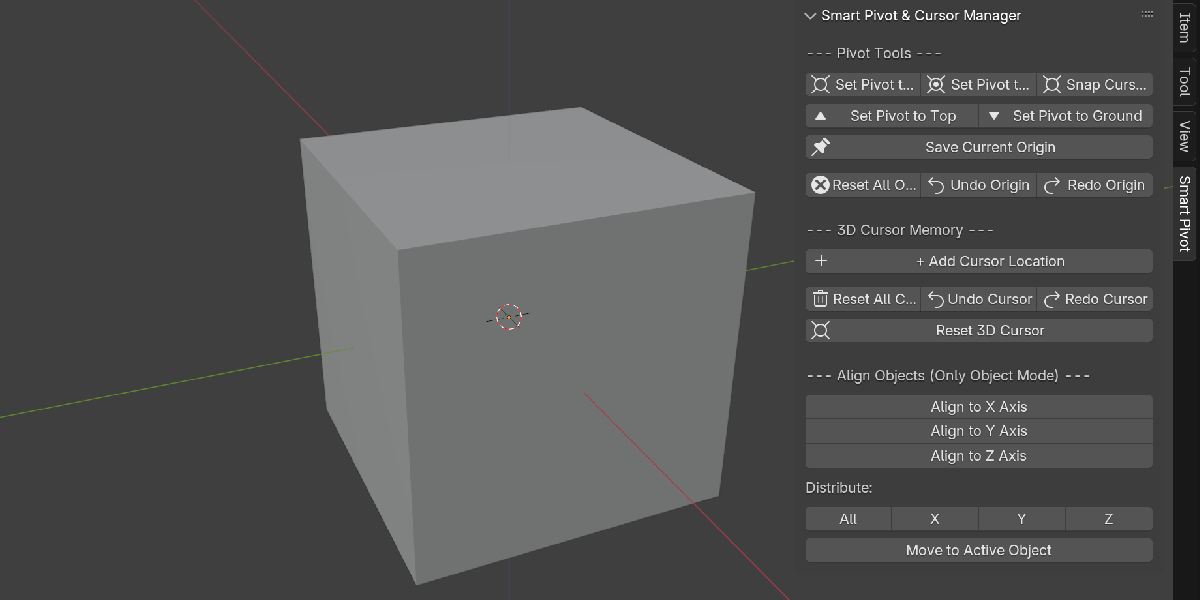
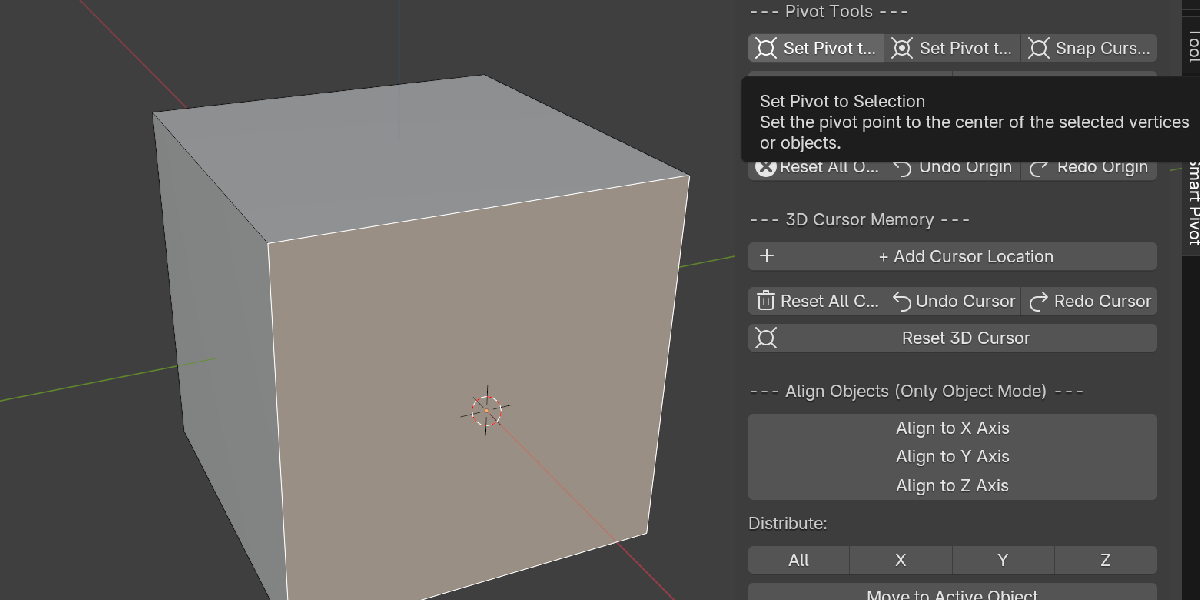
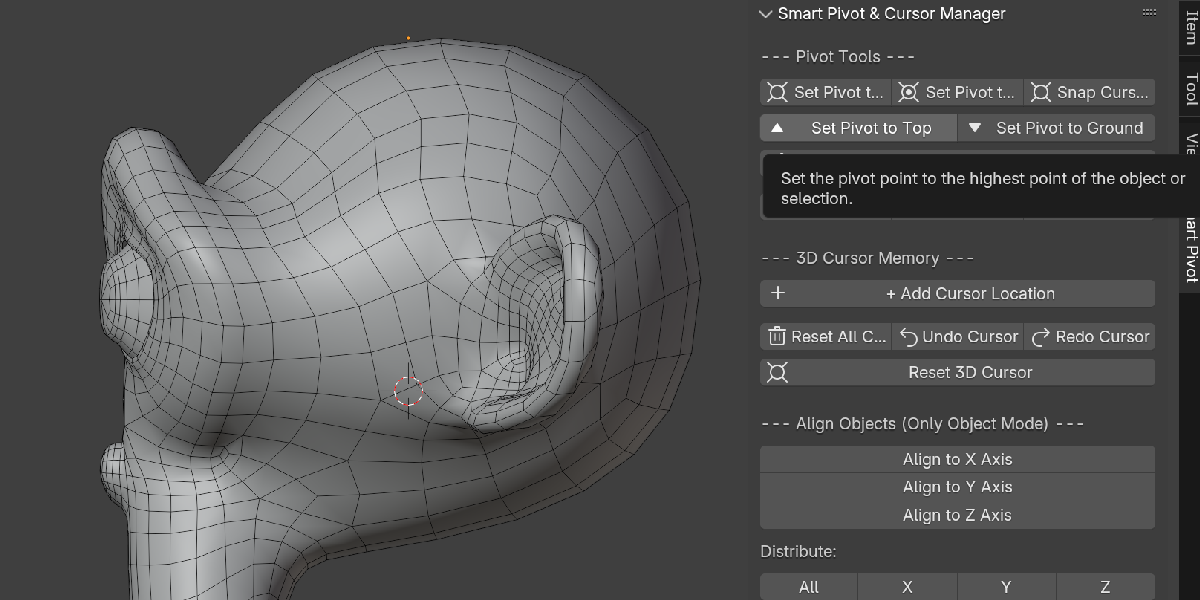
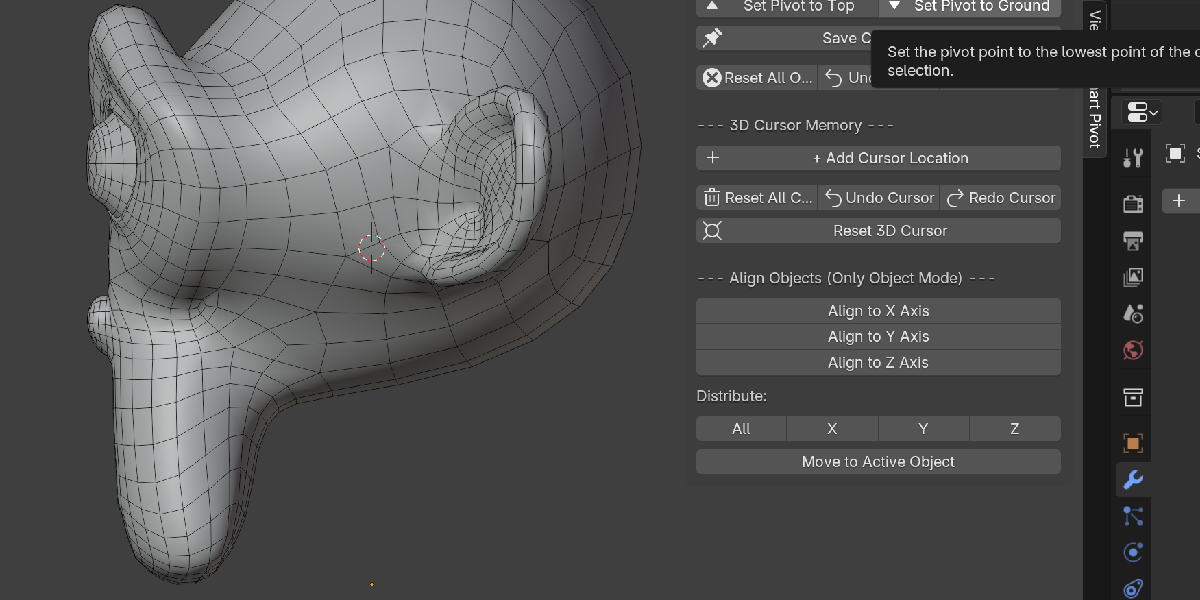
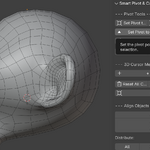
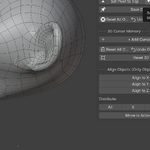
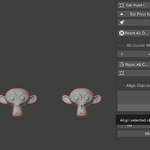
Open the 3D Viewport, press N to display the sidebar, and select the Smart Pivot tab. All Pivot, Origin, 3D Cursor, marker, alignment and distribution tools are available from this panel.
Discover more products like this
pivot-manager custom origin workflow-booster blender addon 3d-cursor product Design precision modeling game-dev origin-tools Modeling tools cursor-memory technical-modeling