Smart Project Collector
 superkid


## Installation
1. Download the latest `smart_project_collector.zip` file
2. In Blender, go to **Edit → Preferences → Add-ons**
3. Click **Install...** and select the downloaded ZIP file
4. Enable the **Smart Project Collector** addon
5. Find the panel in the **3D Viewport → N-Panel → SPC** tab
## How to Use
### Basic Usage
1. **Open your Blender project** with external assets
2. **Set target folder** where you want to copy the project
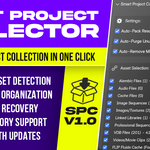
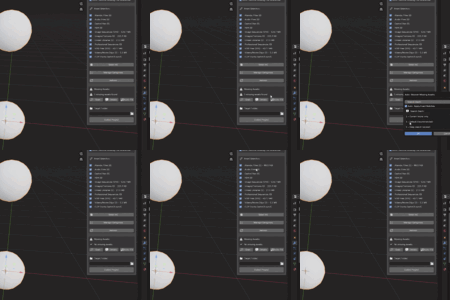
3. **Select asset types** you want to include
4. **Click "Collect Project"** and wait for completion
### Custom Categories
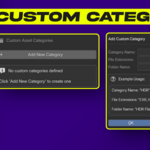
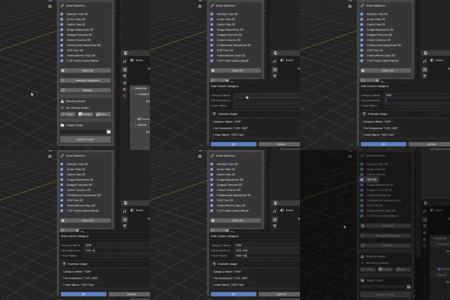
1. Click **"Manage Categories"** in the Asset Selection panel
2. Click **"Add New Category"**
3. Fill in:
- **Category Name**: e.g., "HDR"
- **File Extensions**: e.g., "EXR, HDR"
- **Folder Name**: e.g., "HDR Files"
4. Your new category will appear in the asset selection list
### Missing Asset Recovery
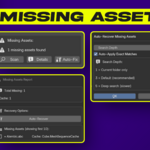
1. In the **Missing Assets** section, click **"Scan"**
2. If missing assets are found, click **"Details"** to see the list
3. Use **"Auto-Fix"** to automatically search and recover missing files
4. Configure search depth and matching options as needed
## System Requirements
- **Blender 2.80** or newer
- **Windows, macOS, or Linux**
- Sufficient disk space for copying assets
## Supported Asset Types
- **Images**: PNG, JPG, JPEG, EXR, HDR, TIFF, TGA, BMP
- **Videos**: MP4, AVI, MOV, MKV, WEBM
- **3D Formats**: Alembic (ABC), USD, OBJ, FBX, PLY
- **Volumes**: VDB files and sequences
- **Audio**: WAV, MP3, FLAC, OGG
- **Linked Libraries**: External .blend files
- **Cache Files**: Various simulation cache formats
- **Custom Formats**: Define your own categories
## Settings
Access addon preferences in **Edit → Preferences → Add-ons → Smart Project Collector**:
- **Auto-Pack Resources**: Automatically pack resources before copying
- **Auto-Purge Unused Data**: Remove unused data blocks before copying
- **Auto-Remove Missing File References**: Clean up broken file references
## Troubleshooting
### Common Issues
**"No external assets found"**
- Make sure your project actually uses external files
- Check if files are packed (File → External Data → Unpack All)
**"Path update failed"**
- Ensure the copied .blend file is not read-only
- Check if Blender has write permissions to the target folder
**"Missing assets after copy"**
- Use the Missing Asset Recovery feature
- Check if original files were moved or deleted
**"Copy process is slow"**
- Large assets (especially sequences) take time to copy
- Consider using an SSD for faster copying
- Close other applications to free up system resources
### Getting Help
1. Check the Blender console for detailed error messages
2. Ensure all file paths are accessible and not on network drives
3. Try copying to a local drive first
4. Restart Blender if the addon behaves unexpectedly
## Support & Contact
- **Author**: SuperKid
- **Support**: For support and bug reports, please contact through superhivemarket.com
- **Feature Requests**: Suggestions for new features are welcome
## License
This project is licensed under the **GNU General Public License v3.0** - see the LICENSE file for details.
This addon is GPL-compliant and compatible with Blender's licensing requirements.
Have questions about this product?
Login to message
| Blender Extension Compatible | Yes |
| Sales | 10+ |
| Dev Fund Contributor | |
| Published | 12 months ago |
| Blender Version | 4.0 - 4.5 |
| Extension Type | Add-on |
| Render Engine Used | Cycles, Eevee |
| License | GPL |
Discover more products like this
asset-collection project packaging project collector asset organizer path updater file organization missing files project archiver asset scanner File manager folder organizer backup tool