Smart Save Pro
 Renegade Software



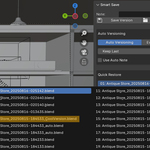
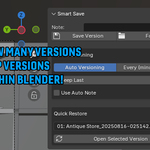
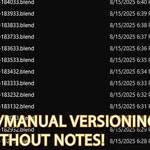
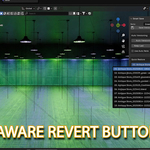
Smart Save Pro
A versioning and auto-backup add-on for Blender
Overview
Smart Save Pro is a Blender add-on that gives you full control over versioning and backups of your projects. With one click, you can create timestamped saves, automatically generate rolling backups on a timer, and instantly revert to earlier versions.
Unlike Blender’s default autosave, Smart Save Pro keeps your files neatly organized and always accessible in a dedicated versions folder.
Features
-
Timestamped saves with optional notes
-
Organized versions folder per project
-
Auto-versioning on a timer with rolling cleanup
-
Quick restore dropdown to revert instantly
-
Reveal versions folder with one click
-
GPL-licensed, open-source, lightweight
Installation
-
Download the
.zipfile. -
In Blender, open Edit → Preferences → Add-ons → Install...
-
Select the
.zipand enable Smart Save Pro. -
The panel will appear in 3D View → N-panel → Smart Save.
Usage
Save Version
-
Enter an optional note in the "Note" field.
-
Click Save Version.
-
A timestamped file will be created in a
/versionsfolder alongside your main.blend. -
Example:
MyProject_20250305-1542_lightfix.blend
Auto Versioning
-
Enable Auto Versioning and set an interval in minutes.
-
Optionally set a limit on the number of versions to keep (older versions will be deleted automatically).
-
Auto versions are saved in the same
/versionsfolder with the note set in "Auto Note".
Quick Restore
-
Use the dropdown list in the Quick Restore section to see your saved versions.
-
Select a version and click Open Selected Version.
-
Blender will prompt you to save unsaved changes before opening the version.
Reveal Versions Folder
-
Click Folder to open the
/versionsdirectory for the current project in your system file browser.
Example Workflow
-
Save your project file normally:
MyProject.blend. -
Turn on Auto Versioning and set it to every 5 minutes.
-
Work as usual. Versions will appear in
/versions/MyProject_*.blend. -
If you make a mistake, open the Quick Restore list and roll back to an earlier version.
Best Practices
-
Always save your main project file once before using Smart Save Pro.
-
Use clear notes when saving manually (e.g. "after render setup").
-
Keep "Keep Last" set to a safe number (e.g. 20) to avoid clutter.
-
Use Quick Restore for rapid rollbacks, or open the
/versionsfolder for manual browsing.
Limitations
-
Auto versioning only runs while Blender is open.
-
Large project files may take longer to save.
-
Versions are stored locally on disk (no cloud sync).
Have questions about this product?
Login to message
| Blender Extension Compatible | Yes |
| Sales | 10+ |
| Dev Fund Contributor | |
| Published | about 1 year ago |
| Blender Version | 3.5 - 5.2 |
| Extension Type | Add-on |
| Render Engine Used | Cycles, Eevee |
| License | GPL |
Discover more products like this
auto-save addon backup 2025addon autosave Versioning auto save addon