 ZEG

Installation
In Blender open Edit, Preferences, Get Extensions, then use Install from Disk and pick the street_lamp_generator zip.
Usage
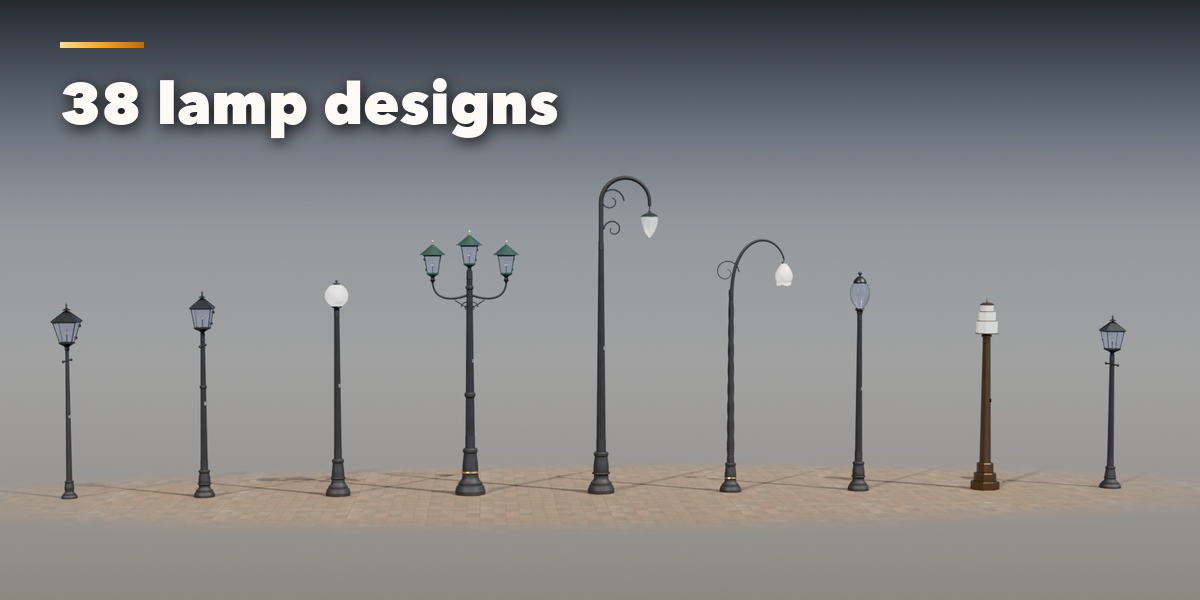
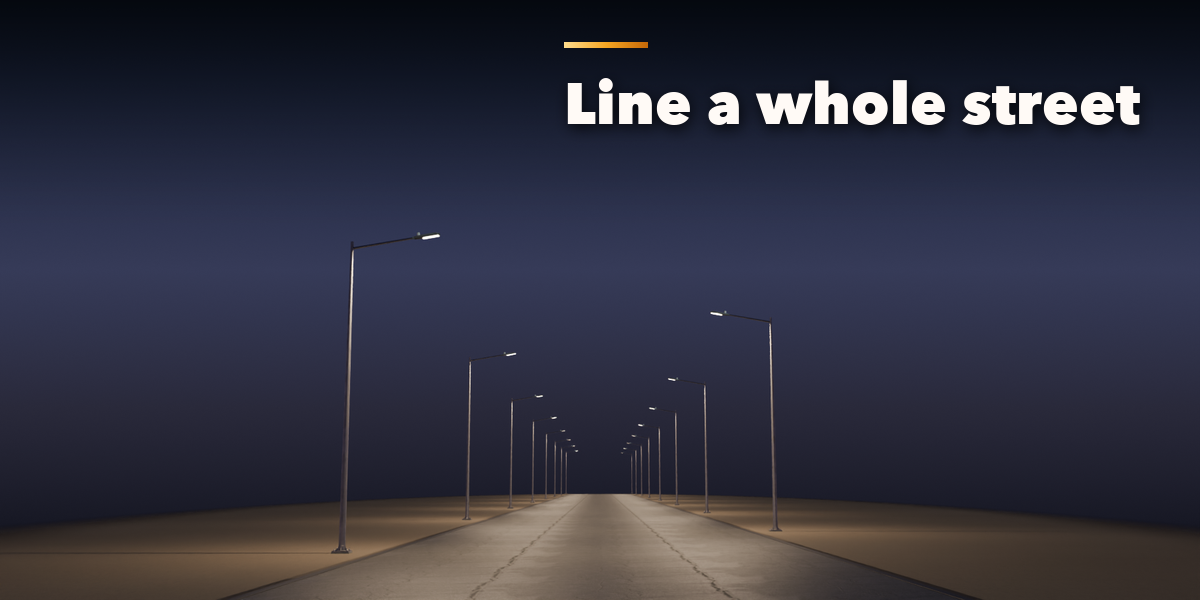
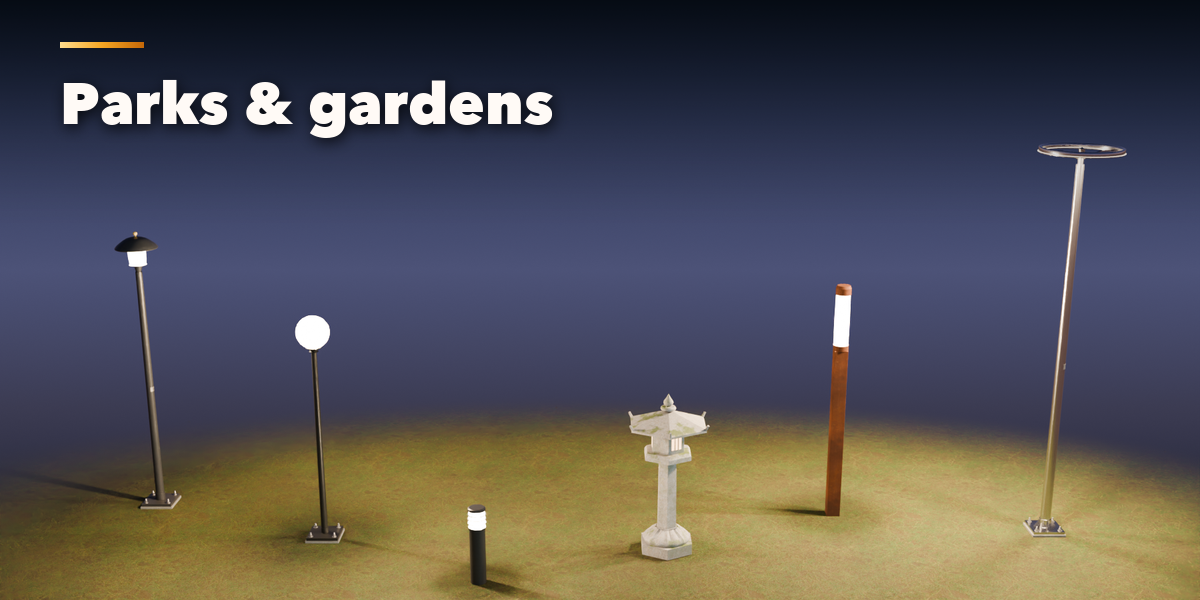
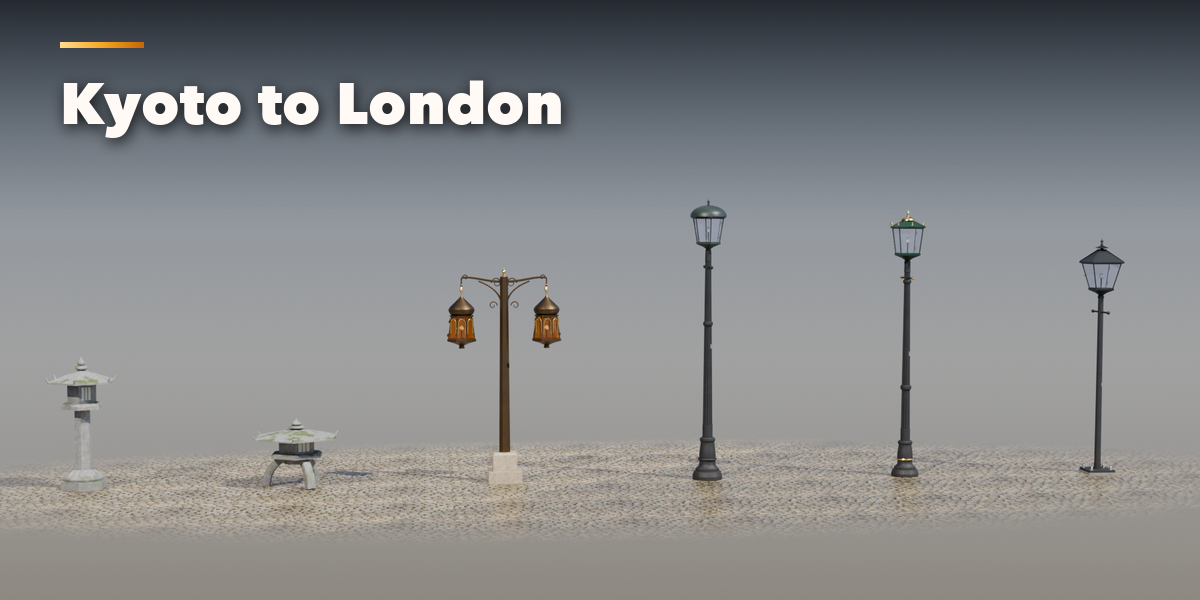
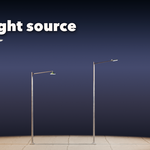
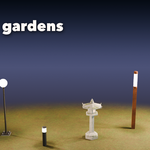
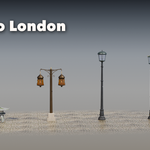
- Open the Street Lamp tab in the 3D viewport sidebar (N). With no lamp selected, click the big picture to browse the designs, or pick a group and a design, then press Add to place it at the 3D cursor. You can also use Shift+A, Mesh, Street Lamp.
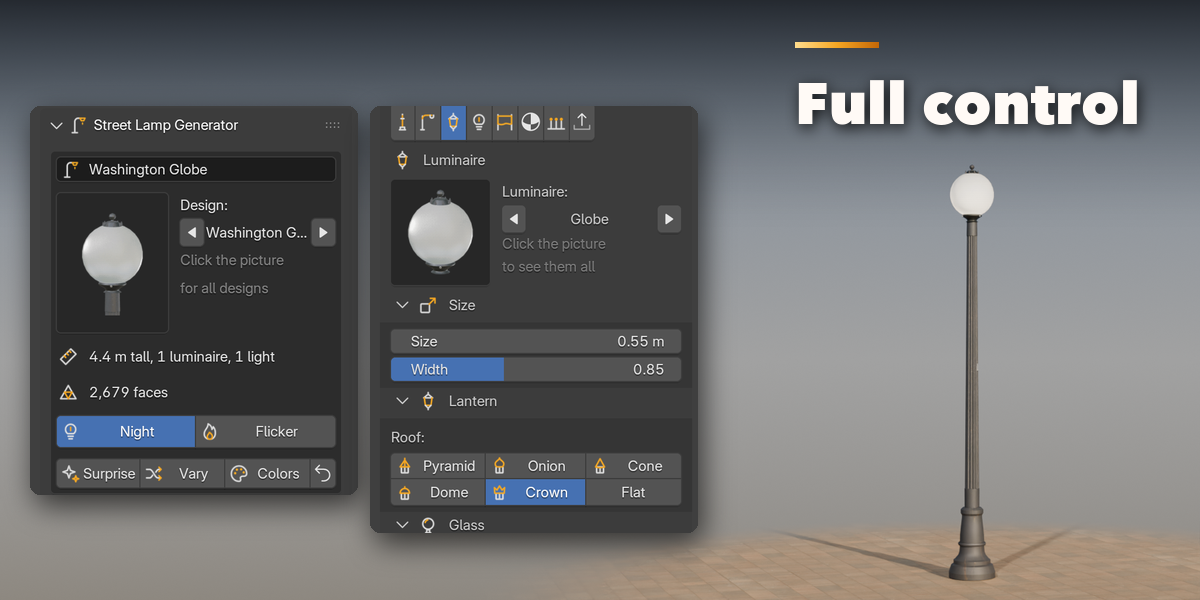
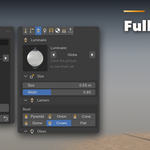
- The card at the top shows the design, its height, the number of luminaires and lights and the face count. Night switches the glowing glass and the light objects on and off; Flicker animates gas and candle lamps (press Play). Surprise makes a new random lamp, Vary changes the current one a little and Colors paints it anew.
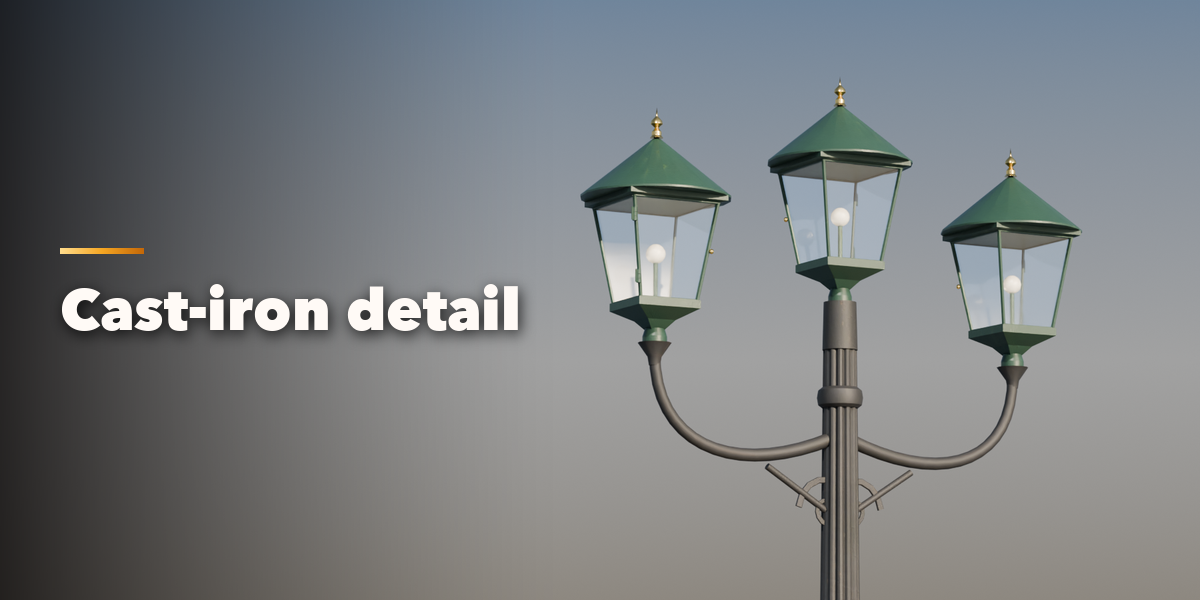
- The icon tabs hold every setting: Pole & Base (mount, base and pole), Arms (arm type, count, reach, how the heads hang), Luminaire (head type, size, glass, roof), Light (source, color, power, glow, shadows, flicker), Extras (ladder bar, banners, baskets, solar, camera, antenna, sign), Finish (metals, paint, stone, weathering, rust, moss), Row (copies along a line or a curve) and Parts & Export (part visibility, detail level, Convert to Mesh).
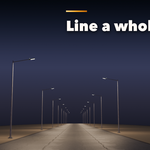
- For a row along a curve, pick the curve in the Row tab; press Refresh after editing the curve.
- Convert to Mesh keeps the lamp, and its row, as plain meshes and lights; Delete removes it with all its parts.
All sizes are in meters. The root empty sits on the ground at the pole axis, and arms reach along +X, toward the street. Use Rendered view to see the light.
Have questions about this product?
Login to message
| Blender Extension Compatible | Yes |
| Published | 2 days ago |
| Blender Version | 4.2 - 5.2 |
| Extension Type | Add-on |
| Render Engine Used | Cycles, Eevee |
| License | GPL |

Discover more products like this
Generator lantern street light procedural environment lamp-post architecture street lamp Lighting street city urban