Stylized Sky – Raymarched Clouds
 Nuriddin Khamidov
Version 1.15.7 · Blender 5.2 or newer · EEVEE and Cycles
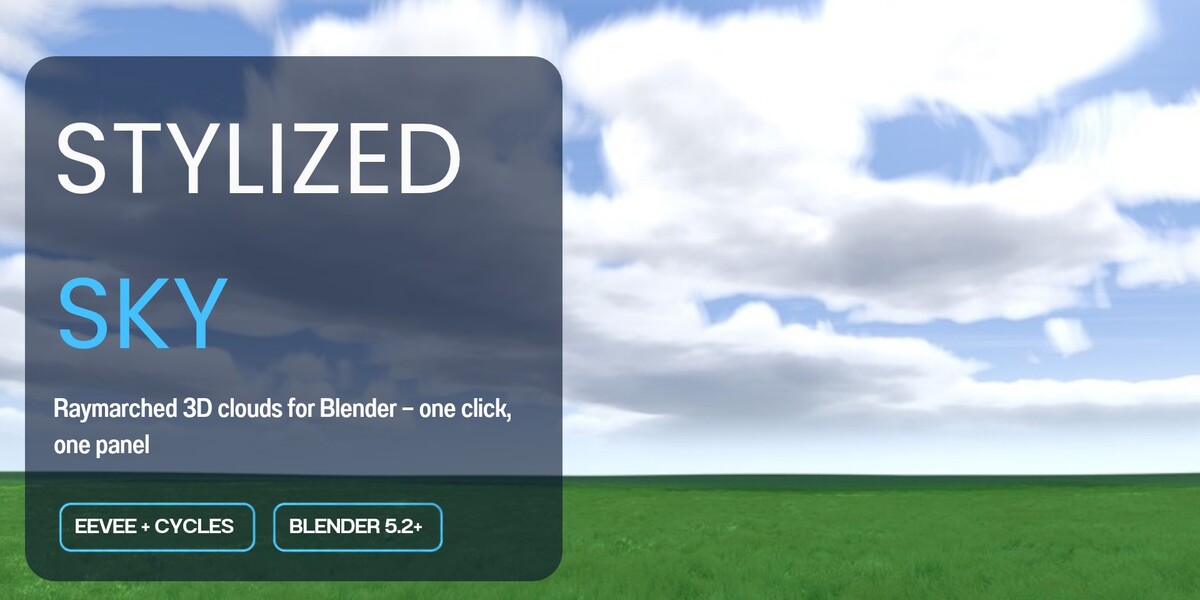
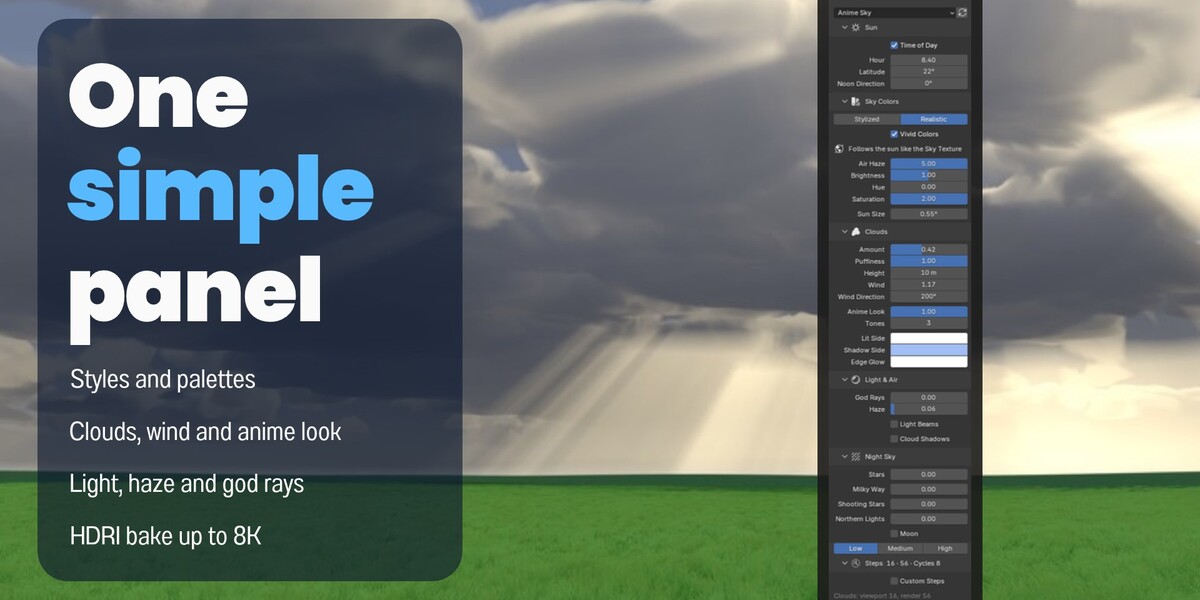
Stylized Sky builds a complete sky in one click. You get a sky gradient, a sun disc, raymarched 3D clouds, god rays, a moon, stars, the Milky Way, shooting stars and northern lights. Everything is made of shader nodes in the World, so there are no textures to load, nothing to bake and no extra objects to manage. One side panel controls all of it.
Installation
- In Blender, open Edit → Preferences → Get Extensions.
- Open the menu (˅) in the top-right corner and choose Install from Disk….
- Select
stylized_sky-1.15.7.zip. - The add-on appears in the 3D Viewport sidebar (N), on the Sky tab.
To update, install the new zip the same way. Files you made with older versions upgrade automatically and keep their settings.
Quick start
- In the 3D Viewport, press N and open the Sky tab.
- Click Create Sky & Clouds. This builds the World, a sun lamp and the cloud layer.
- Pick a Style from the list at the top of the panel.
- Switch the viewport to Rendered shading to see the result.
Each style is a starting point. Change any slider to make it your own. Reset Style brings the selected style's original values back.
Demo scene
Stylized_Sky_Demo.blend is a ready scene with a camera and a grass meadow. Open it with the add-on installed, switch the viewport to Rendered, and try the styles.
Styles
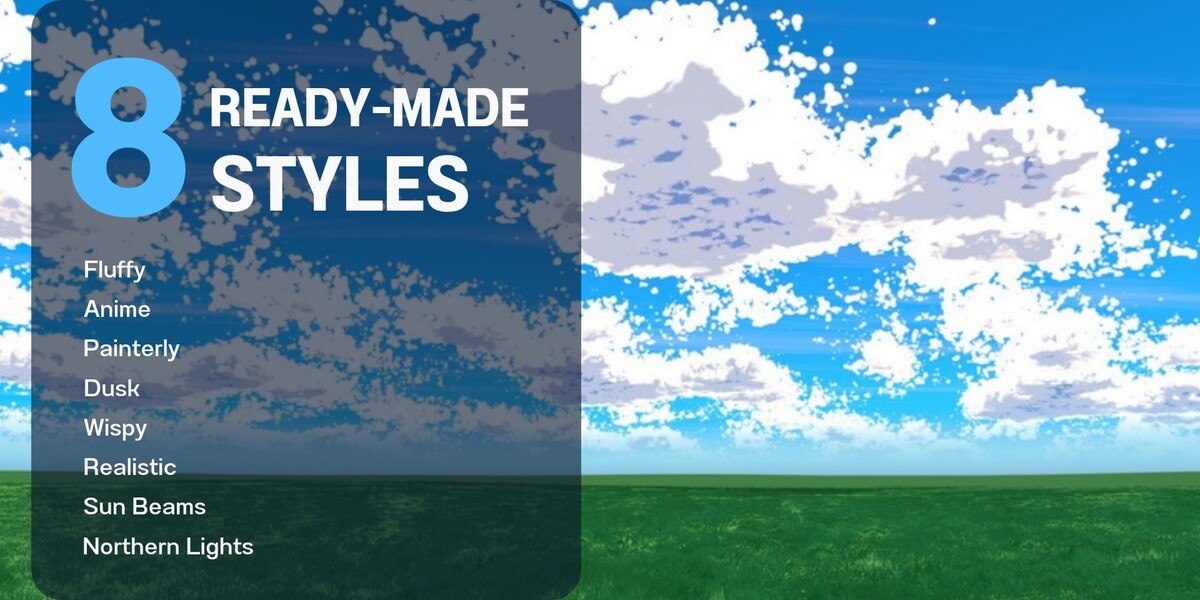
| Style | Look |
|---|---|
| Fluffy Cumulus | Soft bright cumulus, deep blue sky |
| Painterly Sunset | Towering clouds, warm rim light, cool blue shadows |
| Dusk Illustration | Banded pink/violet clouds, starry blue sky |
| Wispy Cirrus | Cirrus streaks with light cumulus, pale cyan sky |
| Realistic Cumulus | Solid cumulus, fine cauliflower billows, physical sky |
| Sun Beams | Dramatic clouds with golden light beams pouring through the gaps |
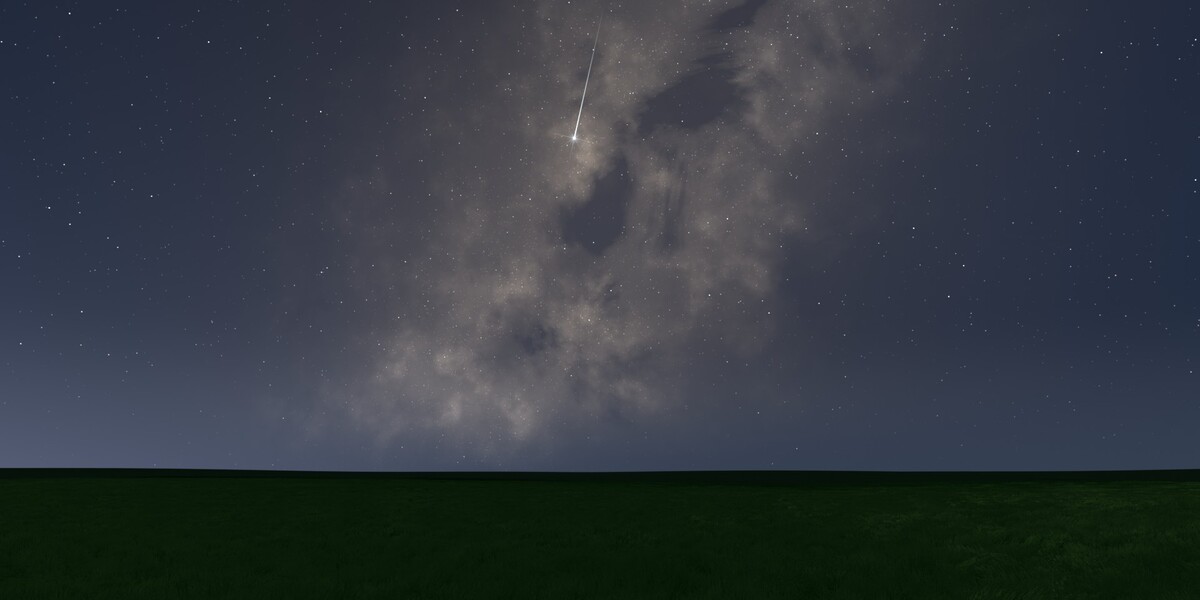
| Northern Lights | Night sky with stars, Milky Way and aurora |
| Anime Sky | Vivid blue sky, clustered white puffs in flat anime tones |
The panel
Sun
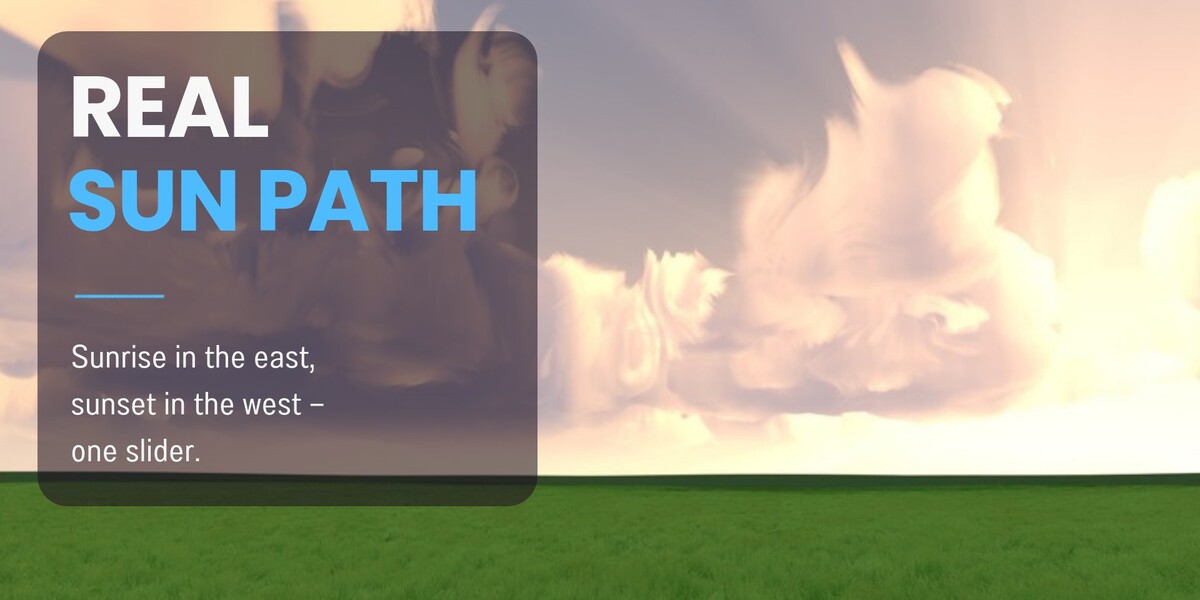
- Time of Day / Hour: one clock (0–24 h) moves the sun along its real daily path. It rises in the east at 6:00, stands highest at noon and sets in the west at 18:00. The sky, sun colour and clouds follow it from sunrise to night, and the Hour can be keyframed.
- Latitude (with Time of Day): your place on Earth. It sets how high the sun climbs at noon (90° − latitude); 22° gives a high summer sun, 50° a low northern one.
- Noon Direction (with Time of Day): the direction the sun faces at noon. It turns the whole sun path.
- Height / Direction: place the sun by hand when Time of Day is off.
Sky Colors
- Stylized uses three colours: Top, Horizon and Ground. Horizon Height and Softness shape the blend between them. The palette buttons (Day, Pastel, Golden, Sunset, Pink Dusk, Storm, Night) set all three colours in one click.
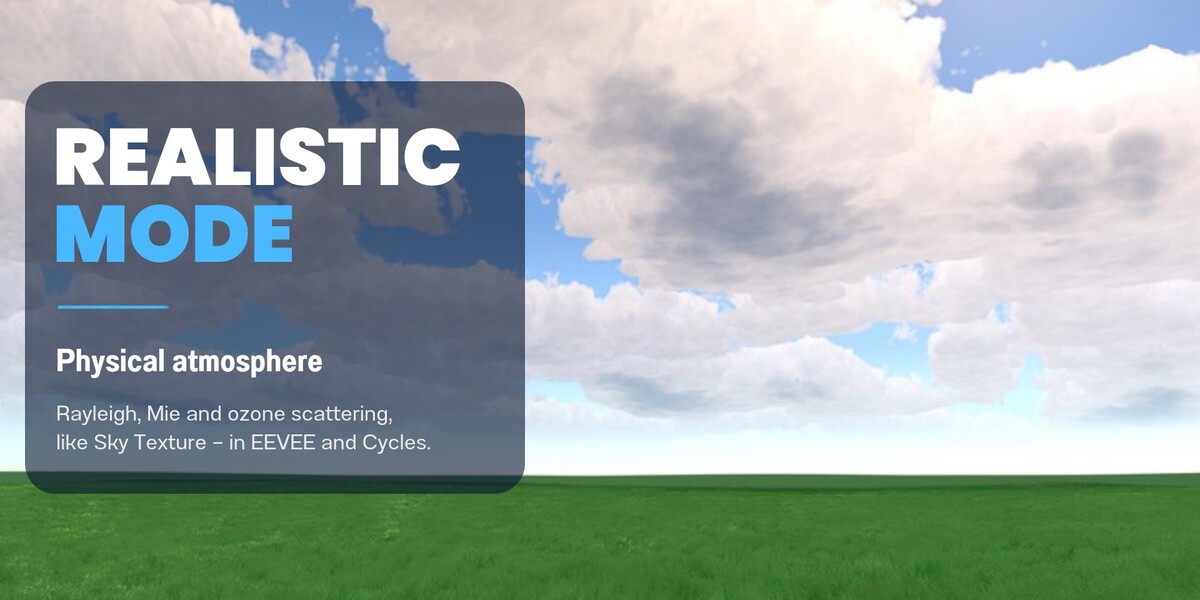
- Realistic computes the sky physically (Rayleigh, Mie and ozone scattering), like Blender's Sky Texture, so it changes correctly with sun height. Air Haze makes the air clear (low) or hazy (high).
- Hue / Saturation / Brightness: grade the whole sky in either mode.
- Vivid Colors: switches the scene to the Standard view transform for bright, saturated colours. Every style turns it on; turning it off restores your previous view transform (for example AgX).
- Sun Size: the angular size of the sun disc. The real sun is 0.53°.
Clouds
- Amount: cloud coverage.
- Puffiness: how bumpy the cloud tops are.
- Height: how thick the cloud layer is.
- Wind / Wind Direction: how fast the clouds drift during animation, and which way. Their shadows on the ground follow the same wind.
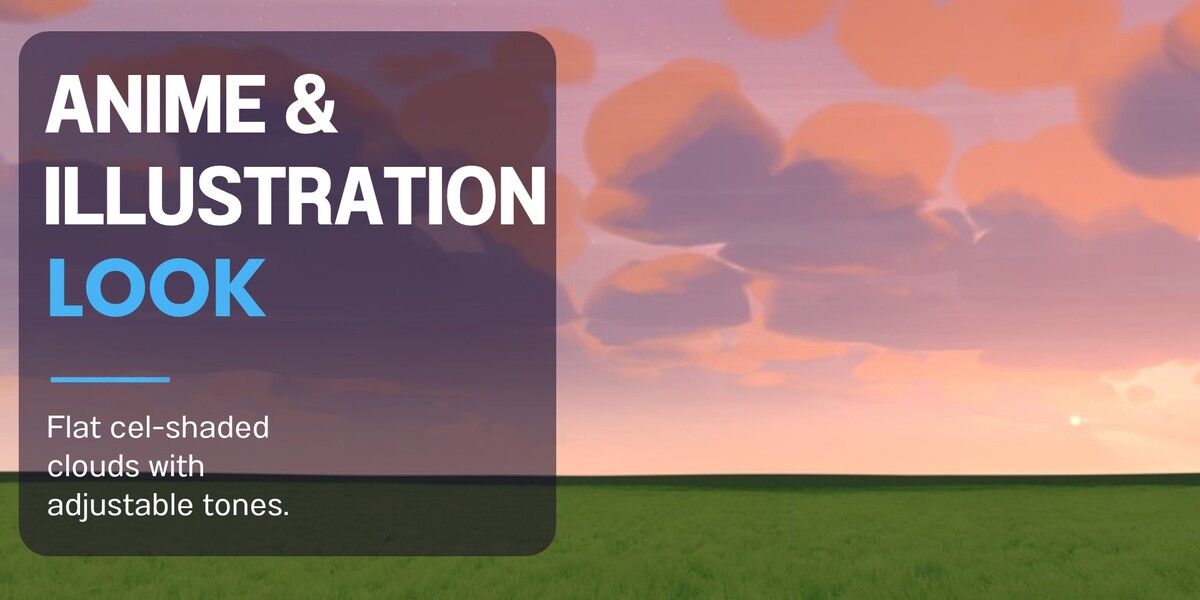
- Anime Look / Tones: flat, cel-shaded clouds with a set number of light tones. Use 0 for soft clouds and 1 for fully flat.
- Lit Side / Shadow Side / Edge Glow: the cloud colours.
Light & Air
- God Rays: rays from the sun through the clouds.
- Haze: atmospheric haze toward the horizon.
- Light Beams: shafts of light falling through gaps in the clouds.
- Cloud Shadows / Shadow Strength: moving cloud shadows cast onto your scene by the sun lamp.
Night Sky
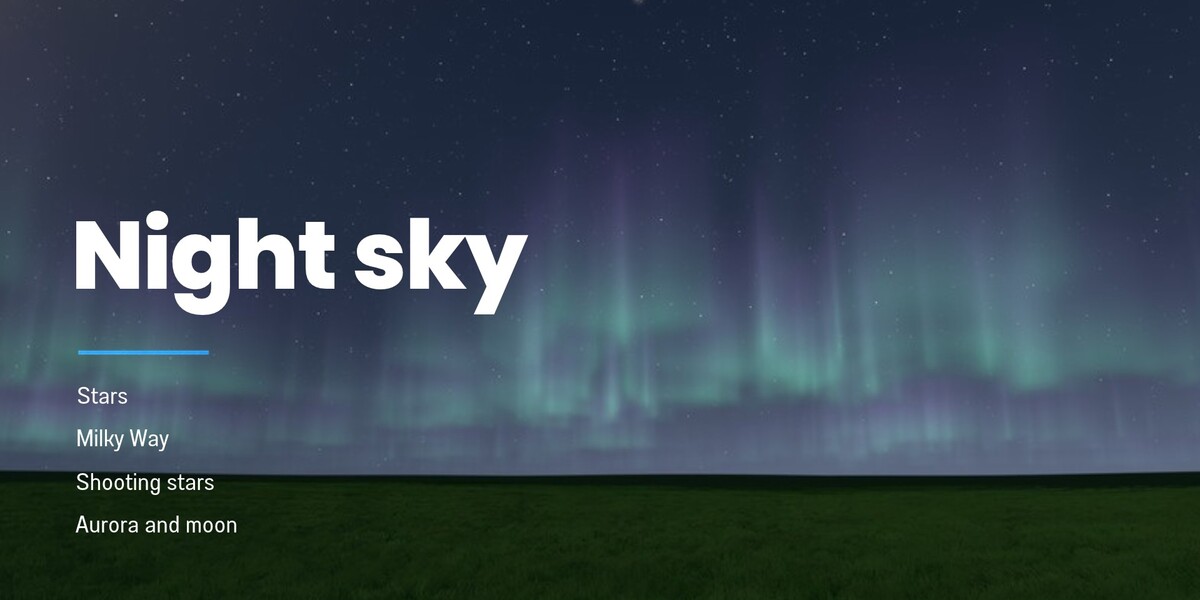
- Stars: the star field.
- Milky Way and its Direction.
- Shooting Stars: meteors. Higher values give more meteors. Mixed Directions (on by default) makes them fly in many different directions; turn it off for a classic meteor shower where every meteor flies away from one point, set by Direction.
- Northern Lights and their Motion.
- Moon: its Height, Direction, Phase, Size and Moonlight. The moon uses a real NASA colour map.
Quality
- Low / Medium / High: the number of raymarch steps for the clouds in the viewport. New skies start at Low for a fast viewport.
- Steps (expand it) shows the exact step counts. Turn on Custom Steps to set each one yourself: Clouds Viewport, Clouds Render and Clouds Cycles; God Rays, Light Beams and Aurora Layers. More steps look smoother but render slower.
- Auto Render Quality / Render: final renders use more steps automatically.
HDRI
Bake renders the current sky into an equirectangular HDRI image. You can choose a resolution up to 8K. The HDRI is useful for other software and for fast previews.
More Options / More Colors / Expert
- More Options: Edge Softness, Parallax and Fine Puffs; Cirrus (a high thin cloud layer); God Ray Length and Shadow Patch Size.
- More Colors: the sun, cirrus, aurora (two colours), Milky Way (and its core), shooting star and moon colours.
- Expert: direct access to the sky gradient and the cloud toon ramps.
EEVEE and Cycles
Both engines are supported and give the same look.
- EEVEE: real-time, ideal for previews and animation.
- Cycles: uses its own cloud step count (Clouds Cycles). Each sample is cheaper there, because Cycles averages many samples. Flat anime clouds come out slightly softer in Cycles than in EEVEE.
Performance tips
- Work in the viewport at Low quality. Renders switch to the higher quality automatically.
- If the viewport is slow, lower Clouds Viewport in Custom Steps, or reduce the viewport resolution scale.
- For background-only shots, Bake an HDRI and use it in place of the live sky.
Troubleshooting
- Nothing changes in the viewport: set the viewport shading to Rendered and check that the World is set to the one Stylized Sky created.
- Colours look washed out: turn on Vivid Colors, or pick a contrast Look in Color Management.
- Banding or noise in the clouds: raise Clouds Render (EEVEE) or Clouds Cycles steps, or add more render samples.
Credits
The moon colour map is from the NASA Scientific Visualization Studio "CGI Moon Kit" (Ernie Wright, NASA/GSFC; LRO/LROC data) and is in the public domain.
License
The add-on code is GPL-3.0-or-later.
Have questions about this product?
Login to message
| Published | about 14 hours ago |
| Blender Version | 5.2 - 5.3 |
| Extension Type | N/A |
| Render Engine Used | Cycles, Eevee |
| License | GPL |
Discover more products like this
time of day clouds aurora sky hdri world-shader atmosphere raymarching anime volumetric night sky stylized