 ZEG
Installation
In Blender open Edit, Preferences, Get Extensions, then use Install from Disk and pick the subway_station_generator zip.
Usage
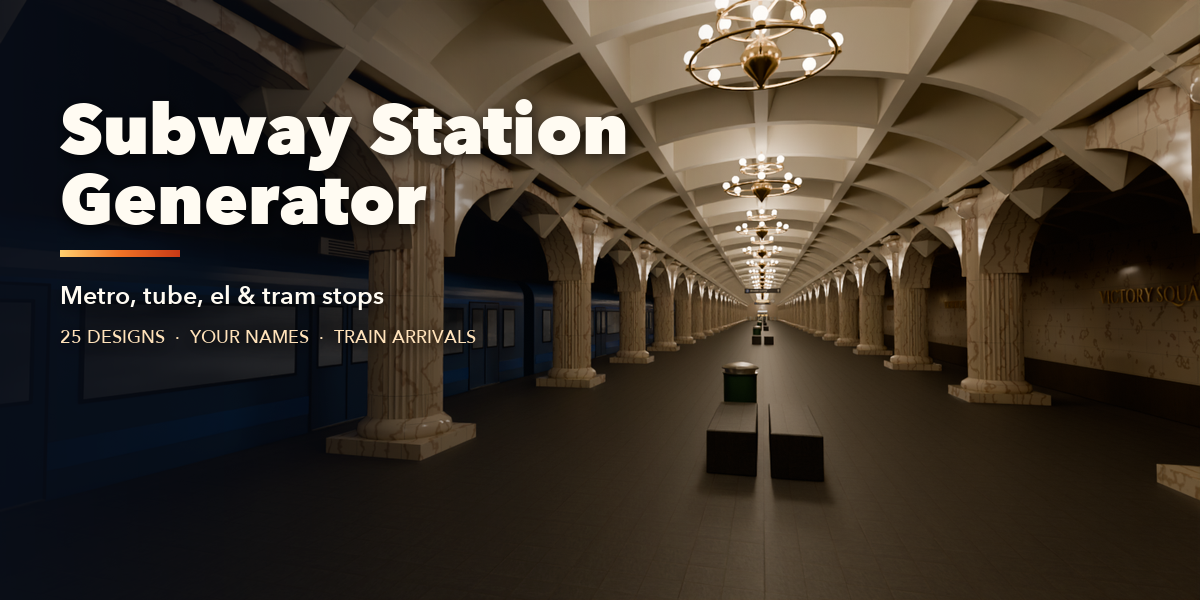
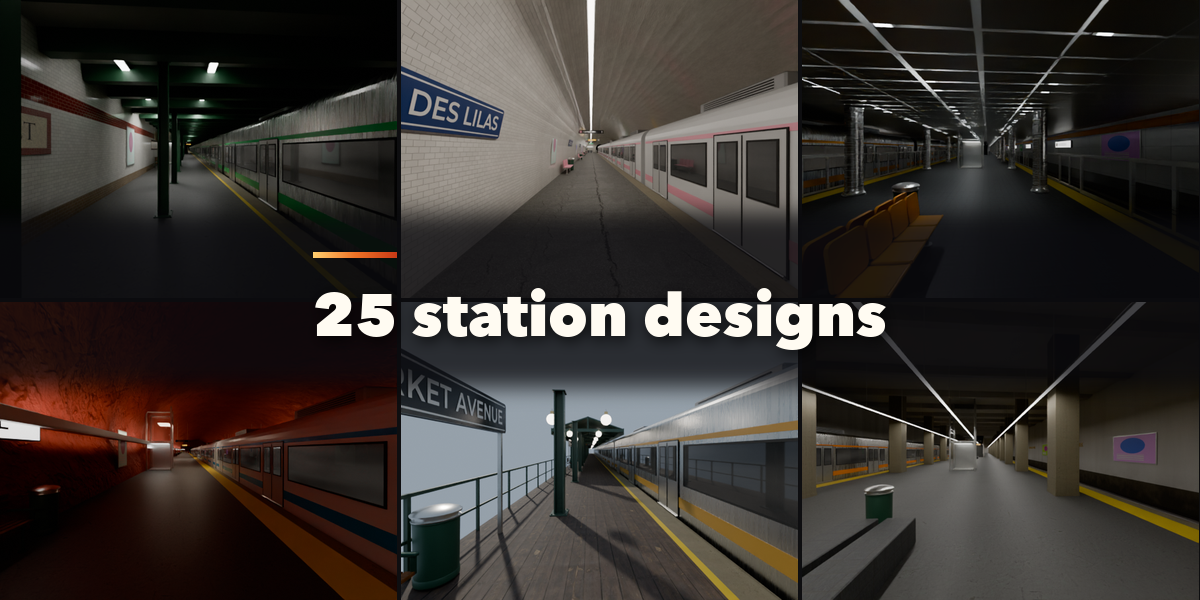
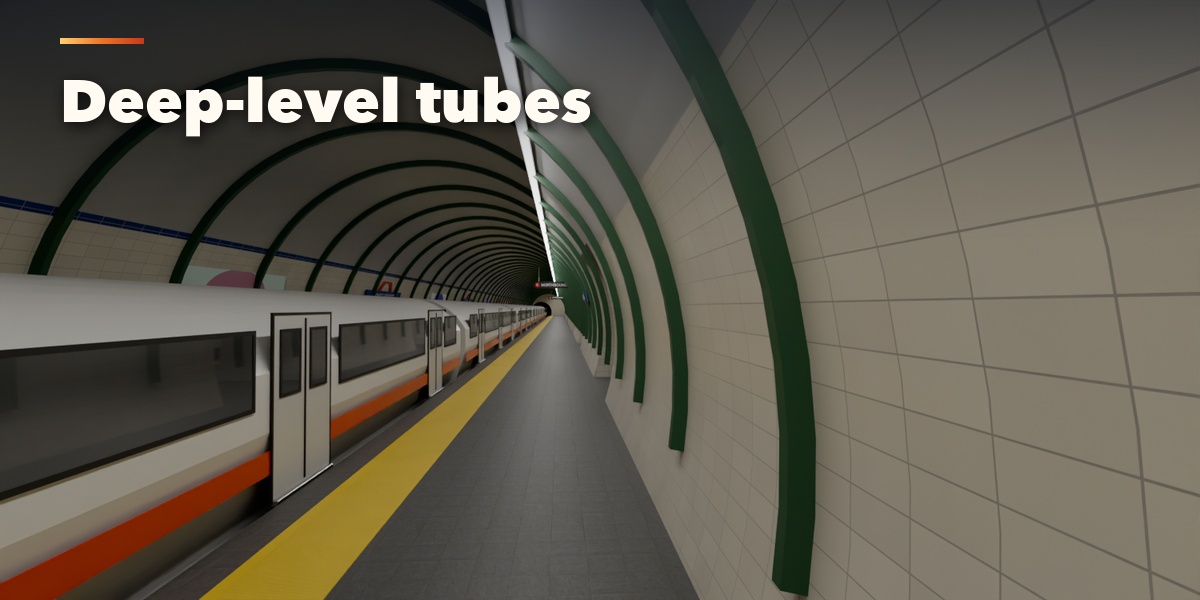
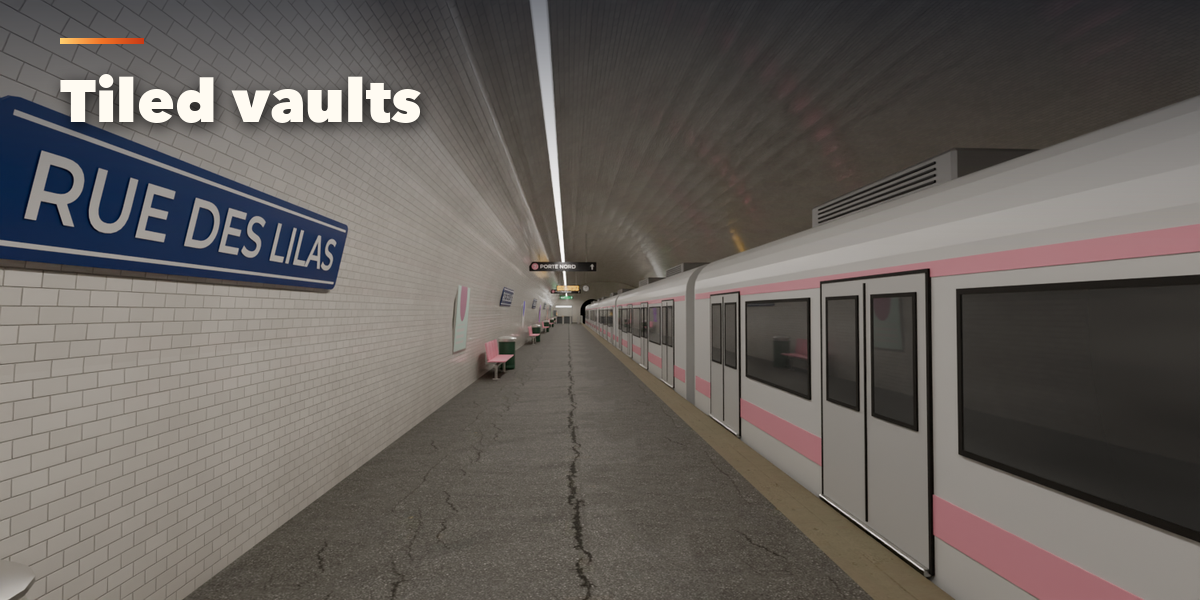
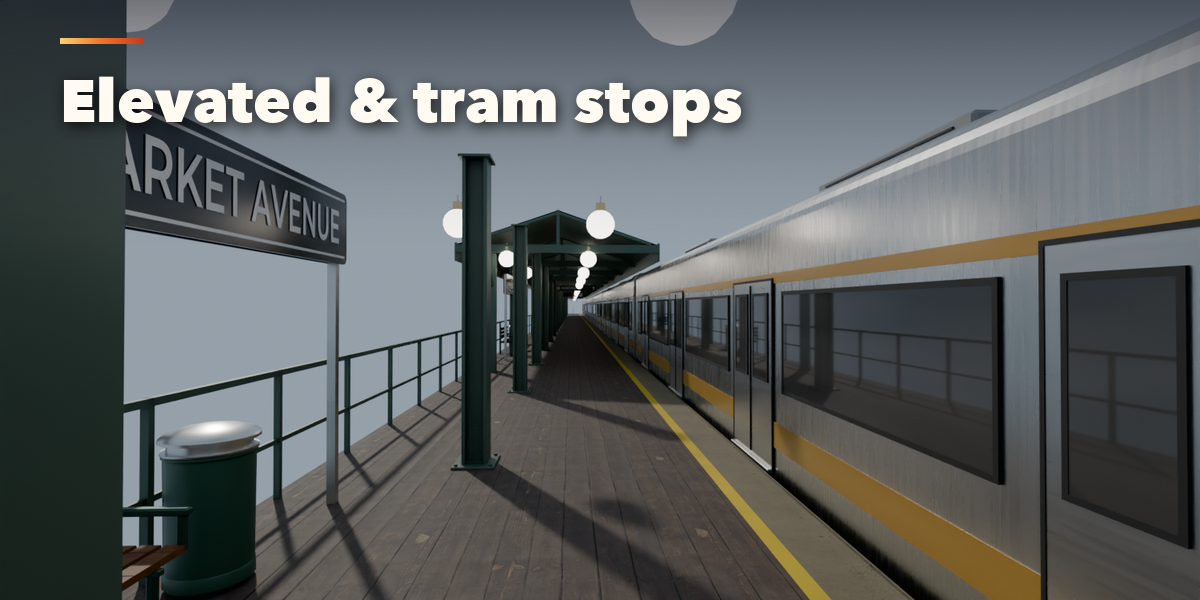
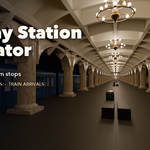
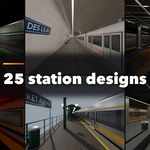
- Open the Subway tab in the 3D viewport sidebar (N). With no station selected, click the picture to pick one of the 25 designs, then press Add Subway Station. You can also use Shift+A, Mesh, Subway Station.
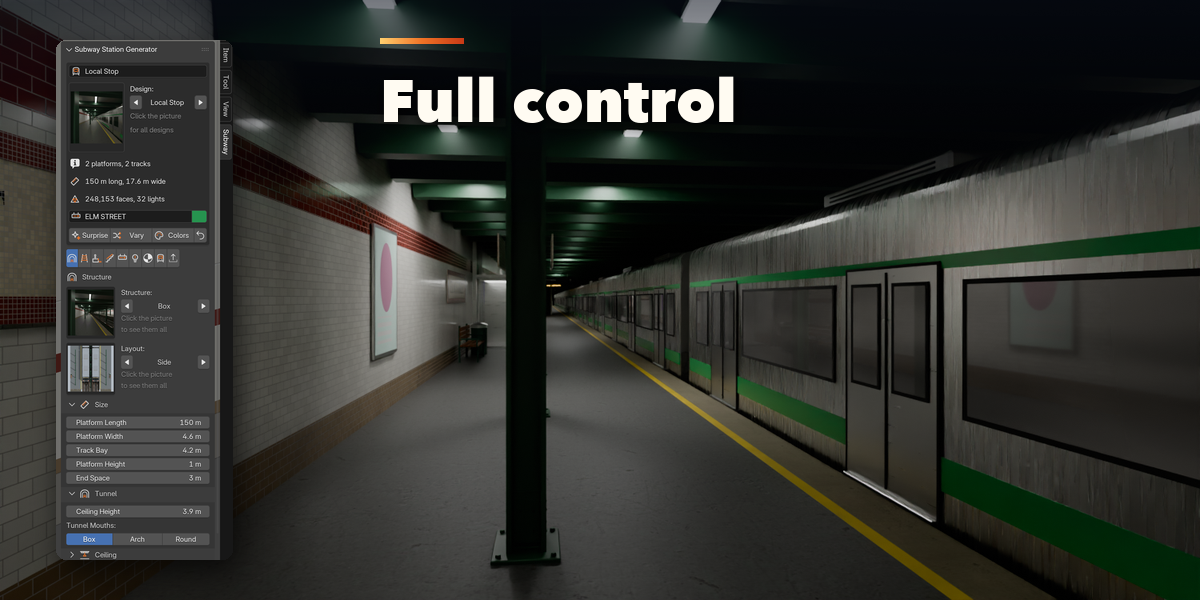
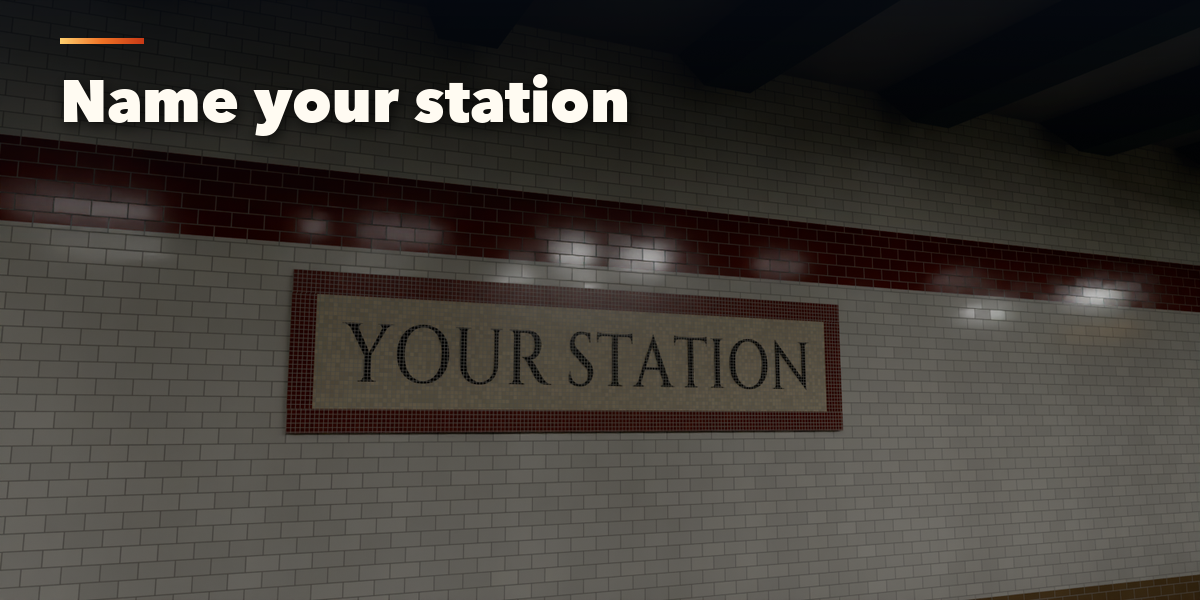
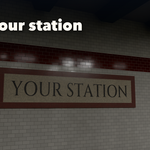
- The card at the top shows the design, the number of platforms and tracks, the size, face count and light count. Type a name in the text field to put it on every station sign. Surprise makes a new random station, Vary changes the current one a little, Colors picks new colors and the arrow resets the design.
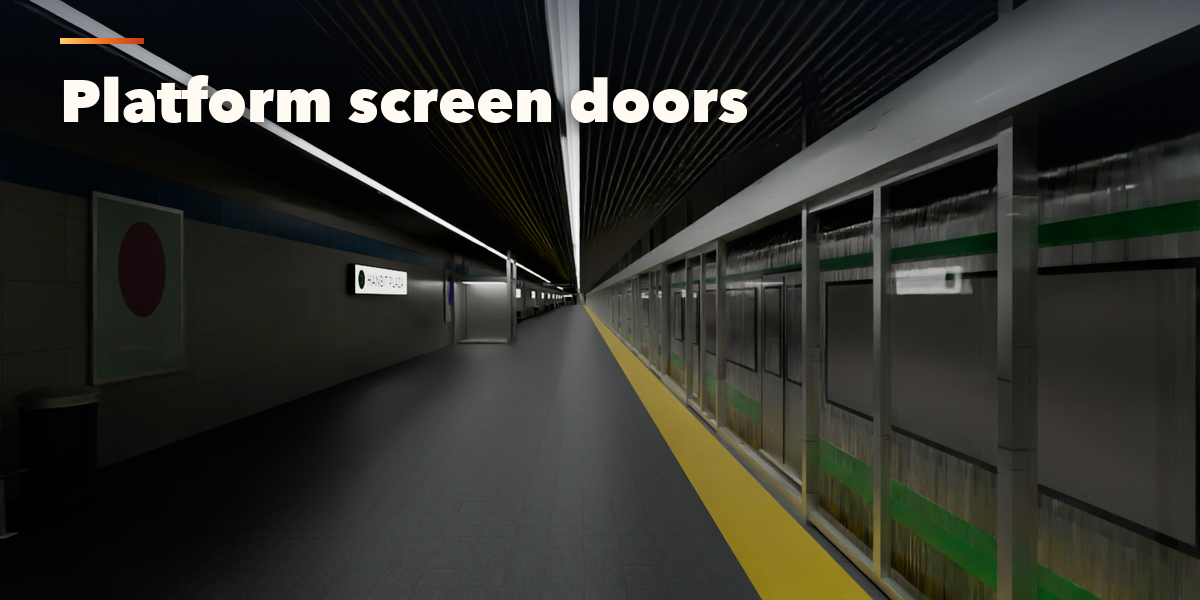
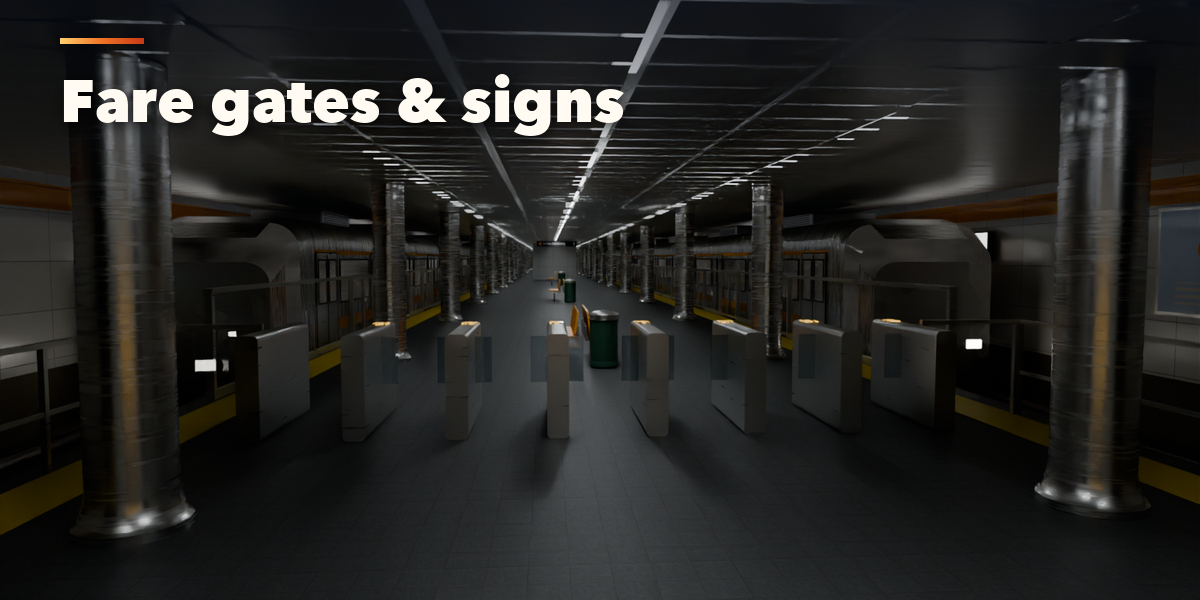
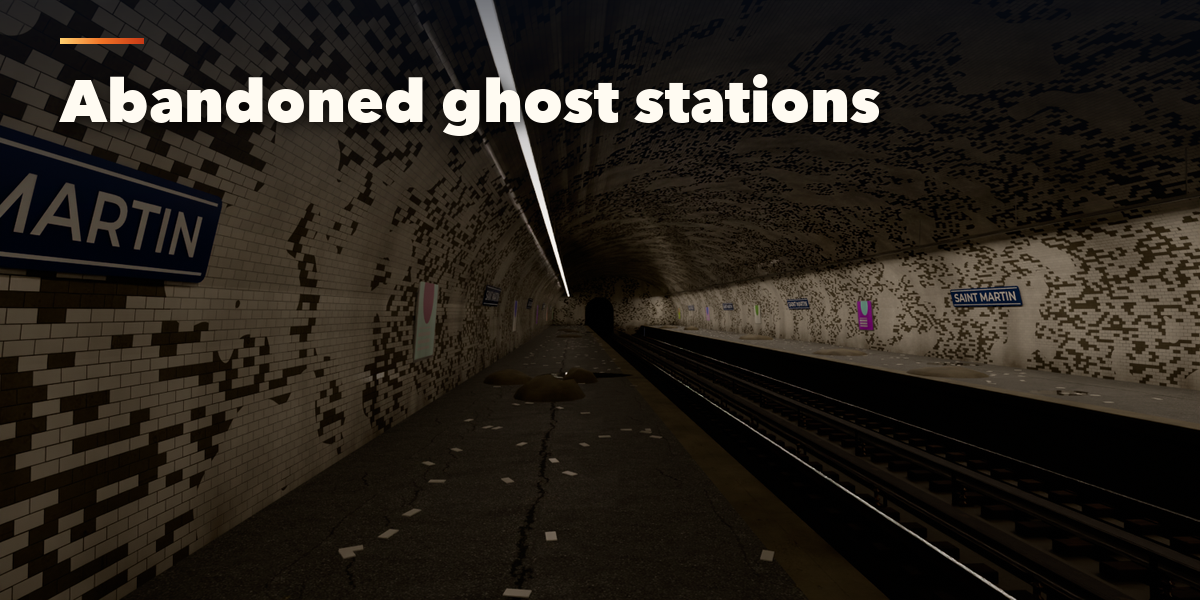
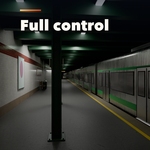
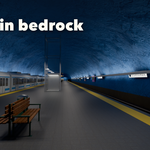
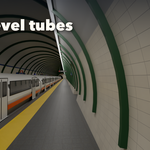
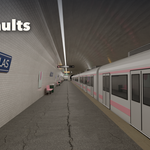
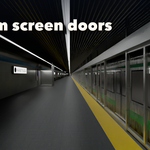
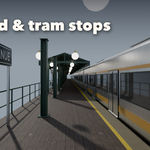
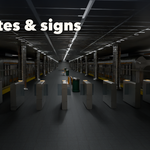
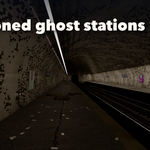
- The icon tabs hold every setting: Structure (layout, tunnel or hall, ceiling and columns), Track (bed, sleepers, rails and power), Platform (floor, edges, screen doors, benches, ads and boards), Access & Fares (stairs, escalators, elevator, entrance and fare gates), Signs (name, line, directions and sign styles), Lights, Finish (tiles, colors, marble, grime and decay), Train (trains and their arrival) and Parts & Export (part visibility, detail, Convert to Mesh, Make LODs).
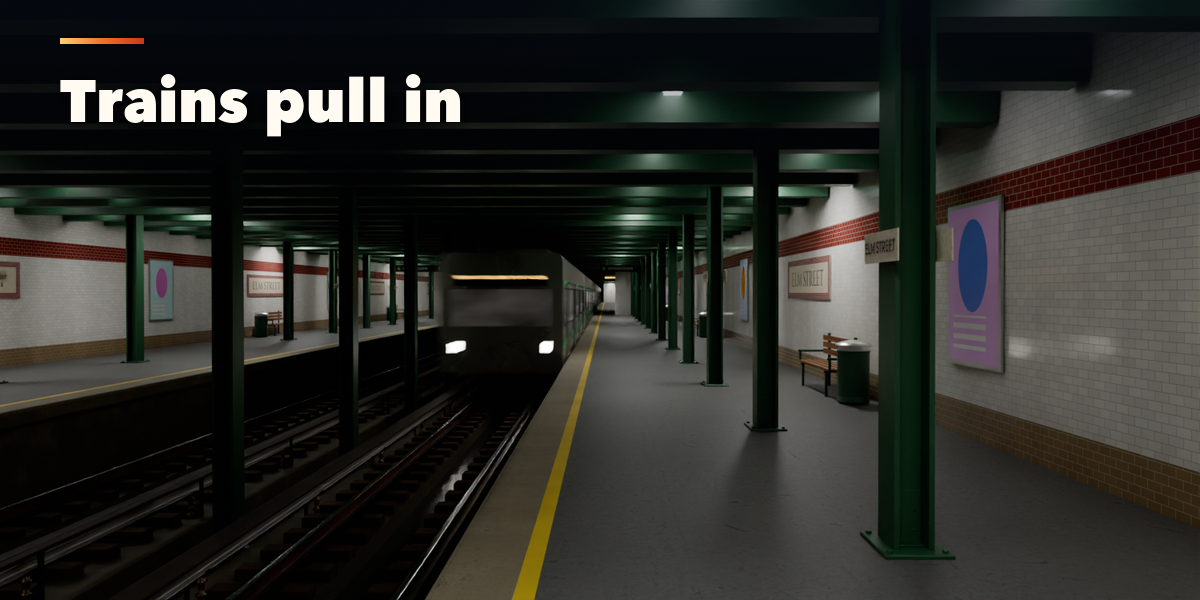
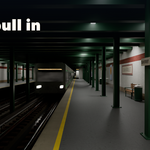
- On the Train tab set the frame at which the train stops and press Play Arrival to watch it pull in.
- Every station is built in real meters with its origin on the platform floor. Each part is its own named object in the station's collection, so you can hide parts, convert to plain meshes or make three LODs for a game engine.
Have questions about this product?
Login to message
| Blender Extension Compatible | Yes |
| Published | 3 days ago |
| Blender Version | 4.2 - 5.2 |
| Extension Type | Add-on |
| Render Engine Used | Cycles, Eevee |
| License | GPL |

Discover more products like this
station metro architecture railway subway underground procedural train tram environment game ready Generator