 CG LIFE




Comprehensive Video documentation for how to use the addon can be found within this youtube playlist:
https://www.youtube.com/playlist?list=PL_SMbiCqbqmPsDvt_b7WEY7rW5K9lbSWY
The basics are, use the big '+' button to add summon keys. To the left, select what you want that summon key to do. Whether it be open a pie, menu, or be held and await a secondary resting key input to trigger a tool. For the 10 resting keys below, input the keys your fingers naturally rest on, for efficiency. 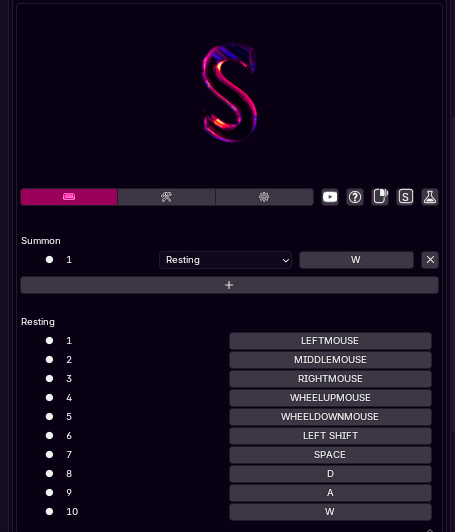
You can change the keybinds below the resting keys.
To bind items, hover any item in blender and press MMB, Or Right mouse
click + W, to select it for binding. Then press your summon key, and
select a menu slot or use a resting key to set to the initially hovered
tool.
The exact keybinds, (Default is shift + MMB OR Rightmouse + X), can be
used to set a bind to exactly the current value of a property. Eg set
samples to 1500 first, then use the exact bind while hovering the
slider, and choose a slot to bind with. Using that will always set the
samples to 1500. The same principle applies to dropdowns and other
items. Always first set the property to the value you want, then hover
it and run the shortcut to bind.
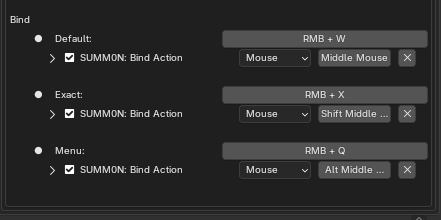
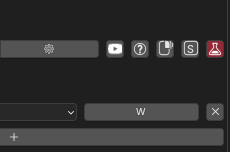
The menu/panel binding shortcuts can be enabled via the science flask icon button in the very top right of the addon, to enable experimental features. Expect bugs when using the menu panels. RMB > Q is best for the menus, run this on a button or property WITHIN the menu you want to bind for best results. Alt MMB is the alternative bind however this can be a bit inconsistent currently for menus as blender doesn't always provide enough information for what menu the user wants compared to a right mouse click which provides explicit context for summon to figure it out.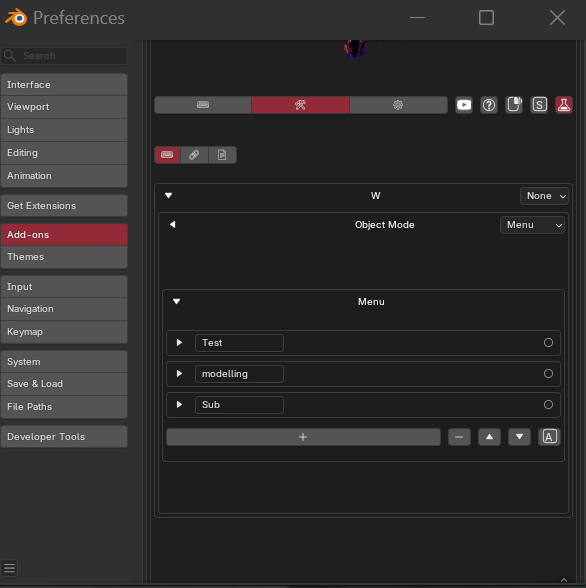
For menus, head to the actions tab (hammer and wrench icon) , and open up the summon key dropdown. Open up the space type you want eg object mode, then the menu box and click the + buttons to add submenus. Name them, and then you can proceed to bind tools to them the same way as pies or resting keys. Hover a blender tool, press MMB to bind and then open the created menu and choose a item on a submenu to bind onto.
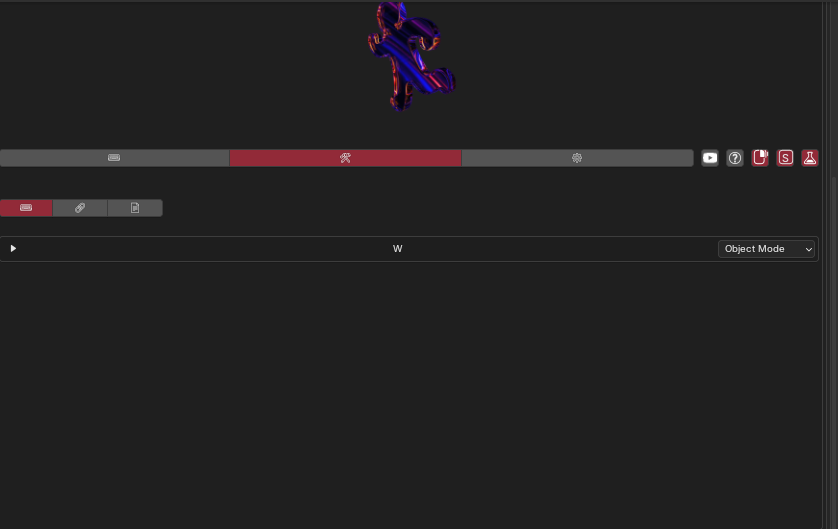
One important thing to note is that menus are unique per space type. After setting binds to a pie menu in object mode, using it in edit mode or the shader editor will be blank. You can set unique items for each for the same summon key. If you instead want all to share the same, select a fallback space type with the dropdown in the actions panel, directly to the right of the summon key(visible in the above image. For example set all of the object mode pie, and select object mode as the fallback space type for all space types to display the same object mode options.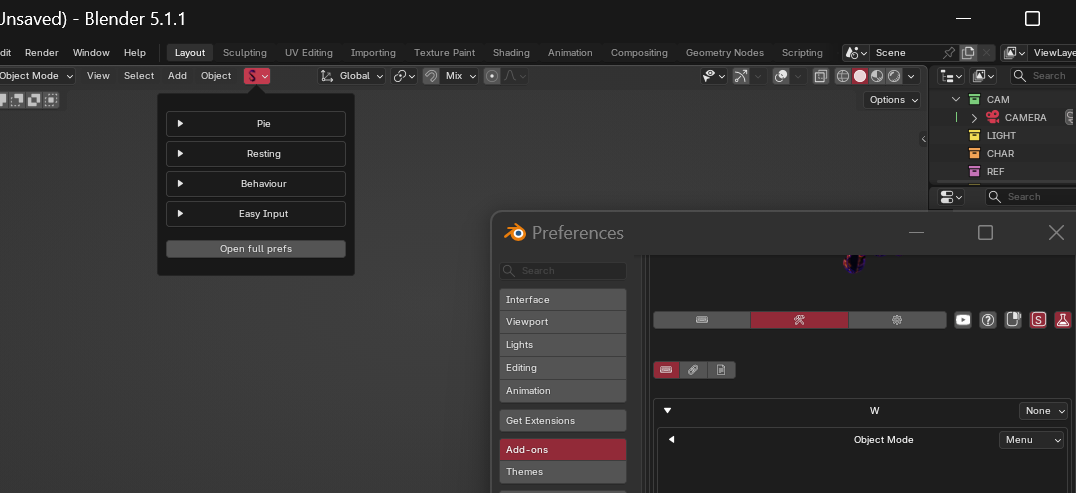
For ease of use there is a 'S' Icon on the top right of the addon preferences which enabling will add a 'S' dropdown panel at the top left of the 3d viewport, with easy access for settings. The right mouse icon to the left of this enables easy input, which clearly displays the input methods after clicking rightmouse on a blender icon, so they can be clicked instead of using a shortcut. 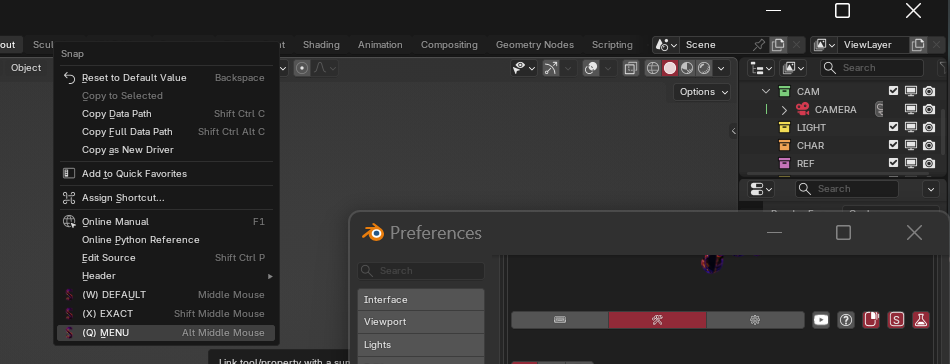
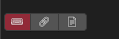
Under the actions tab(hammer/wrench icon) you can also find a input, link and copy icon. The input is the stardard method of inputting whereby you hover a item, use the bind shortcut then use a slot to bind with. Link will instead of waiting for you to use a menu slot or resting key to bind with, instantly bind to the selected item in the actions panel instead. Select items with the little circle icon to the right of their entries in the actions panel. Copy will copy the tools python code which you can manually insert into a action box.
The add-on also has an embedded Text tutorial via the '?' button, and detailed explanations when hovering every single button.
Full Written external documentation is planned to be added later on.
Have questions about this product?
Login to message
