 Workbench Tools
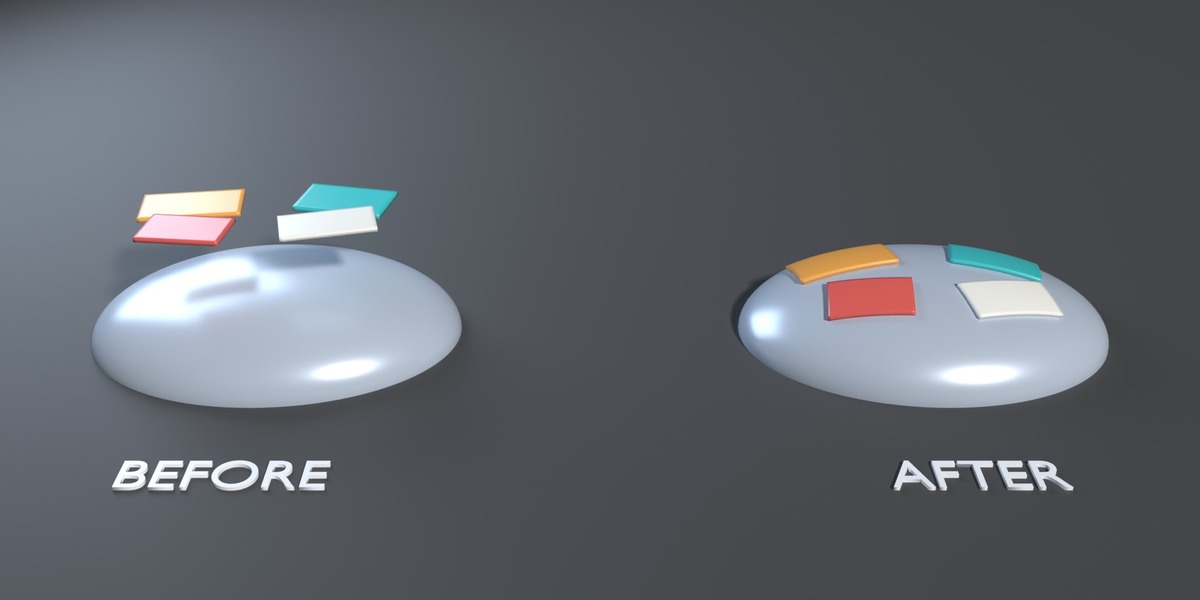
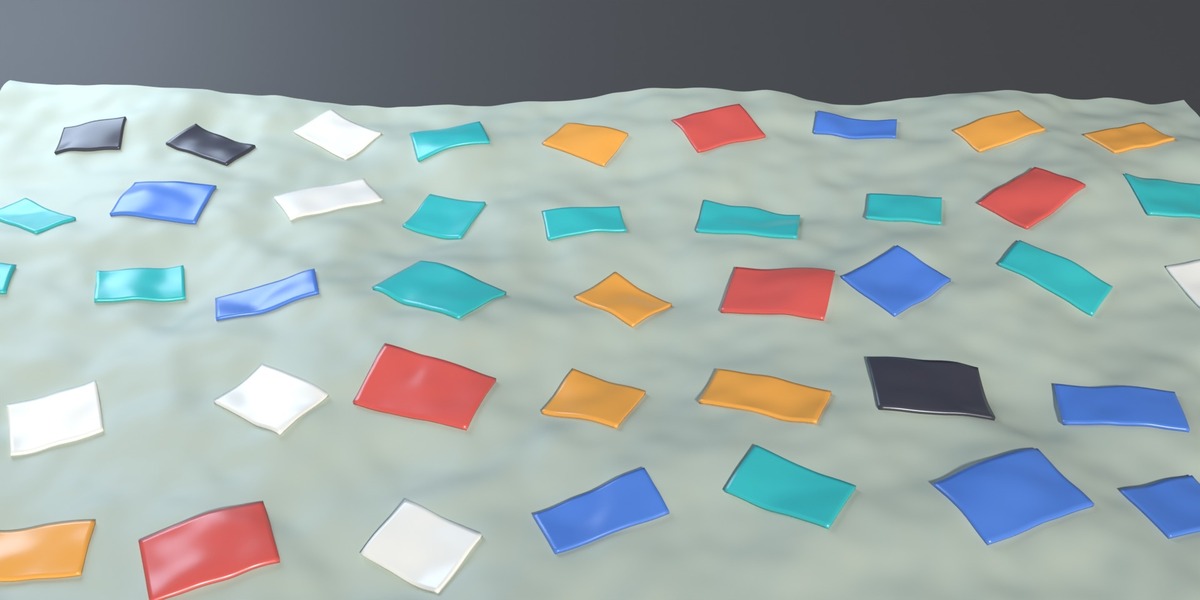
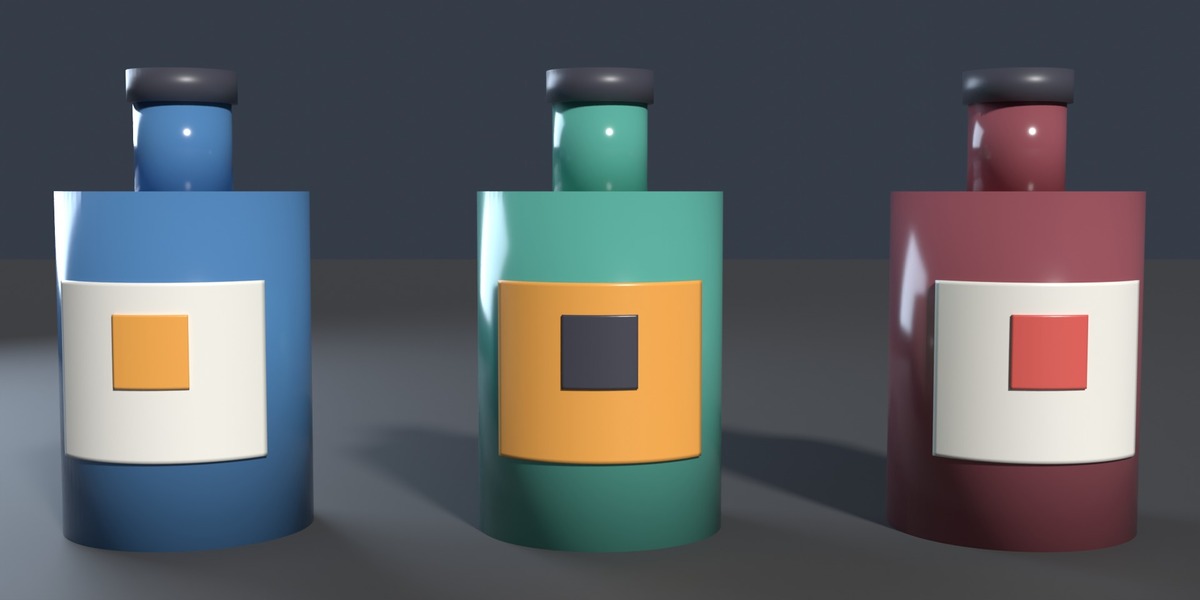
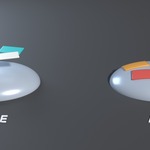
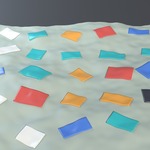
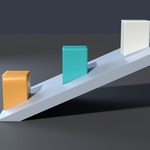
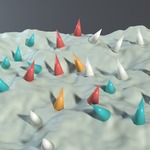
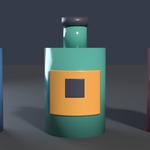
SurfaceFit sets up a clean, editable modifier stack that projects your selected objects onto the surface of another object. Place a logo plate, a panel, a label or a part on a curved body, then keep adjusting it. Nothing is baked until you press Apply.
Select your objects, make the target active and press Fit to Active. SurfaceFit adds Subdivision (optional), Shrinkwrap, Solidify (optional) and Data Transfer (optional) modifiers to each selected object, using the object's own local Z axis as the projection direction. Because the result is an ordinary modifier stack, you can still open the modifiers and tweak them by hand.
What you get
- Non-destructive projection along the object's local -Z, +Z or both (the nearest hit wins). Position and rotation of your object decide where the projection comes from, like a slide projector.
- Offset and snap mode: on the surface, outside the surface, or above the surface along its normal.
- Thickness: give flat patches such as labels, plates and decals a thickness after projecting, so they sit on the surface like real parts.
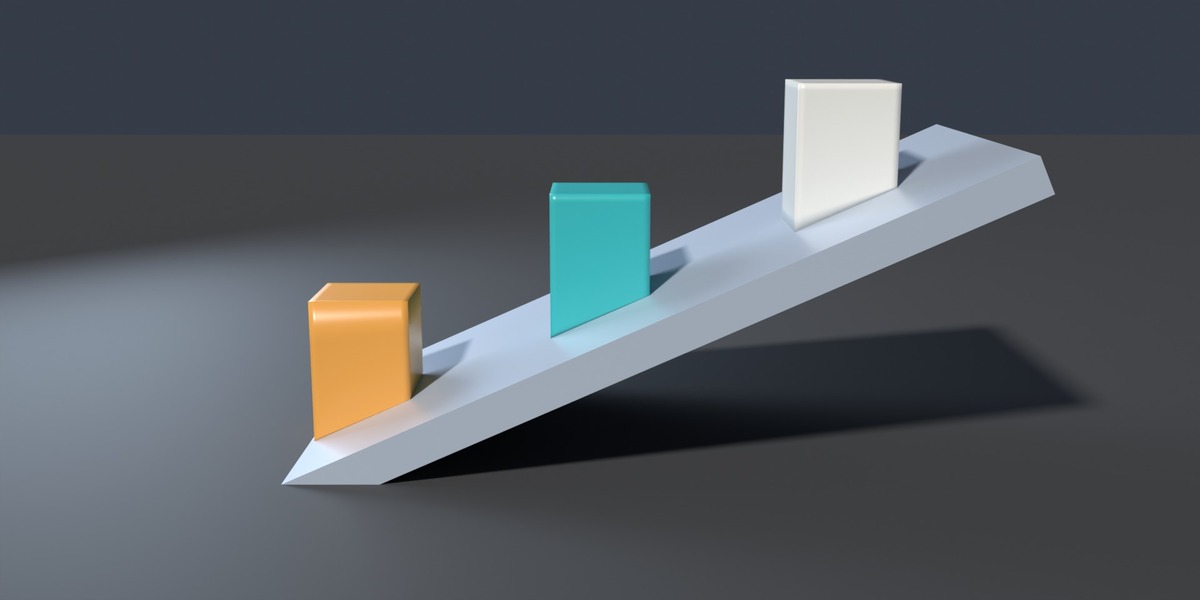
- Gradient falloff: fade the effect from the bottom of the object (fully projected) to the top (untouched), with invert and falloff sharpness.
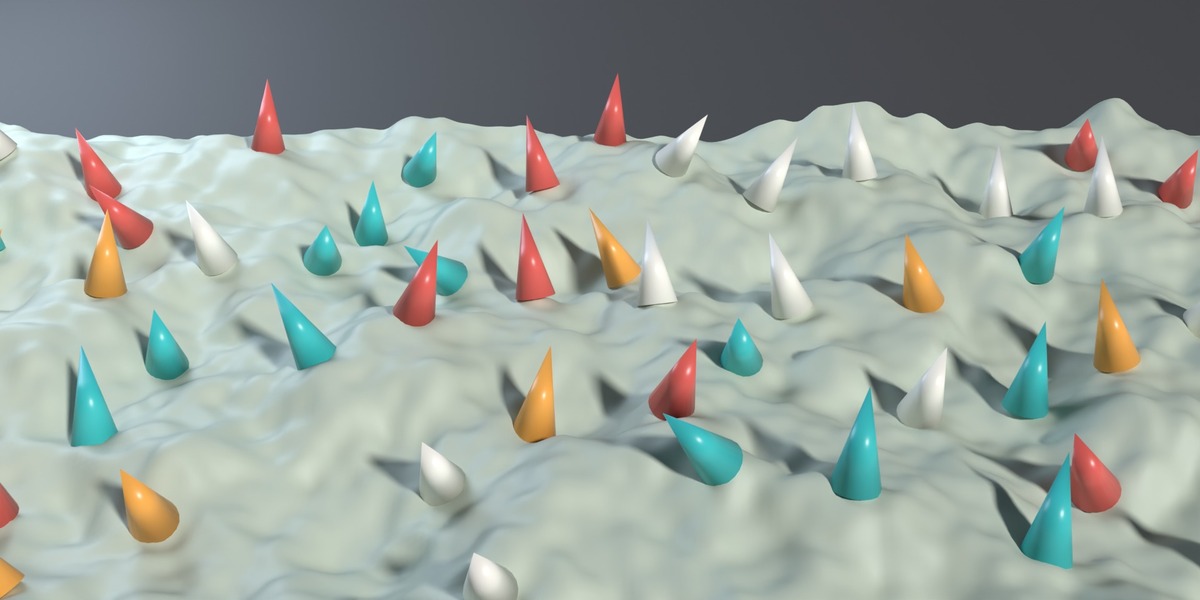
- Normal transfer: copy shading normals from the target so the result blends in smoothly.
- Auto subdivision: add simple subdivision levels first so low-poly objects can follow curved surfaces.
- Multiple objects at once, in one click.
- Update, Apply and Remove: rebuild with new settings, make the result permanent, or go back to the original shape.
- Drop and Align: move objects onto the surface along their local Z axis and rotate them to follow the surface normal, including targets with non-uniform scale.
- Works from the 3D View sidebar (SurfaceFit tab) and the right-click menu.
Good to know
- It projects in one direction, like a slide projector. It is not a wrap tool: it will not bend an object around another object.
- How well the result follows the surface depends on the mesh density of your object. Use Auto Subdivision or add geometry for low-poly meshes.
- Vertices whose projection ray does not hit the target stay where they are.
- Apply needs a mesh without shape keys. If the mesh data is shared between objects, the applied object gets its own copy.
- Works offline. SurfaceFit does not connect to the internet.
Requirements
Blender 4.2 or newer (Extension format). Tested on Blender 4.2.23 LTS and 5.3.0.
Installation
- Download the ZIP file.
- In Blender open Edit > Preferences > Get Extensions, open the dropdown (v) at the top right and choose Install from Disk.
- Select the ZIP and enable the add-on. The SurfaceFit tab appears in the 3D View sidebar (press N).
License and support
GPL-3.0-or-later. Questions and bug reports: [email protected] (please include your Blender version and a short description or screenshot).
