Tankify
 Yara Studio



Tankify!
Documentation

Physics simulations with tanks you can drive in real time like a game.
Fully customizable tracks powered by geometry nodes.
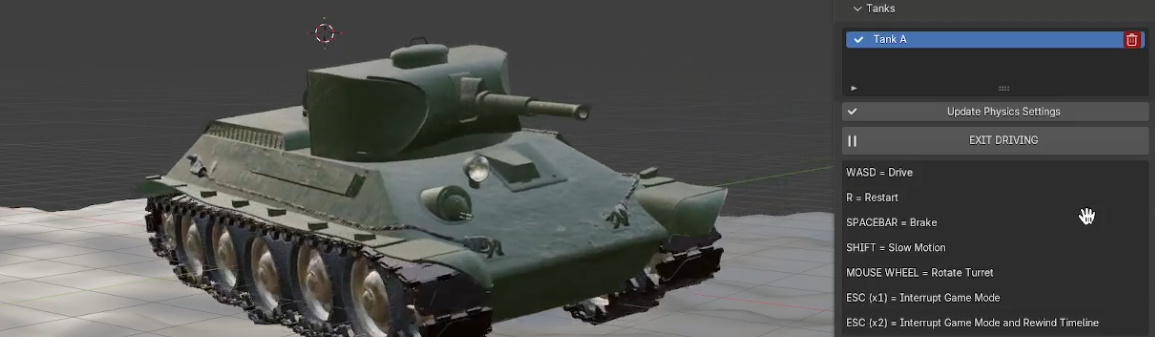
Turn any tank model into a playable physics-based vehicle.
IMPORT → ASSIGN → PLAY!
In just a few minutes, you are ready to drive.
Fully assisted customizations.
What kind of model do I need?
The ONLY THING you have to care about is :
Use real-life scale.
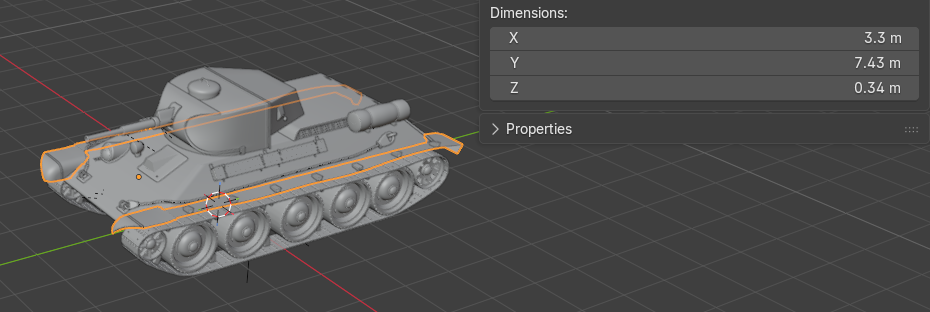
Check the model dimensions in Blender: the values in meters should roughly match the real vehicle ( a vehicle of 50 meters will not work).
Before starting: Tankify will tell you to delete the original tracks.
Tankify creates its own procedural tracks powered by geometry nodes, fully customizable and adaptable in realtime.
The complete workflow
The complete workflow for making a scene should be respected as follows:
Import the tank
Assign parts
Play with it
Customize settings
Bake physics
Bake tracks
Lock the addon before render (press the lock button in the addon)
Render
Import Tank: the 5-step setup
The addon will guide you through 5 very simple steps. Just follow the instructions provided at each stage.
1) Start New Tank
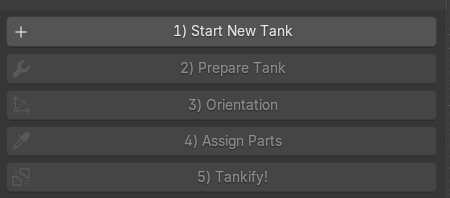
Delete the original tracks, select all tank parts, then press Done.
Why? Tankify isolates the tank so the next steps only affect this model.
2) Prepare Tank
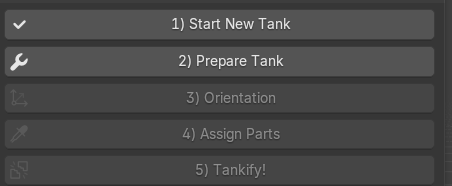
This performs all the operations needed to prepare your tank model.
You do not have to worry about the technical preparation.
3) Orientation
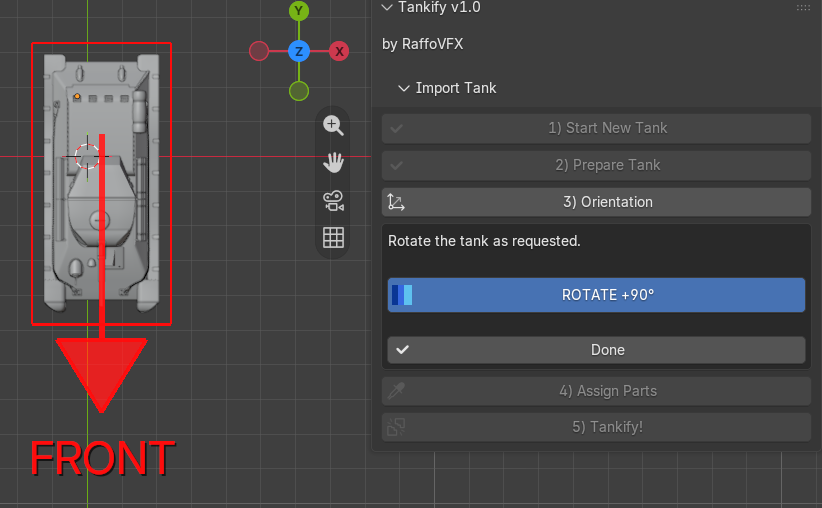
Rotate the tank until its front points toward the big red FRONT arrow, then press Done.
4) Assign Parts
Tell Tankify what each piece of the model should do.
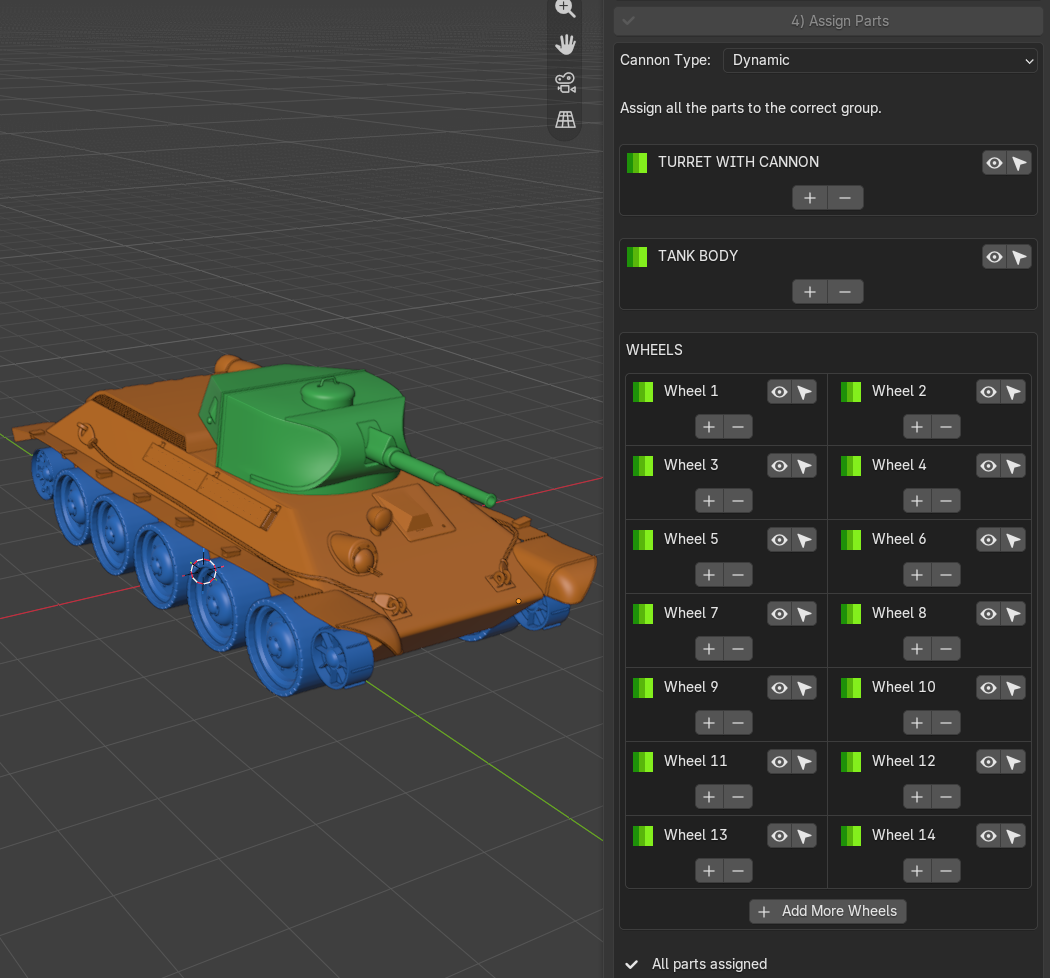
Select parts in the viewport and add them to the correct group: body, wheels and optional dynamic turret.
When every required part is assigned, Tankify shows All parts assigned.
5) Tankify!

Builds the complete physics vehicle: body physics, wheel physics, suspension, motors and procedural tracks.
For Dynamic cannon setups, it also creates the physical turret rotation system.
Tankify unlocks each step only after the previous one is completed.
MORE INFOR ABOUT ASSIGNING PARTS:
Cannon Type
Note: Use Blender's Box Select tool to select multiple parts at once, then assign them to the correct group in Tankify. Enabling transparency is highly recommended here, so you do not miss parts hidden behind other geometry.
TANK BODY
Assign the main body parts here. Tankify joins the assigned body pieces automatically.
TURRET WITH CANNON
This option is available only if you choose Dynamic cannon.
Assign the parts that should be the turret with cannon.
This way, during the drive you can rotate the cannon by scrolling the mouswheel.
WHEELS
Each wheel field represents one physical wheel position.
A wheel can contain more than one mesh part (for example: if a wheel has many bolts, additional parts,etc... just select all of its parts and assign them to 1 wheel slot in the addon).
1 slot for each wheel.
Your tank has many wheels? Press Add More Wheels.
The panel starts with 12 and can expand as needed.
Tankify keeps the final button locked until all the parts of the 3d model are assigned.

After Tankify!, move the generated move box to reposition the whole vehicle.

Start driving

Press START DRIVING.
Here is the fun part, just start playing with the tank in realtime using keyboard and mouse.
Controls
WASD
Drive the tank
SPACE
Brake
Stop the tank.
SHIFT
Slow Motion
Hold Shift for activating the slow motion during the drive.
R
Restart
Restart.
MOUSE WHEEL
Turret rotation
ESC
Exit
Before driving
If the button "start driving" is greyed out, the addon will prompt you to click on "update physics" first.
This is necessary for avoiding conflicts with other addons.

Make the tank feel right
Most tanks work well with the defaults.
Change a setting only when you need a different behavior.
Motors Settings
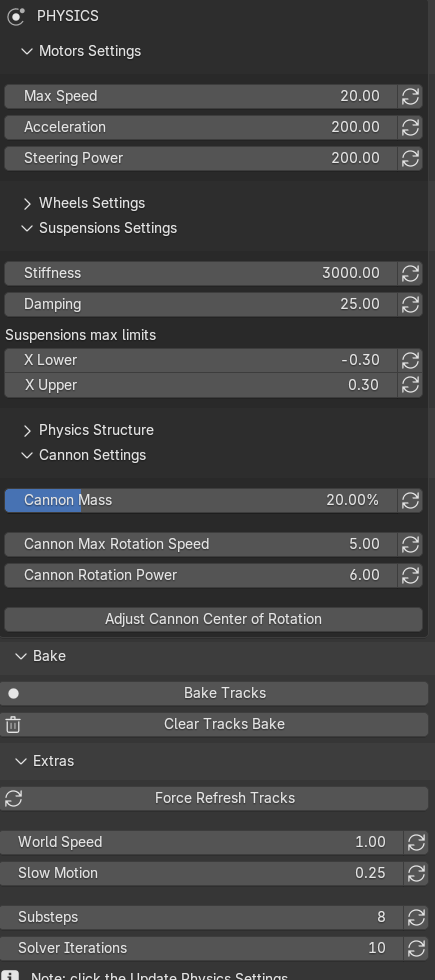
Max Speed
Maximum driving speed.
Too slow or too fast? Change this.
Acceleration
How strongly the motors push.
Increase if the tank feels weak. Decrease if starts feel violent.
Steering Power
How strongly A/D turns the tank.
Increase for stronger turning. Decrease if it spins too aggressively.
Wheels Settings
Wheels Friction
Wheel grip.
Increase if the tank slides too much.
Collision Margin
Small collision padding around the wheels.
This margin gives the track enough space between the wheels and the floor.
Usually leave it at the default.
Suspensions Settings
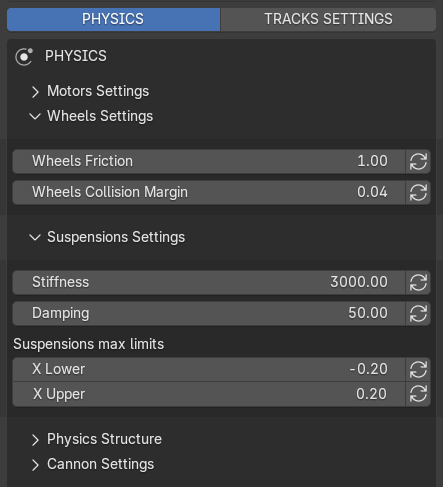
Stiffness
How hard the suspension spring is.
Increase if the tank sinks too much. Decrease if suspension barely moves.
Make it look satisfying while moving.
Damping
How quickly bouncing stops.
Increase if it keeps bouncing. Decrease if it feels too dead.
X Lower / Upper
Limits how far the wheels can travel through the suspension.
Normally leave these alone unless you need more or less travel.
Physics Structure & Dynamic Cannon
Physics Structure
Mass Multiplier
Makes the whole vehicle physically heavier or lighter.
Use it to tune the overall weight response.
Center of Gravity
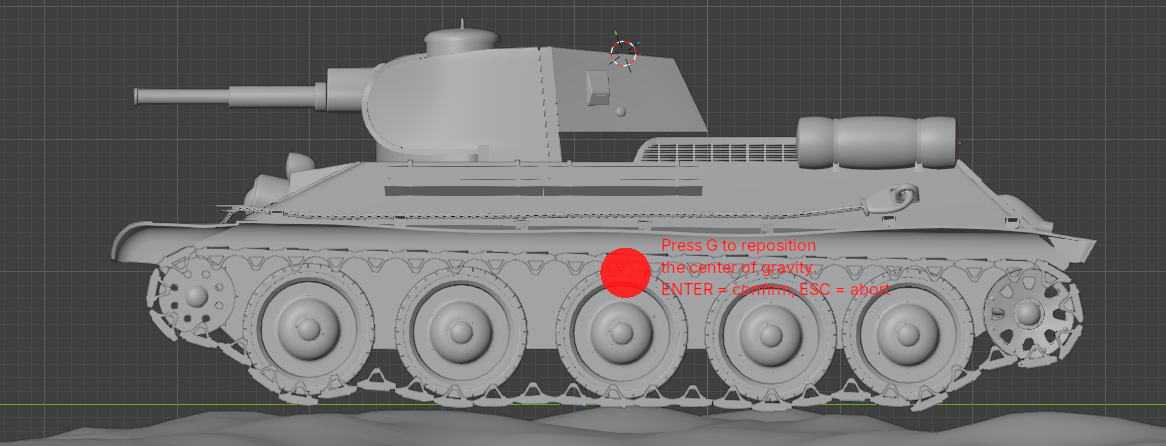
Moves where the body weight is concentrated.
Use it if the tank tends to fall backwards or forward too easily. Moving it lower usually increases balance.
Vehicle Height
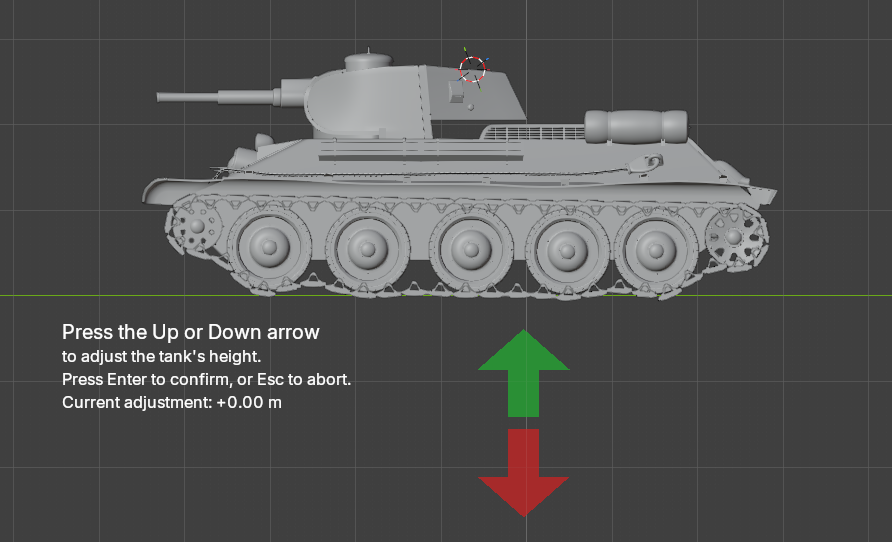
Useful when you notice the wheels intersecting the tank body.
Press the green or red arrow for moving the tank body higher or lower.
Then press enter to confirm, or esc to abort.
Dynamic Cannon Settings
Visible only on tanks created with a Dynamic cannon.
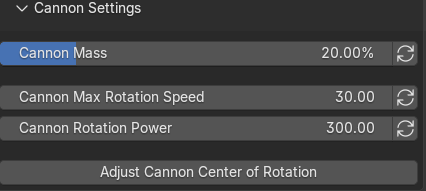
Cannon Mass
Turret/cannon mass as a percentage of body mass.
Decrease if the turret feels too heavy or destabilizes the tank.
Max Rotation Speed
How fast the turret can rotate.
Rotation Power
How strongly the turret motor accelerates and brakes.
Increase if a heavy turret struggles to rotate or stop.
Center of Rotation
Moves the turret pivot.
Use it if the turret rotates around the wrong point.
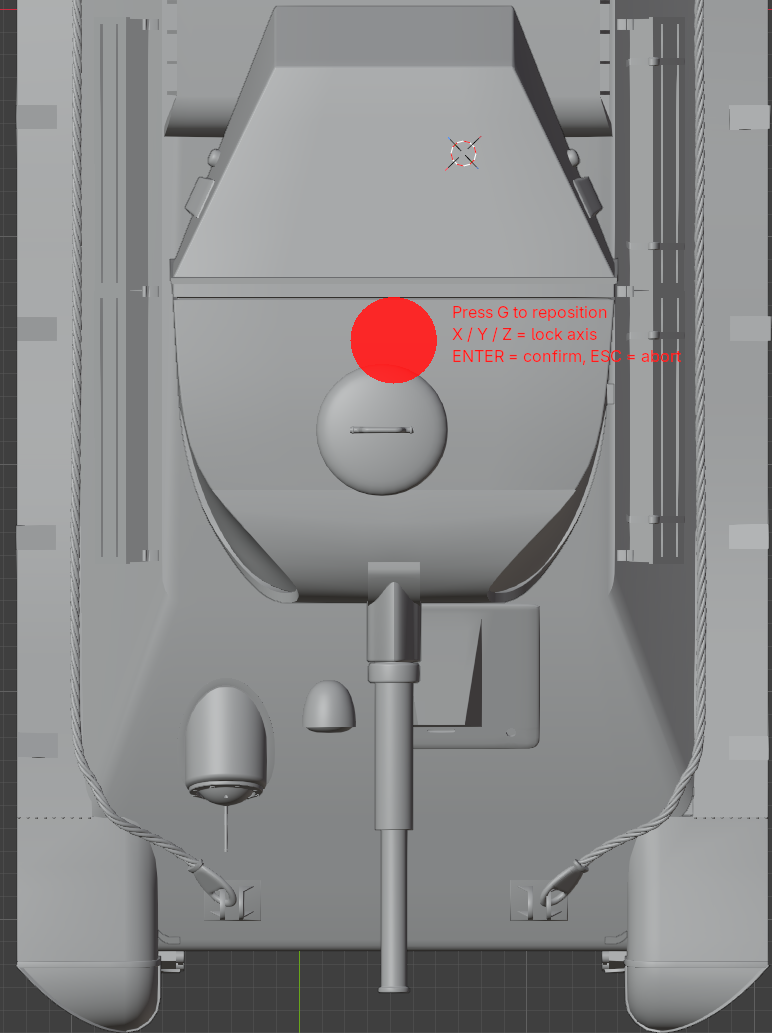
Shape the procedural tracks
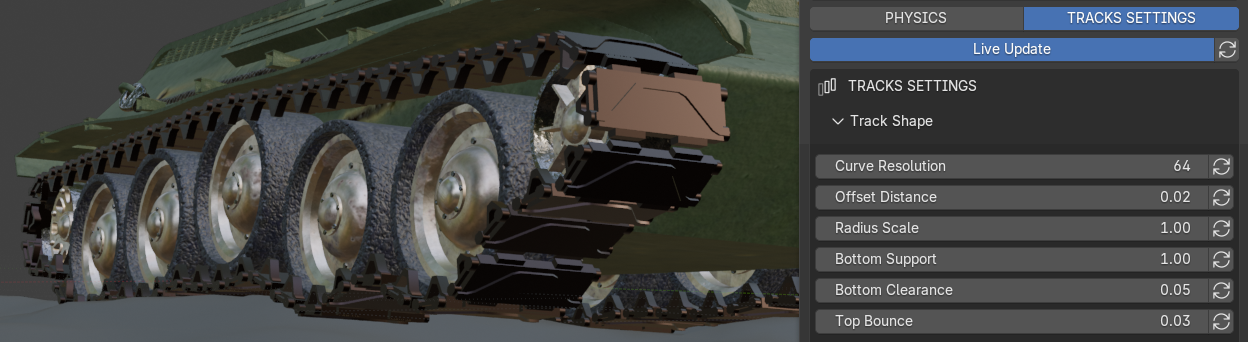
Tankify will generate automaticly some special tracks for your vehicle.
Powered by geometry nodes, that will follow the shape of the wheels in realtime.
You can choose from the multiple provided presets, or just use a custom object.
Track Shape
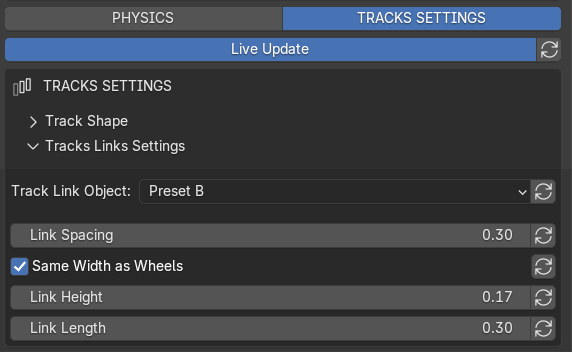
Live Update
Turn it on for a real-time preview of the tracks.
NOTE: After baking the tracks, turn it off. The tracks will still look correct, but viewport response will be much faster.
Curve Resolution
Smoothness around the wheels.
Increase only if the curve looks faceted.
Offset Distance
Gap between tracks and wheels.
Increase if tracks intersect wheels. Decrease if they float too far away.
Radius Scale
Changes the wheel radius used to build the track path.
Try Offset Distance first.
Bottom Support
Controls the lower track between the wheels.
Increase this if the tracks clip under the floor.
Bottom Clearance
Raises the lower track.
Increase if links go into the ground.
Top Bounce
Upper-track slack and bounce.
Higher = looser and bouncier.
Track Links
Track Link Object
Preset A / B use built-in links.
Custom uses your own mesh.
New tanks start with Preset B.
Custom Object
Your own link mesh.
Point it in the same forward direction as the tank.
Its scene position does not matter.
Link Spacing
Distance between links.
Increase if they overlap. Decrease if gaps are too large.
Same Width as Wheels
Automatically matches track width to the wheels.
Turn it off to customize the width manually.
Default Link Width
Manual width, used only when automatic width is off.
Link Height / Length
Thickness and length of each track link.
Reset icon: the circular arrow restores the Tankify default.
Bake in the correct order
For final rendering, always bake the physics first and the tracks second.
Don't worry, no need to remember these steps anyway.
Because the addon will help you to follow all the steps correctly everytime.
1. Bake physics
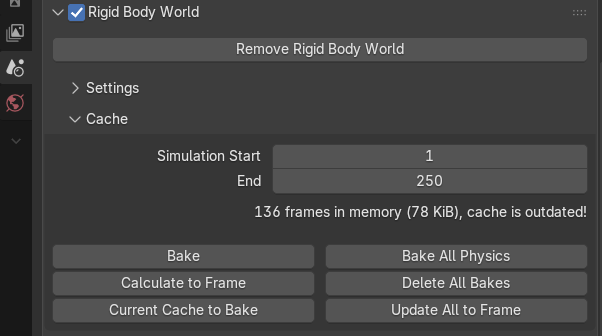
Bake Blender's Rigid Body World.
2. Bake Tracks
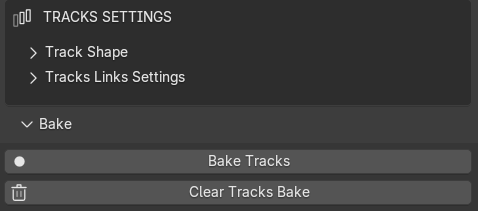
Bake every Tankify tank.
Tankify will not let you bake the tracks before Blender's rigid-body physics are baked.
With multiple tanks, bake the tracks for each one.
3. Lock addon

When the tracks are baked:
Press LOCK ADDON FOR RENDER.
Lock Addon for Render suspends Tankify's unnecessary live systems and helps prevent crashes during renders.
4. Render
Render normally in Blender.
5. Resume
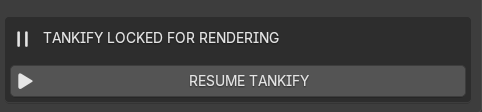
When finished, press RESUME TANKIFY.
Need to edit after baking?
Press Clear Tracks Bake, then clear the physics bake.
Make your changes, then bake everything again.
Extras
Useful controls for refreshing tracks and fine-tuning Blender's physics world.
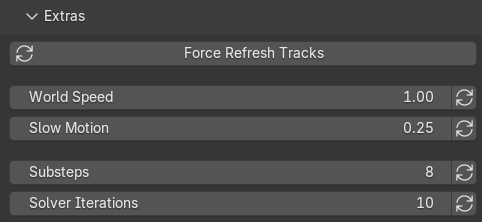
Force Refresh Tracks
Rebuilds the procedural tracks now.
Use it if the tracks look out of date after a change.
World Speed
Base speed of Blender's rigid-body world.
Do not use this to make the tank drive faster. Use Max Speed.
Slow Motion
Speed used while holding Shift.
Substeps
More physics calculations inside each frame.
Increase if fast contacts are unstable.
Higher values cost more calculation.
Solver Iterations
How hard Blender works on contacts and constraints.
Increase if constraints feel unstable.
Update Physics Settings

If this button is red, Blender's current physics settings do not match what Tankify expects.
Just click it when it's red.
It will update Blender's physics settings and unlock the driving button.
Multiple Tanks & Delete Setup
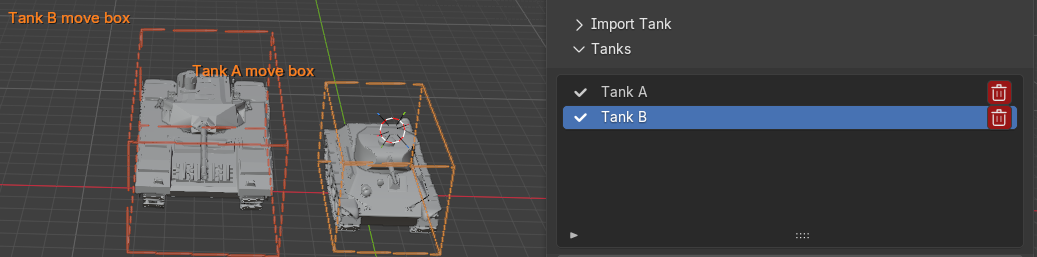
Use the Tanks list to choose the vehicle you are editing or driving.
Use the trash icon to remove its Tankify setup.
When you delete a setup, the addon will remove all the stuff generated by the addon for that tank, except the original 3d model.
If something does not look right
| Problem | Try this |
|---|---|
| Tank is too slow | Increase Max Speed. |
| Tank feels weak or takes too long to move | Increase Acceleration. |
| Steering is too weak / too aggressive | Increase / decrease Steering Power. |
| Tank keeps bouncing after bumps | Increase Damping. |
| Suspension barely moves | Decrease Stiffness. |
| Tank tips over too easily | Use Adjust Body Center of Gravity and move it lower. |
| Wheels intersecting the body | Use Adjust Vehicle Height. |
| Turret rotates around the wrong point | Use Adjust Cannon Center of Rotation. |
| Tracks intersect the wheels | Increase Offset Distance. |
| Lower track goes into the ground | Increase Bottom Clearance. |
| Tracks did not visually update | Use Force Refresh Tracks. |
| Need to change settings after Track Bake | Press Clear Tracks Bake first. |
Update Physics Settings is re |
Click it before driving. |
Have any question?
Text us on Superhive for assistance!
 Included
Includes 12 months of
- Support from Yara Studio
- Product updates
Extend this product’s Support Period +12 months: 50% of product price
Have questions before purchasing?
Login to message
Discover more products like this
tank tanks simulation military tracks rigidbodies tankify war physics vehicles