I reopened a file with an existing simulation, but it's not working correctly. What should I do?
Every time you reopen a working file, go to frame 1 and press Rebuild. This is a required step — it ensures the simulation always starts from a clean, controlled state, preventing unexpected behavior and corruption.
I saved and closed my file at a frame different from 1, and now the mesh looks deformed on reopening. Did I lose my work?
No. From v1.7.3 onwards, Tensor-Cloth stores a snapshot of your mesh’s original shape internally, so the original rest pose can always be restored. To do it: go to frame 1, select the source mesh, and press Rebuild.
Important: Rebuild must always be performed at frame 1, never at another frame, otherwise the simulation will break in a non-recoverable way. This rule applies to any physics simulation, not just Tensor-Cloth.
Available from v1.7.3. On older scenes, run Convert to RB Mesh once to enable the protection.
I edited the mesh and pressed Rebuild, but my changes were reverted. Why?
It depends on what you edited:
- If you added or removed vertices, edges, or faces, Rebuild updates the simulation correctly on the new topology.
- If you moved existing vertices without changing the topology, Rebuild reverts them to their previous positions.
To consolidate the new positions as the reference, delete the simulation (the Rebuild button will be replaced by Convert to RB Mesh) and press Convert to RB Mesh.
This behavior is intentional: it protects the simulation from a known issue where reopening a file may leave the mesh “frozen” in its last deformed state. Tensor-Cloth only trusts the rest pose registered at Convert to RB Mesh, not the current vertex positions, until you explicitly tell it to start fresh.
My simulation is very slow. What can I do?
Reduce the number of faces in your mesh. Fewer polygons means less computation per frame. For high-density meshes, consider using a proxy mesh workflow.
My simulation doesn't look accurate or realistic. Why?
Make sure your objects are at a proper real-world scale. Blender's physics engine works best with meter-scale dimensions. Objects that are too small or too large will produce unreliable results.
My cloth has wrinkles already on the first frame. How do I fix it?
Increase Angular Damping to a value between 0.90 and 0.95, and make sure the mesh is planar and clean before running the simulation.
The cloth passes through itself during the simulation. How do I fix it?
Increase the Self-Collision Thickness to a value between 0.20 and 0.30. This gives the solver enough margin to detect and prevent self-intersections.
My cloth looks stiff and the folds look geometric and unnatural. How do I fix it?
Lower the Bending Stiffness to a value between 2 and 5. High bending stiffness prevents the cloth from folding naturally.
My cloth explodes on the first frame. What should I do?
Lower the Face Scale parameter to a value between 0.85 and 0.90. This is the most common cause of instability at the start of a simulation.
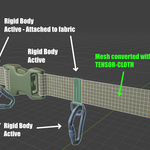
My mesh is detaching from the rigid bodies during the simulation. How do I fix it?
This is usually a Collision Margin mismatch. Try adjusting:
• The Collision Margin on the rigid body objects involved (Properties → Physics → Rigid Body → Surface Response → Margin)
• The Collision Margin on the Tensor-Cloth source mesh
Both values should be balanced for your scene scale. Smaller margins give tighter contact but may cause instability; larger margins are more stable but visible as “gaps”.
My simulation behaves strangely after lots of changes. What should I do?
When iterating heavily on a simulation (changing parameters, rebuilding multiple times, baking and unbaking), Blender can keep stale cache data in memory that conflicts with the current state. If things start behaving unexpectedly:
1. Free the Rigid Body World bake (Scene Properties → Rigid Body World → Cache → Delete Bake)
2. Delete the simulation
3. Run Convert to RB Mesh again
A clean rebuild solves the vast majority of unexpected behaviors.
 Two Solver Studio





 Included
