Textforge 3D
 Shahzaib A.


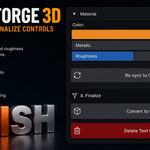
TextForge 3D:
Version: 1.0.0
Blender Compatibility: 4.4 and above
Category: Add Mesh / Text
What It Does:
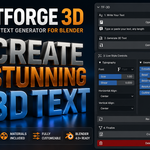
TextForge 3D lets you generate, style, and finalize 3D text objects
directly from Blender's N-Panel — no manual font object setup required.
Installation:
1. Download `textforge_3d.zip`
2. Open Blender → Edit → Preferences → Add-ons
3. Click Install... and select the downloaded `.zip`
4. Enable the checkbox next to TextForge 3D
5. Open the N-Panel in the 3D Viewport (press `N`) → find the TextForge 3D tab
How to Use:
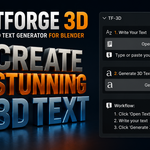
Step 1 — Type Your Text
Enter your text in the Text Input field. It supports multiple lines.
Step 2 — Generate
Click Generate 3D Text. A 3D text object appears in your scene
with a Principled BSDF material already applied.
Step 3 — Style in Real-Time
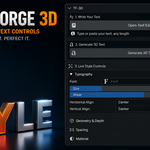
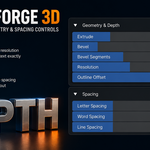
Adjust any of the following — changes apply instantly to the object:
| Section | Controls
|------------------|-----------------------------------------------------------
| Typography | Font Size, Shear (italic), Horizontal/Vertical Align
| Geometry | Extrude Depth, Bevel, Bevel Segments, Resolution, Offset
| Spacing | Letter Spacing, Word Spacing, Line Spacing
| Material | Base Color, Metallic, Roughness
Step 4 — Convert to Mesh
When you are happy with the result, click Convert to Mesh.
The text curve becomes a fully editable mesh object — ready for
sculpting, modifiers, and export.
Tips:
- Use Re-sync to Object if you manually moved/edited the object and
want to push panel values back to it.
- After Convert to Mesh, use Mesh > Clean Up > Merge by Distance
to remove duplicate vertices on the edges.
- Pair with a Subdivision Surface modifier after conversion for
ultra-smooth beveled edges.
Have questions about this product?
Login to message
| Blender Extension Compatible | Yes |
| Published | 3 months ago |
| Blender Version | 4.4 - 5.1 |
| Extension Type | Add-on |
| Render Engine Used | Cycles, Eevee |
| License | GPL |
Discover more products like this
text generator Editable 3D text 3D typography branding Convert text to mesh Logo Design utility blender addon text creator typography Text workflow 3D text