Texture Creator - Procedural Seamless Pbr Material Node‑Based Generation System
 Novux
Novux


Texture Creator Add-on Documentation
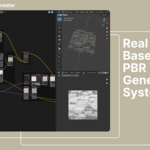
Texture Creator is a Blender add-on that introduces a node-based procedural texture system. With it, you can generate a wide variety of realistic PBR materials using nodes designed specifically for physically based rendering. If you are just starting out, the Quick Start Guide below will walk you through the basics, and you can also find tutorials on our YouTube channel.
Installation
Requirements
- Blender version 4.2 to 4.5
Download
- After purchasing from Superhive (formerly Blender Market), download the add-on as a .zip file.
- Do not extract the .zip file
Steps
- Download the add-on .zip file.
- Open Blender.
- Go to Edit > Preferences > Add-ons.
- Click the drop-down arrow in the top-right corner.
- Select Install From Disk.
- In the file browser, locate the .zip file you downloaded and select it.
- Click Install From Disk in the bottom-right corner.
After these steps, the add-on will be installed successfully.
Quick Start Guide
Node Tree Workspace
- Switch to the Texture Creator workspace to begin
- This workspace is a node tree editor, similar to Blender’s default node system.
- The default workspace includes both image and 3D view panels for convenience
Creating Nodes
- Click the Add in the top right corner in the Texture Creator node editor space.
- Or click the Add in the menu, by right click in the Texture Creator node editor space without selecting any node.
- Or open add node menu with Shift + A.
- Nodes are organized into categories. Select a node to add it to the tree.
- Nodes can be manipulated just like Blender’s default nodes.
Node Sockets
There are 4 socket types, each represented by a color:
- White: Binary Image (black and white only)
- Gray: Grayscale Image (used for height maps, density, probability, etc.)
- Yellow: RGB Image (commonly used for albedo maps)
- Purple: Vector Image (used for normal maps)
Connection rules:
- Binary → Grayscale (allowed)
- Grayscale → RGB (allowed)
- RGB → Grayscale (allowed, but ensure the image is grayscale or use a “Color to Grayscale” node for correct results)
Texture Creator Panel
- Open the panel with Ctrl + N.
- Options available:
| Node Tree Version | Shows which version of Texture Creator the node tree was first created. |
| Texture Resolution | Sets the resolution for texture generation. Changing this will re-run all nodes, which may take time for large node trees or high resolutions (2K, 4K). |
Preview Node
- Use the Preview Node to see results in the Image Editor.
- Assign or create an image in the node.
- The preview updates automatically when inputs change.
- Resolution of the assigined image will be updated automatically according to the resolution of the node tree.
- Shortcut: Ctrl + Shift + Left Click on a node to connect it to the preview node.
- Note: Only one preview node can exist per node tree.
Material Output Node
- Similar to the Preview Node, but outputs to a material.
- Assign a material, and Texture Creator will generate a shader node tree to the material with the textures applied.
- Enable Auto Update to automatically reflect changes in the node tree.
Shortcuts
Texture Creator is using the same node system as shader node, geomtety node and composition node provided in blender. So most of the shortcuts key in blender default node system can be used in Texture Creator Node Editor space. Also, parts of the operators from the node wrangles are supported. But do not assume all of them are working properly. Some will raise error, as they are not supported. Here are some example.
- Ctrl + J: Join the selected nodes in new frame
- Shift + Right Mouse Drag: Add a reroute to links. (Supported by Node Wrangler addon)
- Ctrl + Right Mouse Drag: Cut links.
Currently, there is some feature that is not supported. Here are some example.
- Ctrl + Alt + Right Mouse Drag: Mute Links (The links will still work as normal, it will not be muted)
Available Nodes
Primitives
Basic 2D Shapes
- Circle
- Rectangle
- Polygon
Advanced 3D Shapes
- Sphere
- Capsule
- Torus
- Cylinder
- Frustum
- Sphere 3D
- Torus 3D
Textures
Noise
- White Noise
- Preline Noise
- Voronoi Noise
- Gabor Noise
- Fractal Noise
Patterns
- Gradient
- Wave
- Brick
- Floor Pattern
Surface Details and Imperfections
- Dust Texture
- Speckle Texture
- Scratches Texture
- Wood Texture
- Grunge Texture
Image
- Image Texture
Tranform
Basic
- Translte
- Rotate
- Scale
- Shear
- Mirror
- Transform
Advanced
- Warp
- Directional Warp
Color
Color Adjustment
- Brightness Contrast
- Hue Saturation Value
- Invert
Color Blending and Mapping
- Color Ramp
- Mix
- Mask
Filter
Blur
- Blur
- Non-Uniform Blur
- Anisotropic Gaussian Blur
- Non Uniform Directional Blur
- Anti Aliasing
Detection
- Sobel Edge Detection
Effect
Flood Fill
- Grayscale Flood Fill
- Gradient Flood Fill
- Image Flood Fill
Scattering
- Scattering
- Tile Scattering
- Checker Scattering
- Circular Scattering
Surface Enhancement
- Ambient Occlusion
- Bevel
- Round Corner
Input
- Float
- RGB
- Grayscale
Converter
Textre Type
- Height to Normal
- Normal to Curvature
- Grayscale to Binary
Math
- Math
- Image Math
- Float Curve
- Image Map Range
Output
- Image Output
- PBR Material Output
- Preview
Layout
- Node Frame
- Node Reroute
Getting Support
If you run into issues or want to share feedback, you can reach us in two ways:
- sending a message through the Blender Market inbox
- joining our Discord community and leaving your comments there.
Our Media
-
$49
Commerical Use, 1 person
-
$89
Commerical Use, 2-5 people
-
$299
Commerical Use, Up to 10 people
-
$599
Commerical Use, Up to 20 people
Have questions about this product?
Login to message
| Blender Extension Compatible | Yes |
| Sales | 30+ |
| Dev Fund Contributor | |
| Published | 11 months ago |
| Blender Version | 4.2 - 4.5 |
| Extension Type | Add-on |
| Render Engine Used | Cycles, Eevee |
| License | GPL |
Discover more products like this
2dgeneration generation realistic Texture Generator best procedural Material Micro Details texture Heightmap GPU Acceleration high resolution