Texture Refresh – Two-Way Blender ↔ Substance 3D Painter Sync
 Cristian Boiardi

What's in the download
Two packages, one for Windows and one for macOS: download the one for your system. Each one contains:
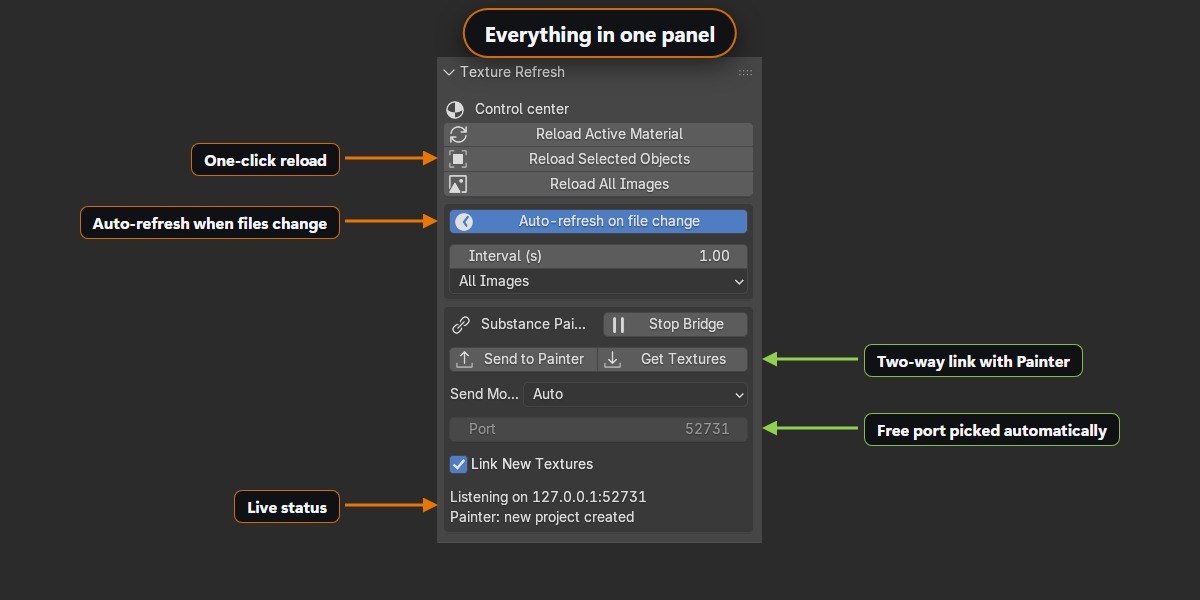
| File | What it is |
|---|---|
texture_refresh_v1.1.0.zip |
The Blender add-on: install it as it is, do not unzip it |
substance_painter/blender_texture_bridge.py |
The Substance 3D Painter plugin |
README.md / LEGGIMI.md
|
This guide in English / Italian |
Unzip the package you downloaded, then install the add-on zip that is inside it. Installing the downloaded package itself gives a "Missing manifest" error. On macOS, do not unzip and re-compress the add-on with Finder: macOS adds hidden files that Blender cannot read.
1. Install the add-on in Blender
-
Blender 4.2 and newer: Edit > Preferences > Get Extensions > ⌄ menu (top right) > Install from Disk... >
texture_refresh_v1.1.0.zip. -
Blender 4.0 / 4.1: Edit > Preferences > Add-ons > Install... >
texture_refresh_v1.1.0.zip> enable Texture Refresh.
The panel is in 3D Viewport > N > Texture Refresh, in Shader Editor > N > Texture Refresh and in Properties > Material > Texture Refresh. The operators can also be found with F3 ("Reload…").
2. Install the plugin in Substance 3D Painter
- Copy
substance_painter/blender_texture_bridge.pyto Painter's plugins folder. In Painter, Python > Plugins folder opens it directly. It is usually:- Windows:
Documents\Adobe\Adobe Substance 3D Painter\python\plugins\ - macOS:
/Users/[your_username]/Documents/Adobe/Adobe Substance 3D Painter/python/plugins/
- Windows:
- Python > Reload Plugins Folder, then enable blender_texture_bridge in the Python menu.
3. macOS only: set the Painter executable
Edit > Preferences > Add-ons (Extensions on 4.2+) > Texture Refresh > Painter Executable:
pick the Painter app, usually /Applications/Adobe Substance 3D Painter/Adobe Substance 3D Painter.app
(check the exact name in Finder). On Windows this is only needed if Painter is not installed in its default folder.
4. Reloading textures
| Button | What it does |
|---|---|
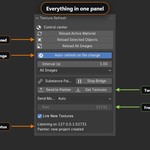
| Reload Active Material | reloads every image of the active material, node groups included |
| Reload Selected Objects | reloads the materials of all selected objects |
| Reload All Images | reloads every image in the .blend file |
| Auto-refresh on file change | checks the files every N seconds and reloads the ones that changed |
Images packed into the .blend or generated inside Blender are skipped: there is no file to reload them from.
5. From Painter to Blender (bridge)
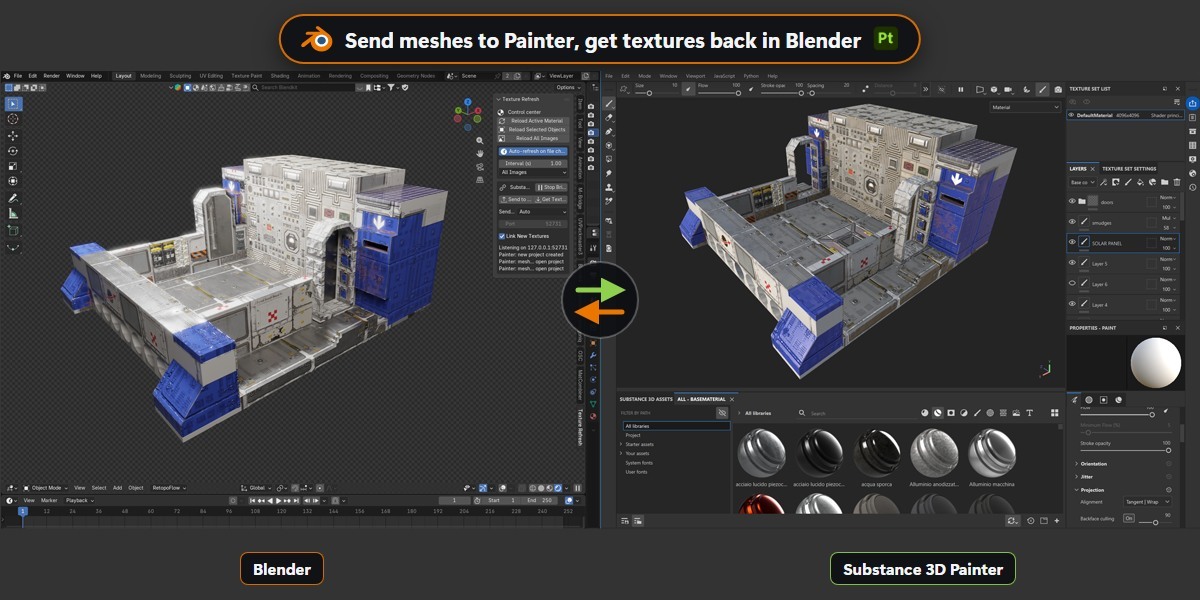
- In Blender, Texture Refresh panel > Start Bridge (or enable Start Bridge When Blender Opens in the preferences).
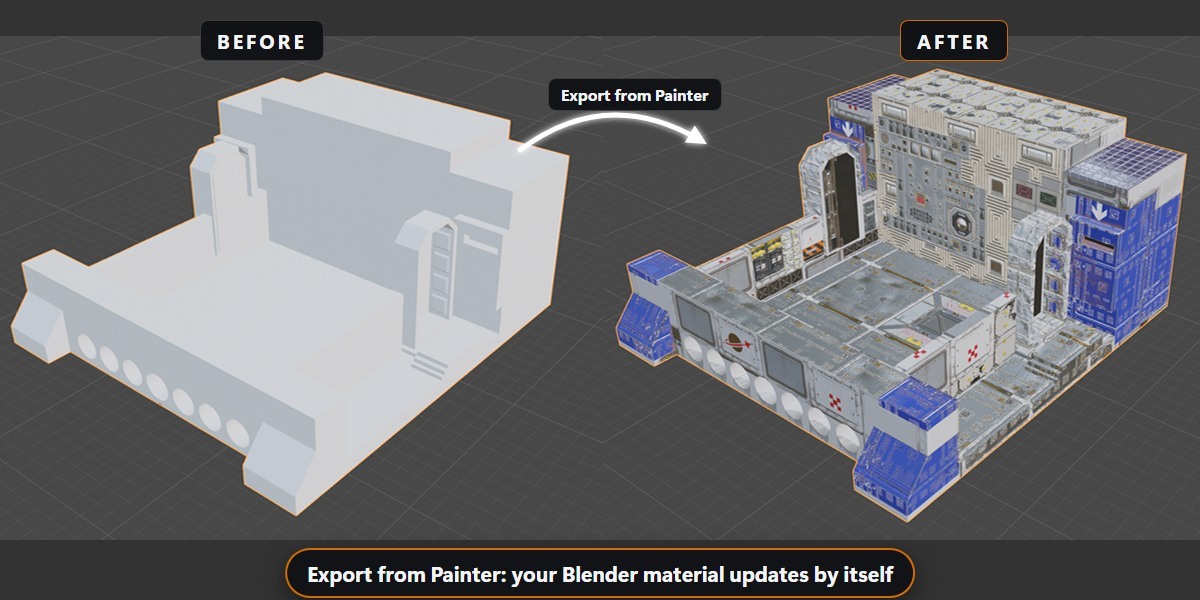
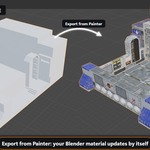
- Export textures from Painter as usual.
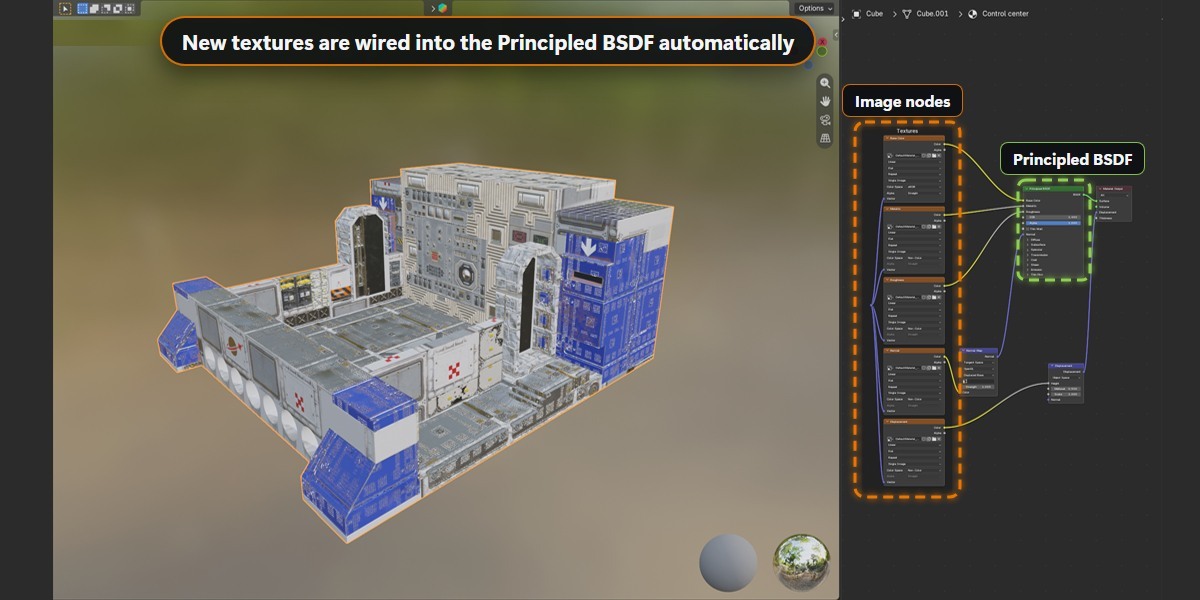
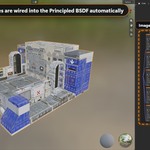
For each texture set, Blender reloads the images that point to the exported files, finds the material with the
same name as the texture set (case and .001 suffixes are ignored) and, if Link New Textures is on, connects
the new maps to the Principled BSDF by file name: BaseColor, Metallic, Roughness, Normal (through a Normal Map
node), Emissive, Opacity, Height (connected to Displacement only if that option is on). If a channel already has
an image node, the new image replaces it; custom setups without an image node are left untouched.
AO and packed maps (ORM) are skipped.
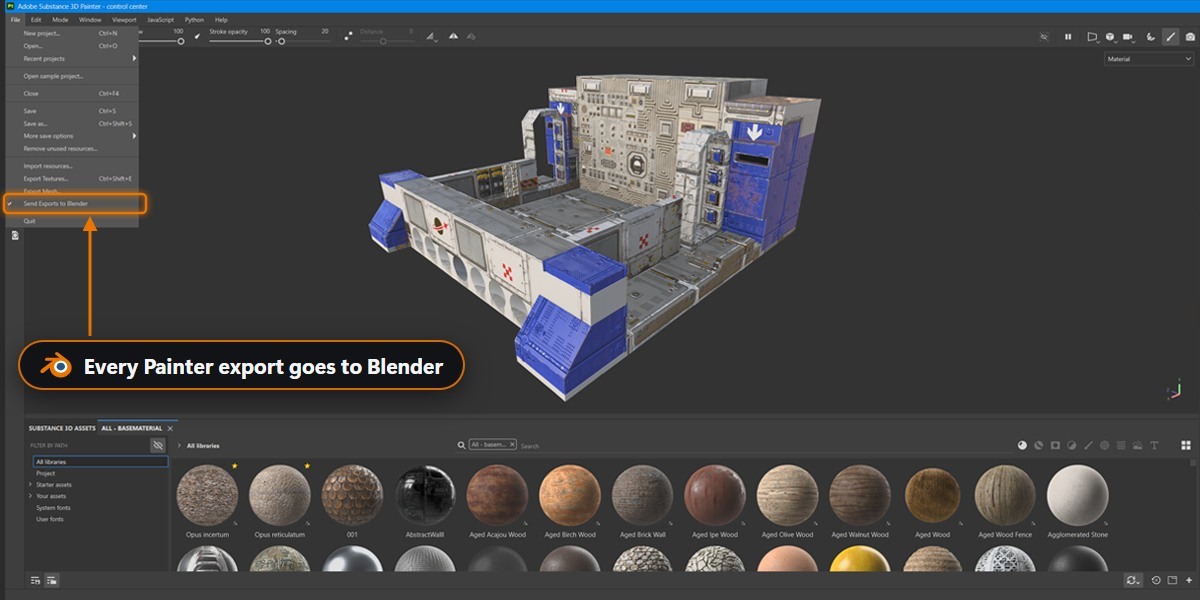
Use an export preset with OpenGL normals (e.g. "PBR Metallic Roughness"): Blender reads normal maps as OpenGL. Sending can be paused in Painter from File > Send Exports to Blender.
6. From Blender to Painter
Send to Painter exports the selected meshes as FBX (in a painter folder next to the .blend file):
- if Painter is closed, it is started and Blender waits for the plugin to answer;
- Send Mode = Auto: reloads the mesh in the open project, keeping the painted layers, or creates a new project if none is open;
- New Project always creates a new project (the open one must be saved first);
- Reload Mesh only reloads the mesh in the open project.
New projects use the Resolution, Normal Format and UDIM options of the preferences. Keep material names stable in Blender: Painter names the texture sets after them, and that is how the textures find their material on the way back.
Get Textures asks Painter to export all texture sets of the open project to the Texture Folder
(default //textures/, next to the .blend file) with the Export Preset (default "PBR Metallic Roughness")
and File Format of the preferences. Save the .blend file first. The preset name must match a Painter preset exactly.
7. Connection and ports
Blender listens on port 52731 and Painter on 52751. If a port is busy, the next free one is used and written to a
small file in your user folder, so the other app always finds it: there is nothing to configure.
Both only listen on 127.0.0.1 and cannot be reached from other computers.
If macOS asks whether Blender or Painter may accept network connections, allow it.
Known limits
- UDIM textures of existing materials reload normally; automatic linking of new UDIM textures is less reliable, so check the created node.
- Materials linked from other libraries are only reloaded, never modified.
Have questions about this product?
Login to message
| Published | about 14 hours ago |
| Blender Version | 4.0 - 5.3 |
| Extension Type | N/A |
| Render Engine Used | Cycles |
| License | GPL |