 3Z Axis





The Fixer - Complete Documentation
📦 Installation
- Download the addon ZIP file from your purchase
- Open Blender → Edit → Preferences → Add-ons
- Click "Install" and select the downloaded ZIP file
- Enable "The Fixer" checkbox
- Access the panel: 3D Viewport → Sidebar (N key) → "The Fixer" tab
🎯 Overview
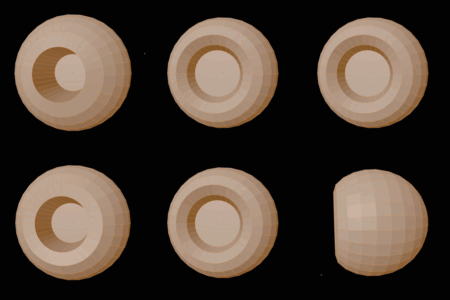
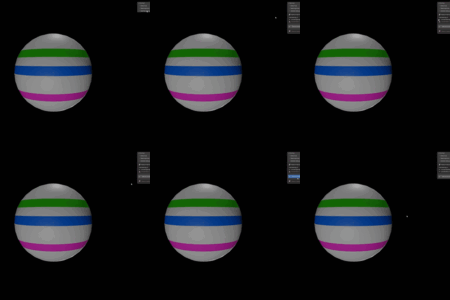
The Fixer is a professional mesh optimization and repair toolkit designed to streamline your 3D workflow. Whether you're preparing assets for game engines, 3D printing, or production rendering, The Fixer provides intelligent tools to clean, optimize, and perfect your geometry in seconds.
Key Features:
- Mesh Optimizer: Advanced topology cleanup with 6 intelligent operations
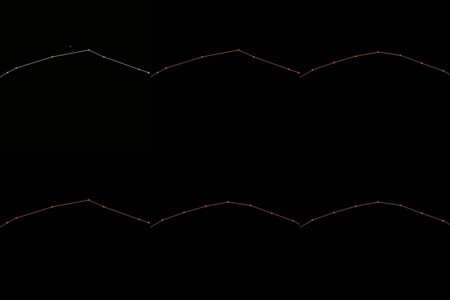
- Mesh Fixer: Vertex-level correction tools with multiple calculation modes
- Material Cleanup: Automatic material slot and data management
🔧 Module 1: Mesh Optimizer
Purpose
Automatically cleans and optimizes mesh topology using industry-standard BMesh operations.
Operations:
1. Remove Loose Geometry
- What it does: Detects and removes vertices and edges not connected to any faces
- When to use: After importing CAD models, cleaning up modeling mistakes, before export
- Result: Cleaner topology, reduced file size
2. Merge by Distance
- What it does: Combines vertices closer than threshold distance (default: 0.0001 units)
- When to use: After boolean operations, fixing overlapping geometry, cleaning imports
- Settings: Adjustable merge distance (0.0001 - 1.0)
- Result: Eliminates duplicate vertices and micro-gaps
3. Dissolve Degenerate
- What it does: Removes zero-area faces and zero-length edges
- When to use: After complex modeling operations, before subdivision
- Result: Fixes rendering artifacts and export errors
4. Triangulate NGons
- What it does: Converts faces with 5+ vertices into triangles/quads using Beauty Fill algorithm
- When to use: Before exporting to game engines (Unity, Unreal, Godot), 3D printing
- Result: Game-ready topology, stable geometry
5. Make Faces Planar
- What it does: Adjusts vertex positions to make quad faces perfectly flat (5 iterations, factor 1.0)
- When to use: Fixing twisted quads, improving shading, after subdivision
- Result: Eliminates non-planar faces and shading artifacts
6. Limited Dissolve
- What it does: Removes unnecessary edges based on angle threshold (default: 5°)
- When to use: After triangulation, reducing edge count while preserving shape
- Settings: Adjustable dissolve angle (0° - 180°)
- Result: Optimized edge flow, cleaner topology
How to Use:
- Select mesh object(s)
- Open "The Fixer" panel → "Mesh Optimizer"
- Click "Analyze Mesh" to view statistics (optional)
- Enable desired cleanup operations
- Adjust settings if needed
- Click "Optimize Mesh"
- View results in the status message
Tips:
- Use "Analyze Mesh" before and after to see improvements
- Works on multiple selected objects simultaneously
- All operations are undoable (Ctrl+Z)
- Recommended workflow: Enable all options for complete cleanup
✨ Module 2: Mesh Fixer
Purpose
Provides intelligent vertex-level corrections with multiple calculation modes for precise geometry refinement.
Operations:
Detect Bad Vertices
- What it does: Automatically identifies problematic vertices using distance and neighbor analysis
-
Methods:
- Distance Based: Compares vertex distance from center
- Neighbor Based: Analyzes relationship with connected vertices
- Combined: Uses both methods for best results (recommended)
-
Settings:
- Threshold: Detection sensitivity (0.001 - 1.0)
- Neighbor Threshold: Neighbor sensitivity (0.001 - 1.0)
- Workflow: Detects → Selects → Fix with other operations
Space Evenly
- What it does: Redistributes vertices at equal arc-length intervals while preserving shape
- Best for: Edge loops, curves, organic shapes
- Result: Professional edge flow, even spacing
Make Circle
- What it does: Transforms selected vertices into perfect circular loop
-
Features:
- Respects vertex connectivity order
- Detects and preserves winding direction
- Angle Offset: Rotate circle by any angle (default: 0°)
- Best for: Circular openings, pipe ends, cylindrical details
- Settings: Strength, Iterations, Angle Offset
Flatten
- What it does: Projects vertices onto a plane using smart normal detection
- Modes: Automatically detects best flattening plane or uses surface normal
- Best for: Creating flat surfaces, aligning vertices to plane
Smooth / Relax
- Smooth: Standard vertex smoothing with axis filtering
- Relax: Surface-aware relaxation that preserves curvature
- Edge Flow Relax: Topology-based smoothing following edge connectivity
- Settings: Strength (0.0 - 1.0), Iterations (1 - 50)
Calculation Modes:
Standard Mode
- Uses native Blender operations
- Features: Axis filtering (X/Y/Z), fast performance
- Best for: Simple straightforward corrections
- Unique: Individual axis control
Normal (Smart) Mode
- Surface-aware calculations respecting mesh normals
- Features: Preserves curvature, smart fallback logic
- Best for: Organic shapes, curved surfaces
- Result: Maintains surface flow
Edge Flow Mode
- Topology-based processing using arc-length parameterization
- Features: Follows edge connectivity, shape preservation
- Best for: Professional retopology work, maintaining edge loops
- Result: Industry-standard quality
Advanced Features:
Vertex Group Support
- Purpose: Apply operations only to specific vertex groups
-
Settings:
- Select vertex group from dropdown
- Weight Threshold: Minimum weight to be affected (0.0 - 1.0)
- Use case: Selective corrections without affecting entire mesh
Strength & Iterations
-
Strength: Blend factor between original and target (0.0 - 1.0)
- 0.0 = No change
- 0.5 = 50% blend
- 1.0 = Full effect
-
Iterations: Repeat operation multiple times (1 - 50)
- Higher iterations = stronger effect
- Useful for gradual transformations
How to Use:
- Enter Edit Mode
- Select vertices to fix
- Open "The Fixer" panel → "Mesh Fixer"
- Choose operation (or use quick buttons)
- Adjust Strength, Iterations, and other settings
- Click operation button or press F9 to adjust after execution
Workflow Example:
- Use "Detect Bad Vertices" to find problems
- Apply "Space Evenly" with Edge Flow mode
- Fine-tune with "Relax" operation
- Use "Make Circle" for circular features
- Final pass with "Fix Normals & Shading"
🎨 Module 3: Material Cleanup
Purpose
Automatically manages and cleans material slots and orphaned material data blocks.
Operations:
Remove Unused Slots
- What it does: Scans all mesh objects and removes material slots not assigned to any faces
- Benefit: Cleaner material lists, easier material management
- Safe: Only removes truly unused slots
- Scope: Works on all mesh objects in scene
Remove Unused Materials
- What it does: Deletes materials with zero users or only fake users
- Benefit: Reduces file size, cleans up material library
- Safe: Preserves materials actually in use
- Scope: Scene-wide cleanup
Full Cleanup (Recommended)
- What it does: Combines both operations in optimal order
-
Workflow:
- Removes unused material slots first
- Then deletes orphaned materials
- Result: Complete material hygiene in one click
- When to use: After importing, before export, project cleanup
How to Use:
- Open "The Fixer" panel → "Material Cleanup"
- Click "Remove Unused Materials" (runs full cleanup)
- Check info message for results
Tips:
- Run before saving final versions
- Use after importing multiple models
- Reduces .blend file size significantly
- Safe to use anytime - only removes truly unused data
🎯 Common Workflows
Game Engine Export Workflow
- Mesh Optimizer: Enable all options, click "Optimize Mesh"
- Mesh Fixer: Fix any bad geometry with "Detect Bad Vertices" → Fix
- Material Cleanup: Run full cleanup
- Export: FBX/glTF with clean geometry
3D Printing Workflow
- Mesh Optimizer: Enable "Remove Loose", "Triangulate NGons", "Make Planar"
- Check for manifold geometry (no loose parts)
- Mesh Fixer: "Fix Normals & Shading" for correct face orientation
- Export: STL with watertight mesh
Production Rendering Workflow
- Mesh Optimizer: "Remove Loose", "Make Planar", "Limited Dissolve"
- Mesh Fixer: Use "Smooth" and "Relax" for clean deformations
- Subdivision surface ready geometry
- Apply modifiers and render
Retopology Workflow
- Select edge loops
- Mesh Fixer: "Space Evenly" with Edge Flow mode
- Use "Make Circle" for circular features
- Apply "Relax" with Edge Flow for final refinement
- Result: Professional quad-based topology
⚙️ Technical Specifications
- Engine: BMesh API (industry-standard)
- Compatibility: Blender 2.93+ (tested up to 4.x)
- Performance: Optimized for large meshes (100K+ vertices)
- Undo Support: All operations fully undoable
- Batch Processing: Works on multiple objects simultaneously
💡 Tips & Best Practices
- Always backup: While all operations are undoable, save before major cleanups
- Analyze first: Use "Analyze Mesh" to understand your geometry before optimizing
- Incremental adjustments: Start with low Strength values and increase gradually
- Combine operations: Use multiple Mesh Fixer operations in sequence for best results
- Test settings: Use F9 menu (immediately after operation) to adjust parameters
- Vertex groups: Use for selective corrections on complex models
- Material cleanup: Run regularly to keep project files lean
🆘 Troubleshooting
Q: Operation had no effect
- Check if vertices are actually selected (Edit Mode)
- Increase Strength value
- Verify correct calculation mode is selected
Q: Unexpected results from optimization
- Some geometry may be intentionally complex
- Try disabling specific operations one at a time
- Use lower dissolve angle for Limited Dissolve
Q: Material cleanup removed needed materials
- Materials must be assigned to faces to be preserved
- Check "fake user" if you want to keep unused materials
- Re-run on individual objects if needed
Q: Make Circle doesn't create perfect circle
- Ensure vertices form a connected loop
- Increase iterations
- Try different calculation mode (Normal recommended)
📊 Performance Notes
- Operations are optimized for real-time feedback
- Larger meshes (500K+ vertices) may take a few seconds
- Batch processing multiple objects is efficient
- Material cleanup is instant regardless of scene complexity
🔄 Updates & Support
- Regular updates for new Blender versions
- Bug fixes and feature improvements
- Check Blender Market for latest version
- Report issues through Blender Market messaging
Have questions about this product?
Login to message
| Sales | 30+ |
| Published | 11 months ago |
| Blender Version | 3.0 - 5.2 |
| Extension Type | N/A |
| Render Engine Used | Cycles |
| License | GPL |

Discover more products like this
product Design Modeling tools optimization mesh fixer mesh optimizer Material Cleanup hard ops retopology Geometry Cleanup topology optimization architectural mesh cleanup