Transform Panel
 shigeru ozawa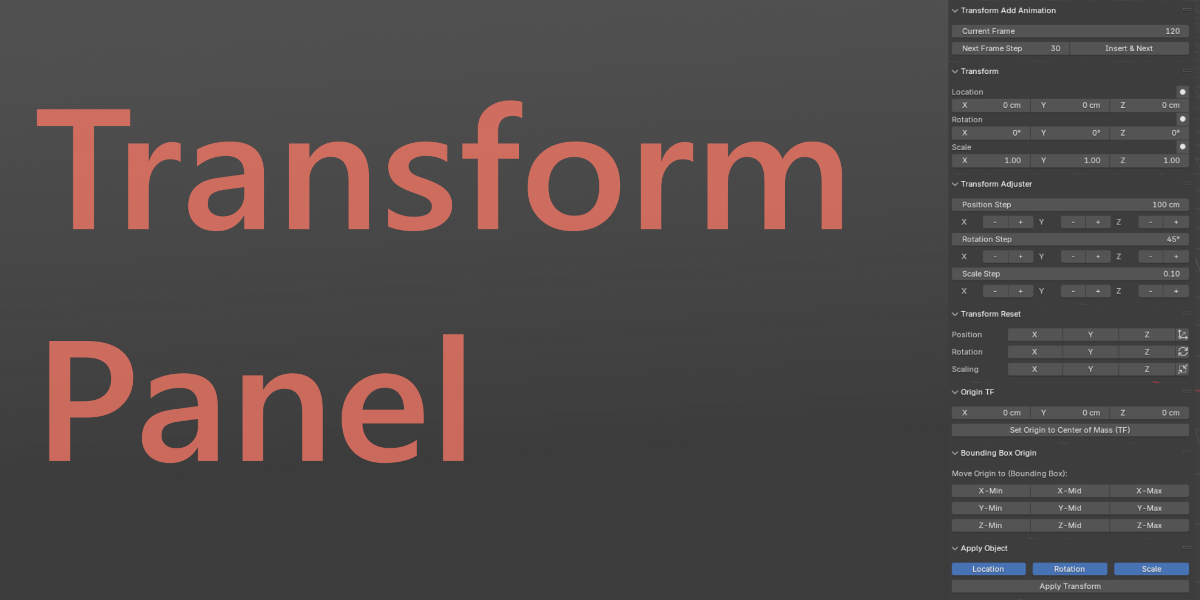
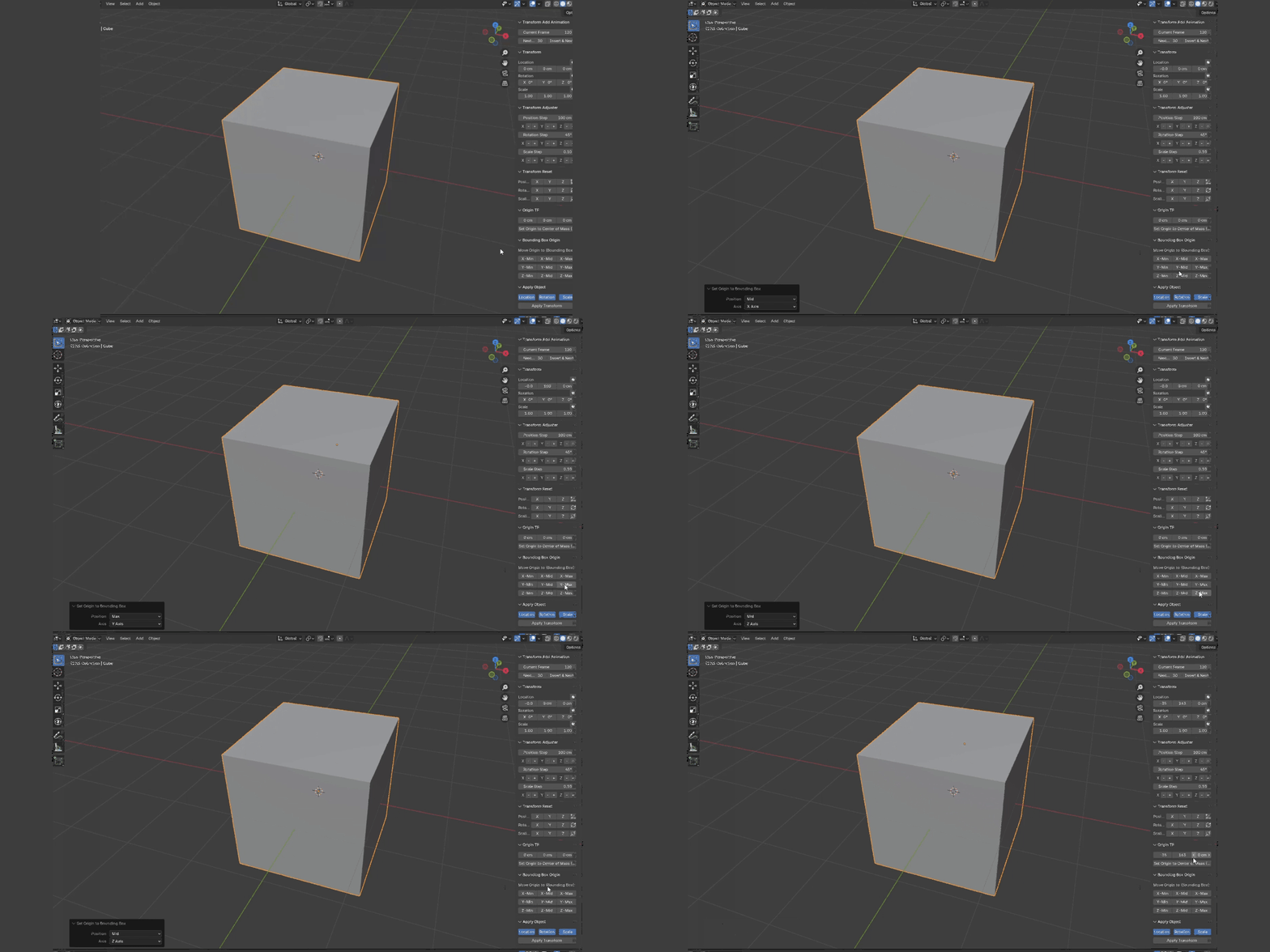
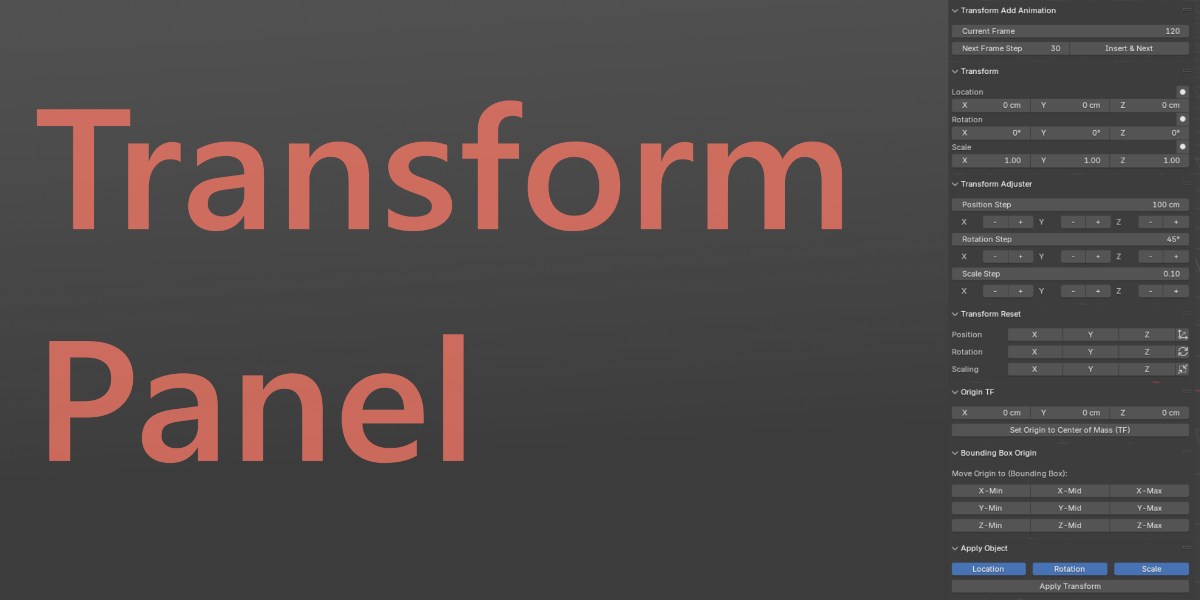

Transform Panel 2.0.0
Transform Panel is a compact workflow add-on for Blender that brings frequently used transform, origin, animation, reset, and apply tools together in one convenient sidebar.
Instead of navigating through multiple menus, you can manage common object transformations directly from the Transform Panel in the 3D Viewport.
Requirements
Blender 4.3.2 or later
Compatible with Blender 5.x
Windows, macOS, and Linux
Installation
Open Blender.
Go to Edit > Preferences > Add-ons.
Install the Transform Panel ZIP file.
Enable Transform Panel.
Open the 3D Viewport sidebar with N.
Select the Transform tab.
The panel is located at:
3D Viewport > Sidebar > Transform > Transform Panel
Features
Quick Transform
Quickly edit the active object's:
Location
Rotation
Scale
The values directly use Blender's native transform properties.
Each transform section also provides:
Reset
Resets the entire selected transform channel.
Keyframe Button
Inserts a keyframe for that transform channel on all selected objects.
Additional controls:
Reset All
Resets Location and Rotation to 0 and Scale to 1.
Key All
Inserts Location, Rotation, and Scale keyframes for all selected objects at the current frame.
Quick Animation
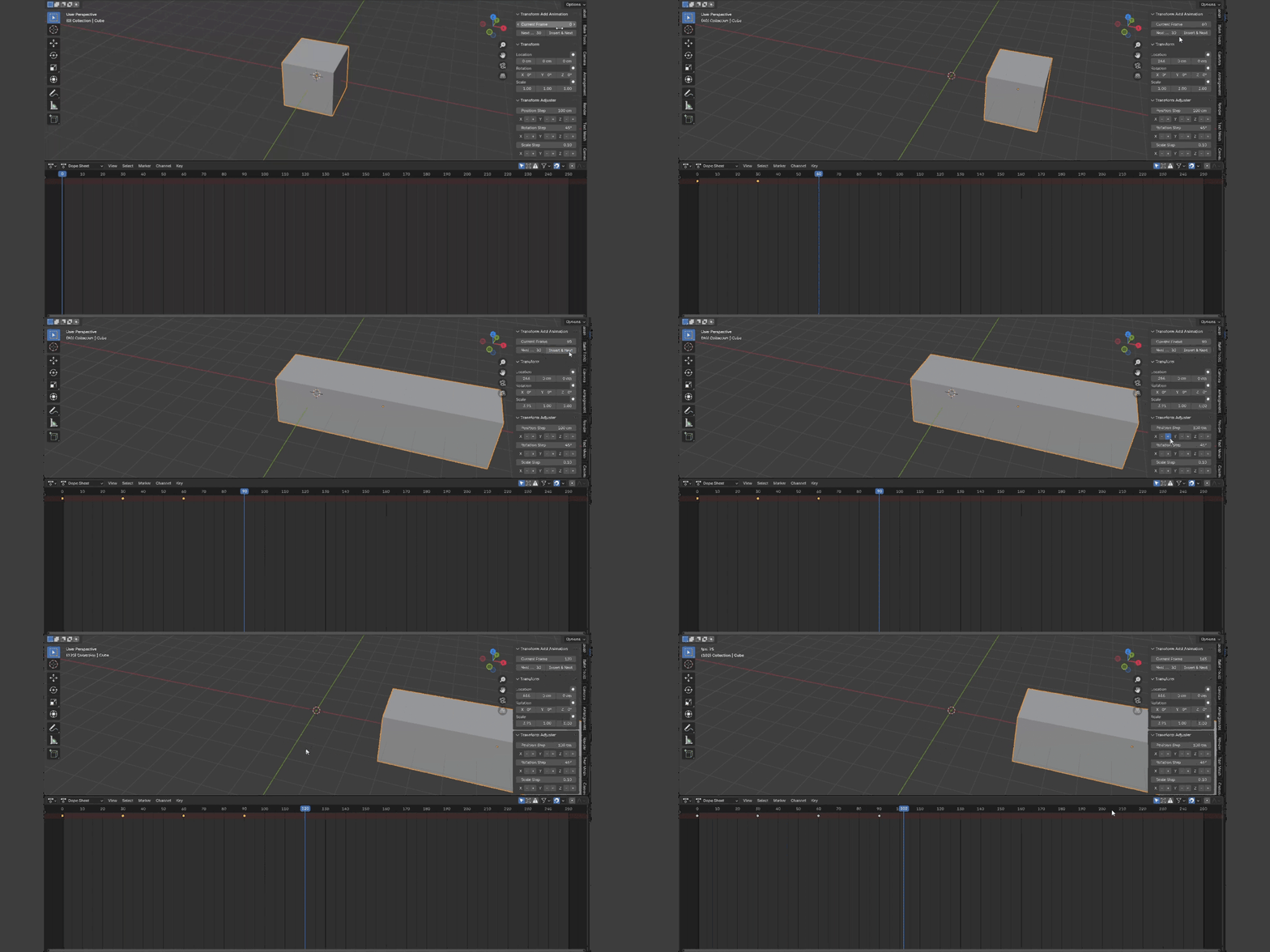
Quick Animation provides a simple workflow for transform-based animation.
Frame
Displays and controls the current timeline frame.
Step
Defines how many frames the timeline advances after inserting transform keyframes.
The default value is:
30 frames
Insert & Next
Inserts keyframes for:
Location
Rotation
Scale
on all selected objects at the current frame, then automatically advances the timeline by the specified Step value.
This makes it easy to create simple pose-to-pose or transform animations without repeatedly moving the timeline manually.
Advanced Increment
Apply precise incremental transformations to selected objects.
Separate step values are available for:
Location
Rotation
Scale
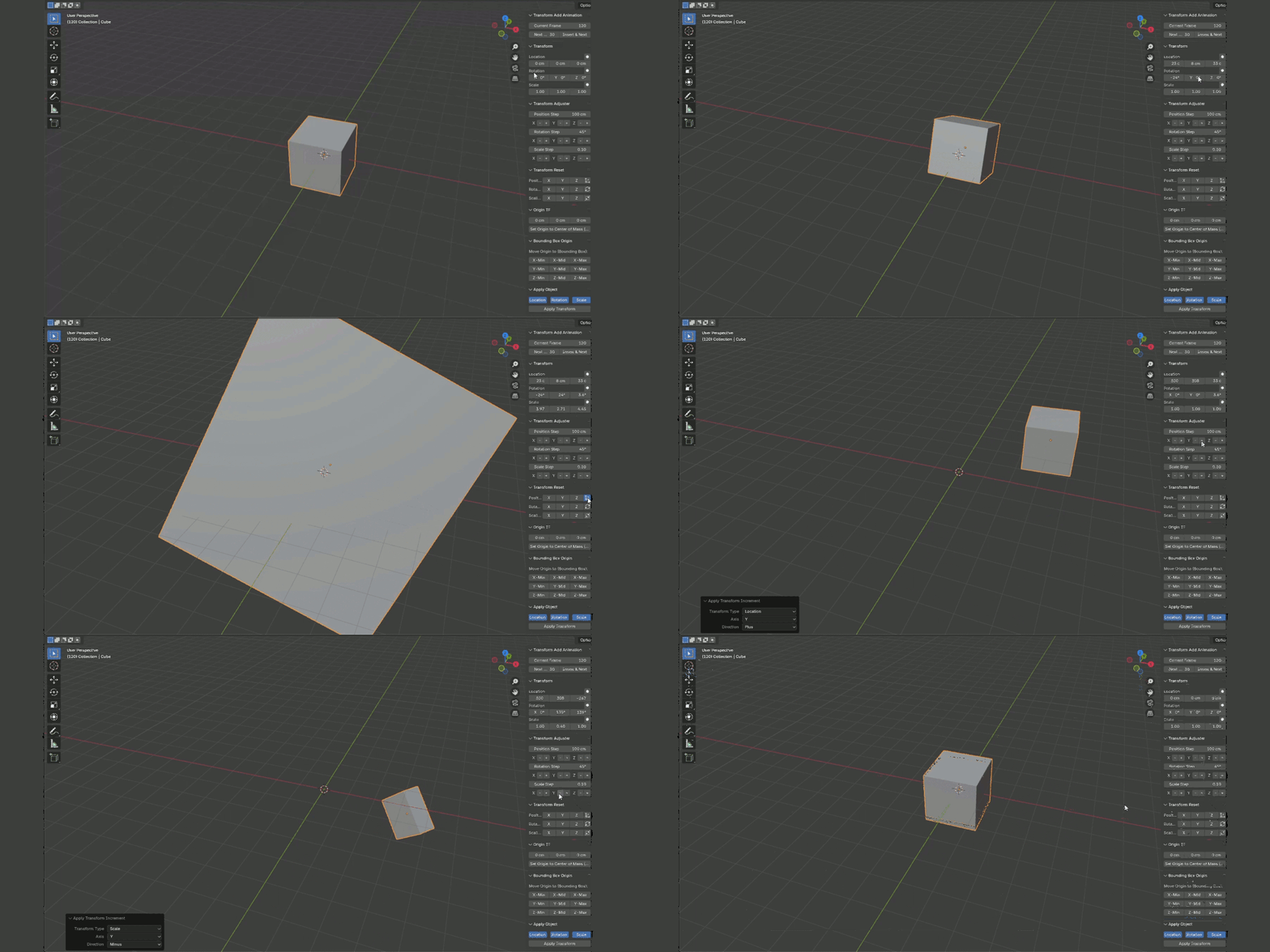
Use the − / + buttons for the X, Y, and Z axes to apply the specified amount.
Default values:
Location Step: 1.0
Rotation Step: 45°
Scale Step: 0.1
Multiple selected objects can be adjusted at the same time.
Detailed Reset
Reset individual transform axes without affecting the others.
Available controls include:
Location
X
Y
Z
XYZ
Rotation
X
Y
Z
XYZ
Scale
X
Y
Z
XYZ
Reset All resets all Location, Rotation, and Scale values.
Location and Rotation are reset to 0, while Scale is reset to 1.
Origin Tools
Move Origin by Coordinates
Move the active object's origin to an exact world-space position while keeping the visible geometry in place.
Enter the desired:
X
Y
Z
coordinates in the dialog and confirm the operation.
This is useful when an origin needs to be positioned at a precise location without manually moving the object's geometry.
Origin to Center of Mass
Moves the object's origin to its center of mass using Blender's native center-of-mass calculation.
Bounding Box Origin
Quickly position an object's origin using its bounding box.
The object's visible geometry remains in place while the origin is repositioned.
Axis Only
Move the origin independently along a single axis.
For each axis you can choose:
Min
Center
Max
The other two axes remain unchanged.
For example, selecting Z > Min moves only the Z position of the origin to the bottom of the object's bounding box.
Full Box Presets
Common origin positions are available as one-click presets, including:
Center
Bottom Center
Top Center
Back Left Bottom
Back Center Bottom
Back Right Bottom
Center Left Bottom
Center Bottom
Center Right Bottom
Front Left Bottom
Front Center Bottom
Front Right Bottom
This is especially useful for quickly preparing origins for placement, snapping, duplication, procedural workflows, or asset creation.
Supported Geometry
Bounding Box Origin requires an object with editable geometry data, such as supported Mesh, Curve, or other compatible geometry objects.
Unsupported object types are automatically prevented from using operations that require geometry transformation.
Apply Object
Apply transforms to selected supported objects directly from the Transform Panel.
Choose which transform channels should be applied:
Loc — Location
Rot — Rotation
Scale — Scale
Any combination can be enabled or disabled before running Apply Transform.
Supported object types include:
Mesh
Curve
Surface
Text
Lattice
The operation can process multiple selected supported objects.
Apply Armature
When one or more Armature objects are selected, the Apply Armature section becomes available.
Apply Pose
Applies the current pose as the new rest pose for selected armatures.
Transform Panel automatically handles the required Object/Pose mode switching and attempts to restore the previous active object and mode after the operation.
Multi-Object Operations
Many Transform Panel operations support multiple selected objects.
These include:
Transform Reset
Transform Keyframes
Incremental Transform
Quick Animation
Apply Transform
Apply Pose
The active object remains the primary object displayed in the Quick Transform interface, while supported operations can affect the full selection.
Interface Design
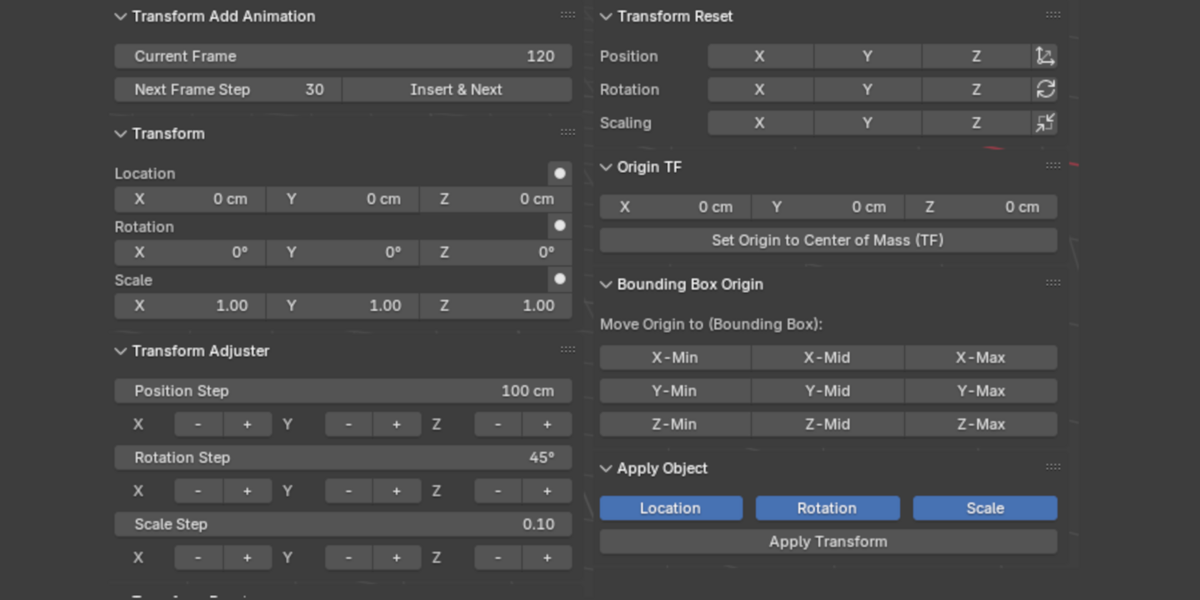
Transform Panel 2.0 uses a compact hierarchical interface.
Frequently used controls are immediately available in Quick Transform, while less frequently used tools are collapsed by default.
Available sections include:
Quick Transform
Quick Animation
Advanced Increment
Detailed Reset
Origin Tools
Bounding Box Origin
Apply Object
Apply Armature
This keeps the sidebar compact while still providing access to more advanced transform tools when needed.
Notes
Transform Panel works directly with Blender's native object transform properties wherever possible.
Some origin operations require geometry data that can be transformed. These controls may therefore be unavailable for unsupported object types.
Rotation controls operate on the object's Euler rotation values.
As with any operation that changes transforms, origins, rest poses, or animation data, saving your Blender project before making major changes is recommended.
Version 2.0.0
Transform Panel 2.0 introduces a redesigned and more stable architecture for Blender 4.3+ and Blender 5.x.
Major improvements include:
Redesigned compact sidebar interface
Direct editing of Blender's native transform properties
Quick transform reset controls
Quick transform keyframe controls
Multi-object transform keyframing
Quick Animation with automatic frame stepping
Incremental Location, Rotation, and Scale controls
Detailed per-axis reset tools
Improved origin positioning tools
Bounding-box-based origin positioning
Safer geometry-preserving origin movement
Multi-object Apply Transform
Apply Pose support for armatures
Improved active-object and mode restoration
Reduced custom-property conflicts
Improved registration and cleanup behavior
Removal of the previous depsgraph-based transform UI synchronization system
Transform Panel 2.0 is designed as a cleaner, safer, and more efficient transform workflow for everyday Blender work.
Have questions about this product?
Login to message
| Blender Extension Compatible | Yes |
| Published | over 1 year ago |
| Blender Version | 4.1 - 5.2 |
| Extension Type | Add-on |
| License | GPL |

Discover more products like this
Bounding Box Origin UI panel Set Origin object manipulation Transformations Transform Adjuster Apply Armature Reset Transformations Apply Transform Blender Add-on animation