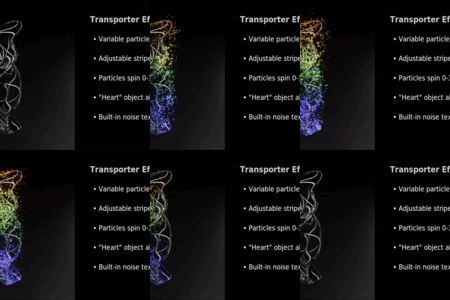
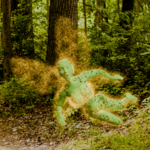
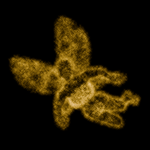
Transporter Beam Effect
 Harry Ayres


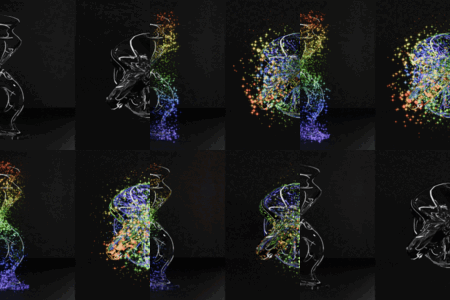
Usage
- Add the modifier to your Asset Library or append the node group to your .blend file.
- Create an object, separate from those objects for which the effect is to be created, to which the modifier will be applied.
- In the modifier panel, enter the objects for the modifier to target;
- The Heart object is used to create one or more regions of extra intensity.
- The mesh for that object can have disconnected parts and each will be used.
- If you do not provide a heart, set "Heart intensity" to zero (0).
- Refine the effect in the modifier's Refinement panel;
- Beam scale: The size of the effect volume relative to the bounding box of the target objects.
- Density: The number of points per unit volume. Not all points become particles.
- Particle radius: The base size of the particles, which will be modified later.
- Rotation per frame: Particles will rotate around the modified object's Z axis, n degrees per frame.
- Appearance
- Material: A material of your choosing to give the particles their final appearance.
- Tightness: Higher values lead to a more form fitting or skin-tight particle effect.
- Overall intensity: A fraction of the base particle size to be used for the majority of particles.
- Heart intensity: Fraction of the base particle size to be used for particles targeting the Heart object.
- If no Heart object is given, set this to zero (0).
- Air intensity: A fraction of the base particle size to be used for particles farther from the target objects.
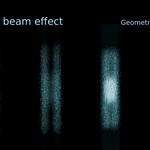
- Stripe factor: Controls a gradient in the particle intensity;
- Range -0.5 to 1.0
- Value 1.0 produces columns of particles on two sides with lower intensity in the middle.
- Value 0.0 produces an even spread of particles across the target objects.
- Value -0.5 produces a single, central column between two lower intensity regions.
- Noise scale: Applied to a noise texture which further modulates the scale of particles.
- Noise offset: W axis offset of the noise texture.
Except for the Material, all properties in the Appearance panel are intended to have their values animated. I recommend also using the compositor to create glare or other effects around the particles.
Troubleshooting:
- The effect volume is just a dense column of particles:
- Make sure that you have either specified a Heart object, or set Heart intensity to 0.0
- The beam effect rotates around the wrong point in the scene:
- This can happen if the modified object and target object's origins are not at the same XY coordinates.
- Particles are visible in the Viewport, but don't render:
- Make sure that you have set a Material in the modifier panel.
$2
Have questions about this product?
Login to message
| Dev Fund Contributor | |
| Published | 10 months ago |
| Blender Version | 4.5 - 5.0 |
| License | Creative Commons |

Discover more products like this
scifi particle effect fantasy science fiction FX magic star trek