 multlabs
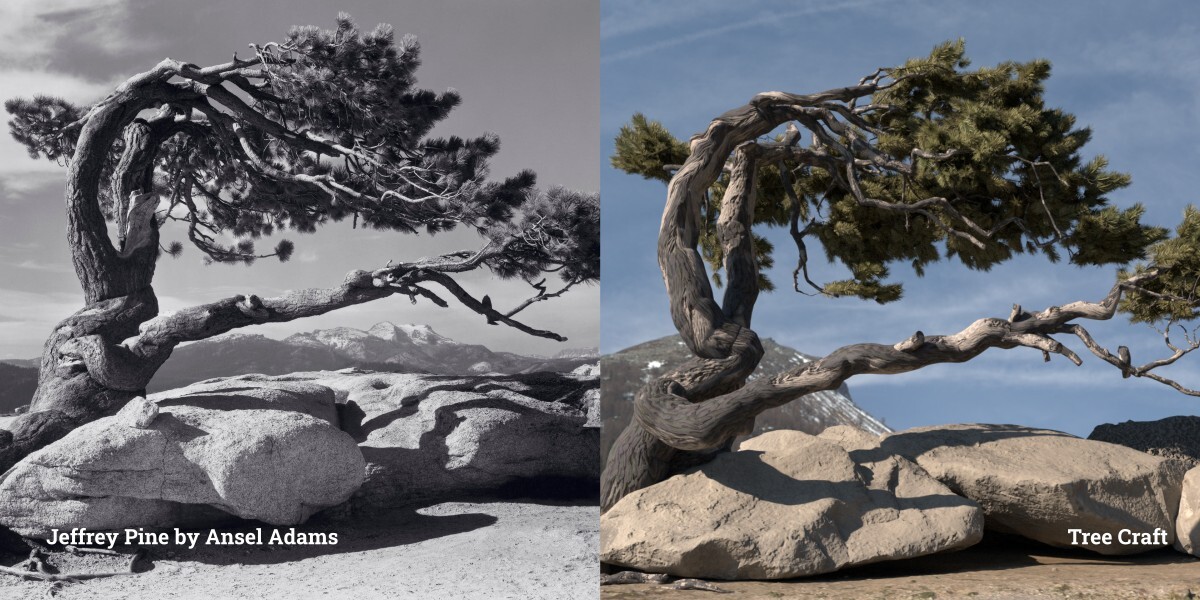
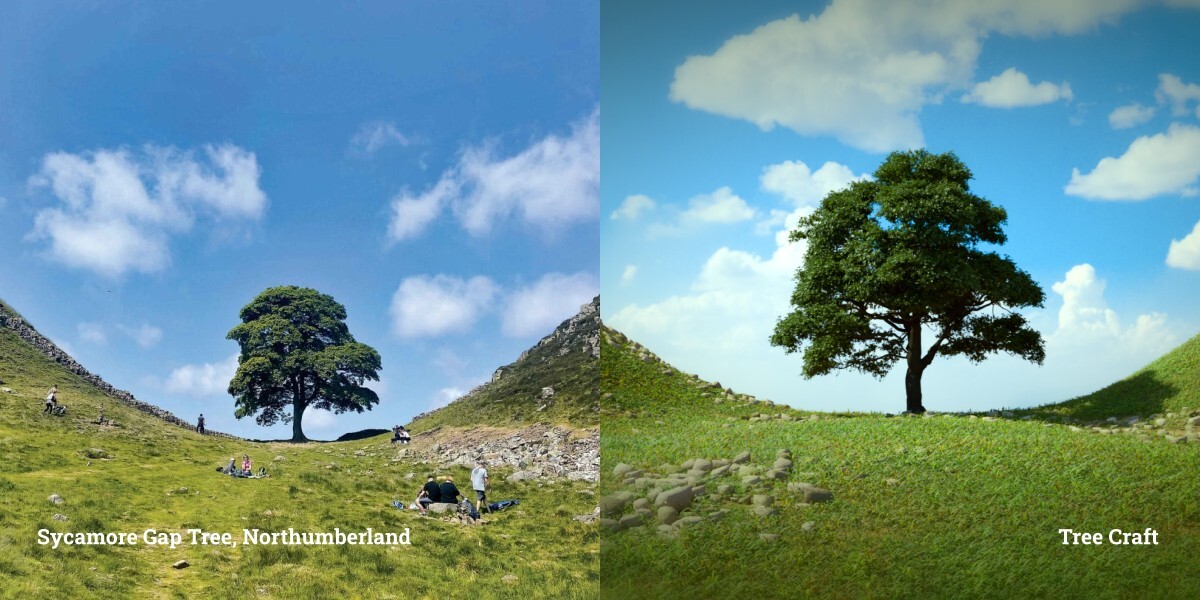
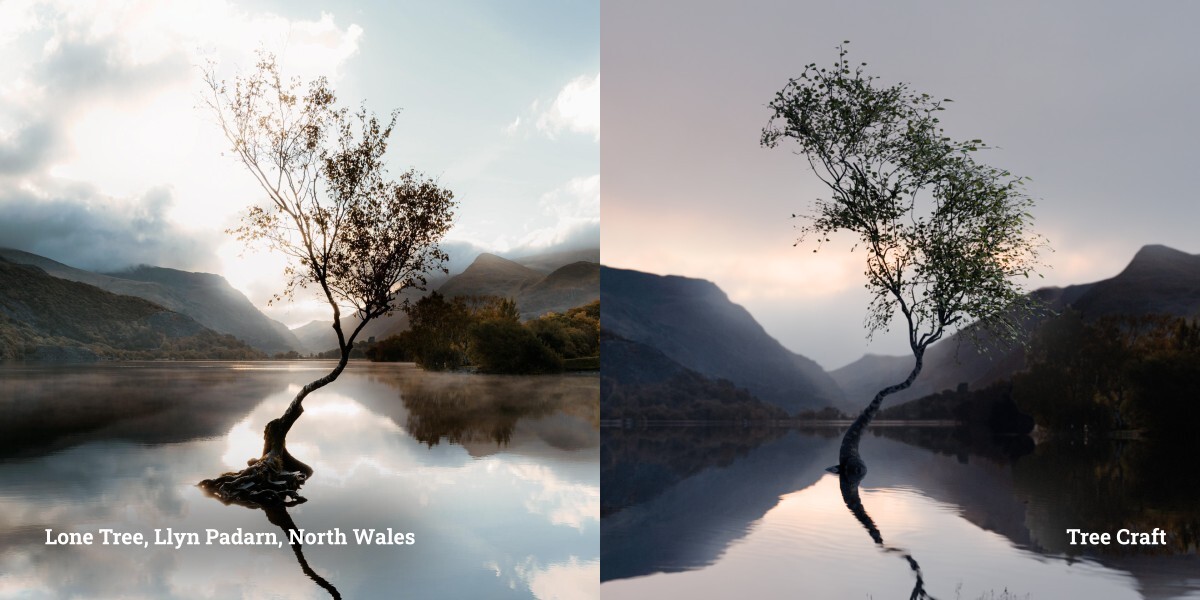


Install
Install the extension / add-on zip in Blender (Edit → Preferences → Extensions or Add-ons).
Enable Tree Craft.
Open a 3D Viewport and the N-panel (press N) → tab Tree Craft.
Quick start
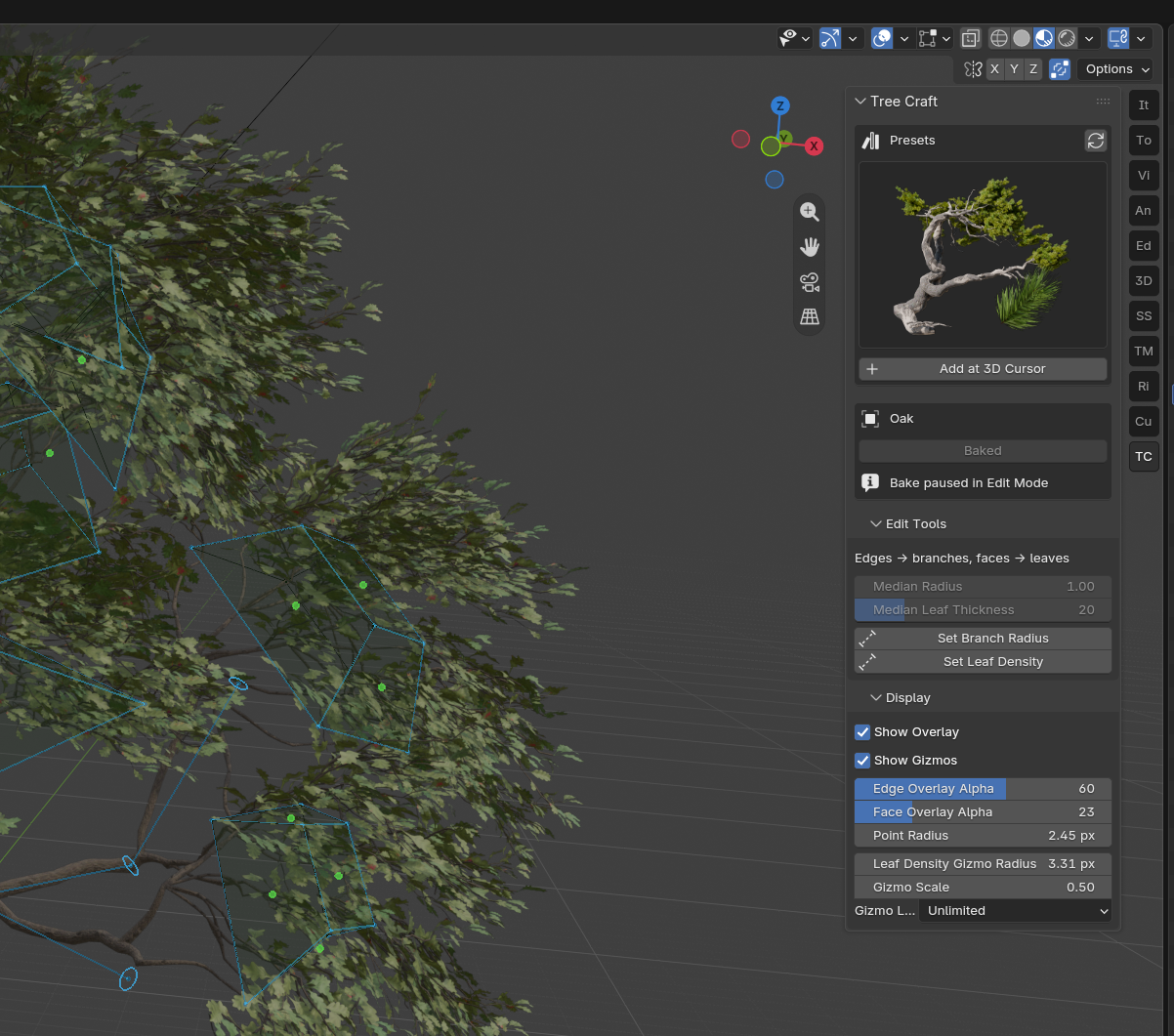
Open Tree Craft in the sidebar.
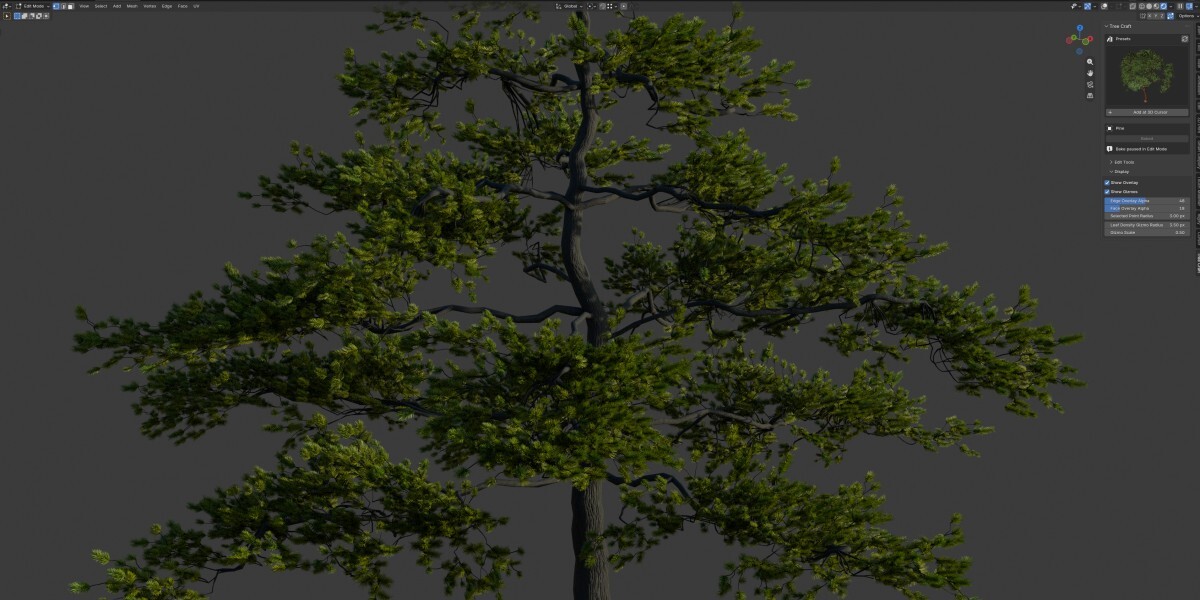
Choose a preset (e.g. Oak).
Click Add at 3D Cursor.
Enter Edit Mode — adjust the scaffold, branch radii, and leaf density.
(Optional) Leave Edit Mode and enable Baked if playback feels slow.
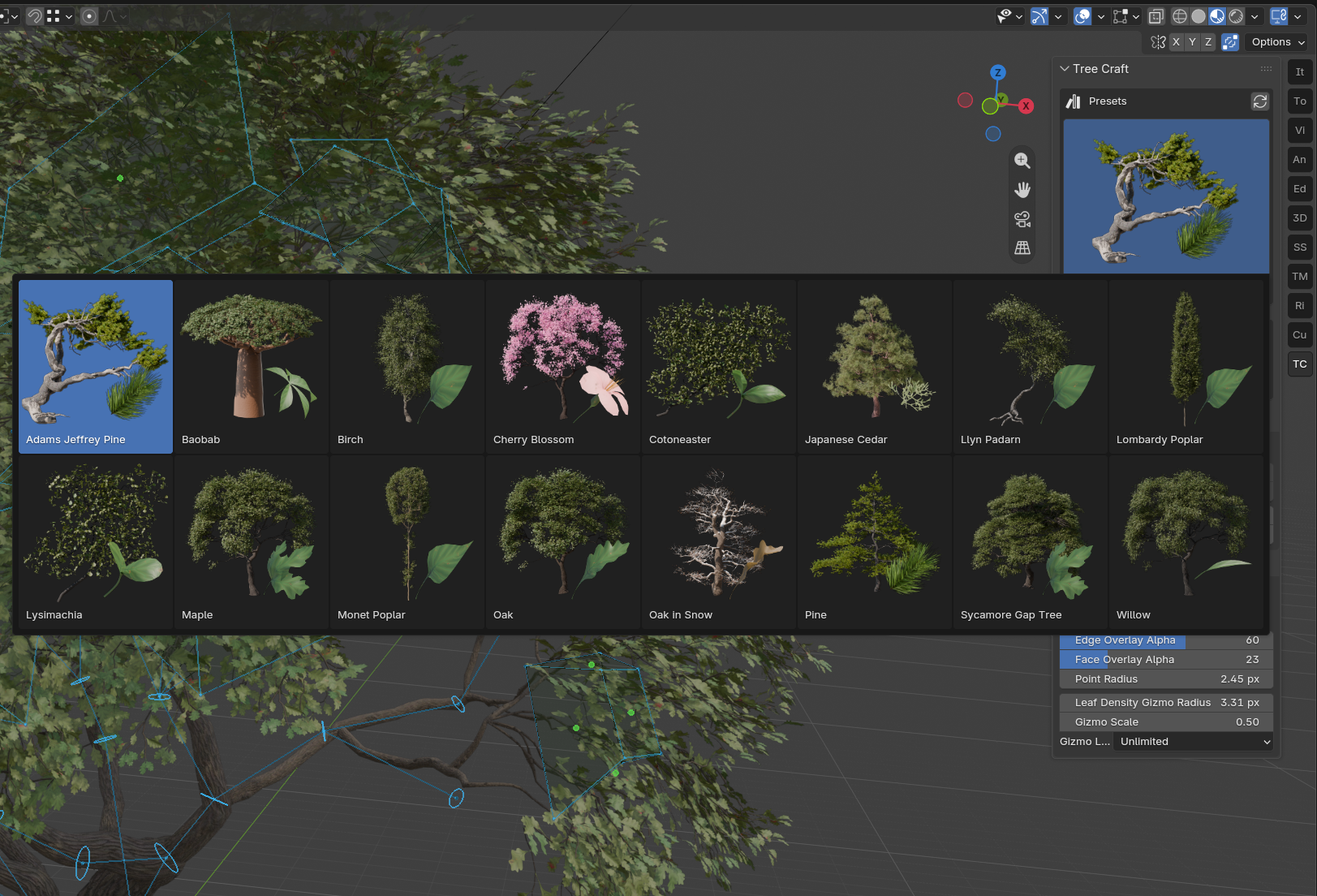
Refresh Assets rescans the bundled assets and rebuilds preview icons if you update the blend files.
Understanding the scaffold
Scaffold element |
Becomes |
|---|---|
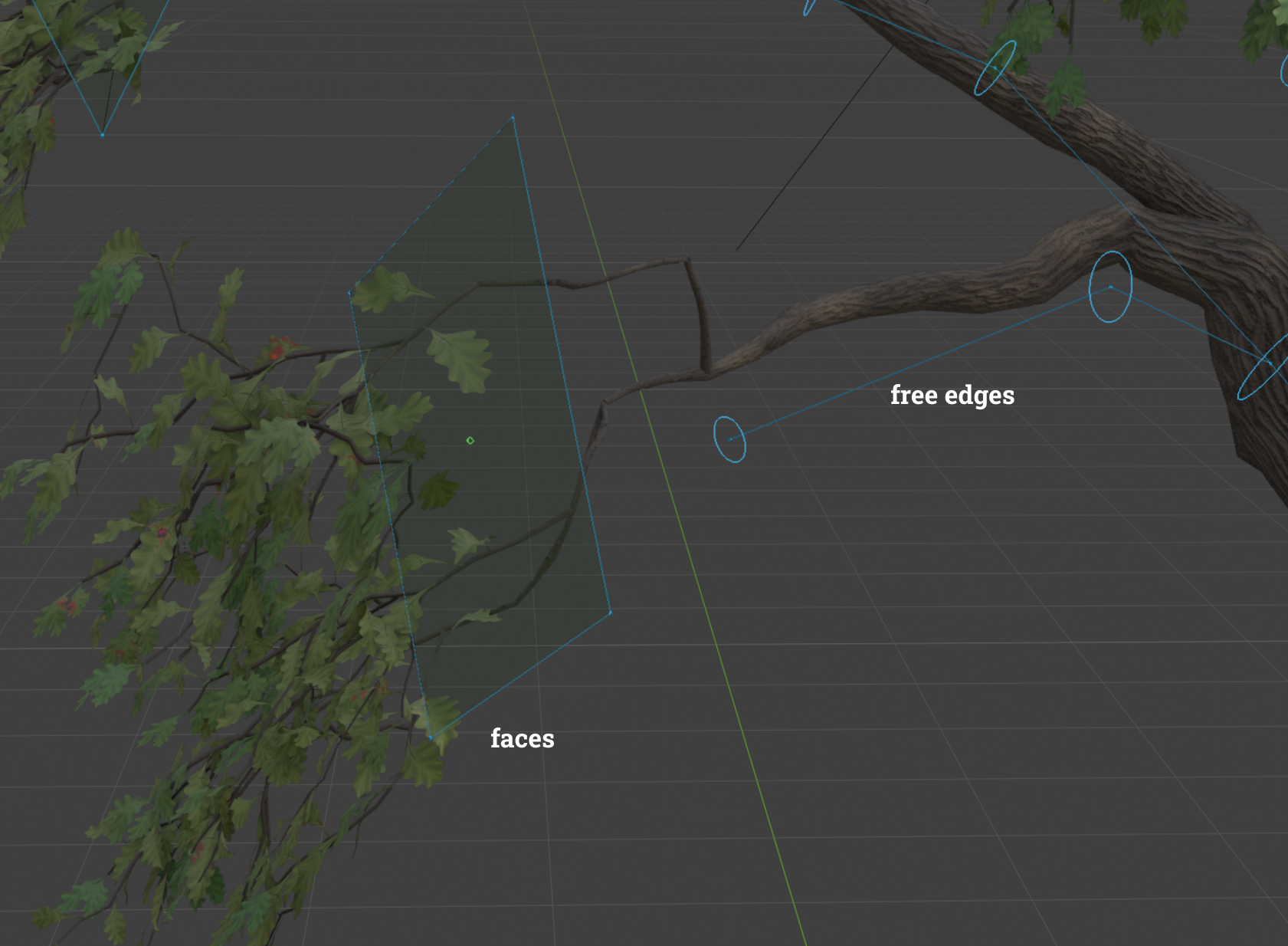
Free edge (edge not used by any face) |
Branch |
Vertex on a free edge |
Branch thickness control |
Face |
Leaves / canopy patch |
Tip: Vertices that only sit on face edges control leaves, not branch thickness. To change radius, select vertices on free edges.
Modifier stack
Each bundled tree uses several modifiers in order. The add-on sidebar edits attributes and viewport tools; the look of the tree comes from this stack:
Order |
Modifier |
Role |
|---|---|---|
1 |
Scatter on Surface |
Blender’s built-in Geometry Nodes preset. Scatters instances over the scaffold surfaces. |
2 |
Make Points |
Turns those scattered instances into points. |
3 |
Tree Craft |
Main generator. Uses those points to place Branch / Foliage Block instances, builds the growth network, trunk, leaves, bark, and animation. |
Any modifiers after Tree Craft (for example Subdivision or extra Geometry Nodes) are disabled on the presets — you can ignore them unless you turn them on yourself.
Flow in short: scaffold mesh → scatter instances → convert to points → Tree Craft places foliage blocks on those points and grows the woody parts.
You can tweak Scatter on Surface (density, density map, etc.) to change how many placement points Tree Craft gets for branch instances. Make Points is the bridge; leave it on unless you know you want a different point source.
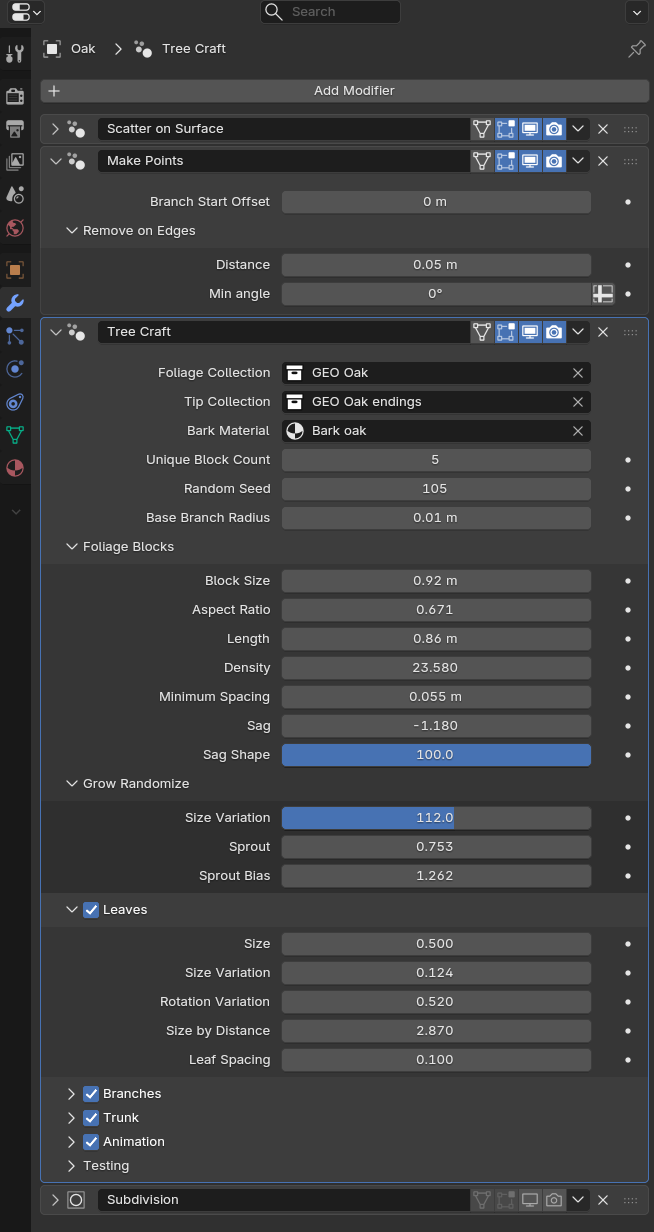
Tree Craft modifier (overview)
Open the Tree Craft Geometry Nodes modifier on the object to refine the generated look (beyond Edit Mode radius / leaf density):
Section |
What it controls |
|---|---|
Foliage Collection / Tip Collection |
Source collections for foliage blocks and tip pieces |
Bark Material |
Bark used on generated wood |
Base Branch Radius |
Overall branch thickness scale |
Foliage Blocks |
Instanced branch modules along the tree (size, density, spacing, sag) |
Leaves |
Leaf size, variation, and spacing |
Branches |
Generated branch mesh (resolution, noise) |
Trunk |
Trunk thickness (Radius Multiplier), UV distortion, trunk noise |
Growth Network |
How the branch paths grow (steps, shrink, density, iterations) |
Animation |
Wind-style motion for leaves, foliage blocks, and trunk |
Keep UV Distortion: 1 - keeps uncorrected UVs; lower values straighten bark mapping.
Panels
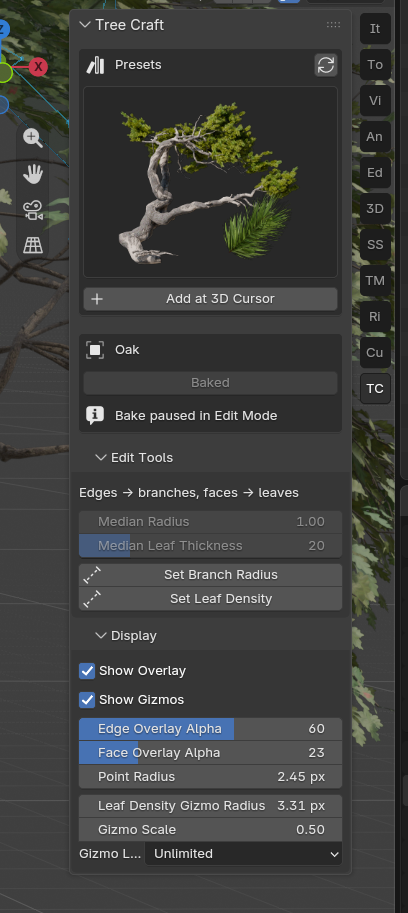
Tree Craft (main)
Preset browser with previews
Add at 3D Cursor
Refresh Assets
Active plant name + Baked toggle (when a Tree Craft object is active)
Edit Tools (Edit Mode)
Median Radius / Median Leaf Thickness — apply one value to the selection
Set Branch Radius / Set Leaf Density — drag in the viewport to paint values (same as Alt+R and Alt+T)
Display (Edit Mode)
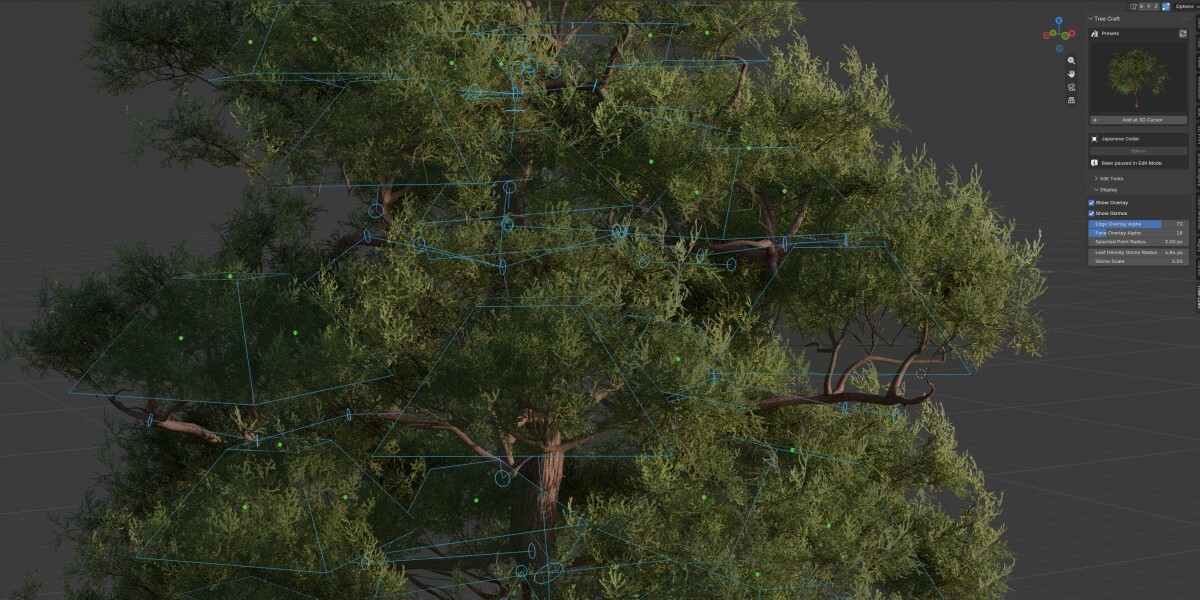
Show Overlay / Show Gizmos
Edge Overlay Alpha, Face Overlay Alpha, Point Radius
Leaf Density Gizmo Radius, Gizmo Scale
Gizmo Limit — cap how many gizmos are shown (64–512, or Unlimited)
The same overlay options also appear under the viewport Overlays menu (Edit Mesh).
Gizmos and shortcuts
Enter Edit Mode on a Tree Craft mesh.
Make sure viewport Overlays and Gizmos are on, and Tree Craft display options show gizmos.
Drag a branch circle to change thickness, or a leaf handle to change density.
Or press Alt + R / Alt + T and drag (Shift = finer control, Ctrl = snap).
Tips
If many points are selected, gizmos prefer your selection. Use Display → Gizmo Limit if you need more (or Unlimited).
Use X-Ray when handles sit behind faces and you still want to grab them.
You can always edit the scaffold mesh itself — gizmos are just a faster way to set thickness and density.
Baking (viewport playback)
Bake caches the generated look so Blender spends less time updating the tree during playback and in heavy scenes.
Select the tree in Object Mode.
In the Tree Craft panel, turn Baked on.
Enter Edit Mode anytime — bake pauses so you can edit, then comes back when you leave Edit Mode (if it was on).
Turn Baked off whenever you want the live setup again.
Nothing is locked in: bake is a speed switch, not a “finalize forever” step.
Tips
Block the silhouette with a few edges first, then refine thickness and leaf faces.
Sef Shade Smoth for faces
Have questions about this product?
Login to message
| Blender Extension Compatible | Yes |
| Published | 1 day ago |
| Blender Version | 5.2 |
| Extension Type | Add-on |
| Render Engine Used | Cycles, Eevee |
| License | GPL |