Tube Shaper
 Christian Aufderheide
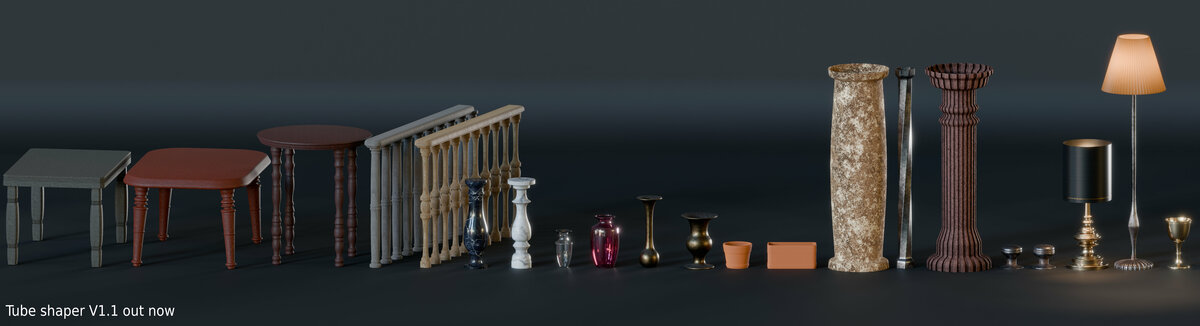
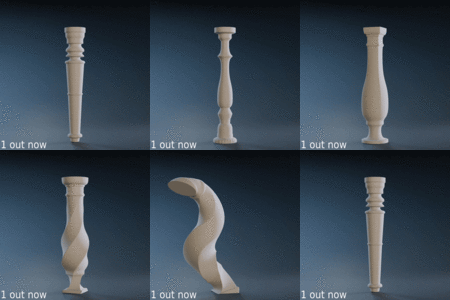
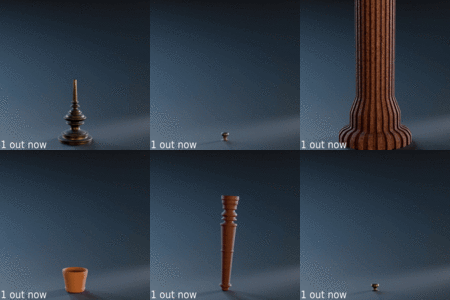
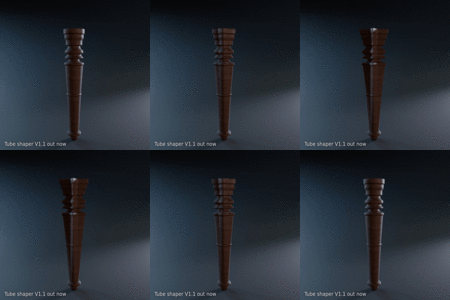

Gizmos
- Starting at the top, the three colored arrows are for the end point of the Curve click and drag to change the ending position.
- The circle at the top is to control the twist of the profile click and drag it to change the twist amount.
- The blue line with a box at the end on the side of the object is to change the outer radius scale click and drag to expand or contract the radius.
- Circle at the bottom of the object is to control the radial resolution and the yellow line with a box at the end is to control the vertical resolution.
Modifier options
Most of the modifier options are self explanatory but there's a few things you may want to know.
- Flip Curve will do nothing if the curve is symmetrical
- If you're using the second profile, make sure it's enabled and set to a different value than the first profile. Otherwise, it may seem like it's not working
- Changing the twist option when the profile is a circle will appear not to work, As a circle is rotationally identical.
-
$3.50
Non commercial license with ALL assets and features
-
$7
Commercial License with ALL assets and features
-
$35
Commercial version for 10 seats
Have questions about this product?
Login to message
| Sales | 10+ |
| Published | almost 2 years ago |
| Blender Version | 4.3 - 5.0 |
| Render Engine Used | Arnold, Blender-Internal, Blender-Game-Engine, Cycles, Eevee, Freestyle, Luxrender, Mental-Ray, Octane, Vray, Yafaray |
| License | Royalty Free |