Ultimate Generators Bundle V3 - Asset Library
 Blender Procedural


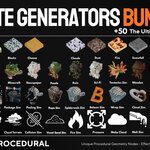
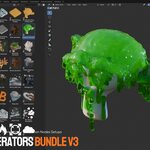
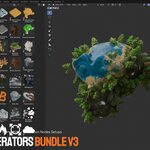
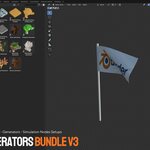
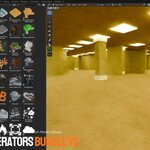
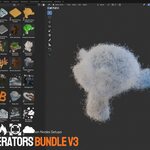
Documentation
Installation — Adding GEOGEN3.zip to the Asset Library
-
Download the
GEOGEN3.zipfile. -
Extract the ZIP file to a permanent location on your computer. Do not add or use the library directly from inside the ZIP file.
Example location:
Documents/Blender Asset Libraries/GEOGEN3 - Open Blender.
-
Go to:
Edit → Preferences → File Paths -
Find the
Asset Librariessection. -
Click the
+button to add a new Asset Library. -
Select the extracted
GEOGEN3folder. Choose the folder containing the included.blendasset-library files and asset catalog data. -
Give the library a recognizable name, such as:
GEOGEN3 – 50 Ultimate Generators - Close Blender Preferences. The settings will be saved automatically.
-
Open an
Asset Browserarea in Blender. - Use the library menu in the top-left corner of the Asset Browser and select:
GEOGEN3 – 50 Ultimate Generators
- Browse the available categories and drag the generator you want directly into your scene.
Using the Generators
- Open the GEOGEN3 library in the Asset Browser.
- Drag and drop a generator into your Blender scene.
- Select the generated object.
- Open the Modifiers tab in the Properties Editor.
- Customize the exposed Geometry Nodes parameters.
- Some generators require an input object, collection, material or target object. Use the relevant object-picker field inside the modifier when available.
- For animated generators, press Play on the Blender timeline. Some simulation-based effects may need to begin from frame 1.
-
Save your project as a new
.blendfile after adding and configuring the assets.
Important Notes
- Keep the extracted GEOGEN3 folder in a permanent location. Moving or deleting it may cause the Asset Library to disappear from Blender.
- Do not rename or reorganize the internal files unless necessary.
- Start simulation-based effects from frame 1 for consistent results.
- Performance depends on the generator settings, object complexity and computer hardware.
- Reduce resolution, density or simulation quality while working, then increase the values before the final render.
- If an asset uses external resources, keep all included folders together.
- Use the Blender version stated on the product page or a newer compatible version.
$26$18.20
Have questions about this product?
Login to message
| Sales | 10+ |
| Dev Fund Contributor | |
| Published | about 2 months ago |
| Blender Version | 5.2 |
| Render Engine Used | Cycles, Eevee |
| License | Royalty Free |
Discover more products like this
VFX Fluid-simulation procedural-generator Generator geometry nodes simulation asset library blender addon Geonodes city builder