Ultimate Wheel Kit
 Shahzaib A.


Ultimate Wheel Kit — Documentation
Overview
Ultimate Wheel Kit is an AI-assisted procedural automotive wheel designer for Blender 5.0.
It combines:
- AI-assisted wheel generation
- Procedural wheel modeling
- Manual wheel customization
- Procedural materials
- Tire and tread controls
- Brake customization
- Preset management
- Generation history
- Blender Asset Browser integration
- Multiple LOD levels
- Multi-format export
The addon is available in the Blender 3D Viewport Sidebar at:
View3D → Sidebar → UWK
The main interface is organized into five workflow tabs:
- AI — AI-assisted wheel generation
- Edit — Manual wheel customization
- Presets — Built-in and custom presets
- History — Previously generated designs
- Export — Export the wheel assembly
1. Requirements
- Blender 5.0
- Internet connection required for AI-assisted generation
- Access to the Ultimate Wheel Kit AI backend for AI generation
The AI system is cloud-powered. The procedural modeling, manual editing, materials, presets, history and export workflows are handled through the Blender addon.
2. Installation
Install Ultimate Wheel Kit using Blender's standard addon installation workflow.
After installation:
- Open Blender.
- Enable the Ultimate Wheel Kit addon.
- Open the 3D Viewport.
- Press N to open the Sidebar.
- Select the UWK tab.
You can then access the complete Ultimate Wheel Kit workflow directly inside the Blender viewport.
3. Main Interface
Ultimate Wheel Kit uses a tabbed interface.
AI
Use the AI Designer to create wheel concepts from natural-language prompts.
Edit
Use the manual editor to refine the wheel after generation.
Presets
Browse and manage wheel presets.
History
Review, search and restore previously generated wheel designs.
Export
Export the wheel assembly to supported formats.
The interface also displays AI generation status and error information while requests are being processed.
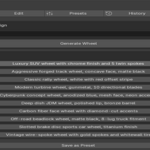
4. AI Designer
The AI Designer is the fastest way to create a new wheel concept.
Open the AI tab and describe the wheel you want using natural language.
Examples:
Aggressive forged track wheel, concave face, matte black
Deep dish JDM wheel, polished lip, bronze barrel
Luxury SUV wheel with chrome finish and 5 twin spokes
Then click:
Generate Wheel
The addon sends your request to the Ultimate Wheel Kit backend. The backend processes the prompt, generates a structured wheel specification and returns validated parameters to Blender, where the wheel assembly is generated.
The AI Designer also provides example prompts that can be used as starting points.
5. Writing Better AI Prompts
For the best results, describe the wheel using a combination of:
- Vehicle type
- Wheel style
- Spoke design
- Finish
- Color
- Fitment
- Intended use
- Tire type
- Visual characteristics
Example
Aggressive forged track wheel for a modern sports car, 5-spoke design, deep concave face, matte black finish, low-profile performance tire, large cross-drilled brake disc.
Another example
Classic JDM deep dish wheel with 10 directional spokes, polished lip, bronze center, low-profile street tire and a slightly worn realistic rubber appearance.
You can also request concepts for:
- Sports cars
- Luxury vehicles
- SUVs
- Trucks
- Track cars
- JDM builds
- Rally vehicles
- Off-road vehicles
- Concept vehicles
6. AI Design Parameters
The AI backend generates a structured wheel-and-tire specification rather than returning unstructured text.
The generated specification includes parameters for:
- Wheel diameter
- Wheel width
- Offset
- Bolt pattern
- Center bore
- Lug count
- Hub size
- Spoke style
- Spoke count
- Spoke thickness
- Spoke twist
- Spoke curvature
- Concavity
- Dish depth
- Spoke taper
- Window count
- Window size
- Edge bevel
- Lip size
- Barrel depth
- Valve position
- Brake diameter
- Brake style
- Rim material
- Rim color
- Finish
- Tire width
- Aspect ratio
- Tread type
- Rubber style
- Sidewall type
- Tire bulge
- Tire pressure
- Tread wear
The backend validates the generated values against the supported parameter schema before returning them to Blender.
7. Fitment and Generation Guardrails
The AI backend includes normalization and guardrails designed to keep generated wheel configurations internally consistent.
Examples include:
- Keeping the bolt-pattern lug count consistent with the selected lug count
- Maintaining supported bolt-pattern formats
- Adjusting tire width relative to wheel width
- Limiting brake diameter based on wheel diameter
- Ensuring custom chromatic rim colors use the Painted material
- Normalizing unsupported or invalid parameter values
These guardrails are applied by the backend before the final parameters are returned to Blender.
8. Manual Editing
After generating a wheel, switch to the Edit tab to manually refine the design.
The manual builder is organized into dedicated sections for:
- Wheel Specs
- Spokes
- Barrel
- Tire
- Brake
- Material
- Export
The procedural wheel updates as supported parameters are changed, allowing you to use AI for rapid concept generation while retaining manual control over the final design.
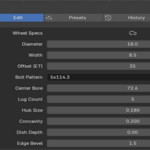
9. Wheel Specifications
The wheel editor provides controls for:
- Diameter
- Width
- Offset (ET)
- Bolt Pattern
- Center Bore
- Lug Count
- Hub Size
These controls define the core dimensions and fitment characteristics of the wheel.
Supported wheel diameter ranges, wheel width, offset, center bore and other parameter limits are enforced by the addon and backend validation system.
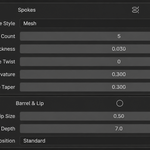
10. Spoke Design
Customize the appearance of the wheel face using:
- Spoke Style
- Spoke Count
- Spoke Thickness
- Spoke Twist
- Spoke Curvature
- Concavity
- Dish Depth
- Spoke Taper
- Window Count
- Window Size
- Edge Bevel
Supported spoke styles include:
Mesh · Split Five · Twin Five · Y-Spoke · Directional · Turbine · Monoblock · Multi-Spoke · Deep Dish · Forged · Aero Disc · Off-Road · Classic · Modern · Concept
The AI backend also contains logic for exact spoke-count requests. When a user requests an exact visible spoke count, the generation system is instructed to choose an appropriate non-forking spoke style when necessary to ensure the requested visible count is represented correctly.
11. Barrel and Valve
Customize the wheel barrel using:
- Lip Size
- Barrel Depth
- Valve Position
Supported valve positions include:
Standard · Center · Extended
These controls allow you to refine the overall wheel profile and detailing.
12. Brake System
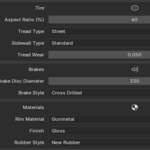
Customize the brake setup using:
- Brake Disc Diameter
- Brake Style
- Show Brake
Supported brake styles include:
Cross Drilled · Slotted · Carbon Ceramic · Solid
The backend also applies a brake-size guardrail based on wheel diameter to help maintain appropriate inner clearance.
13. Tire and Tread
Customize the tire independently from the wheel.
Available controls include:
- Tire Width
- Aspect Ratio
- Tread Type
- Sidewall Type
- Bulge
- Pressure
- Tread Wear
- Rubber Style
Supported tread types include:
Street · Performance · Touring · Asymmetric · Chevron · Semi Slick · Slick · Rain · Drift · All Terrain · Rock Crawler · Mud Terrain · Winter
The tire system also supports different rubber appearances and sidewall styles.
The backend checks generated tire sizing relative to the selected wheel width and normalizes tire dimensions within the supported range.
14. Materials
Ultimate Wheel Kit uses a procedural, node-based material workflow.
The material system is built through Blender's shader node API and does not rely on bitmap texture images.
Supported rim materials include:
Chrome · Matte Black · Gloss Black · Gunmetal · Titanium · Bronze · Copper · Forged Aluminum · Brushed Aluminum · Diamond Cut · Carbon Fiber · Gold · Anodized Blue · Anodized Red · Machined Face · Painted
Supported finish types include:
Gloss · Matte · Satin · Brushed · Polished
15. Custom Rim Colors
The Painted rim material can be used with custom colors.
The backend is designed so that a strongly chromatic requested color can automatically force the use of the Painted material, ensuring that the requested custom color is actually visible rather than being ignored by a fixed material preset.
16. Presets
Use the Presets tab to explore different wheel configurations.
Preset categories include:
Sports · Luxury · SUV · Truck · Track · Classic · JDM · European · Off-Road · Rally · Concept · Custom
You can also save the current design as a preset from the AI Designer workflow.
17. Generation History
Ultimate Wheel Kit includes a generation history system for tracking previous wheel designs.
History entries can store:
- Design name
- AI prompt
- Generated parameters
- Timestamp
- Thumbnail path
- Favorite status
- Notes
History tools support:
- Searching
- Filtering favorites
- Restoring designs
- Duplicating designs
- Continuing work from previous generations
Restoring a history entry reapplies the saved parameters and regenerates the wheel.
18. Export
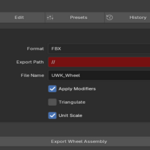
Open the Export tab to export your generated wheel assembly.
Supported formats:
FBX · OBJ · glTF · USD
Export controls include:
- Export Format
- Export Path
- File Name
- Apply Modifiers
- Triangulate
- Unit Scale
Use:
Export Wheel Assembly
to export the wheel objects using your selected settings.
19. Automatic AI Activation
Ultimate Wheel Kit is designed to work automatically after installation.
You do not need to manually enter a license key to start using AI-assisted wheel generation.
When you use AI generation for the first time, Ultimate Wheel Kit automatically creates a unique installation ID and communicates with the Ultimate Wheel Kit backend.
If no AI key is already stored, the addon automatically requests an activation key from the backend. The returned key is saved locally in the addon preferences and is then used for subsequent AI generation requests.
Automatic Activation Flow
Install Ultimate Wheel Kit → Open Blender → Enter an AI prompt → Generate Wheel → Automatic backend activation → AI generation
No manual license entry is required.
The activation system is designed to make the first-time setup as simple as possible, allowing you to start generating wheels without configuring a license key manually.
The generated key is stored locally as part of the Blender addon preferences. The installation ID used by the addon is also maintained through the addon preferences system.
20. AI Generation Usage
AI-assisted generation is powered by the Ultimate Wheel Kit cloud backend.
The backend handles:
- Natural-language design prompts
- Generate mode
- Variation mode
- Improve mode
- Random mode
- Structured wheel parameter generation
- Parameter validation and normalization
- Fitment-oriented guardrails
- AI service communication
- Usage quotas
- Request rate limiting
An internet connection is required when using AI-assisted generation.
The AI service runs separately from Blender and communicates with the addon through the Ultimate Wheel Kit backend API.
21. AI Generation Quota
The backend currently uses a monthly generation quota.
The default configuration allows:
Up to 300 AI generations per installation key per month
The backend tracks usage and automatically resets the monthly allowance at the start of the next monthly period.
Additional request rate limits are applied to help maintain service stability and prevent excessive burst usage.
The monthly quota and rate limits are controlled by the Ultimate Wheel Kit backend and may be adjusted in future service configurations.
The current backend configuration sets the monthly limit to 300 generations and applies additional per-license request rate limiting.
22. Using Ultimate Wheel Kit on Multiple Machines
The backend currently supports up to 2 active installations per automatically generated key by default.
This means the same AI access key can be associated with multiple installations, such as:
- Main desktop workstation
- Secondary laptop or workstation
When another installation uses the same key and an available seat remains, the backend can associate that installation with the existing key.
Once all available seats are occupied, additional installations may require support assistance.
The backend seat system allows a key to have multiple installation seats, with the default maximum set to two.
23. Important
AI generation requires an active connection to the Ultimate Wheel Kit backend.
The AI service is separate from Blender itself, so AI-assisted generation is dependent on backend availability and the current service configuration.
The procedural wheel generation, manual editing, materials, presets, history and export workflows remain part of the Blender addon workflow.
24. How the AI Backend Works
The Ultimate Wheel Kit backend receives the request from Blender and:
- Validates the incoming prompt.
- Determines the requested generation mode.
- Includes current design data when using Variation or Improve.
- Verifies the active AI key.
- Applies rate limiting.
- Applies the monthly generation quota.
- Sends the structured request to the configured AI model.
- Receives a structured JSON wheel specification.
- Validates the AI response against the wheel parameter schema.
- Normalizes values and applies fitment-oriented guardrails.
- Returns the final parameters to Blender.
The Blender addon then applies the returned parameters and builds the wheel assembly locally.
25. Troubleshooting
AI Generation Does Not Start
Check that:
- You have an active internet connection.
- The backend service is available.
- You are using an appropriate AI mode.
- You entered a prompt for Generate.
- Your monthly AI generation quota has not been exhausted.
- You have not exceeded the backend request rate limit.
AI Generation Fails Temporarily
The backend retries certain temporary AI service errors automatically.
If generation still fails, try again after a short period.
Temporary backend or AI service outages may prevent AI-assisted generation until service availability is restored.
AI Quota Has Been Reached
If the monthly AI generation quota is exhausted, additional generation requests are blocked until the quota resets.
The current default configuration provides:
300 AI generations per installation key per month
The backend automatically resets monthly usage at the beginning of the next monthly period.
A Second Machine Cannot Use the AI Access Key
The key may already have reached its maximum number of active installations.
The current default configuration supports:
2 installations per automatically generated key
Additional installation management may require support.
Generated Wheel Parameters Look Unexpected
The AI system generates structured parameters and the backend applies normalization rules.
When a result does not exactly match a prompt, review the generated wheel in the Edit tab and manually refine the parameters.
For example, you can adjust:
- Spoke count
- Spoke style
- Concavity
- Wheel width
- Offset
- Tire width
- Brake size
- Material
- Finish
- Tire tread
Ultimate Wheel Kit is designed as an AI-assisted workflow, allowing generated designs to be manually refined after generation.
26. Recommended Workflow
For the best overall workflow:
Step 1 — Start with AI
Open the AI tab and describe your wheel.
Step 2 — Generate
Use Generate to create your first concept.
Step 3 — Explore
Use Variation to explore alternative directions.
Step 4 — Improve
Use Improve when you want to refine an existing design.
Step 5 — Edit
Switch to Edit and manually adjust:
Wheel · Spokes · Barrel · Tire · Brake · Materials
Step 6 — Save
Save successful designs as presets or keep them in History.
Step 7 — Reuse
Save important creations to the Blender Asset Browser.
Step 8 — Export
Export the completed wheel assembly in your required format.
This workflow combines rapid AI concept generation with detailed procedural and manual control.
27. Quick Reference
Addon: Ultimate Wheel Kit
Blender: 5.0
Panel Location: View3D → Sidebar → UWK
Main Tabs: AI · Edit · Presets · History · Export
Wheel Styles: Mesh · Split Five · Twin Five · Y-Spoke · Directional · Turbine · Monoblock · Multi-Spoke · Deep Dish · Forged · Aero Disc · Off-Road · Classic · Modern · Concept
Export Formats: FBX · OBJ · glTF · USD
AI Activation: Automatic
Manual License Entry: Not required
AI Backend: Cloud-powered
Internet Required for AI: Yes
Default AI Quota: Up to 300 generations per installation key per month
Default Installation Seats: Up to 2 active installations per automatically generated key
Asset Browser Integration: Supported
History: Supported
Presets: Supported
Procedural Materials: Supported
Have questions about this product?
Login to message
| Blender Extension Compatible | Yes |
| Published | about 2 months ago |
| Blender Version | 5.0 - 5.1 |
| Extension Type | Add-on |
| Render Engine Used | Cycles, Eevee |
| License | GPL |
Discover more products like this
game assets Procedural 3D tire-generator automotive-design ai generator custom wheels blender addon 3d modeling Wheel Designer procedural modeling wheel-generator ai blender