Sculptors Toolbox - Ultimate Brushes
 Jim Morren
in Wood


How to install and use the Sculptor Toolbox Brushes
Step 1 - Unzip the downloaded zip files in your desired location, if you have multiple packs simply merge them together and overwrite anything double.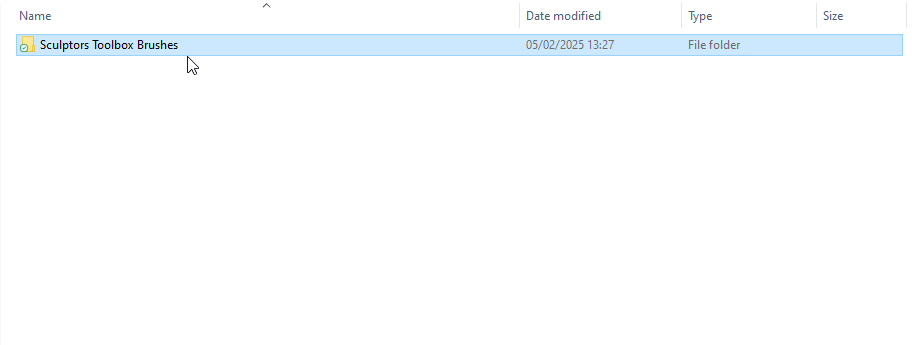
Step 2 - In blender (4.3 or above) go to your user preferences.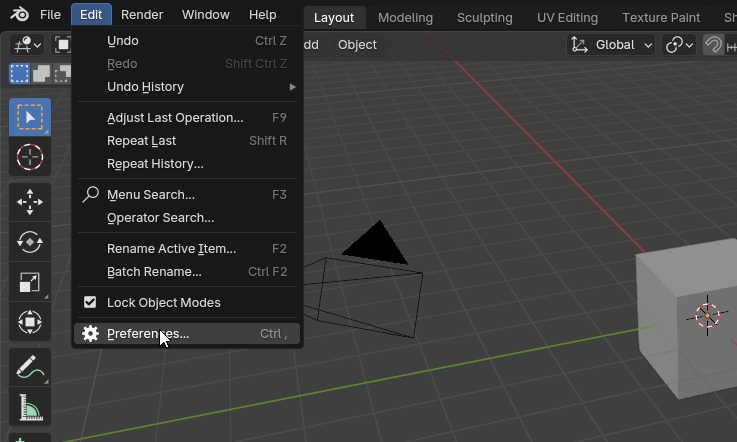
Step 3 - In the user preferences, locate the File Paths section.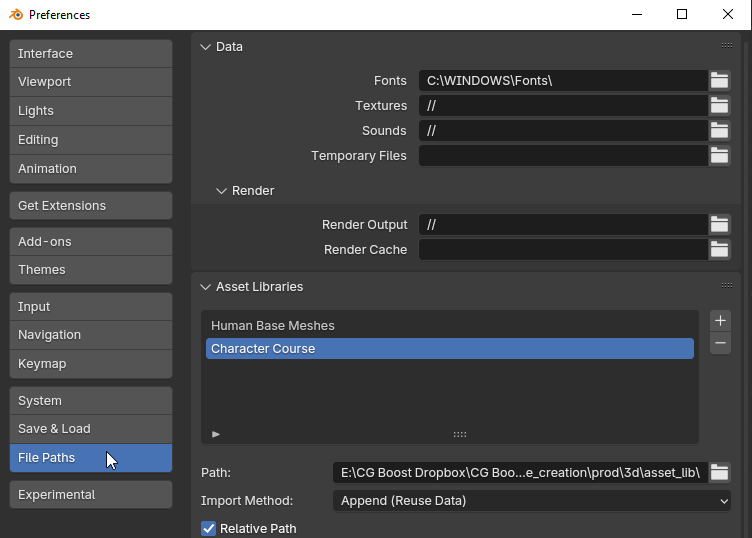
Step 4 - In the Asset Libraries section you will see a list of your libraries, add a new one for the Sculptors Toolbox by clicking the + symbol.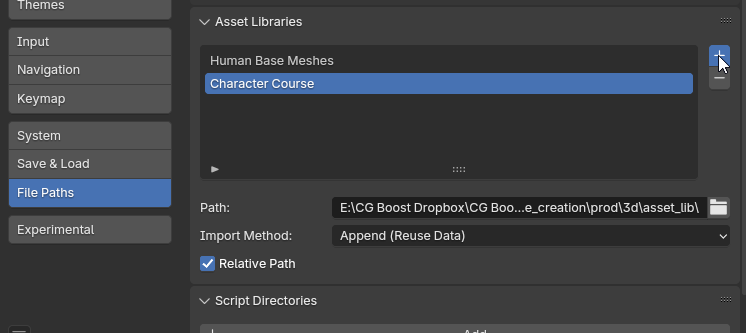
Step 5 - Locate the folder you exported from the zip file, it is important that this file doesn't move as Blender will load the brushes from here every time.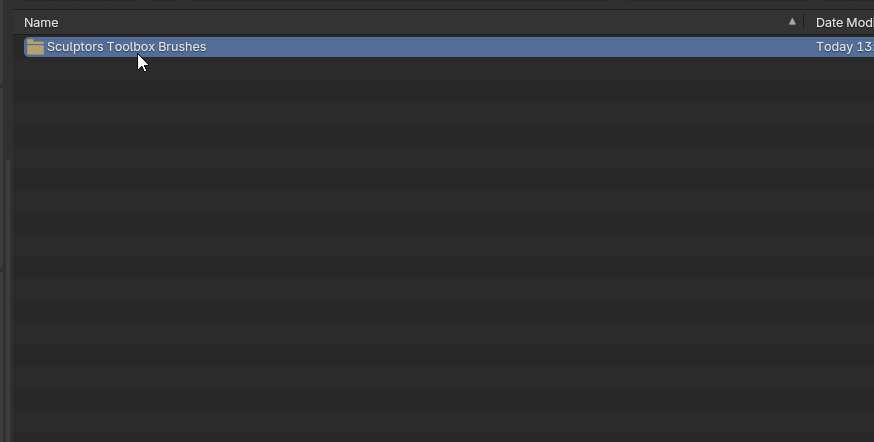
Step 6 - Open the Sculptors Toolbox Brushes folder and add it to your list of libraries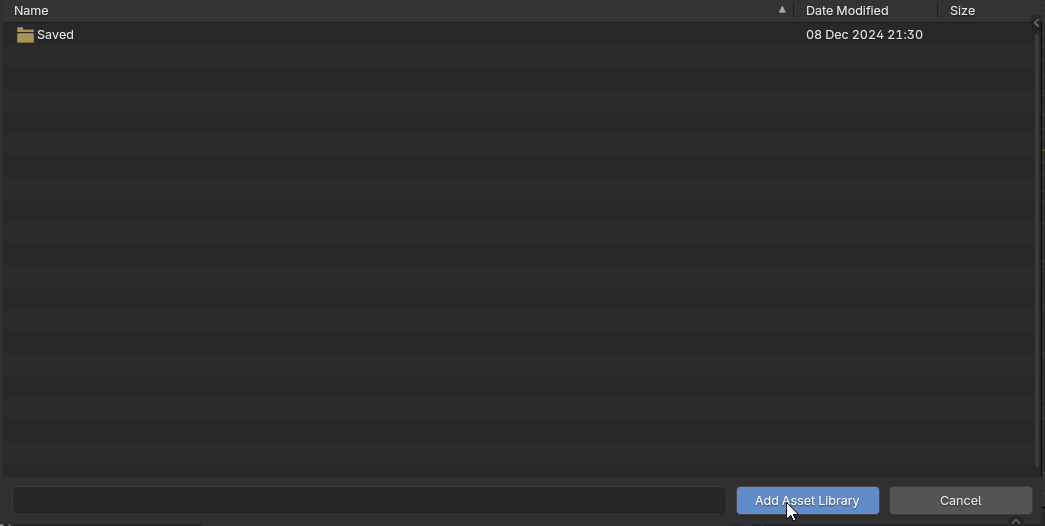
Step 7 - Once it is added it should look something like this.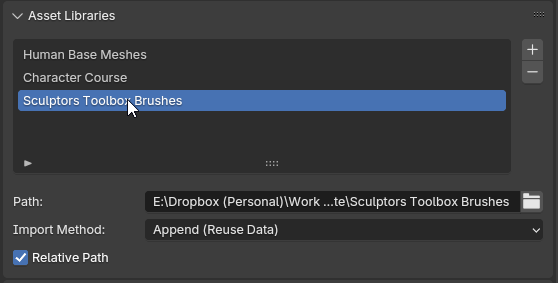
Step 8 - In sculpt mode, to find the brushes you will need to click on the three bars icon.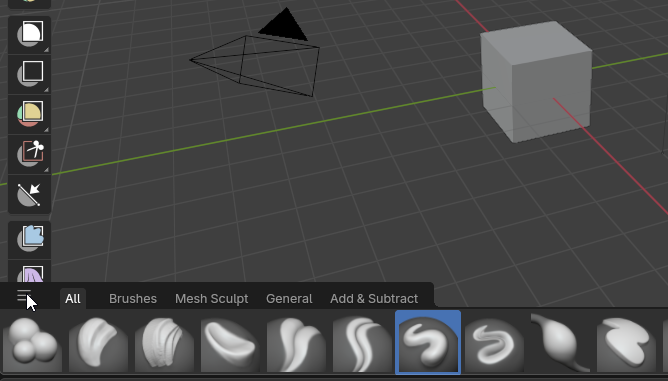
Step 9 - Here you will find a list of all the brushes that blender has loaded in.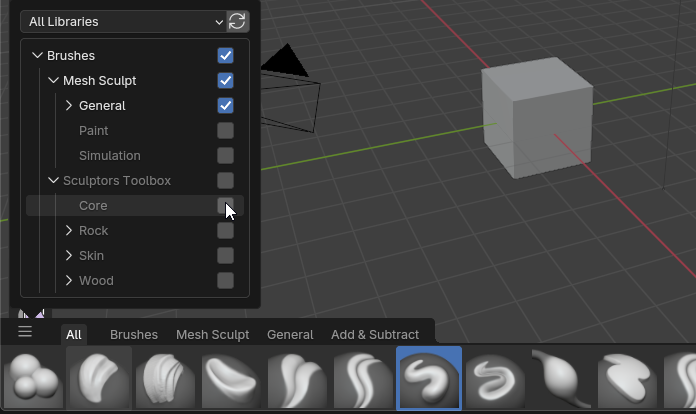
Step 10 - Select the brushes you want to see in your bar by ticking the box.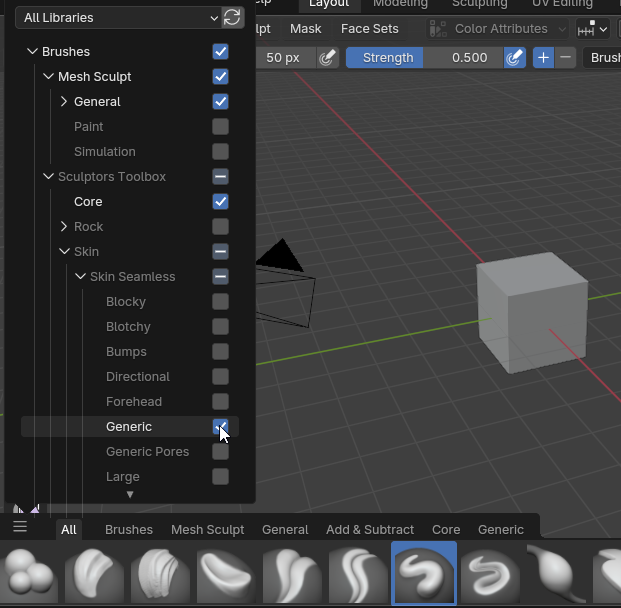
Step 11 - For each of these ticked boxes you will get a separate tab on your hotbar.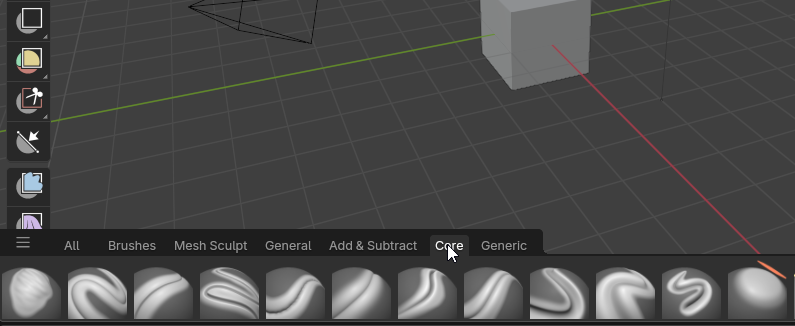
Step 12 - If you need to search for a specific brush you can use the Search bar to find the brush you are looking for.
Have questions about this product?
Login to message
| Sales | 3400+ |
| Downloads | 70+ |
| Rating | 24 ratings |
| Published | almost 9 years ago |
| Blender Version | 3.6 - 5.1 |
| License | Royalty Free |
Discover more products like this
loveblender 2.8 bfcm27 bfcm26 Sculpt summer25 winter26 spring26 summer24 summer23 spring23 summer22 summer28 spring20 toolbox summer26 BFCM bfcm19 bfcm18 bfcm25 bfcm28 spring27 bcon19 winter24 spring19 winter25 spring18 spring28 spring21 bfcm21 spring25 winter27 summer20 Brushes bfcm23 spring29 winter29 winter28 Jim spring22 summer21 summer27 Sculpture summer29 bfcm24 sculpting bfcm29 spring24 bfcm22 Morren