Unity Bridge Exporter — One-Click Blender To Unity Fbx Pipeline
 Rana Abdullah


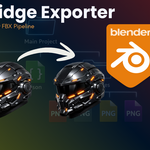
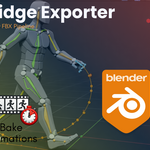
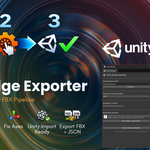
Blender Add-on
1. Download the Blender ZIP from your purchase confirmation email or Gumroad library
2. Open Blender -- go to Edit > Preferences > Add-ons > Install...
3. Navigate to and select unity_bridge_addon.py then click Install Add-on
4. Search for Unity Bridge in the add-on list and tick the checkbox to enable
5. Press N in the 3D Viewport -- click the Unity Bridge tab in the N-sidebar
Unity C# Postprocessor
6. In your Unity project, create the folder Assets/Editor/ if it does not exist
7. Copy Unity ZIP > UnityBridgePostprocessor.cs into Assets/Editor/
8. Unity compiles it automatically -- you will see it appear in the Project window
9. Optional: open Window > Unity Bridge > Settings for the configuration GUI
First Export (quick-start)
10. Save your .blend file (File > Save) -- required for relative export paths
11. Select your mesh or armature object in the viewport
12. In the Unity Bridge panel: confirm Export Path, check PBR and Anim baking options
13. Click Export to Unity -- watch the live progress indicators
14. Copy the generated
unity_export/ folder into your
Unity project's Assets/ folder
15. Unity auto-detects the JSON and configures materials + rig automatically
Have questions about this product?
Login to message
| Published | 5 months ago |
| Blender Version | 3.0 - 5.0 |
| Extension Type | N/A |
| Render Engine Used | Blender-Game-Engine, Cycles, Eevee |
| License | GPL |

Discover more products like this
blender addon Unity export Blender-to-Unity animation-baking unity-bridge texture-baking fbx exporter pipeline-tool pbr-baking urp-shader game-dev hdrp-shader