 UitTree


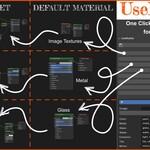
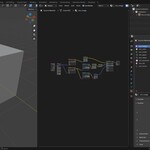
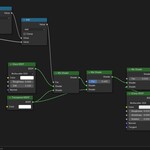
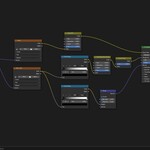
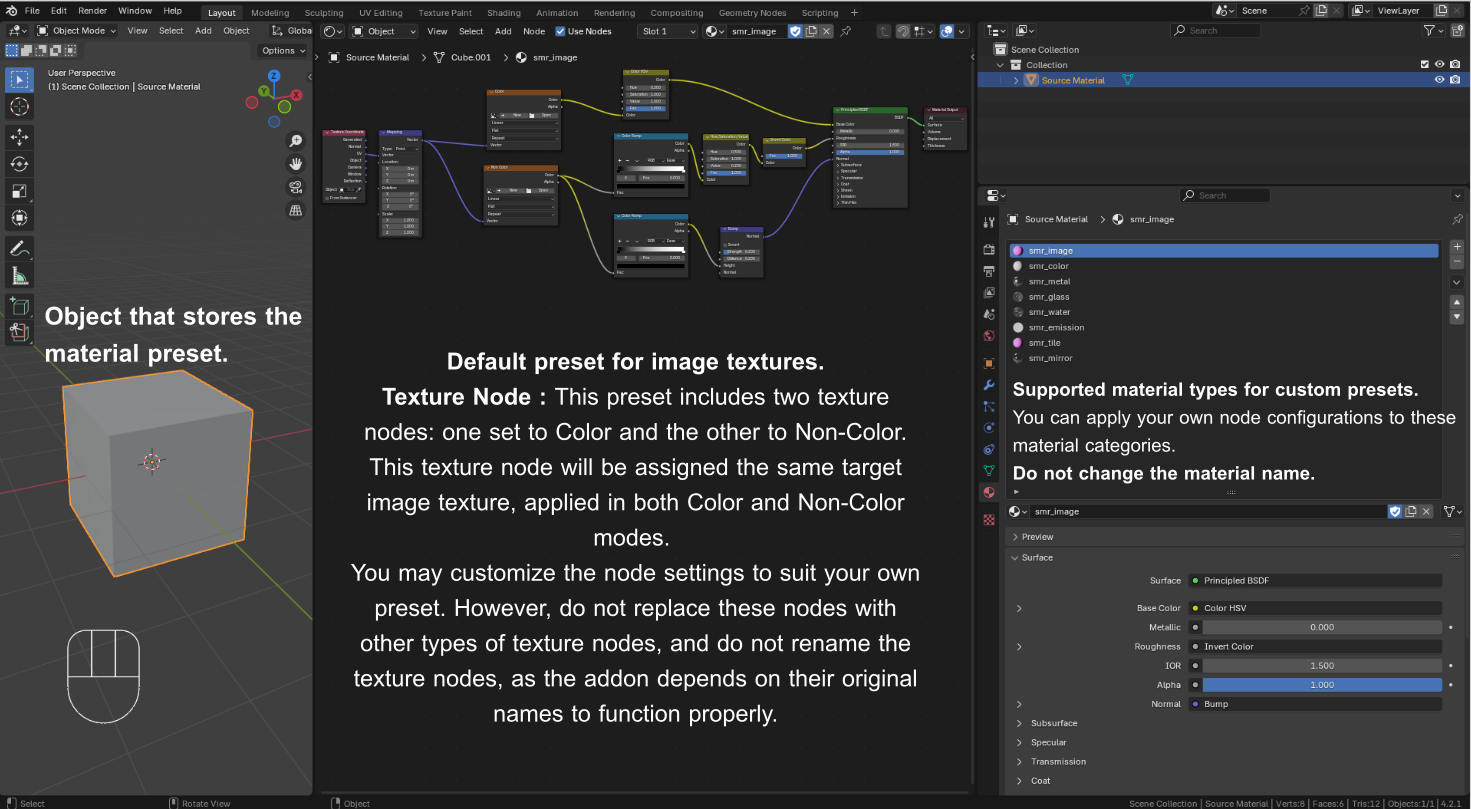
Default Preset Material
1.
Image
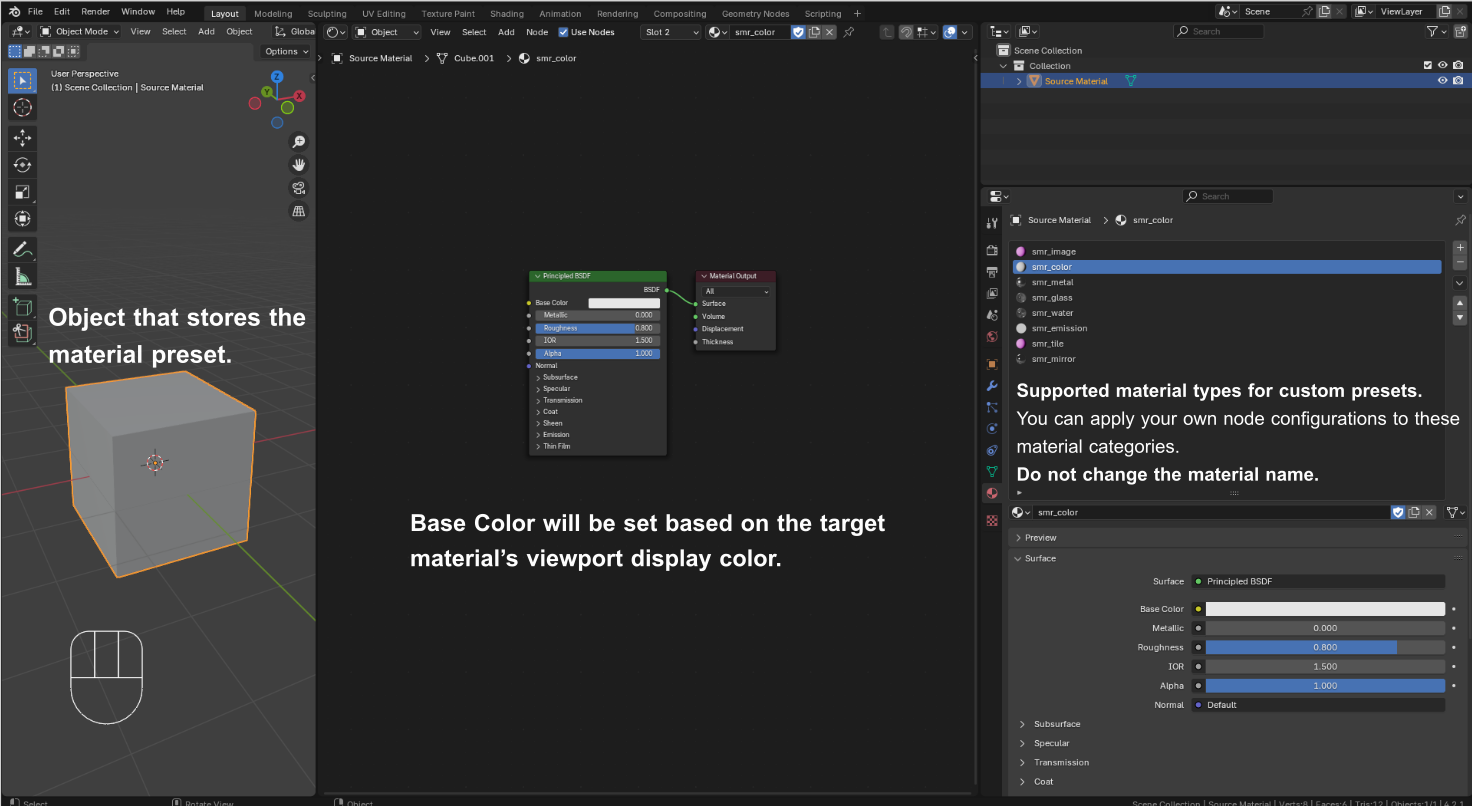
2. Color
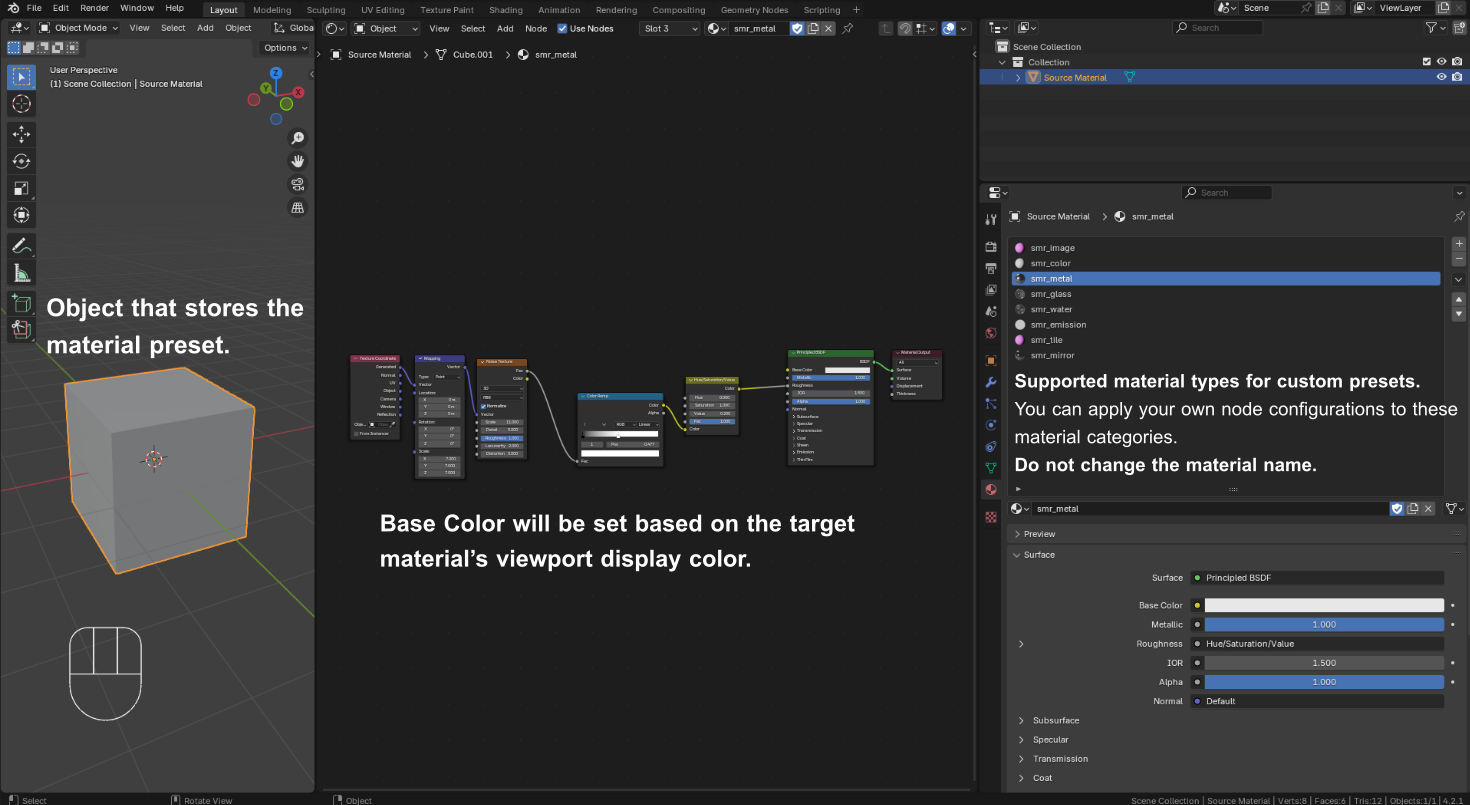
3. Metal
4. Glass
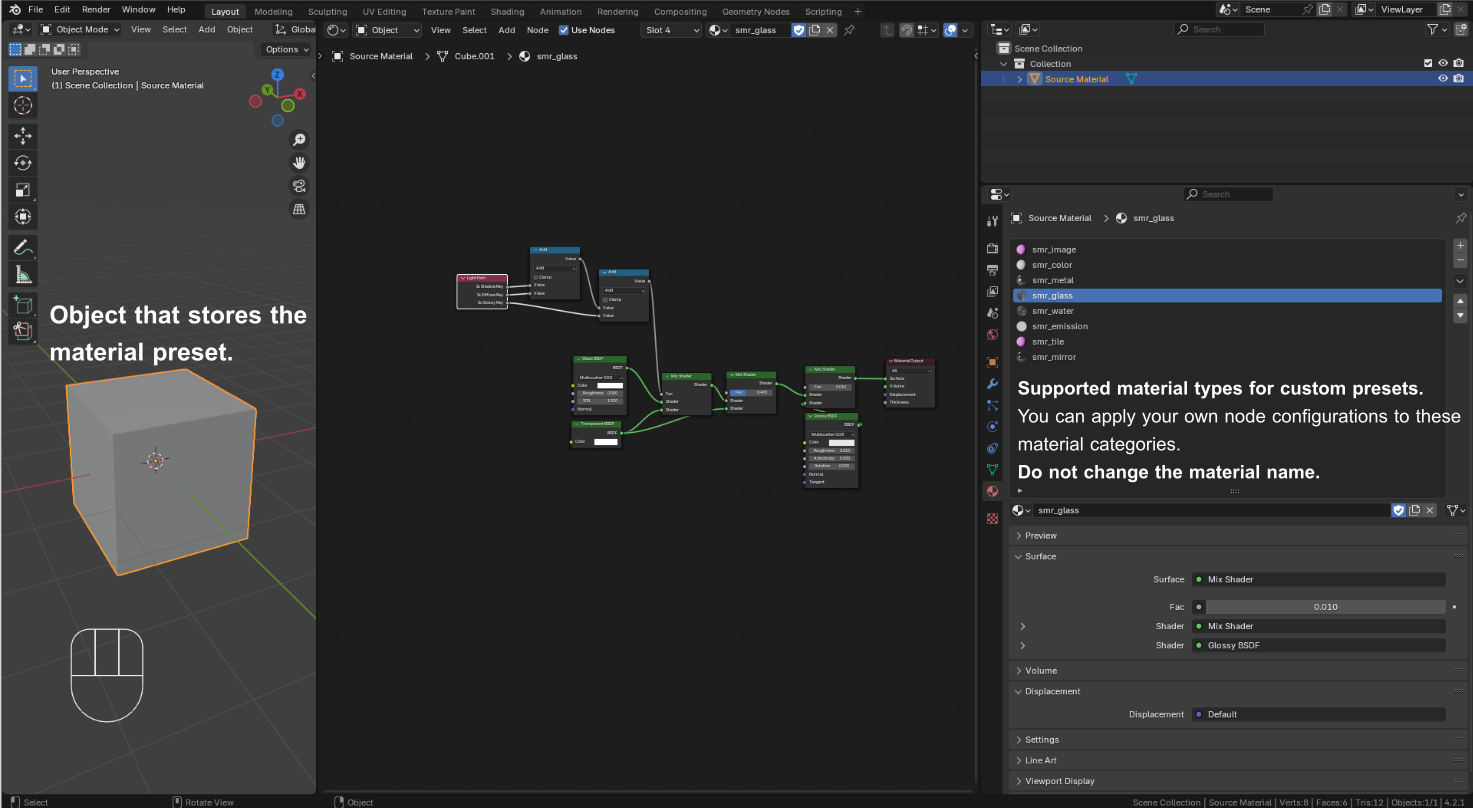
5. Water
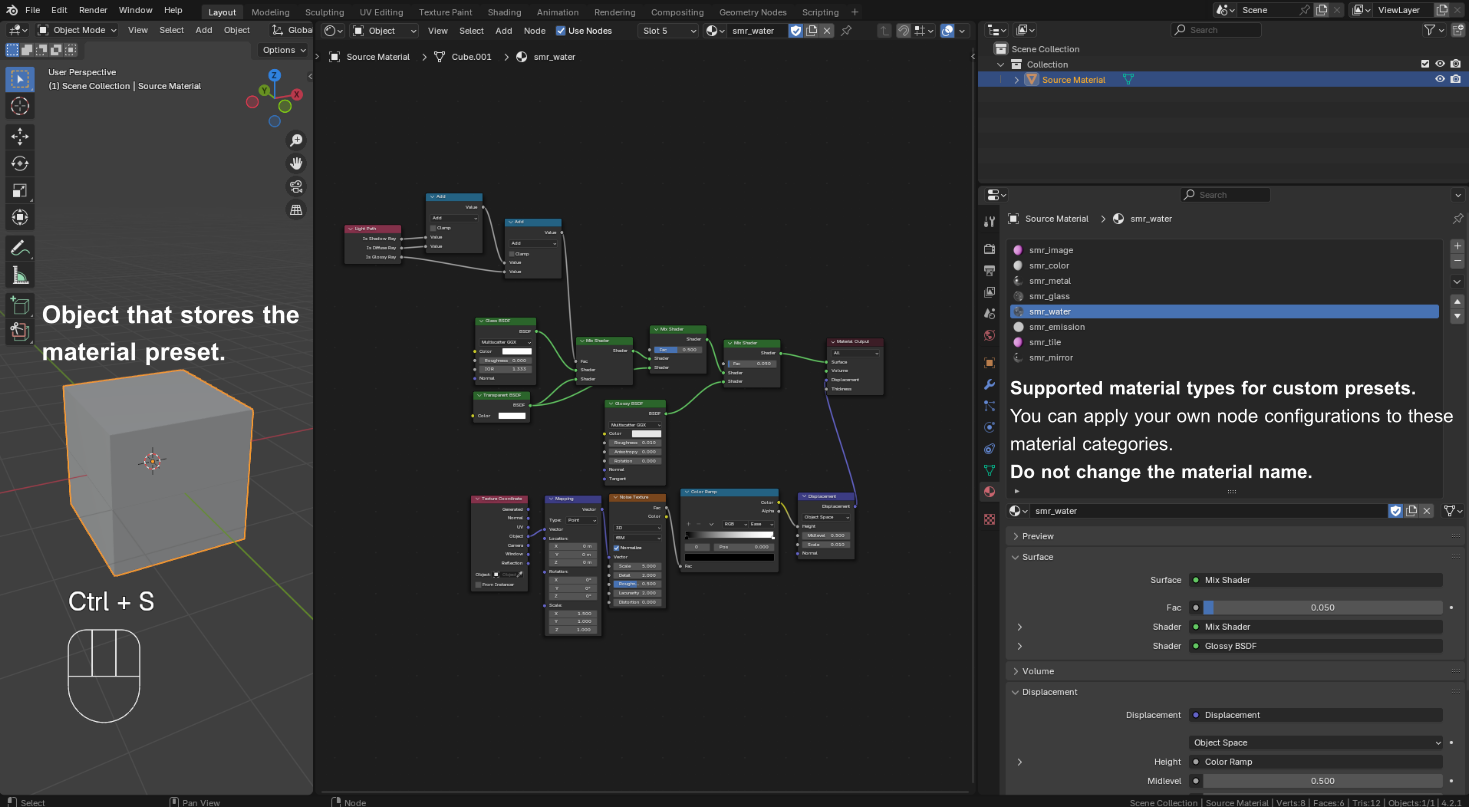
6. Emission
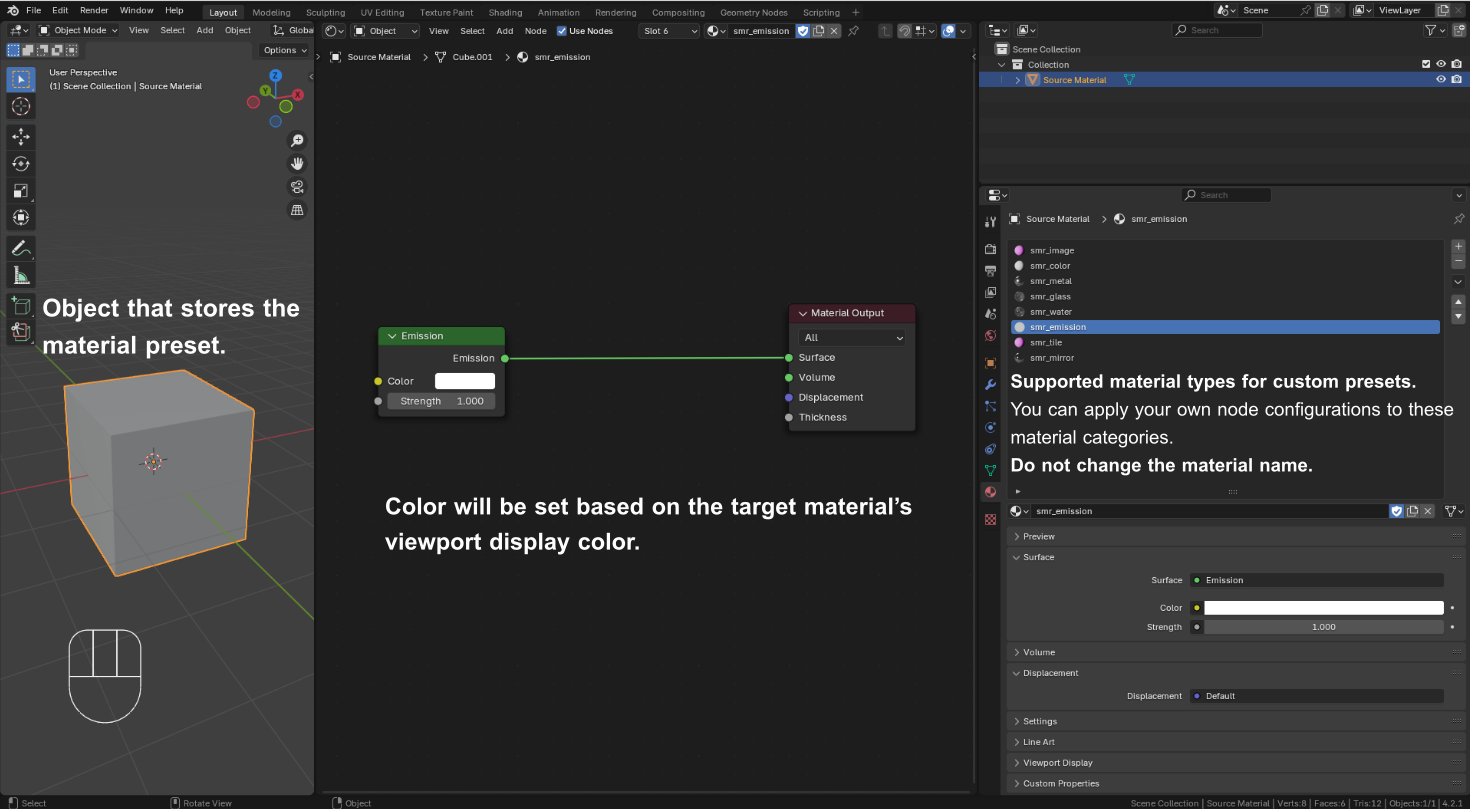
7. Tile
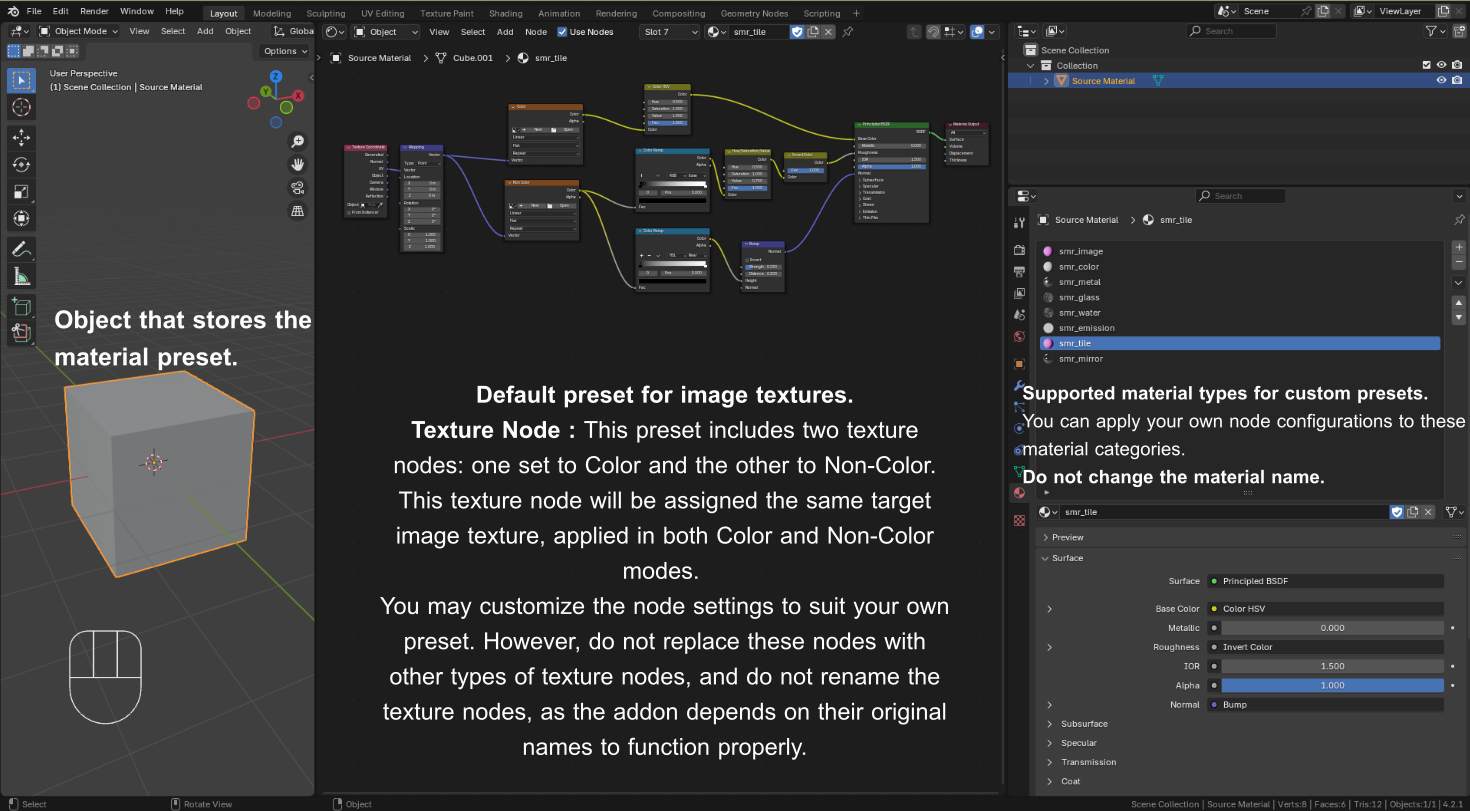
8. Mirror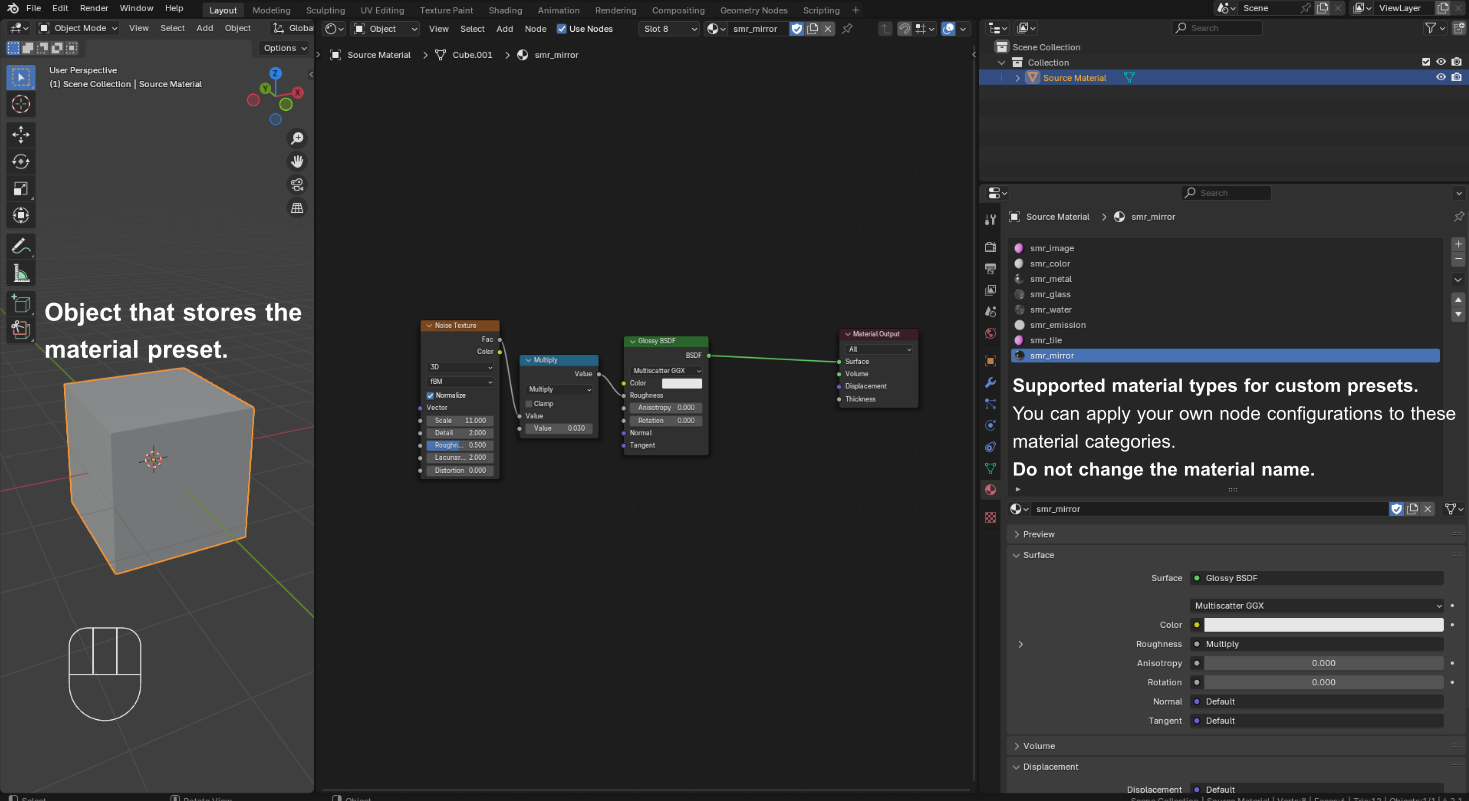
Usage Instructions
1. Install the Add-On
-
In Blender, go to Edit ▶ Preferences ▶ Add-Ons ▶ Install from Disk…
-
Select the
usemymat.zipfile and enable UseMyMat in the list.
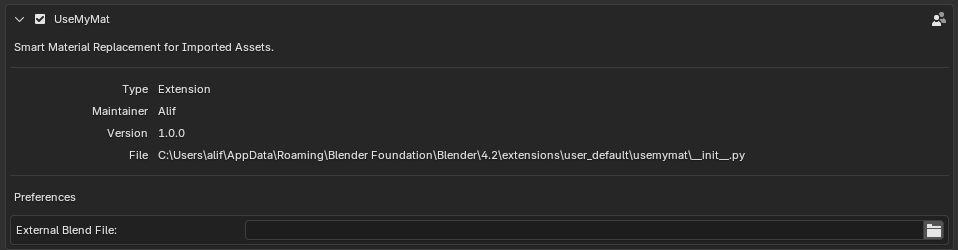
2. Configure External Presets
-
In Preferences ▶ Add-Ons ▶ UseMyMat, set External Blend File to the
.blendcontaining your preset materials.
3.
Import Models
-
Import SketchUp models with the SketchUp Importer add-on which you can download here.
-
In the 3D Viewport, select all imported meshes you wish to process.
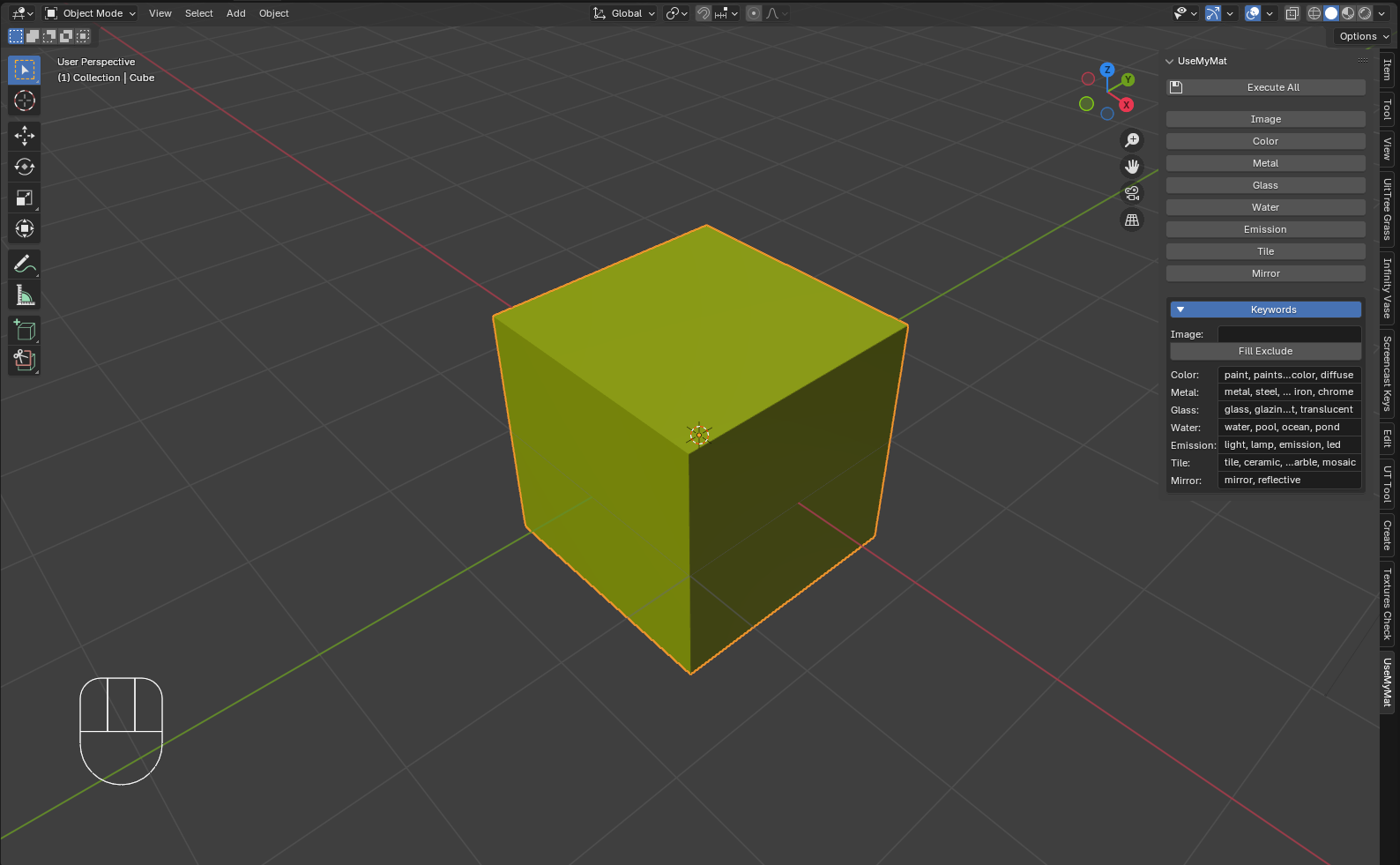
4. Open the UseMyMat Panel
-
Press N to open the sidebar, then choose the UseMyMat tab.
5. (Optional) Adjust Keywords
-
Click the Keywords header to expand.
-
For each category, enter comma-separated keywords that match your imported material names (e.g. for Metal:
chrome,
		steel, aluminum
). -
For the Image category, you can also click Fill Exclude to automatically gather all other category keywords into the exclude list.
6. Replace Materials
-
Click any Image, Color, Metal, etc. button to replace only that category.
-
Or click Execute All at the top to run every category in one go.
-
Each operation will report how many materials were processed.
UI Button Reference
Button
Action
Execute All
Runs all eight scripts in order (Image, Color, Metal, Glass, Water, Emission, Tile, Mirror).
Image
Replaces any material with an active Image Texture node (excluding ones in the exclude list).
Color
Replaces materials whose names contain any of the “Color” keywords (flat, diffuse, etc.).
Metal
Replaces materials whose names contain any of the “Metal” keywords.
Glass
Replaces materials named with any Glass keywords or with viewport alpha < 1.0.
Water
Replaces materials whose names contain any of the “Water” keywords.
Emission
Replaces materials whose names contain any of the “Emission” keywords.
Tile
Replaces materials whose names contain any of the “Tile” keywords; if no image texture is found, uses the viewport color.
Mirror
Replaces materials whose names contain any of the “Mirror” keywords.
Filtering Logic Details per Category
1. Image
-
Filter:
-
Skip materials whose names contain any of the
exclude_keywords(configured in UI). -
Select materials that contain a
TEX_IMAGEnode with an assigned image.
-
-
Core Logic: Detect all image-based textured materials, unless they belong to another category via exclude keywords.
2. Color
-
Filter:
-
Material name (lowercased) contains any of the
target_keywords(default:"paint, paintswatch, solid, color, diffuse").
-
-
Core Logic: Flat, color-only materials (typically Lambert/Diffuse), identified via name keywords.
3. Metal
-
Filter:
-
Material name contains any
target_keywords(default:"metal, steel, aluminum, bronze, copper, iron, chrome").
-
-
Core Logic: Metal materials detected based on naming keywords.
4. Glass
-
Filter:
-
Material name contains any
target_keywords(default:"glass, glazing, window, transparent, translucent"), or -
Viewport alpha (
mat.diffuse_color[3]) < 1.0 (indicates transparency).
-
-
Core Logic: Glass or transparent materials identified by either name or alpha value.
5. Water
-
Filter:
-
Material name contains any
target_keywords(default:"water, pool, ocean, pond").
-
-
Core Logic: Water-related materials identified by water-specific naming.
6. Emission
-
Filter:
-
Material name contains any
target_keywords(default:"light, lamp, emission, led").
-
-
Core Logic: Emissive materials detected by name (usually emit light in scenes).
7. Tile
-
Filter:
-
Material name contains any
target_keywords(default:"tile, ceramic, porcelain, marble, mosaic"). -
If no image texture is found, fallback to:
-
Apply material's viewport color as Base Color.
-
-
-
Core Logic: Tile-like surfaces identified by keywords; uses image texture if available, or color as fallback.
8. Mirror
-
Filter:
-
Material name contains any
target_keywords(default:"mirror, reflective").
-
-
Core Logic: Reflective/mirror materials identified through naming convention.
Have questions about this product?
Login to message
| Blender Extension Compatible | Yes |
| Published | about 1 year ago |
| Blender Version | 4.2 - 4.3 |
| Extension Type | Add-on |
| Render Engine Used | Cycles, Eevee |
| License | GPL |
