Auto Montage Generator Pro
 Team Blender
in VSE
Team Blender
in VSE


Auto Montage Generator Pro Documentation
Welcome to the Auto Montage Generator Pro documentation. This guide will help you understand how to install, configure, and use the add-on to create professional montages in Blender.
Table of Contents
- Installation
- Getting Started
- User Interface Overview
- Settings and Parameters
- Generating a Montage
- Applying Random Effects
- Troubleshooting
- FAQs
- Support
Installation
-
Download the Add-On:
- Ensure you have Blender version 2.93 or later installed.
- Download the
Auto Montage Generator Proadd-on from the official source.
-
Install the Add-On:
- Open Blender.
- Go to
Edit>Preferences. - Click on
Add-onsin the sidebar. - Click on
Installat the top. - Navigate to and select the downloaded add-on file (
.zipor.py). - Enable the add-on by checking the box next to
Auto Montage Generator Pro.
-
Save Preferences:
- Click
Save Preferencesto keep the add-on enabled on Blender restart.
- Click
Getting Started
-
Open the Video Sequence Editor:
- Switch to the
Video Editingworkspace in Blender.
- Switch to the
-
Access the Add-On:
- In the Video Sequence Editor, open the sidebar by pressing
N. - Find the
Auto Montage Protab.
- In the Video Sequence Editor, open the sidebar by pressing
-
Prepare Your Clips:
- Import the video, image, and audio clips you want to use for the montage.
User Interface Overview
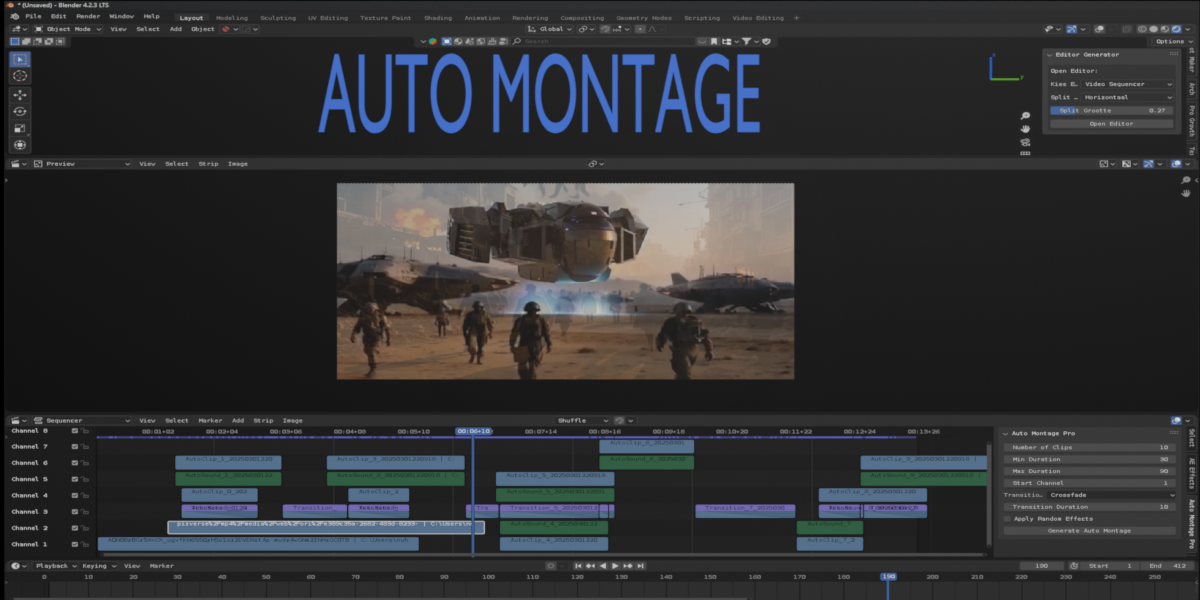
- Number of Clips: Specify the number of clips to include in the montage.
- Min Duration: Set the minimum duration of each clip in frames.
- Max Duration: Set the maximum duration of each clip in frames.
- Start Channel: Choose the starting channel to place the montage clips.
- Transition Type: Select the type of transition (Crossfade, Wipe, Gamma Cross).
- Transition Duration: Set the duration of the transition between clips in frames.
- Clear Existing Strips: Option to remove all existing strips before generating the montage.
- Apply Random Effects: Option to apply random effects to clips.
Settings and Parameters
- Number of Clips: Determines how many clips will be used in the montage.
- Min/Max Duration: Controls the length of each clip in frames.
- Start Channel: Defines the channel on which to start placing clips.
-
Transition Type: Options include:
- CROSS: Standard crossfade.
- WIPE: Wipe transition.
- GAMMA_CROSS: Gamma crossfade.
- Transition Duration: Length of transitions in frames.
- Clear Existing Strips: When enabled, all current strips in the sequence editor will be removed before creating the montage.
- Apply Random Effects: When enabled, random visual effects will be applied to the clips.
Generating a Montage
-
Select Clips:
- Choose the clips in the Video Sequence Editor that you want to include in the montage.
-
Set Parameters:
- Adjust the settings and parameters to your liking.
-
Generate:
- Click the
Generate Auto Montagebutton.
- Click the
-
View Montage:
- The generated montage will appear on the timeline with the specified settings.
Applying Random Effects
When the Apply Random Effects option is enabled, the add-on will randomly apply one of the following effects to each clip:
- Blur: Adds a blur effect.
- Brightness/Contrast: Adjusts the brightness and contrast.
- Color Balance: Modifies the color balance.
- Speed: Changes the speed of the clip.
Troubleshooting
-
Blender Crash:
- Ensure your clips are correctly imported and compatible.
- Check for updates to Blender and the add-on.
- Reduce the number of clips or duration if working with high-resolution media.
-
No Clips Selected:
- Make sure to select clips in the Video Sequence Editor before generating the montage.
-
Errors in Montage Creation:
- Verify all settings are properly configured.
- Ensure there is enough space in the timeline for the number of clips and transitions.
FAQs
Q: What versions of Blender are supported? A: Blender 2.93 and later versions are supported.
Q: Can I use images and audio clips in the montage? A: Yes, the add-on supports video, image, and audio clips.
Q: How can I get support? A: Please refer to the support section below.
Support
For any issues, questions, or feedback, please contact our support team at:
- Email: [email protected]
Have questions about this product?
Login to message
| Published | over 1 year ago |
| Blender Version | 4.2, 4.1, 4.0, 3.6, 3.5, 3.4, 3.3, 3.2, 3.1, 3.0, 2.93 |
| Extension Type | N/A |
| License | GPL |