 Nuno Sousa
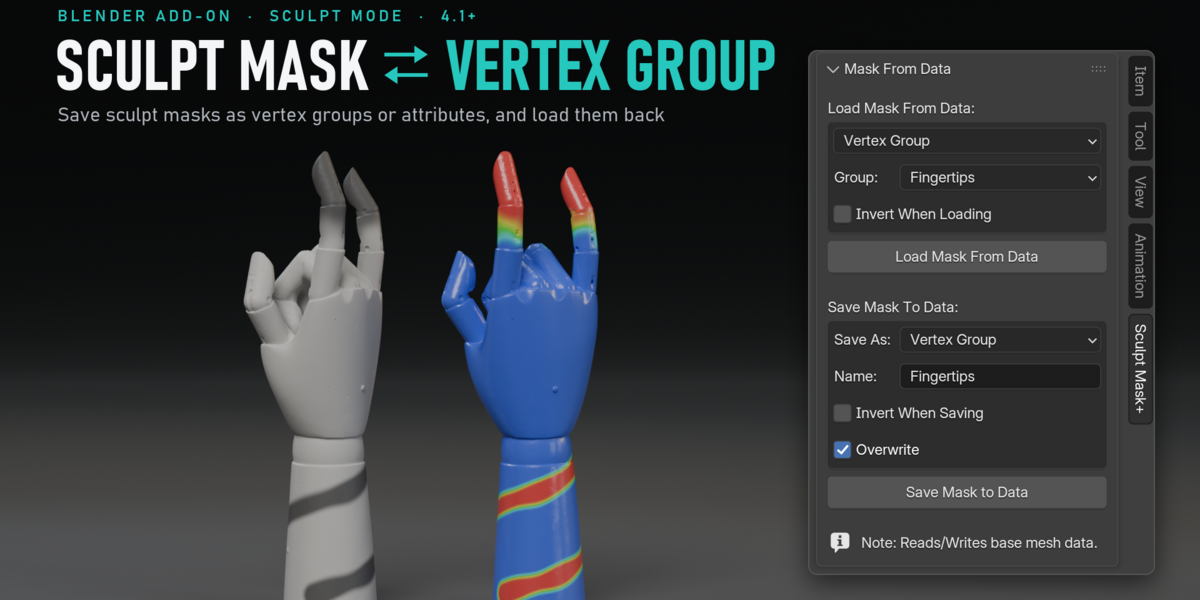
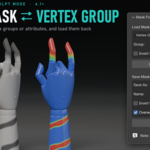
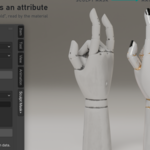
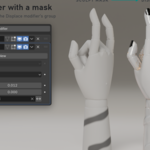
Sculpt Mask ⇄ Vertex Group
Save a sculpt mask as a vertex group or an attribute, and load any group, Float attribute or Color attribute as a mask. One panel in the Sculpt Mode sidebar, both directions.
Blender keeps one sculpt mask per mesh, and the next mask you paint replaces it. Blender has no built-in way to turn a mask into a vertex group, or a vertex group into a mask. This add-on does both.
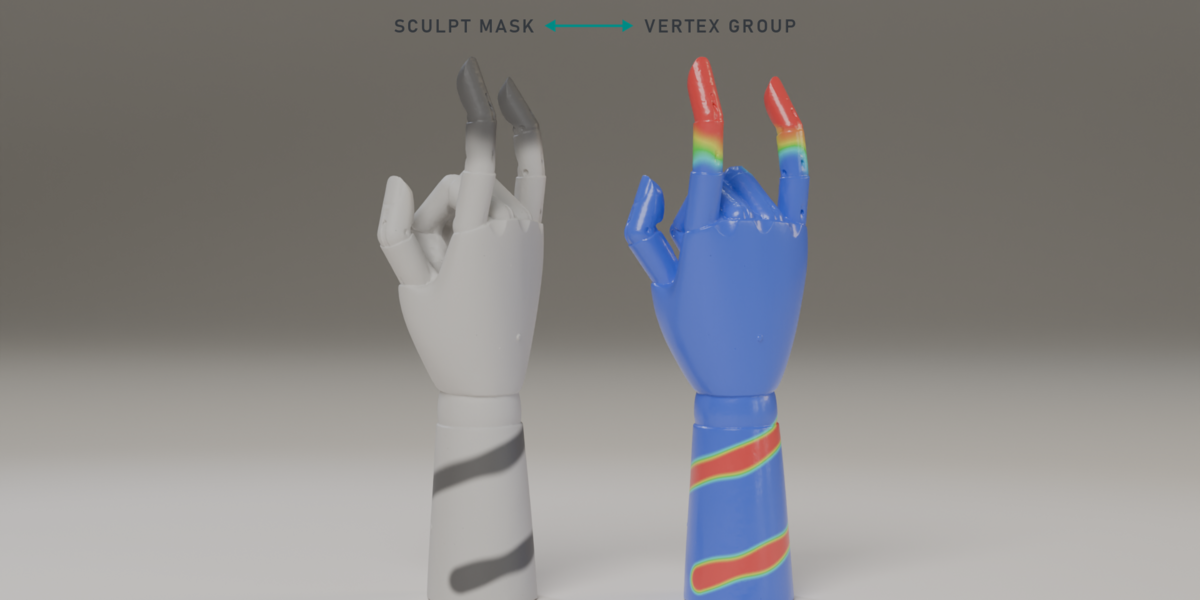
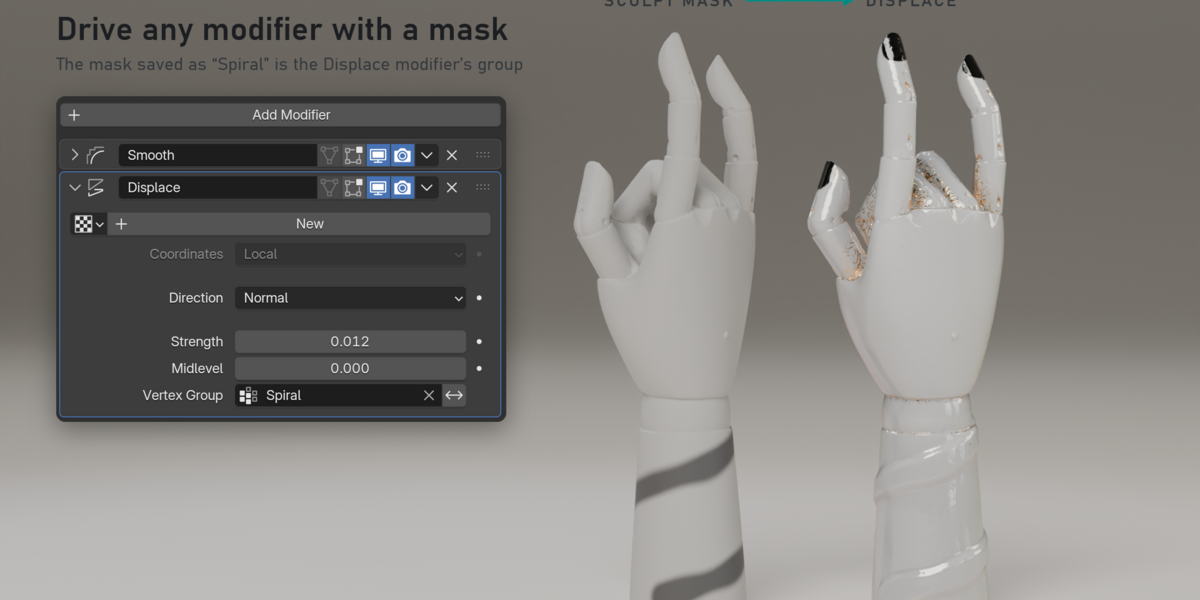
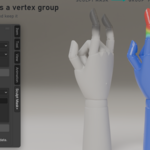
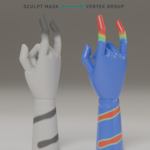
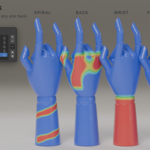
Save every mask you paint and bring it back later, hand a mask to a modifier through its vertex group, or read it in a material as an attribute. It works the other way too: weight paint, vertex paint or any per-vertex attribute becomes a sculpt mask, with the exact values, gradients included.
What's included
- Sculpt Mask From Data 0.0.3: the add-on (one .zip, install it from Preferences).
- Requires Blender 4.1 or newer (tested in 5.0 and 5.1).
Highlights
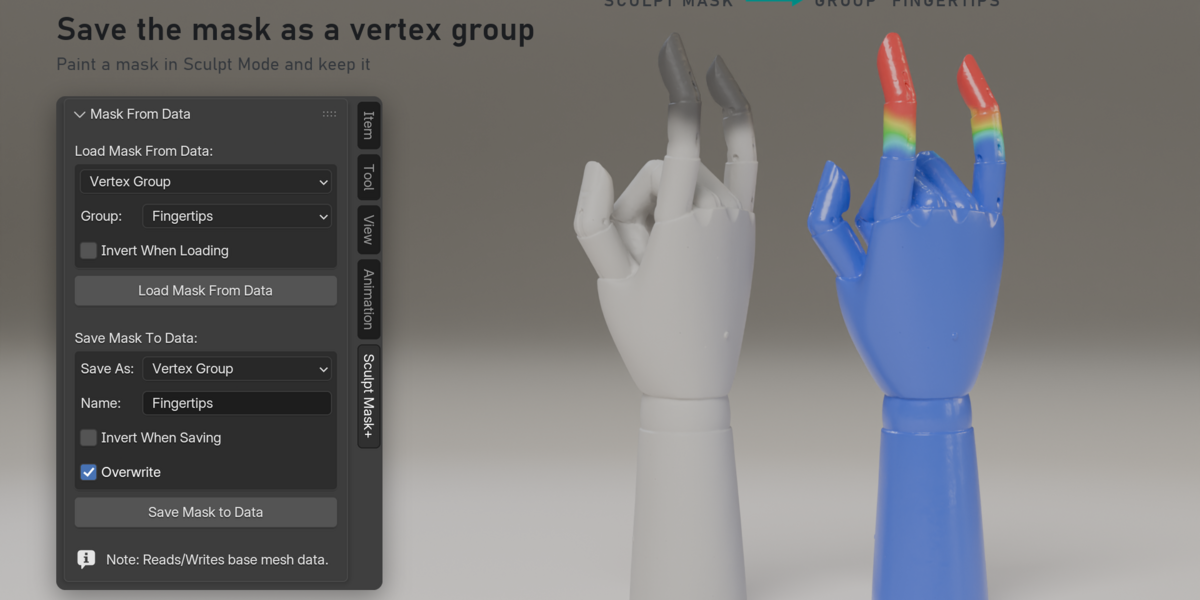
- Mask to Vertex Group. Save the mask under any name. Mask values become weights, soft edges included.
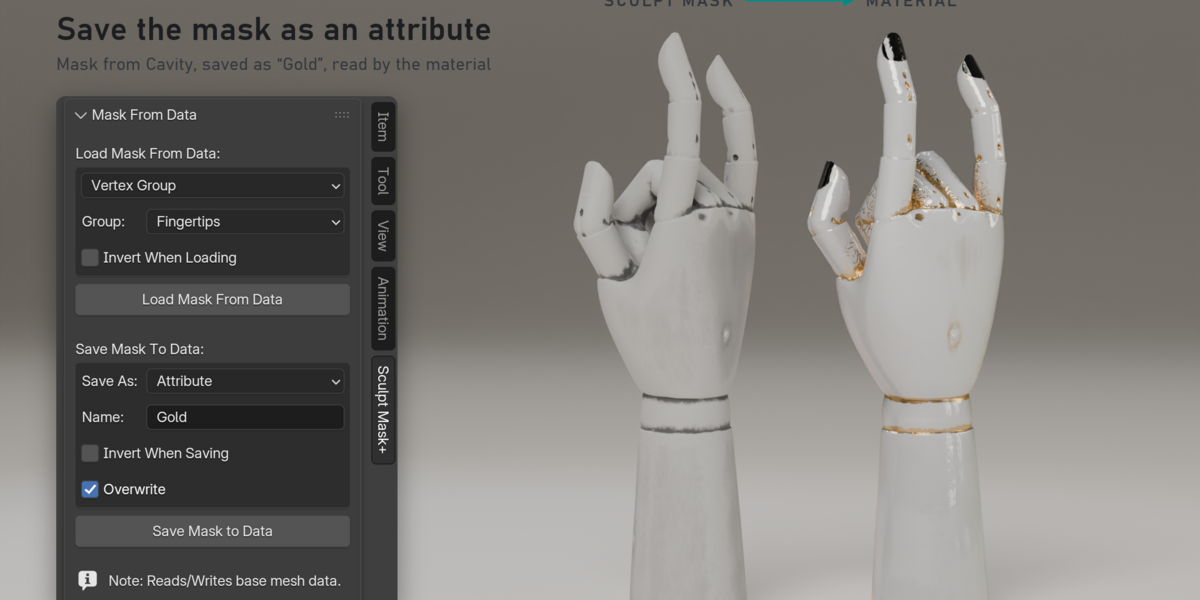
- Mask to Attribute. Save it as a Float attribute instead, for materials (Attribute node) and Geometry Nodes.
- Vertex Group to Mask. Any vertex group back to a mask: one you saved, one you weight painted, or a rig's deform group.
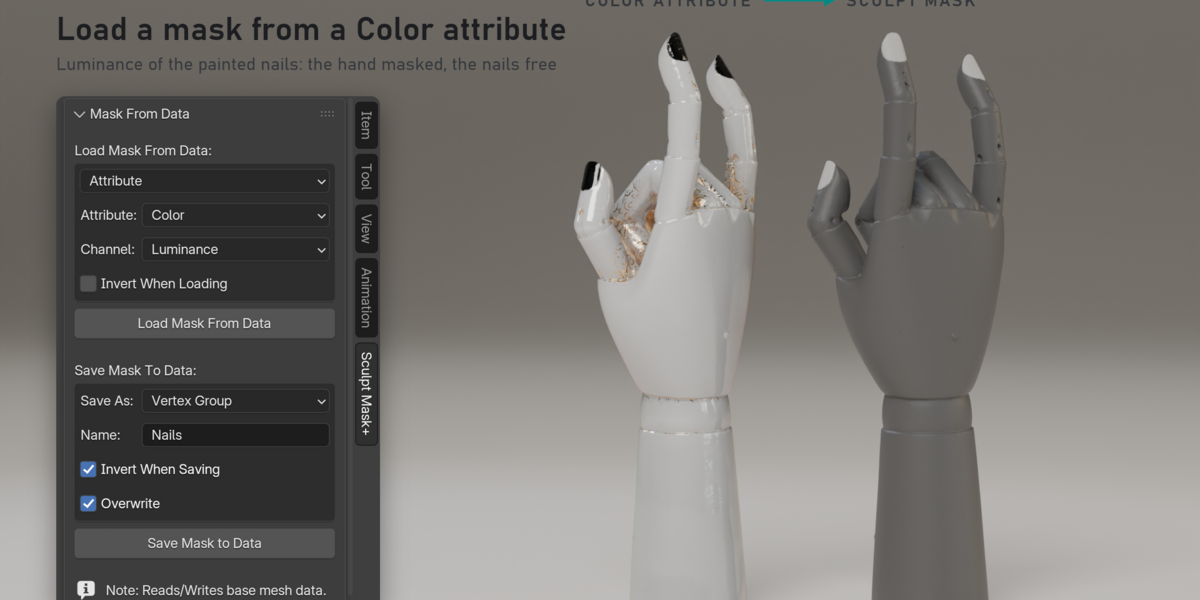
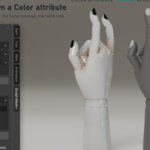
- Attribute to Mask. Float and Color attributes. For colors, pick the channel: Average, Luminance, Value, Red, Green or Blue.
- Invert both ways. Invert when loading, invert when saving, or both.
- Exact values. No threshold and no rounding: a mask saved and loaded back is the same mask (a vertex group leaves out values under 0.0001).
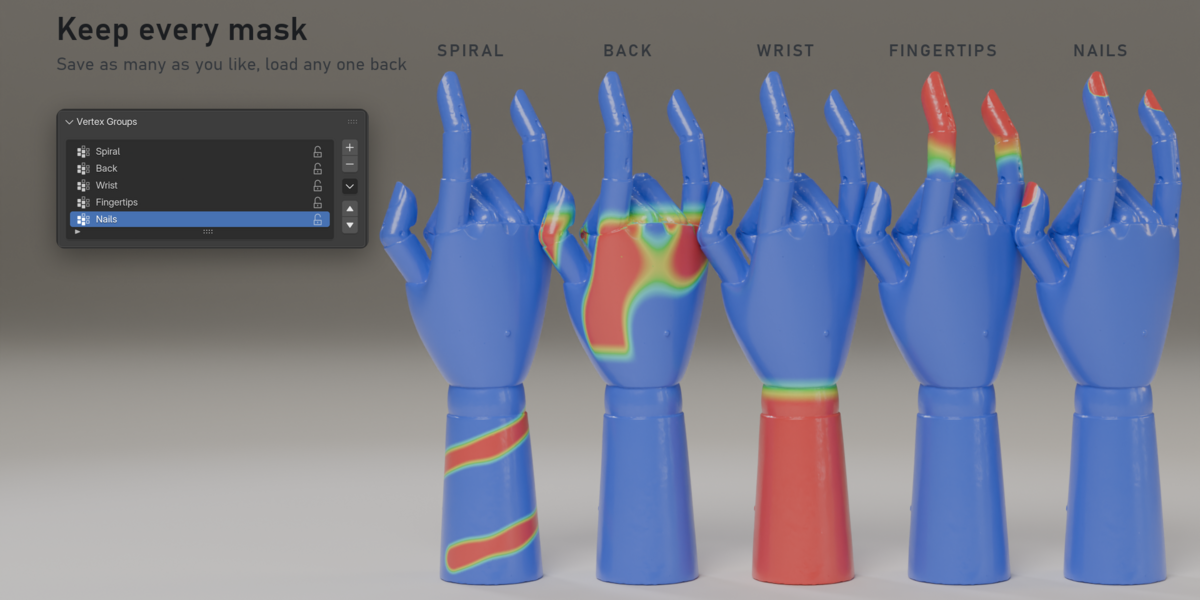
- Keep a library of masks. Save as many as you like on one mesh and switch between them.
How to use
- Install the .zip: Edit › Preferences › Add-ons › Install from Disk, then tick Sculpt Mask From Data.
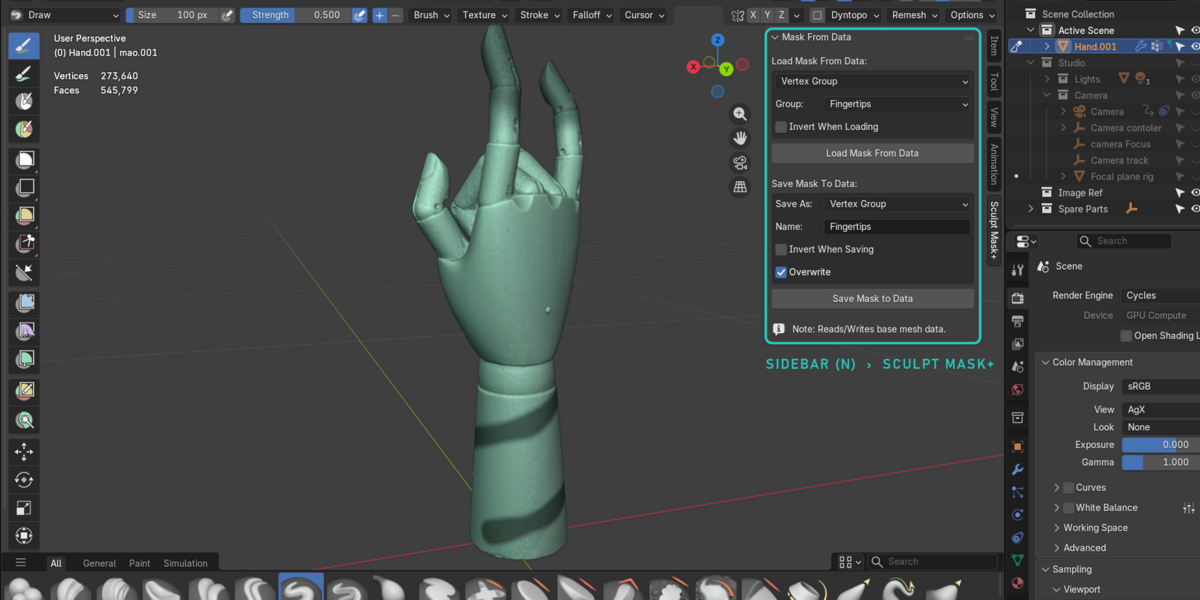
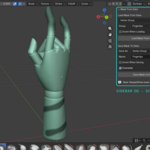
- Select your mesh and go to Sculpt Mode. Open the sidebar (N) and pick the Sculpt Mask+ tab.
- To keep a mask: paint it, type a name under Save Mask To Data, choose Vertex Group or Attribute, and click Save Mask to Data.
- To get a mask back: under Load Mask From Data, choose Vertex Group or Attribute, pick it in the list, and click Load Mask From Data. The current mask is replaced.
Load Mask From Data
- Vertex Group / Attribute: where the mask comes from.
- Group: the vertex group. Vertices that aren't in it get no mask.
- Attribute: a Float or Color attribute on the vertices (Point domain).
- Channel: for a Color attribute, how a color becomes one value: Average RGB, Luminance, Value (HSV), or the Red, Green or Blue channel.
- Invert When Loading: 1 becomes 0 and 0 becomes 1.
Save Mask To Data
- Save As: Vertex Group or Attribute (a Float attribute on the vertices).
- Name: the name of the group or attribute.
- Invert When Saving: saves 1 minus the mask.
- Overwrite: replaces a group or attribute that has that name. Off, the add-on refuses and keeps the old one.
Version History
07/11/26 · Version 0.0.4 · LATEST
Fixes
- Fixed: Attribute as the source listed no attributes, so Color and Float attributes couldn't be loaded as a mask.
- Fixed: the Group and Attribute lists could jump to another item after a load or an overwrite (in Blender 5.1, every load reorders the mesh's attributes).
- Faster: the panel no longer copies the whole mesh on every redraw. On a 270k-vertex sculpt that took half a second each time.
- Improved: the color option reads Channel, so it fits the sidebar.
- Saving and loading give exactly the same values as 0.0.2.
Version 0.0.3
Save Mask To Data
- Save the mask as a vertex group or a Float attribute, with Invert and Overwrite.
- Load a mask from a vertex group.
