 huanleson


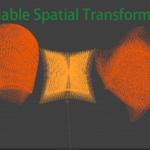
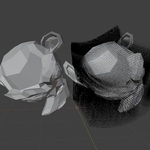
下载文件包含三个文件:插件、包装器和体素立方体。
Full video demonstration available at https://youtu.be/8FdZSkZY_kw
Straight Tweezers
The rear pliers
------select and merge objects with the dashed cube
Main sequence protection,
-----used when the number of selected objects is 1, records the object name, and locks the recording target
Wrapper,
----my homemade wrapper. If you know how to package, you can discard it; if not, you can use it as a temporary solution. The software is not registered and may be removed by antivirus software, but the relevant source code will be placed in a note in a QQ group and can be used in PyCharm.If you need the source code, it can be attached and uploaded later.
Record vertex operations
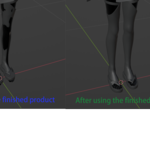
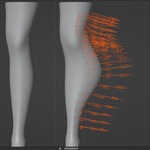
-----Record the recent edit mode operations of moving selected vertices of a single object within a range and generate executable code. Store it in a script text file, and continuous recording is supported.Clicking 'Generate Execution Code to Desktop' will create a new file named Huanlesontext_block_export.txt on the desktop.
X-domain mirror recording,
-----obtain the main sequence and selected object information, retrieve the corresponding symmetry table based on the main sequence, record and generate execution code for the left and right sides, ensuring consistent range effects on both sides.
Mirror move along the X axis.
-----all selected objects are separated and mirror-moved, vertices at x=0 will move to the right.
X-axis mirror return,
-----select object to restore to original position, connect main sequence protection
Main sequence protection, better observation and perspective
-----When you first record a single selected object, or manually add primary sequence protection, you can use better perspectives. Other objects selected afterward can be viewed in perspective as red outlines, allowing for better angles. If there is no primary sequence protection, all objects will enter edit mode during recording.
Mask selected bone area
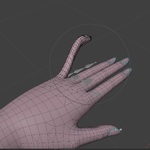
-----Click on the bone object, select the bones whose positions you want to edit (you can select multiple), then select the target body. In Object Mode, click on 'Select Bone Area'. You'll notice that, except for the finger region affected by the bones, other parts cannot be modified, nor can they be controlled through range editing.
Have questions about this product?
Login to message
| Published | 9 months ago |
| Blender Version | 3.4 - 4.5 |
| Extension Type | N/A |
| Render Engine Used | Blender-Internal |
| License | GPL |
Discover more products like this
Vertex Record Modeling Concept Tool Can record spatial transformations