 Hisoka852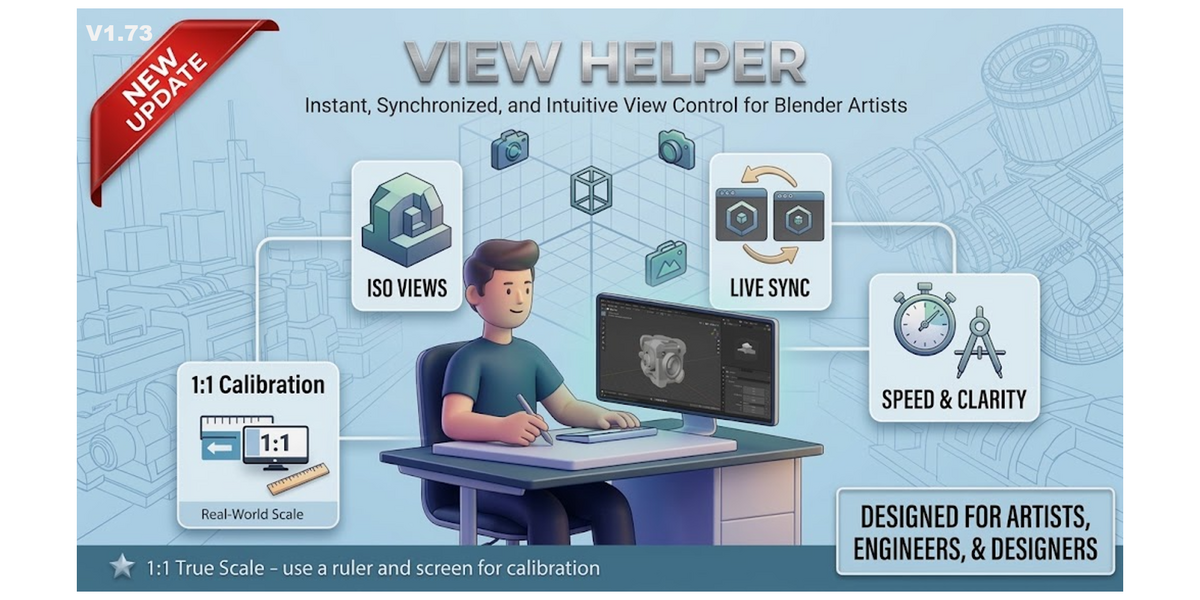

Overview
View Helper is a robust viewport management toolset for Blender designed to streamline your modeling, painting, and precision alignment tasks.
It eliminates the friction of manual perspective navigation by allowing artists to save exact camera placements,
switch instantly between customized orthographic planes, and dynamically align or spin the viewport camera based on face normals and geometric edges.
What It Includes
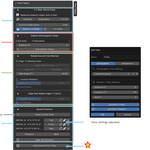
The add-on offers two primary feature groups: Precision View Control and a robust Save / Restore Viewport States manager.
1. Default Orthographic Views GeneratorCustom
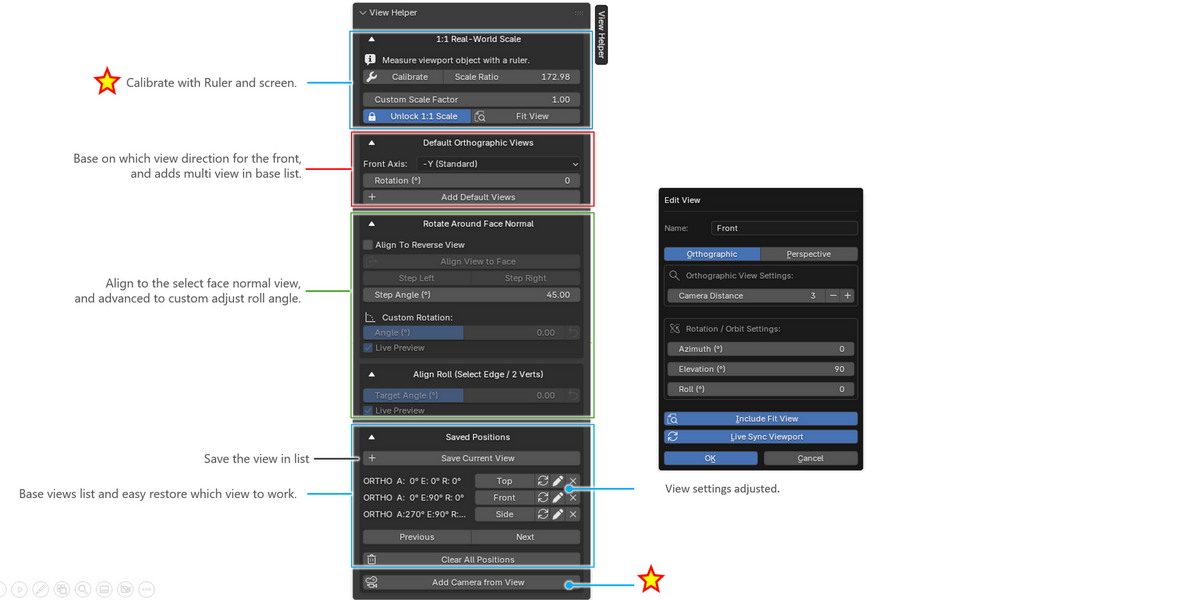
• Front Axis Mapping: Redefine what "Front" means for your asset or scene. You can set the base orientation to match standard -Y, or change it to +X, +Y, -X, +Z, or -Z.
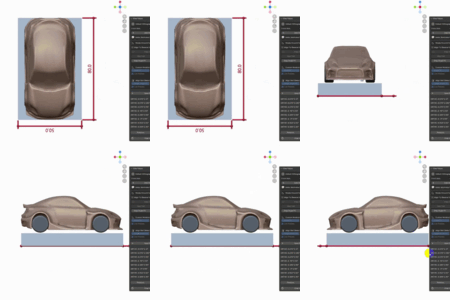
• One-Click Projections: Automatically generates a full suite of clean, orthographic layout views (Top, Bottom, Front, Back, Left, Right)
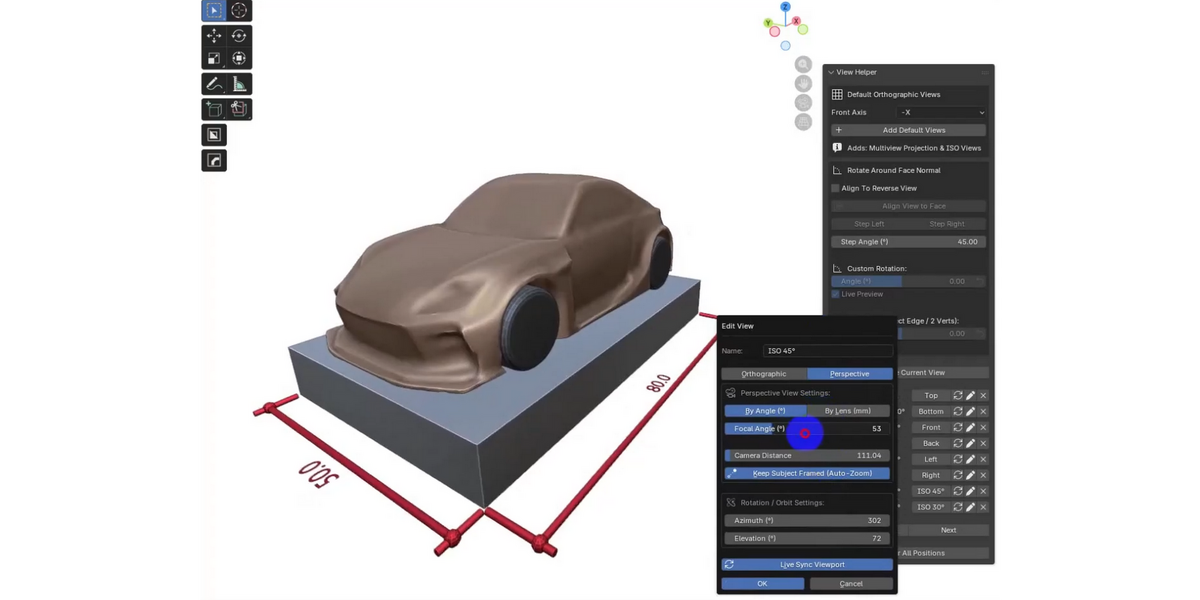
+45deg and 30deg Isometric setups shifted to align perfectly with your chosen custom front axis.
2. Geometric Face-Normal Rotation & Roll Alignment
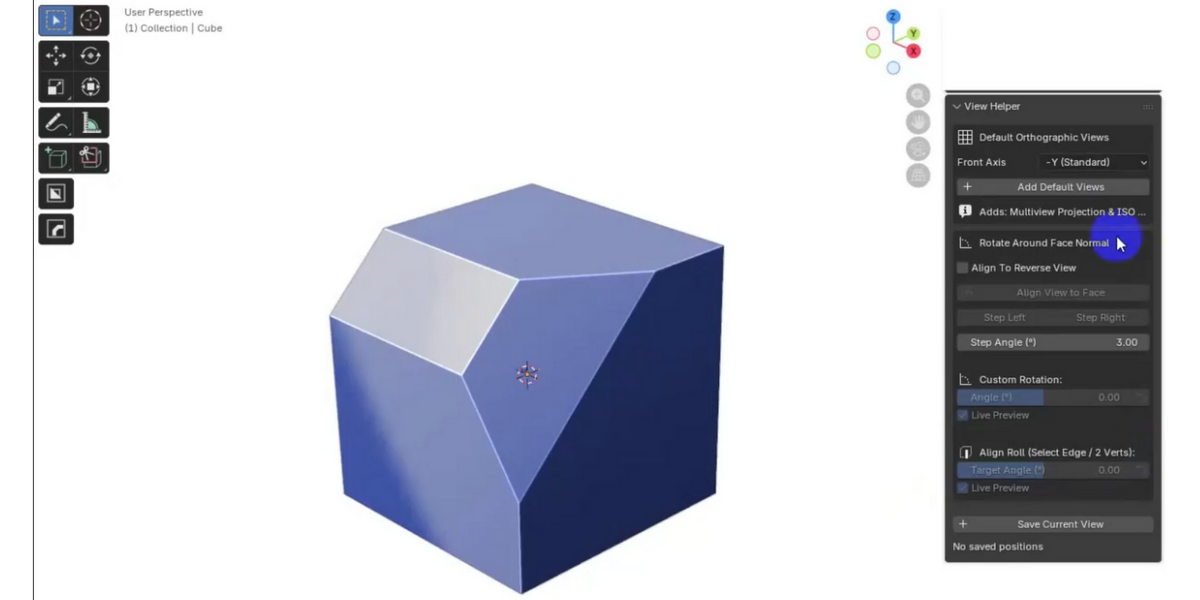
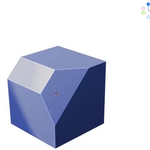
• Align View to Face: Instantly snap your viewport center and viewing angle to perfectly face any selected mesh polygon (supports normal or reversed/backface viewing options).
• Step Rotation: Rotate the view incrementally (Step Left / Step Right) around the active face's normal line using a highly configurable angle step slider.
• Custom Orbit Slider: Seamlessly spin the camera at fine degrees with a dedicated angle dial, complete with optional real-time Live Preview rendering as you drag.
• Align Roll to Selection: Select exactly one edge or two vertices in Edit Mode to spin/roll your viewport camera relative to that geometric line—ideal for leveling crooked hard-surface angles back to exact horizontal or vertical baselines.
3. Comprehensive View Snapshot Manager
• 1:1 Lossless View Tracking: Captures complete viewport states—including explicit Quaternion rotations, look-at locations, camera distance, orthographic vs. perspective projection states, focal length (mm), Field of View (FOV) angles, and clipping distances.
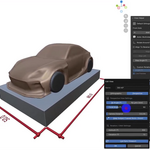
• Advanced View Editor Sub-Menu: Edit existing saved items directly from a dedicated dialog box where you can toggle projection types, calculate focal shifts seamlessly using automatic Dolly Zoom constraints, manually fine-tune azimuth/elevation angles, or live-sync adjustments directly to the active screen view.
• Visual Highlights: Dynamically detects and applies active blue-highlighting to whichever saved snapshot position perfectly matches your current viewport placement.
Installation
1. Download the repository or save the code file as __init__.py.
2. If it is an isolated script file, place it inside a folder named view_helper. Alternatively, compress the folder into a standard .zip archive.
3. Open Blender and navigate to Edit > Preferences > Add-ons.
4. Click Install... at the top right, locate your file/zip archive, and select it.
5. Check the box next to 3D View: View Helper to enable the script.
Where to Find It
• Once activated, the interface expands into your standard 3D workspace environment in two accessible areas:
• Sidebar Panel: Open your 3D Viewport layout, press N on your keyboard to reveal the right-hand sidebar menu properties tab, and locate the View Helper category label.
• Viewport Header Menu: The toolset is fully integrated as an operational cascading sub-menu directly inside the standard 3D View header panel line (VIEW3D_MT_editor_menus), allowing you to rapidly trigger operators via customized popup menus.
Recommended Workflow
To get the most utility out of View Helper when texturing or handling complex asset construction, try this common setup approach:
1. Define Your Coordinates: Choose your primary alignment angle from the Base Front Axis drop-down menu inside the sidebar panel, then click Add Default Views to establish your layout presets.
2. Lock in Complex Reference Angles: Select a highly specific angled polygon on your model mesh in Edit Mode, click Align View to Face, and immediately click Save Current View. Give it a recognizable name (e.g., "Left Wing Accent Panel").
3. Correct Screen Leveling: If a surface normal alignment leaves your view looking sideways, select a baseline reference edge on that surface and hit Apply Roll Alignment to fix your local horizon view line instantly.
4. Hop States Fluidly: Toggle between your newly saved custom reference snapshots and native projection angles using the standard Next / Previous cyclical navigation layout block.
Safety Notes
• Active Geometry Dependency: Rotation commands, roll leveling tools, and surface snaps rely heavily on active mesh selection properties. If you are in Object Mode or lack a valid face/edge selection context, geometry-based alignment fields will automatically gray out and disable themselves to prevent viewport distortion errors.
• Camera Parallel Paradox Warning: Attempting to execute an Align Roll to Selection operational sweep while the target edge orientation sits perfectly parallel to your viewing vector line will trigger a warning window notice, as an exact rolling axis cannot be calculated from that perspective.
Compatibility
• Minimum Target Environment: Developed and tested primarily for Blender 3.0.0 or newer layout builds.
• API Environment: Utilizes foundational structural frameworks (bpy, bmesh, mathutils) standard in modern 3.X and 4.X Blender automation spaces.
Author
• Add-on Developer: Hisoka852
• Current Production Revision: Version 1.0.0
Have questions about this product?
Login to message
| Blender Extension Compatible | Yes |
| Published | 3 months ago |
| Blender Version | 4.2 - 5.1 |
| Extension Type | Add-on |
| Render Engine Used | Blender-Internal |
| License | GPL |