Viewport Object Finder - Instantly Find Any Object In Complex Scene
 Salman Naseem


🧭 Viewport Object Finder User Guide
The Viewport Object Finder is your essential productivity tool for Blender.
Whether you’re working on a simple scene or managing thousands of objects, finding and selecting the right one should take seconds not minutes.
⚙️ Installation
Method 1: Install from ZIP (Recommended)
-
Download the
viewport_object_finder.zipfile -
Open Blender
-
Go to Edit → Preferences → Add-ons
-
Click Install... (top-right)
-
Navigate to and select
viewport_object_finder.zip -
Find Viewport Object Finder in the list
-
Enable it by checking the checkbox
-
(Optional) Click the preferences icon (▼) to view settings
Method 2: Manual Installation
-
Extract the folder
viewport_object_finderfrom the ZIP -
Copy it into your Blender addons directory:
Windows: C:\Users\[YourName]\AppData\Roaming\Blender Foundation\Blender\[Version]\scripts\addons\ macOS: /Users/[YourName]/Library/Application Support/Blender/[Version]/scripts/addons/ Linux: /home/[YourName]/.config/blender/[Version]/scripts/addons/ -
Restart Blender
-
Enable the addon in Preferences → Add-ons
✅ Verify Installation
After enabling:
-
Open the N-Panel in the 3D Viewport (
Nkey) -
Look for the "Object Finder" tab
-
Press Shift + F to test the quick search
🚀 Basic Usage
Quick Find (Primary Method)
Step 1 — Activate Search:
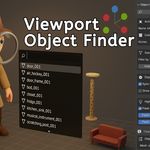
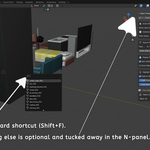
Press Shift + F in the 3D Viewport to open the search popup.
Step 2 — Type to Search:
Start typing any part of an object’s name.
Search is real-time and case-insensitive.
Step 3 — Select Object:
-
Click an item in the dropdown, or
-
Use the arrow keys and press Enter
Your object will be selected and centered automatically.
Step 4 — Visual Feedback:
-
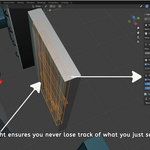
The object flashes briefly in wireframe
-
The camera frames the object
-
The object becomes active in the scene
🧩 Example Scenarios
Find a Camera:
Shift + F → type “cam” → select “Camera_001”
Find Hidden Objects:
-
Enable Visible Objects Only (optional)
-
Shift + F → type object name → select -
Hidden object is revealed
Find Object in Deep Hierarchy:
Shift + F → type name → select
Object and its parent collections are unhidden in the Outliner.
🔍 Advanced Features
1. Type Filtering
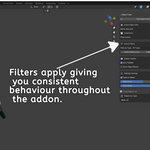
Access: N-Panel → Search Filters → Filter by Type
Available Types:
All, Mesh, Curve, Camera, Light, Empty, Armature, Lattice, Grease Pencil
Use Case:
“Find all cameras in my scene”
-
Set Filter by Type → Camera
-
Press
Shift + F— only cameras appear
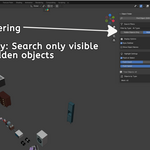
2. Visibility Filtering
Access: N-Panel → Search Filters
Options:
-
Visible Objects Only — search visible
-
Hidden Objects Only — search hidden
-
Both OFF — search all
Use Case:
“Find all hidden lights”
-
Filter by Type → Light
-
Enable Hidden Objects Only
-
Press
Shift + F
3. Flash Highlight Customization
Access: N-Panel → Highlight Settings
Options:
-
Flash on Select — toggle
-
Flash Count (1–5)
-
Flash Speed (5–30)
Recommended Presets:
-
Subtle → Count = 1, Speed = 20
-
Default → Count = 2, Speed = 15
-
Obvious → Count = 5, Speed = 10
Tip: Uncheck Flash on Select to disable highlight flash.
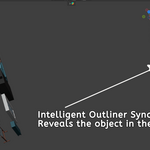
4. Outliner Sync
Access: N-Panel → Display Options → Sync Outliner
What It Does:
-
Unhides the selected object and its parents
-
Unhides containing collections recursively
-
Reveals the object in the Outliner
(Note: Blender’s API prevents auto-expanding Outliner nodes, but objects will still be visible and highlighted.)
5. Viewport Object Labels
Access: N-Panel → Display Options
Settings:
-
Show Names — show object names in viewport
-
Font Size — 8–72
Tip:
Ideal for learning scene structure or managing up to ~100 objects efficiently.
6. Active Object Info Panel
Access: N-Panel (appears when object is selected)
Displays:
-
Name:
character_head_mesh -
Parent Hierarchy:
head_control ↳ neck_bone ↳ spine_root -
Collection Path:
Scene Collection → Characters → Hero → Head
🧭 N-Panel Overview
Open Panel: Press N → Click Object Finder tab
Sections:
-
Find Object (Shift + F) — opens search
-
Active Object Info — hierarchy and collection path
-
Search Filters — type and visibility filters
-
Display Options — Outliner sync, labels, font size
-
Highlight Settings — flash count and speed
-
Scene Statistics — total objects and breakdown by type
💡 Tips & Tricks
Speed Tips
-
Press Shift + F → type → Enter — fastest workflow
-
Partial match works with any part of the name
-
Use Filter by Type before searching for faster results
Organization Tips
-
Use Hidden Objects Only to locate lost assets
-
Check Active Object Info to manage collections
-
Filter by type for batch edits (e.g., lights, cameras)
Visual Tips
-
For emphasis: Flash Count = 3–5, Speed = 10
-
For subtle effects: Flash Count = 1, Speed = 20
-
Show Names (Font = 14–16) to visualize structure
🎬 Workflow Integration
Animation:
-
Filter → Armature
-
Shift + F → Find rig controls
-
Flash highlights and reveals bone hierarchy
Lighting:
-
Filter → Light
-
Quickly cycle and adjust lights
Camera Setup:
-
Filter → Camera
-
Flash highlights active camera and frames it automatically
🛠️ Troubleshooting
| Issue | Solution |
|---|---|
| Addon Not Appearing | Ensure enabled in Preferences → Add-ons → Search “Viewport Object Finder”. Restart Blender if needed. |
| Shift + F Not Working | Must be in the 3D Viewport. Check for keymap conflicts under Preferences → Keymap. |
| No Search Results | Disable conflicting filters (Visible/Hidden). Set Filter by Type → All Types. |
| Flash Not Visible | Check Flash on Select and increase Flash Count. |
| Outliner Not Syncing | Ensure Sync Outliner is enabled. |
| Object Names Missing | Enable Show Names and increase Font Size. |
| Slow Performance | Disable Show Names, use filters, and update Blender. |
⌨️ Keyboard Shortcuts
| Shortcut | Action | Context |
|---|---|---|
| Shift + F | Open Quick Find | 3D Viewport |
| N | Toggle N-Panel | 3D Viewport |
| ↑ / ↓ | Navigate Results | Search Popup |
| Enter | Select Object | Search Popup |
| Esc | Close Search | Search Popup |
📺 Additional Resources
-
🎥 Video Tutorials: BeingAnimator YouTube Channel
-
📧 Support: [email protected]
-
🌐 Website: salmannaseem.com
-
🛒 More Addons: SuperHive Market
🗓️ Updates & Changelog
See the README.md file for version history and recent updates.
❤️ Made with Love for the Blender Community
Happy Finding! 🎯
Have questions about this product?
Login to message
| Blender Extension Compatible | Yes |
| Sales | 10+ |
| Published | 11 months ago |
| Blender Version | 3.0 - 5.2 |
| Extension Type | Add-on |
| Render Engine Used | Cycles, Eevee |
| License | GPL |
