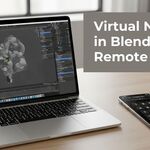
Virtual And Remote Numpad For Blender
 Samuel Abyan


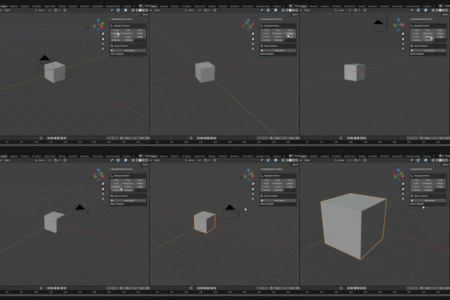
Installation Instructions
- Download the Addon
- Make sure you have the zipped file.
- Inside the zip archive is the file numpad-emulator-and-remote.py.
- Export the file from archive.
- Open Blender Preferences
- In Blender, go to the top menu: Edit → Preferences → Add-ons.
- Install the Addon
- Click the Install… button in the top-right corner.
- Select the numpad-emulator-and-remote.py file you exported (from numpad-emulator-and-remote.zip).
- Blender will register the Python file automatically.
- Enable the Addon
- In the Add-ons list, search for “Numpad Remote Control” (or “Numpad”).
- Tick the checkbox to enable it.
- Access the Addon
- Open the 3D Viewport → press N to open the sidebar.
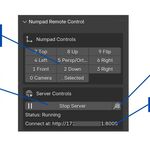
- Look for the “Numpad” tab → here you’ll find the Numpad Remote Control panel.
- Optional: Start Remote Control
- In the panel, use the Server Controls to start the local web server.
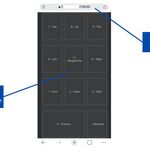
- Copy the shown address and open it on your smartphone or browser to access the remote numpad.
Compatibility
- Tested with Blender 4.0 and newer on Windows.
- Remote control function requires a device (phone, tablet, or another computer) connected to the same local network as your computer.
Limitations
- The local server runs only inside Blender and stops when Blender is closed.
- Remote access is limited to the local network; it does not provide internet access. Make sure your Firewall allows connections within the same network.
Support
Please feel free to contact me for questions, suggestions or feedback.
$5
Have questions about this product?
Login to message
| Published | about 1 year ago |
| Blender Version | 4.0 - 4.5 |
| Extension Type | N/A |
| Render Engine Used | Cycles |
| License | GPL |

Discover more products like this
ui remote no-numpad numpad custom shortcut Blender shortcuts keyboard