 Myndari
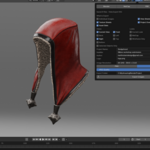
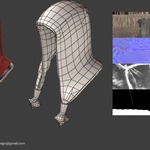
Vista by Myndari
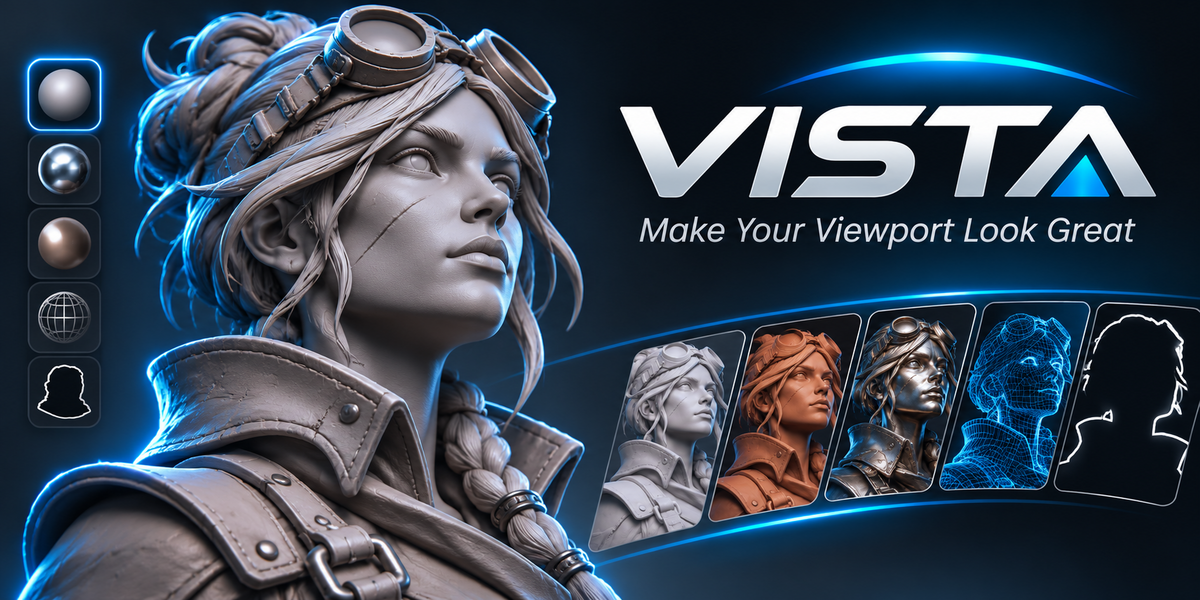
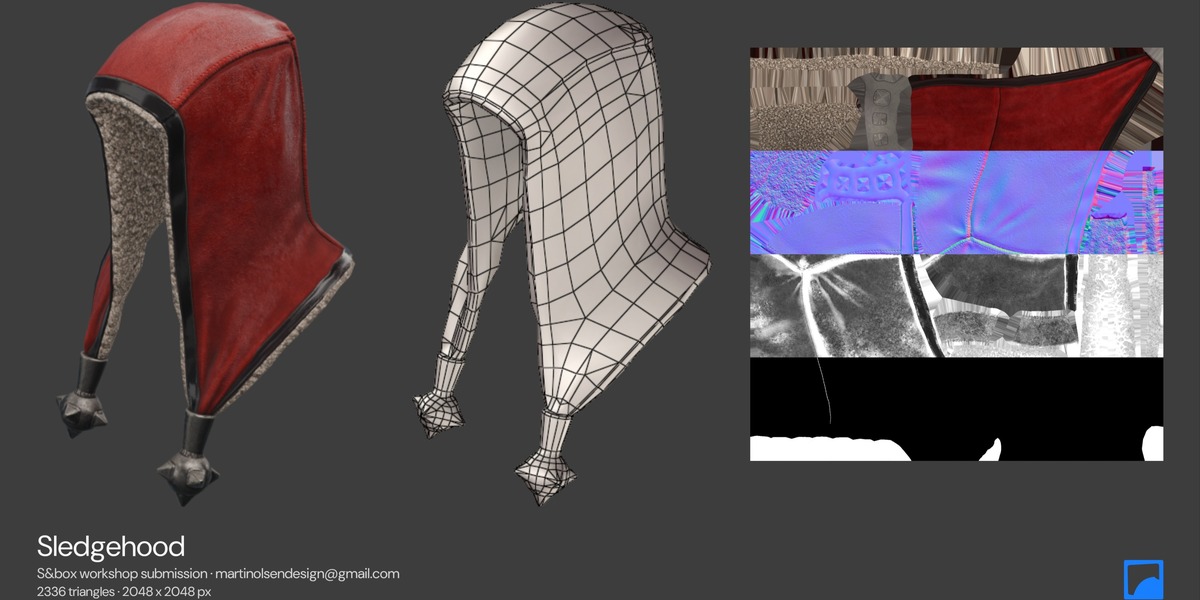
Vista styles Blender's 3D Viewport and exports still images and breakdowns. Use MatCap to study form and silhouette, PBR to inspect assigned materials, Blender to return to native shading, and Capture to export the view.
Install and open Vista
- Use Blender 5.2.x LTS on Windows x64. Download the Vista ZIP from your Superhive receipt and keep it zipped.
- In Blender, open Edit → Preferences → Get Extensions. Open the top-right menu, choose Install from Disk, select the ZIP, and leave Enable on Install checked. You can also drag the extension ZIP onto Blender.
- In the 3D Viewport header, click Vista. If the header is crowded, widen the viewport or scroll the header horizontally. Check Preferences → Add-ons for Vista if the button is missing.
If you used a legacy Vista review build, disable it before enabling the Superhive extension. For subsequent updates, use the updated ZIP or the Superhive extension repository from your receipt.
Start with a MatCap and export a still
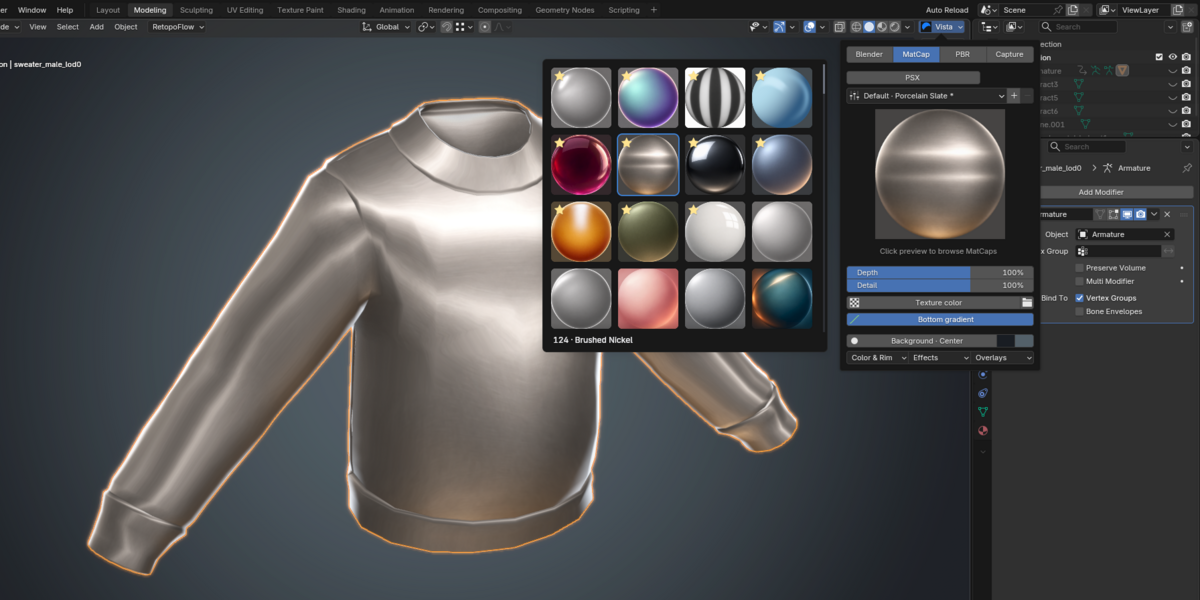
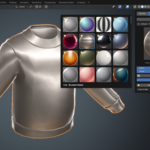
- Open Vista → MatCap. The fresh MatCap default is Porcelain Slate. Click the large swatch to browse finishes. Click a finish to apply it and use its star to keep it in Favorites.
- Frame your object in the 3D Viewport. Open Vista → Capture and check Individual Images, Current View, and Current Look. Clear other views or looks for a single still.
- Choose an Image Resolution, PNG or JPEG, and an Export Folder, then click Export Images. Look for the new numbered export folder.
- Choose Blender in the Vista popover whenever you want to return that viewport to native shading.
Shape a MatCap look
- Use Depth and Detail to adjust form and surface definition. At 100% each preserves the finish's default. Background cycles through Bottom, Top, Center and Flat, with swatches for the colors.
- Open Color & Rim to adjust grading and view-relative rim light. Open Effects for Atmosphere and Bloom. Both effects start off. Open Overlays for styled wireframe and outlines.
- Use the preset menu to save a complete look or update the Default. Favorite MatCaps and personal presets are stored in your Blender profile. Save the blend to preserve Vista's per-viewport choices.
- MatCaps shade the viewport as a whole. To see textures and material differences, choose PBR.
Inspect and import PBR textures
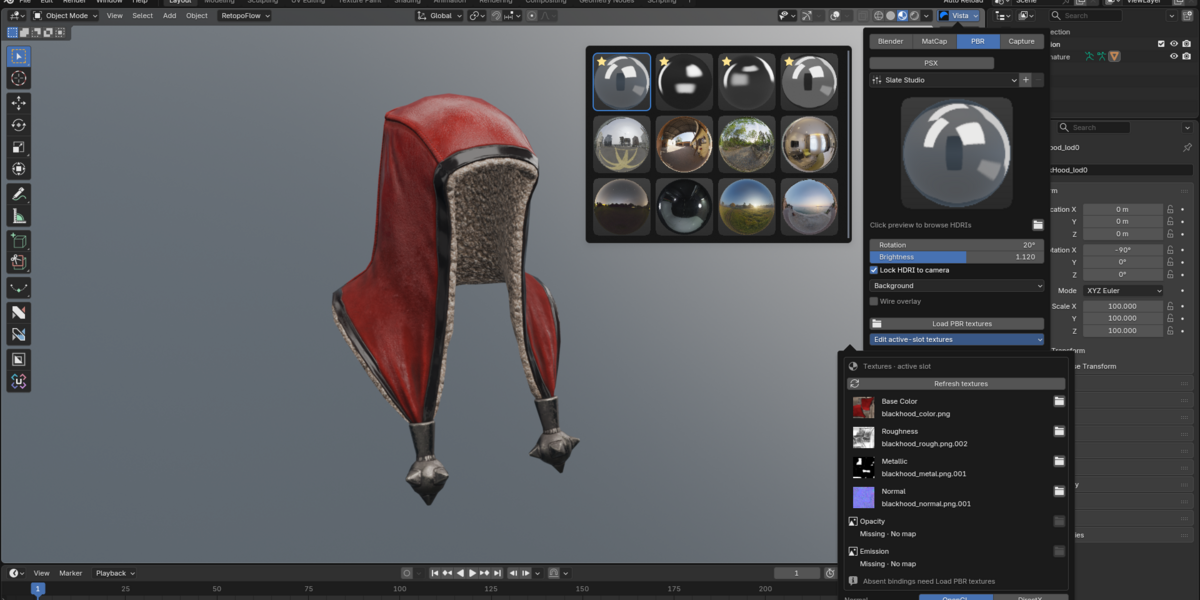
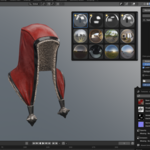
Select PBR to see the scene's assigned materials in Material Preview. Slate Studio is the fresh PBR default. Try Midnight Studio for a near-black backdrop or Material Studio to inspect materials under neutral lighting.
Click the environment preview to browse HDRIs, or use the folder button to import an HDR or EXR. Adjust rotation and brightness, lock the environment to the camera if desired, and use Background to control environment visibility, opacity and blur. The Shared color picker edits Blender's theme backdrop, so other viewports using that backdrop can show the change.
- Select the UV-mapped mesh objects in Object Mode. Click Load PBR textures and pick one map to find matching maps in the same folder, or select the specific maps together.
- Review Base Color, Roughness, Metallic, Normal, Opacity and Emission in the confirmation dialog. Resolve ambiguous matches manually and check whether the normal map uses OpenGL or DirectX. Opacity uses a separate grayscale map, with white opaque and black transparent. An RGB emission map supports an inline strength adjustment.
- Click Apply & Preview to create and assign the material in the active slot of each selected mesh. To update an existing supported Vista material, use Edit active-slot textures to replace a map or refresh textures. Blender's Undo reverts these explicit material edits.
Use the PSX look
Toggle PSX in MatCap or PBR. Use the gear to set Raster height, 15-bit color and Dither. A lower raster height makes the pixel grid coarser. Dither is available with 15-bit color. Each viewport remembers separate PSX settings for MatCap and PBR. Capture follows the selected look.
Export a breakdown
-
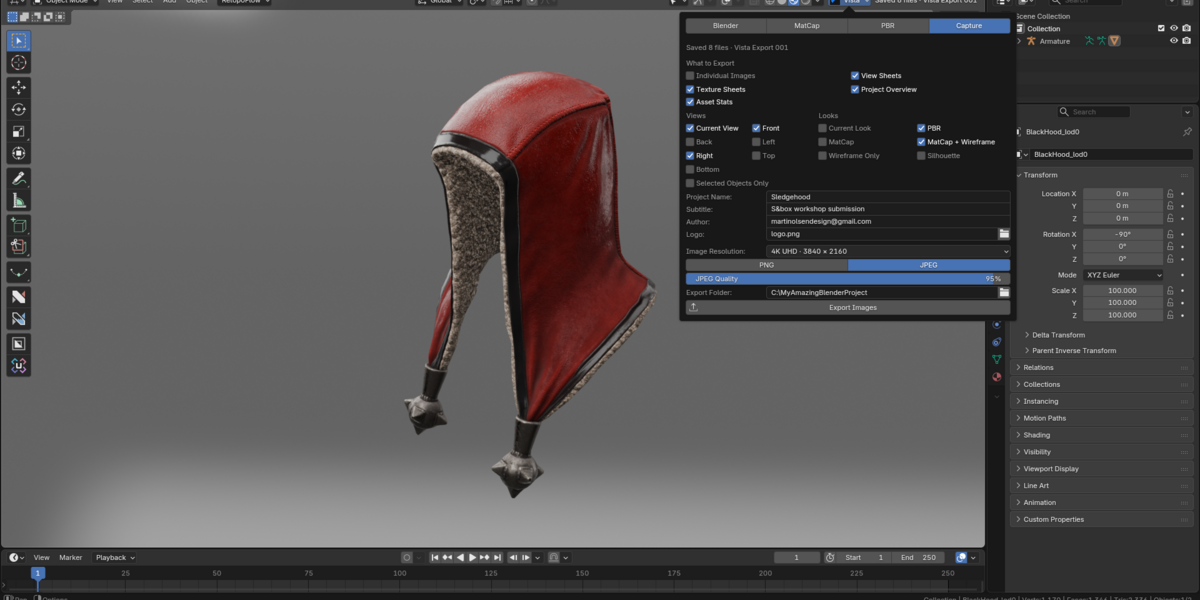
Open Capture in the viewport you want to use and choose the outputs under What to Export.
- Individual Images saves a still for each checked view and look.
- View Sheets assembles the checked views into a sheet for each checked look. Use only generated angles when you want a continuous sheet backdrop. Including Current View keeps its original framing and uses a regular sheet.
- Texture Sheets makes a square sheet of the assigned maps for each supported Vista PBR material.
- Project Overview pairs a PBR image and matching topology view with readable maps from the active material slot. Add a project name, subtitle, author or PNG/JPEG logo if desired. To carry a flat backdrop into the overview, set MatCap Flat or use PBR Shared color.
- For individual images or view sheets, choose Views and Looks. Current View preserves angle, pan and zoom. Generated angles frame the subject automatically. Combine a beauty look with MatCap + Wireframe, Wireframe Only or Silhouette to show the construction. Silhouette uses geometry, so textured transparency appears solid. Selected Objects Only limits the export to the selected objects.
- Enable Asset Stats when you want evaluated triangle counts and available texture dimensions. Counts can reflect modifiers and differ from the source mesh's face count.
- Under Image Resolution, choose a preset or Custom. Viewport uses the available viewport pixels for stills, fits view sheets to content and outputs the Project Overview at QHD. Texture Sheets use an automatic square canvas. Exported dimensions can exceed the source viewport pixels by upscaling.
- Choose PNG or JPEG and set JPEG Quality when applicable. Choose an Export Folder. If it is blank, Vista uses the saved blend's folder or asks for a location for an unsaved project. Click Export Images. Blender reports incomplete shots or skipped materials. Use Cancel export or Esc in the export viewport to stop a running batch.
Common questions
Why does F12 look different?
Vista styles the 3D Viewport and its Capture exports. F12 uses the scene camera, render engine and scene lighting.
My dense mesh slows down while editing. What can I do?
Turn off styled wires and outlines during edits, then re-enable them for inspection or capture. Performance depends on the mesh, effects and GPU.
Why are there no maps on my Texture Sheet?
Check that the selected mesh has a supported Vista PBR material and that its source images load correctly. For Project Overview, check the active object and its active material slot. Keep external texture files available when reopening or sharing a blend.
Do I need internet access to use Vista?
The add-on's viewport tools, local imports and exports work offline after installation.
How do I report a problem?
Message Myndari on Superhive. Include your Vista and Blender versions, Windows version, GPU and driver, the Vista mode and exact steps to reproduce. A small example blend and an image or short recording can help.
 Included
Includes 12 months of
- Support from Myndari
- Product updates
Extend this product’s Support Period +12 months: 25% of product price
Have questions before purchasing?
Login to message
| Blender Extension Compatible | Yes |
| Published | 31 minutes ago |
| Blender Version | 5.2 |
| Extension Type | Add-on |
| Render Engine Used | Blender-Internal, Eevee |
| License | GPL |
Discover more products like this
game-art asset breakdown better viewport nice viewport viewport capture hdr matcap PBR clay-render addon for portfolio presentation