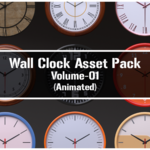
Wall Clock Asset Pack Volume - 01 (Animated)
 CGCocktail


How to add assets to library
Here's a step-by-step process to add material to library
Step 1 : Extract the downloaded zip to a location where you want the library
(*Note : you can use the blend file but the zip file contain custom thumbnail images and catalog file)
Step 2 : In the main menu at the top of the Blender window, click on "Edit."

Step 2 : From the drop-down menu, select "Preference"

Step 3 : Blender Preference window will appear. in that window select 'File Path'

Step 4 : Scroll down to Asset libraries tab and click on the '+' button

Step 5 : A file browser window will appear, Navigate into the extracted folder

Double click to open the folder

Step 6 : Now click 'Add Asset Library" button

Now the assets will added the asset Library
Step 6 : In asset browser , click the asset list menu and select Clock or All
Now you can drag and drop the clocks and customize the material in node editor or Material property tab
Have questions about this product?
Login to message
| Sales | 10+ |
| Dev Fund Contributor | |
| Published | over 2 years ago |
| Blender Version | 3.5 - 5.0 |
| Render Engine Used | Cycles |
| Misc Data | Animated, Textured |
| License | Royalty Free |
Discover more products like this
Blender geometry nodes 3D interior design 3d asset library number animation realtime wall clock 3D Mesh 3d asset pack 3d-animated moden clock decrative 3d_monkeyx wallclock