Wear & Damage
 Reneraki
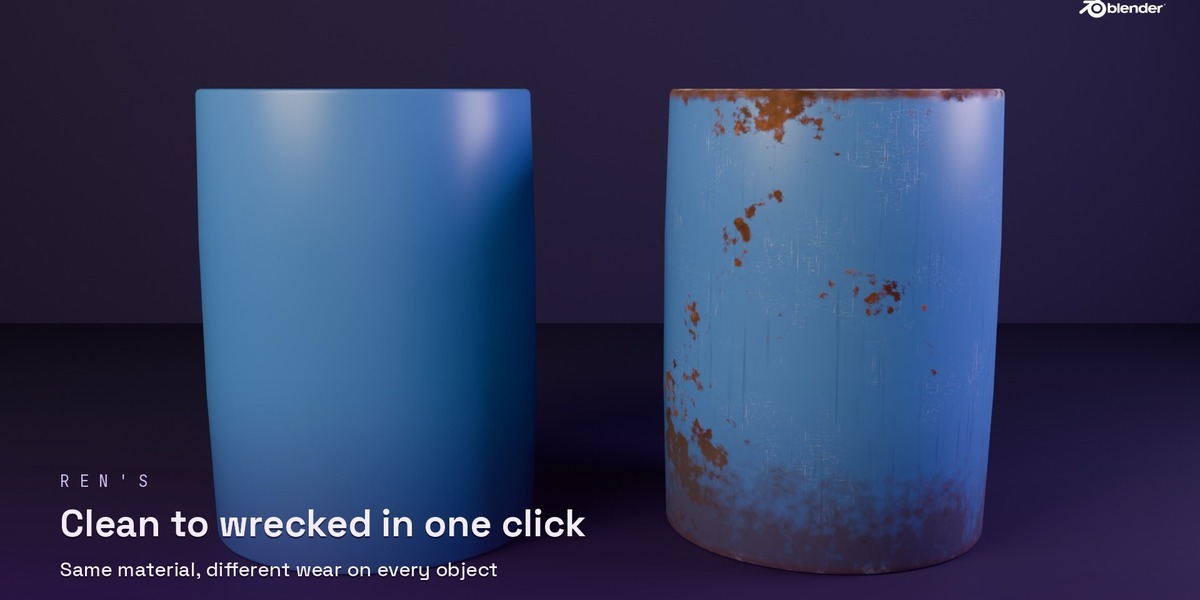
Install
Edit > Preferences > Add-ons > Install from Disk, pick the zip and tick the box. Open the 3D View sidebar (N) and go to the Wear tab.
Quick start
- Select one or more objects.
- Pick a preset at the top of the panel.
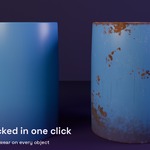
- Press Add Wear.
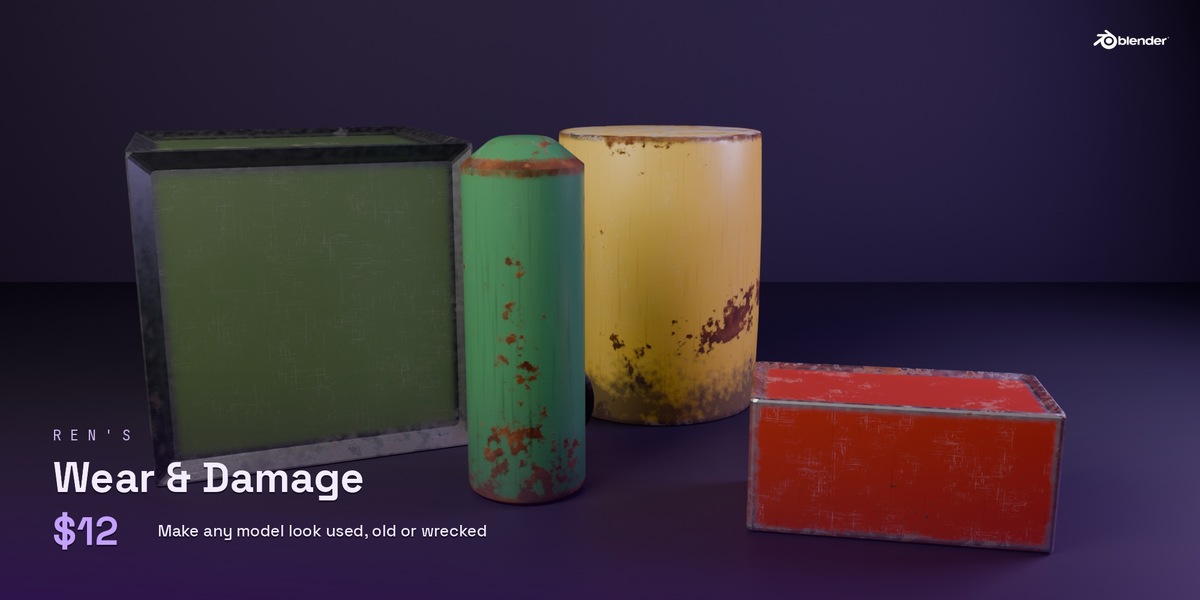
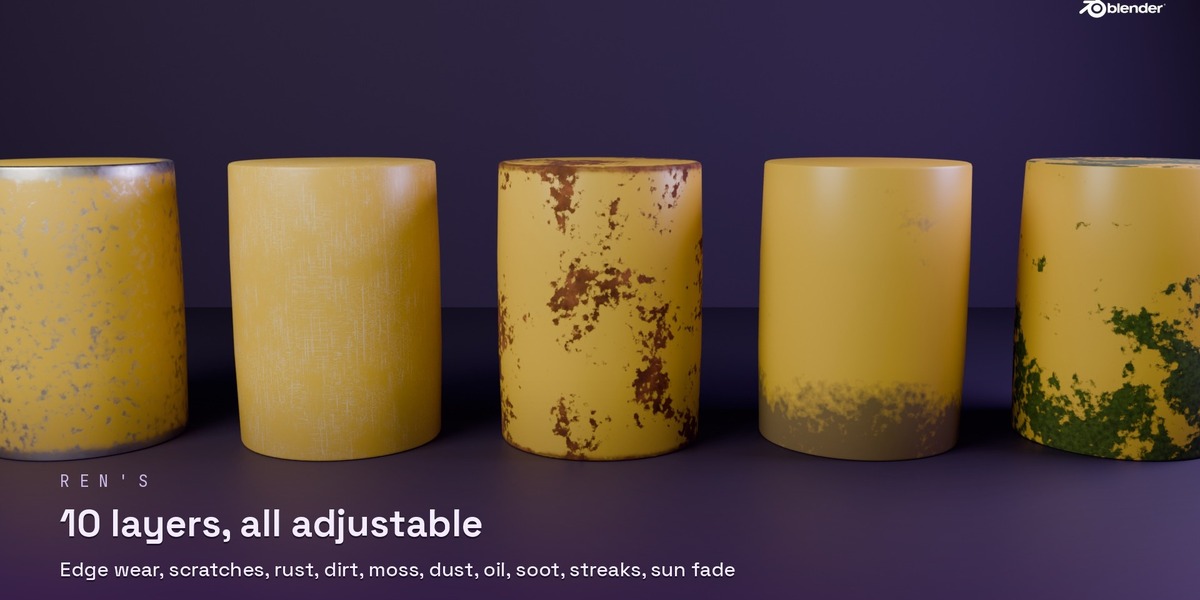
- Open any layer panel (Edge Wear, Scratches, Rust...) to change it. The box in each panel header turns that layer on or off.
Main panel
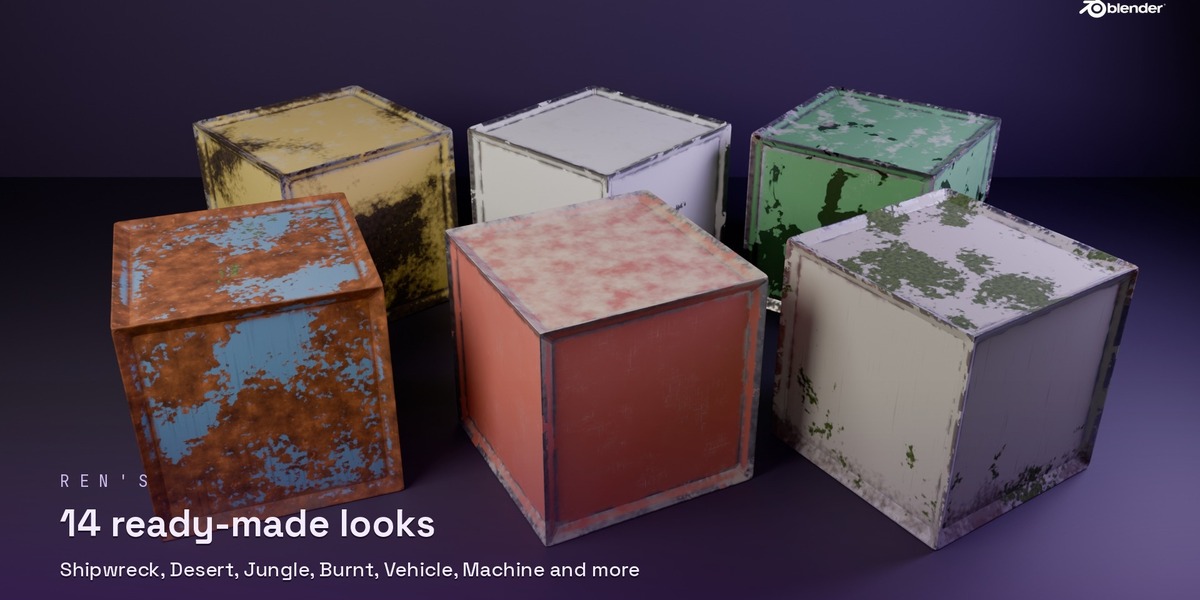
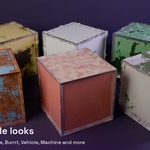
- Preset: 14 built-in looks. The bookmark button lists your own presets, the + button saves the current settings as a preset.
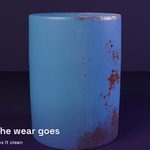
- Overall Strength: turns every layer up or down together. Bump: how much the wear dents the surface.
- Pattern Size and New Pattern: bigger or smaller patches, and a different random pattern.
- Surprise Me: random settings. Copy to Selected: give other objects the same wear.
- Preview: shows one layer in white on every worn object.
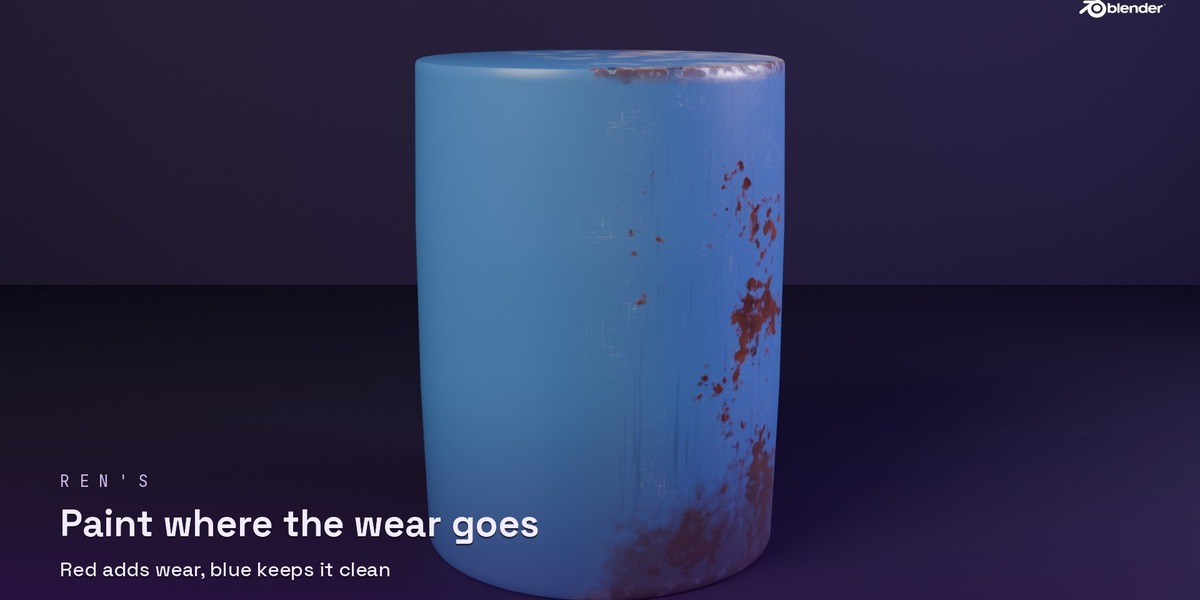
Paint Mask
Press More Wear or Less Wear and paint on the model. Red adds wear, blue keeps it clean. Press the button again to stop painting. Clear Paint removes the mask. Denser meshes give finer painting.
Bake for Games
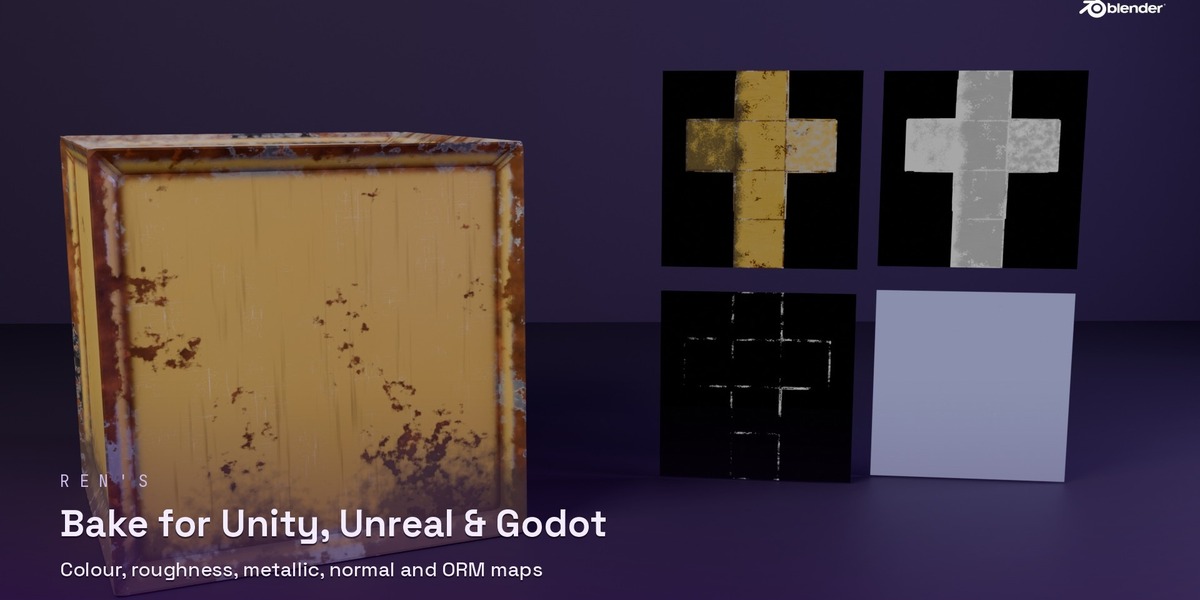
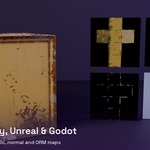
Choose a size and press Bake to Textures. You get Base Color, Roughness, Metallic and Normal maps and a "_Baked" material. Tick ORM for Unreal, DirectX Normal for Unreal, and Wear Mask for a black-and-white map. Leave Folder empty to pack the images into the .blend. Show Baked / Original switches between the two materials.
Tips
- Use Cycles for the sharpest edge wear. In EEVEE the edges are softer; bake for the full look.
- Your materials need a Principled BSDF. Objects without a material get a plain grey one.
- Remove Wear puts your material back exactly as it was.
Have questions about this product?
Login to message
| Published | 1 day ago |
| Blender Version | 5.2 - 5.3 |
| Extension Type | N/A |
| License | GPL |
Discover more products like this
dirt edge wear game ready weathering scratches procedural grunge bake Rust Material wear Damage