 Medicraft


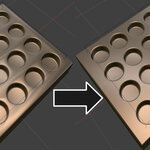
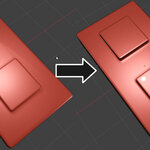
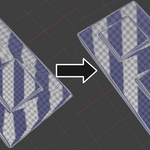
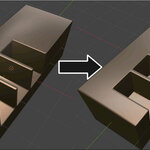
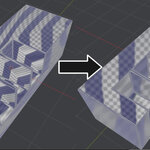
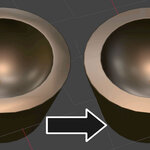
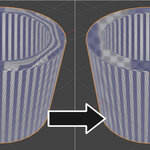
A Geometry Nodes setup that natively replicates the functionality of Blender's built-in Weighted Normals modifier. This node recalculates custom split normals to correct shading artifacts on hard-surface models, specifically resolving the distorted or wavy reflections commonly seen on flat polygons adjacent to beveled edges.
By bringing this logic directly into Geometry Nodes, it allows for seamless procedural shading correction within a single node tree, eliminating the need to stack a separate modifier at the end of your procedural modeling workflows.
Key Features
In-Tree Shading Correction: Calculate and apply custom split normals natively within your procedural setups, ensuring your geometry outputs with perfect shading ready for rendering.
Procedural Hard-Surface Integration: An ideal final step for procedural boolean and beveling workflows, ensuring complex generated intersections maintain flat, clean surface reflections.
Familiar Controls: Built to map directly to the mathematical controls users are already familiar with from the standard modifier.
Parameter Reference
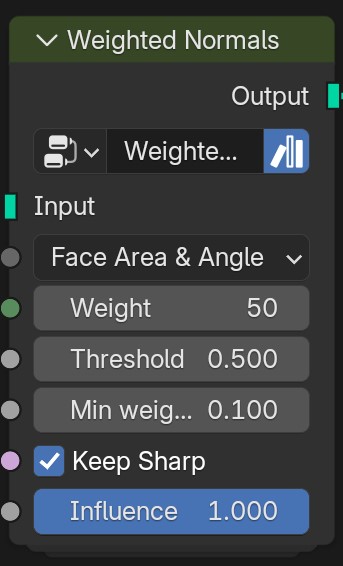
-
Weighting Mode: The normals around a vertex will be combined to create a custom (per face corner) normal using various weights for each. The weighting mode defines how to compute the weights:
Face Area: Weight according to the area of the face that the normal originates. A larger area means that the normal from that face will get a higher weight in the final result.
Corner Angle: Weight according to the angle each face forms at the vertex. This is the method Blender uses by default when combining face normals to compute a vertex one.
Face Area & Angle: Weights are obtained by multiplying the face area and corner angle ones.
Weight: Between 1 and 100. Determines how strongly the weights are biased according to the face areas and/or corner angles, a bit like a contrast setting for a picture. A value of 50 is neutral. More than 50 means faces with higher area or angles are given even more weight (more “contrast”). Less than 50 means faces with higher area or angles are given lesser weights (less “contrast”).
Threshold: A weight-rounding threshold which means that, if two angles or areas differ by less than that threshold, they will get equal weights.
Keep Sharp: Preserve Sharp edges, though smoothing will still happen if there are multiple faces between any two Sharp edges.
Influence: a factor from 0 to 1. Can be used to procedurally select which areas to apply the effect to, and - since it is a float instead of boolean - the strength of the effect for each region.
Usage Instructions
Use the Asset Manager or manually append the downloaded node group into your Blender project.
Inside your custom Geometry Nodes tree, drop in the Weighted Normals node.
Place the node near the very end of your graph, typically just before the
Group Output. It should be applied after all procedural modeling, boolean, and beveling operations have been evaluated to ensure the shading is calculated on the final topology.
