Western_Cowboy_05 | Modular Low-Poly Bandit Character
 UNIGAME STUDIO
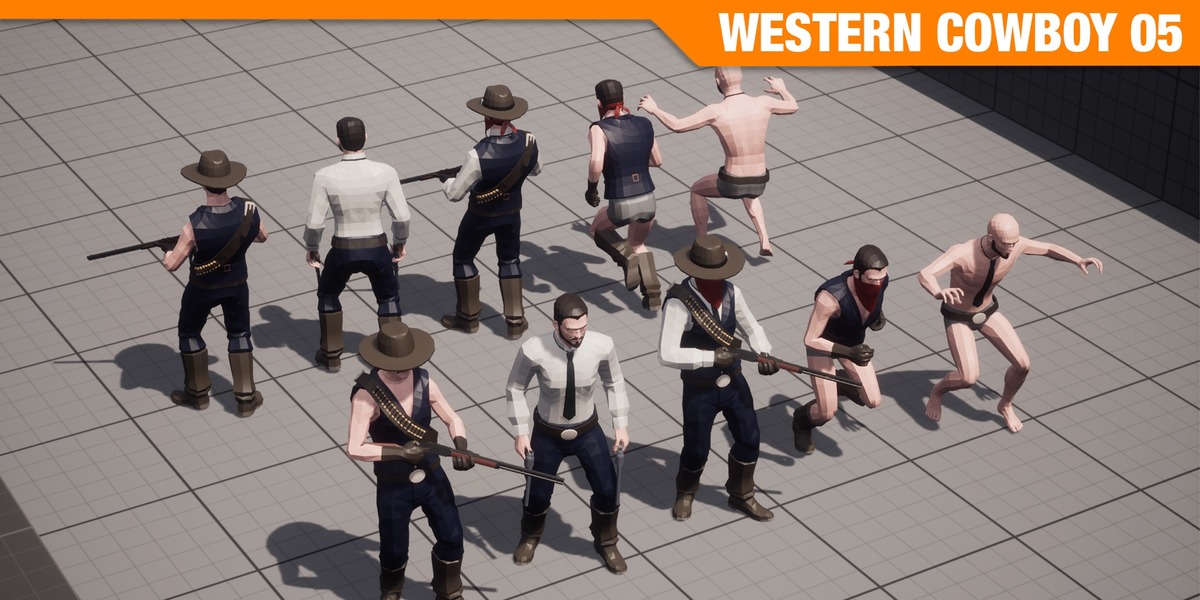
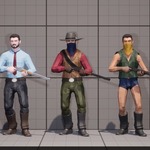
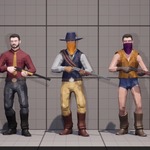
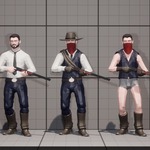
Getting Started in Blender 4.2 LTS
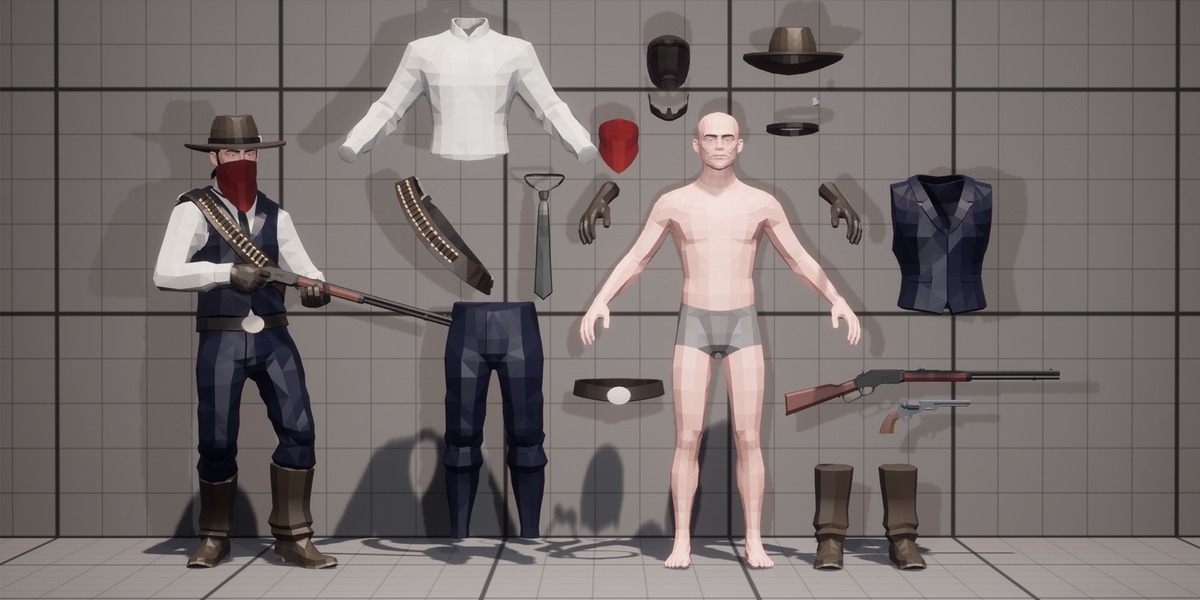
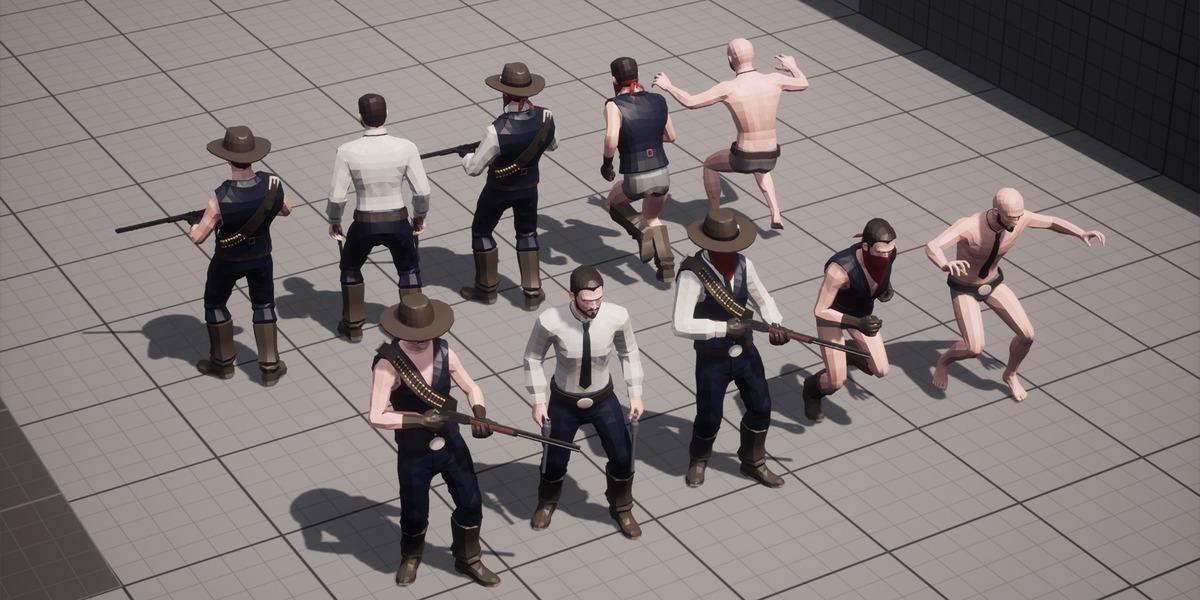
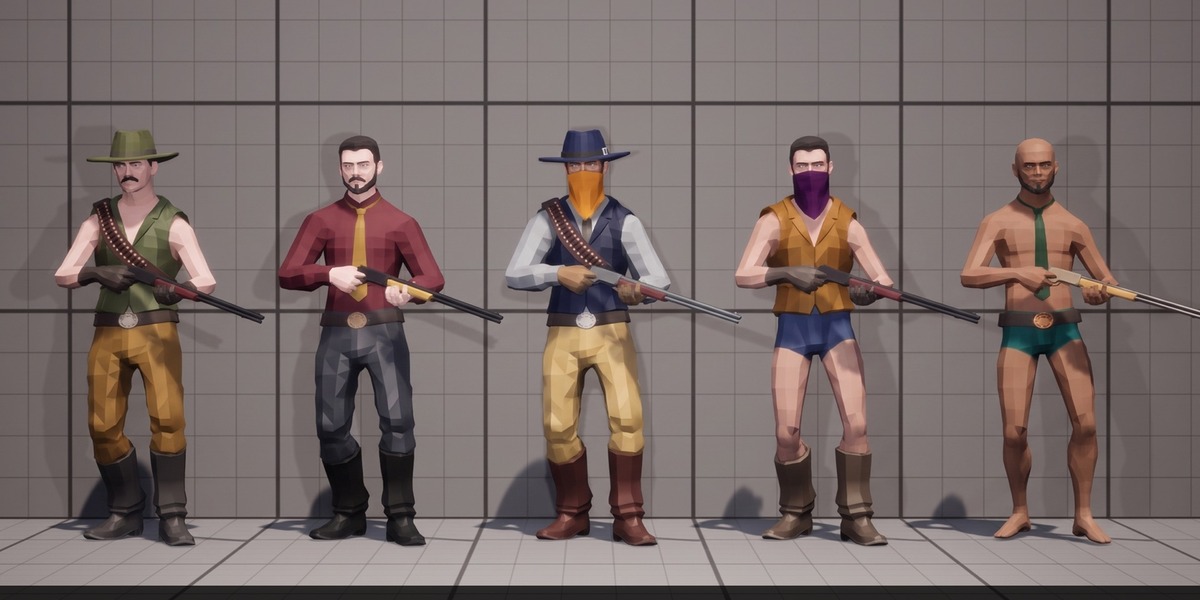
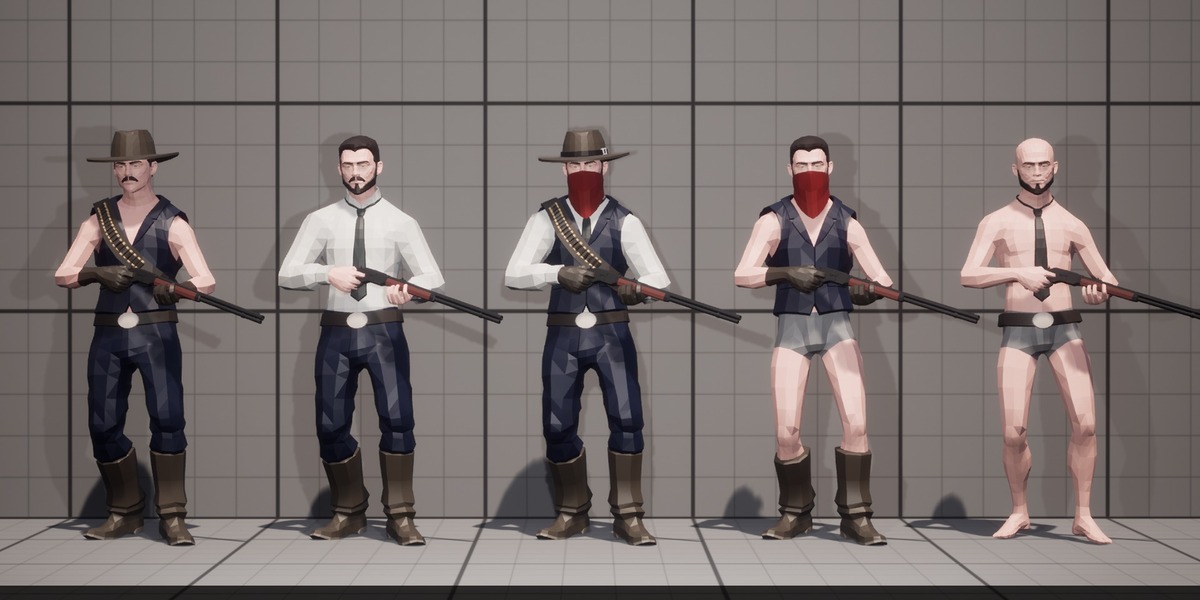
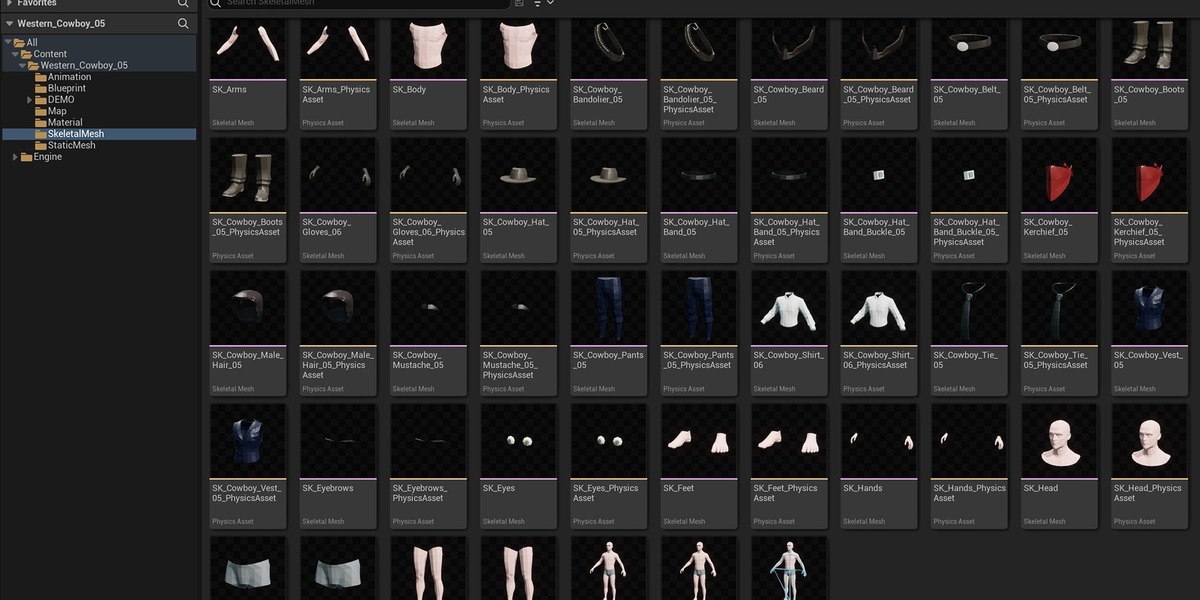
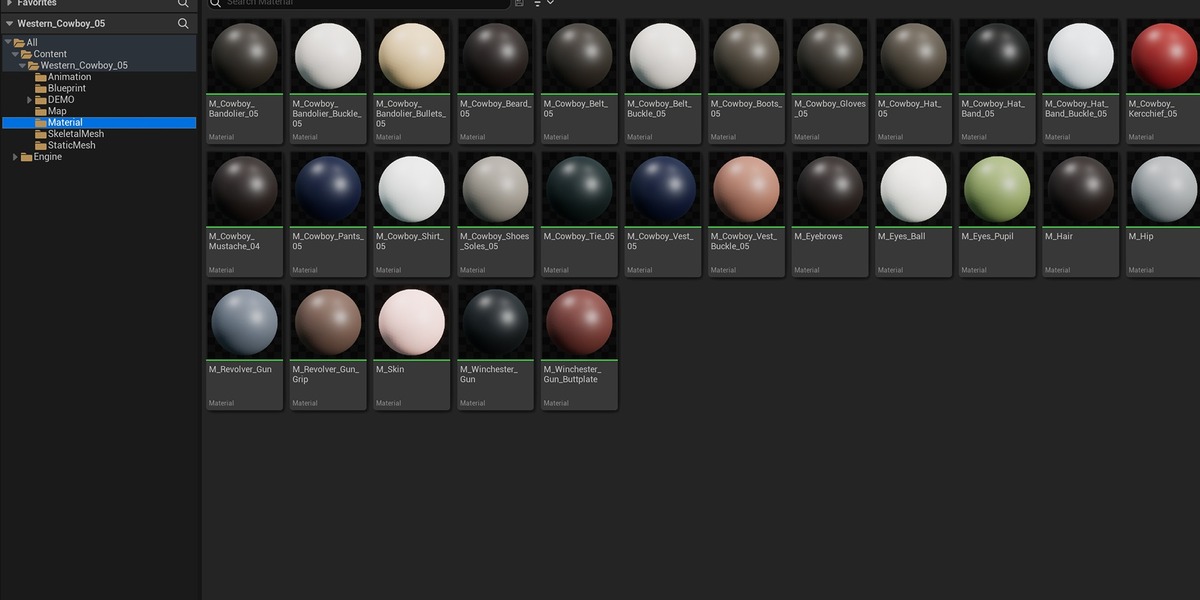
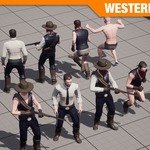
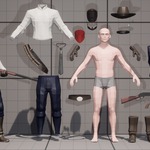
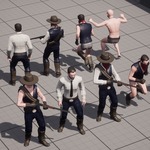
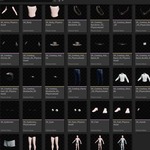
The character base mesh, armature, and all modular outlaw equipment pieces are organized into clean Collections with standardized naming so you can drop them straight into your Blender 4.2 LTS production pipeline.
Importing into Your Scene
Using the Asset Browser: Add the provided blend file directory to your Blender Asset Library paths. Open the Asset Browser in Blender 4.2 LTS, locate the Western Cowboy 05 collection or individual modular parts, and drag and drop them directly into your viewport.
Using File > Append: Navigate to File > Append, open the character blend file, enter the Collection folder, and append the main Western Cowboy 05 collection to import the rig, base body, and all modular bandit gear together.
Customizing Loadouts and Exporting
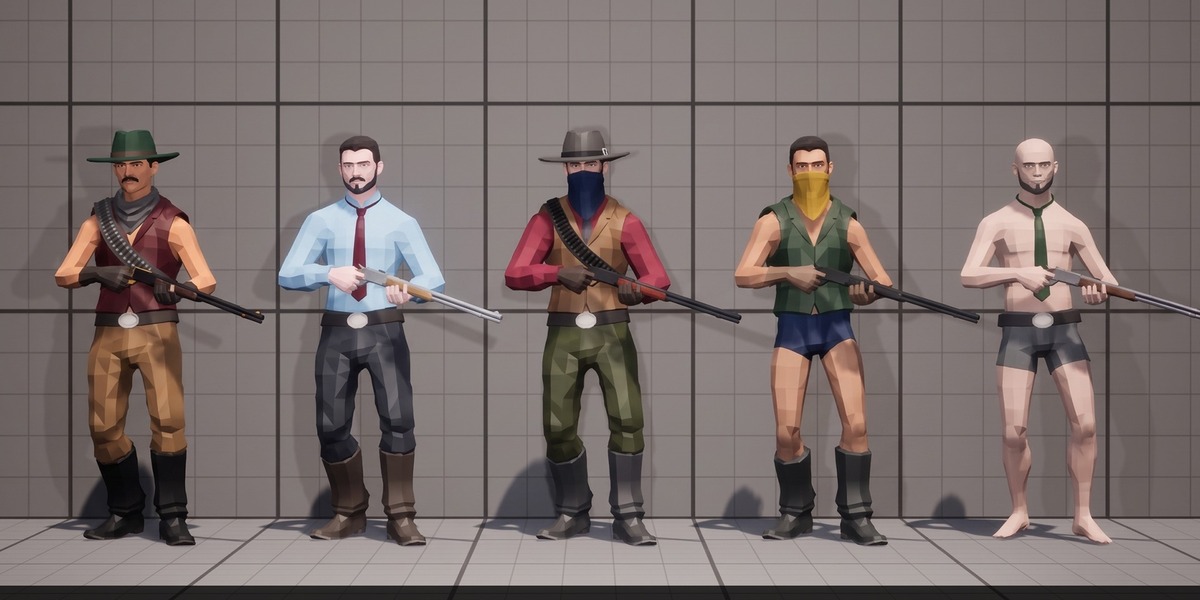
Modular Outlaw Gear Swapping: Expand the character hierarchy in the Outliner and use the viewport (eye icon) and render (camera icon) visibility toggles to show or hide individual pieces—including the Signature Kerchief, Dual Revolvers, Worn Bandit Gloves, and Distressed Bandit Hat—to create distinct desperado loadouts.
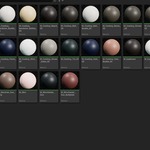
Materials and Hand-Crafted Textures: All surfaces are configured with native Principled BSDF nodes and hand-crafted textures for consistent shading across both EEVEE and Cycles.
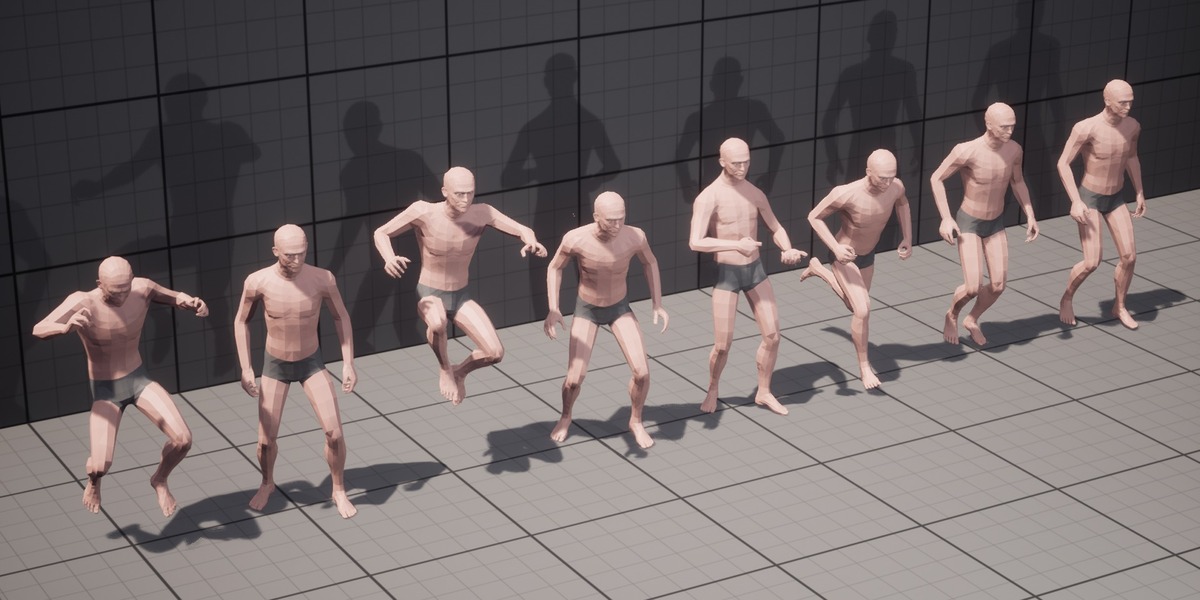
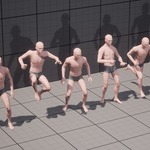
Posing and Game Engine Export: Select the armature and switch to Pose Mode to pose quick-draw stances, ambushes, and train heist actions using the included IK hand and foot bones. When exporting via File > Export > FBX, the standard humanoid bone hierarchy (Epic Skeleton / UE5 Manny compatible) and weapon socket alignments transfer cleanly into Unreal Engine, Unity, or Godot.
Have questions about this product?
Login to message
| Published | about 19 hours ago |
| Blender Version | 4.2 - 5.3 |
| Render Engine Used | Cycles, Eevee |
| Misc Data | Uvs-Unwrapped, Rigged |
| License | Royalty Free |