 Bala
Live booleans with clean topology for Blender 4.0 to 5.3.
Wonder Bool is in beta. Most cuts come out clean, but you may see a few mistakes here and there. If you do, please message me on Superhive with some screenshots of your use case, and I'll fix it.
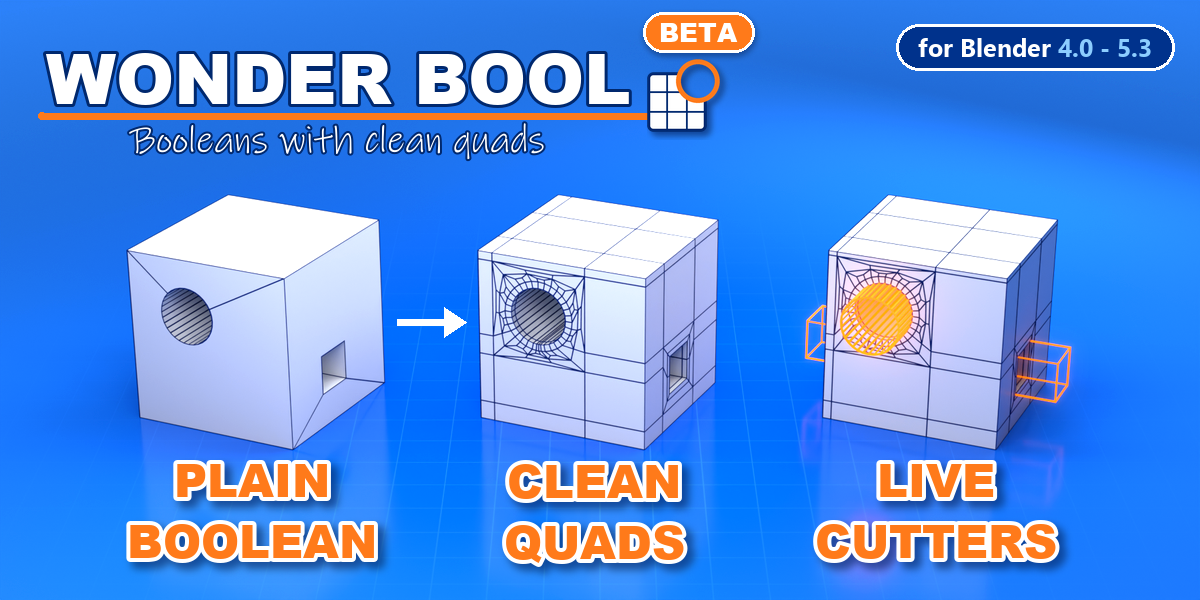
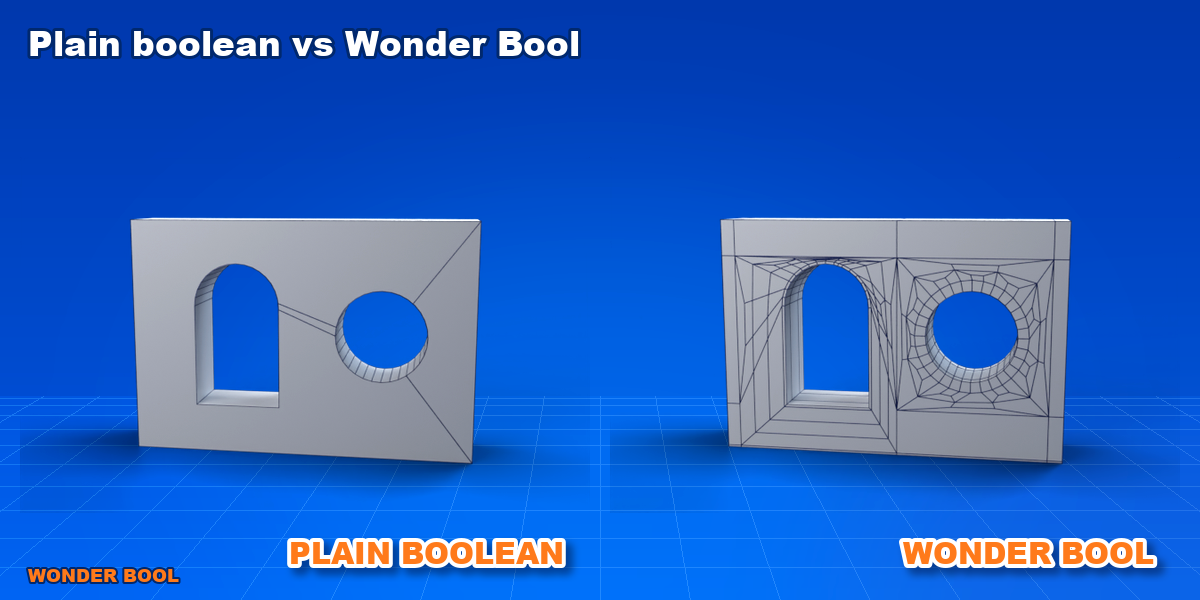
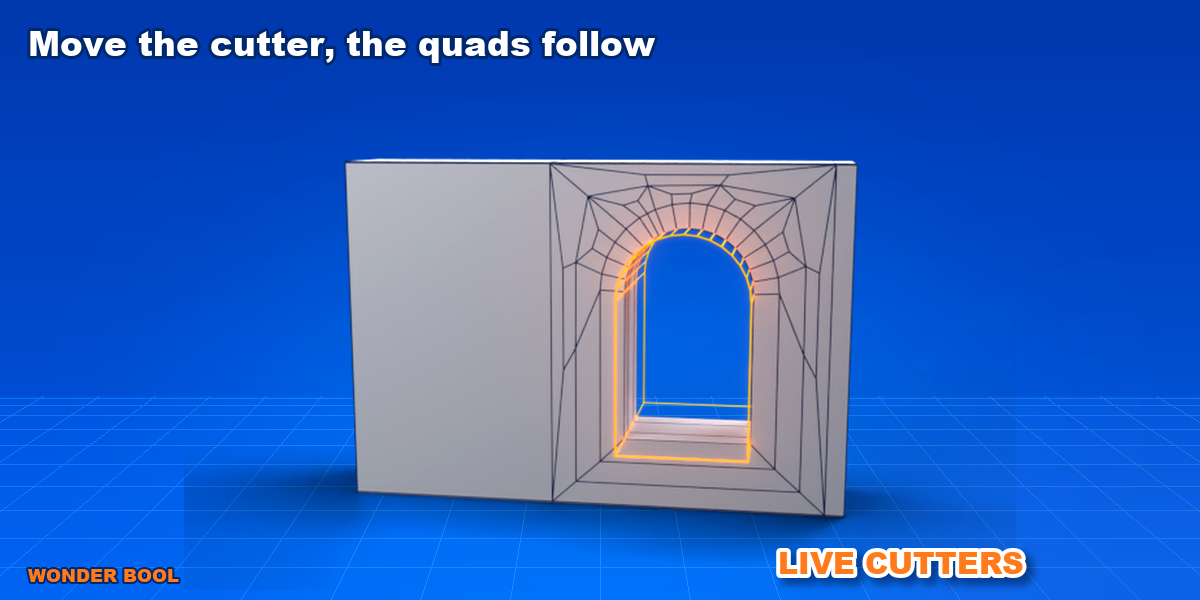
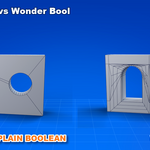
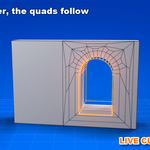
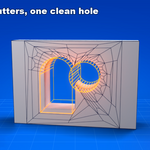
A plain boolean leaves n-gons and long thin triangles that spoil shading, bevels and subdivision. Wonder Bool cuts the hole and then rebuilds the mesh around it with quads. The cutters stay live: move, rotate, scale or edit them and the cut follows.
Install
One zip for every version: the zip from your Superhive downloads.
Blender 4.2 and newer: Edit › Preferences › Get Extensions › ▾ (top right) › Install from Disk… › pick the zip. You can also drag the zip into Blender.
Blender 4.0 / 4.1: Edit › Preferences › Add-ons › Install… › pick the same zip.
How to cut
- Select the cutter (or several).
- Shift-click the object you want to cut, so it's selected last.
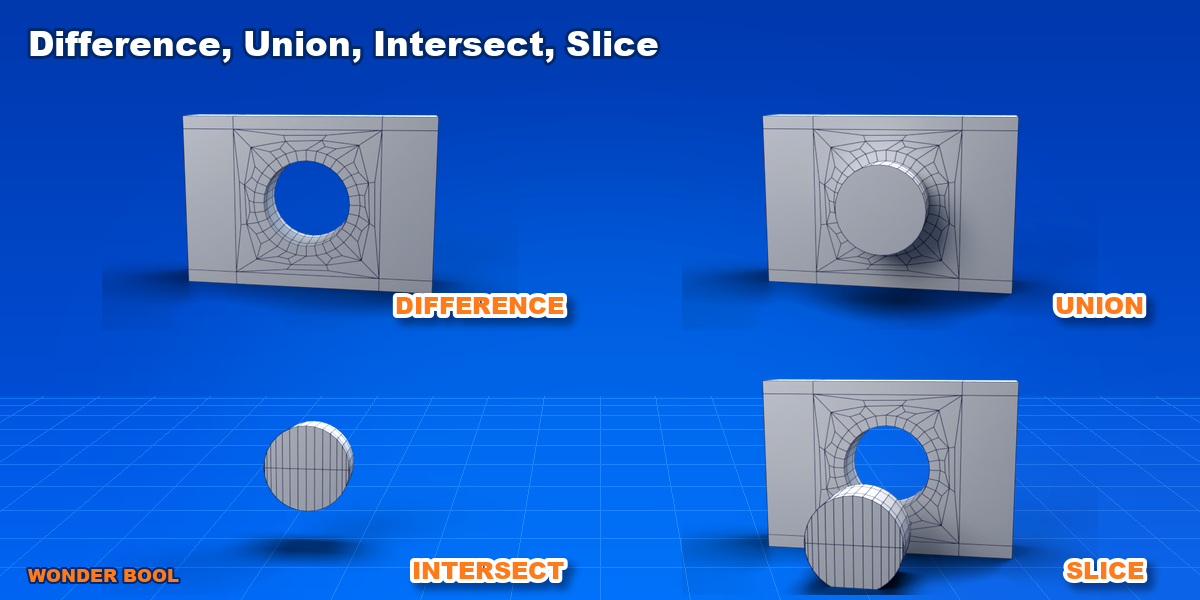
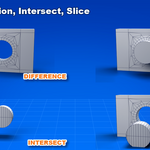
- Click Difference, Union, Intersect or Slice in the Wonder Bool tab of the sidebar (press N), or press Shift+Alt+B for the pie menu, or use Object › Wonder Bool.
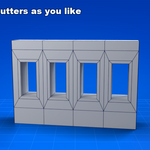
The cutters turn into wireframes (they never render), follow the object, and go into a WB Cutters collection. To change one, click it in the viewport or pick it in the cutter list, then move, rotate, scale or edit it. The cut updates as you go.
Duplicate a cutter (Shift+D or Alt+D) and the copy cuts the same object right away, with the same operation. You don't have to run the boolean again. On a Baked object the copy joins the list and cuts at the next Refresh, or when you switch the object back to Live.
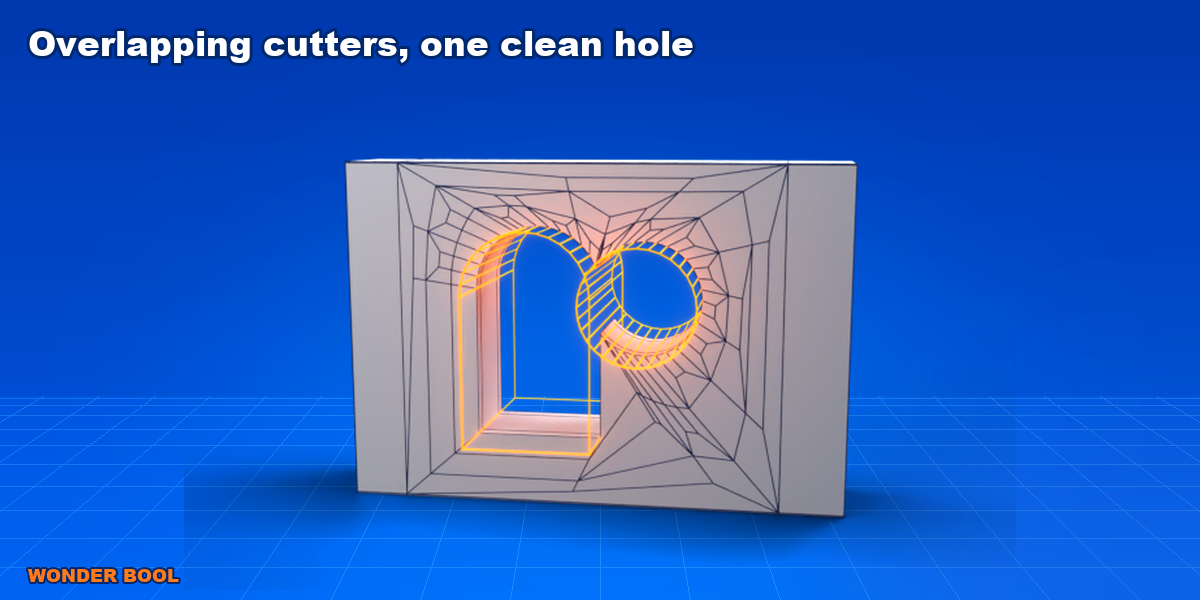
Overlapping cutters are cut together, so where they meet you get one clean hole instead of a pile of triangles.
- Live / Baked: Live keeps the object's cutters editable. Baked freezes its cut and hides the cutters.
- Show / Hide: Show or hide the object's cutters.
- Refresh: Cut again from the original mesh with the current cutters.
- Apply: Keep the result as a normal mesh and drop the setup (you can delete the cutters too).
- Restore Original: Throw the cuts away: the original mesh and the cutters come back.
- Cutter list: Turn a cutter on or off, change its operation, select it or remove it.
Mesh Style
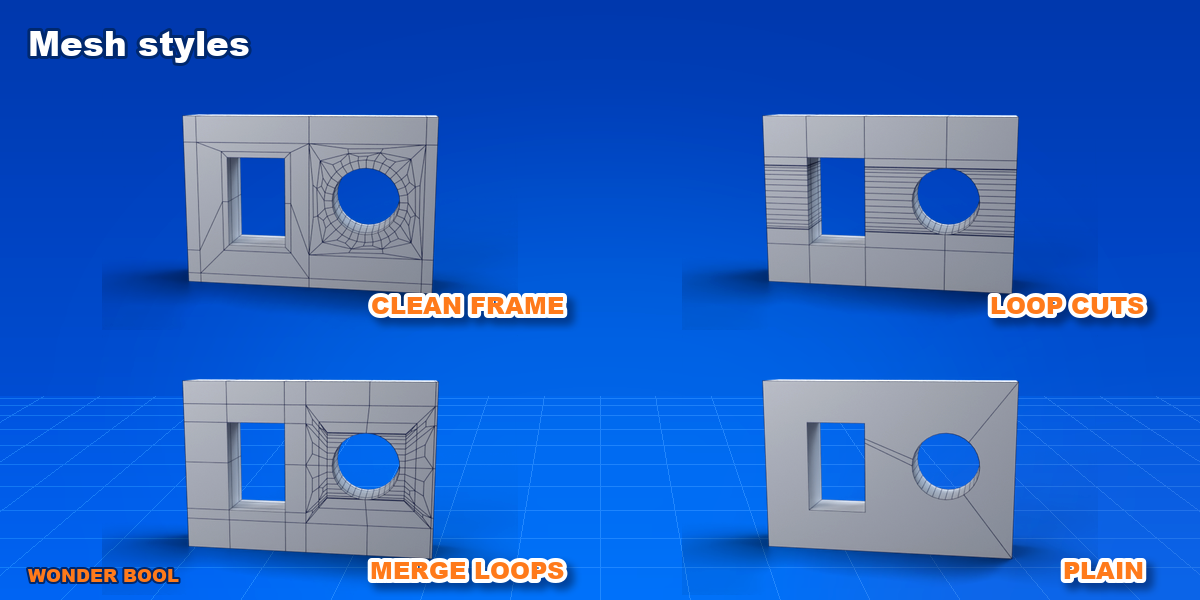
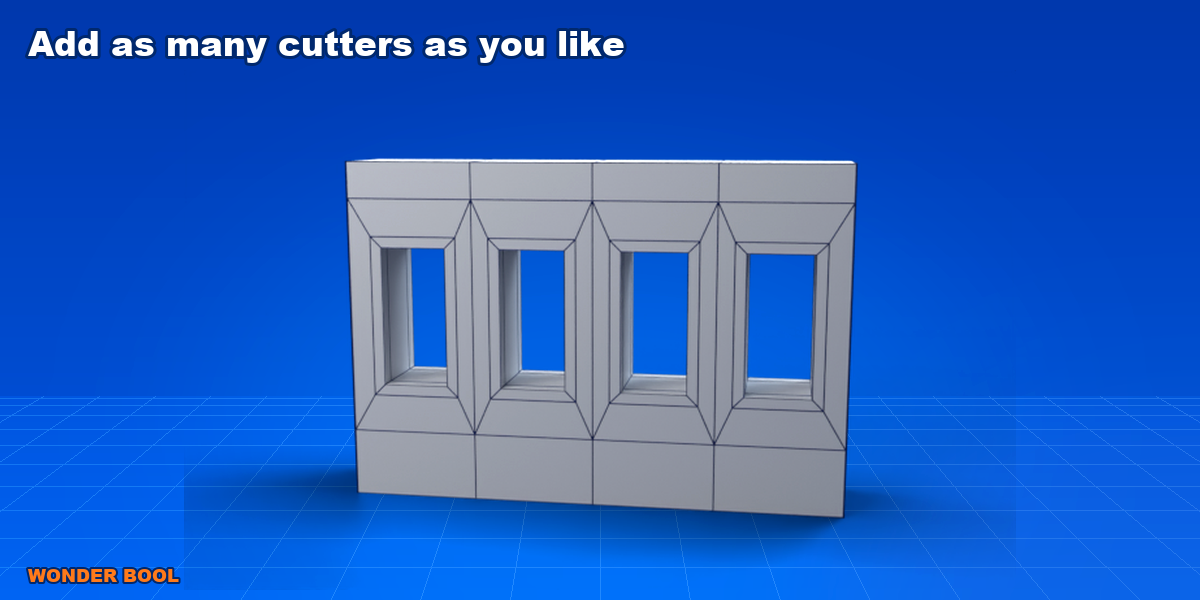
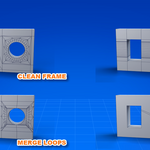
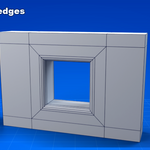
- Clean Frame (default): Quads around each hole, a band that merges 3 edges into 1, and only a few loops across the surface. Walls, panels, balls, cylinders, lots of cutters
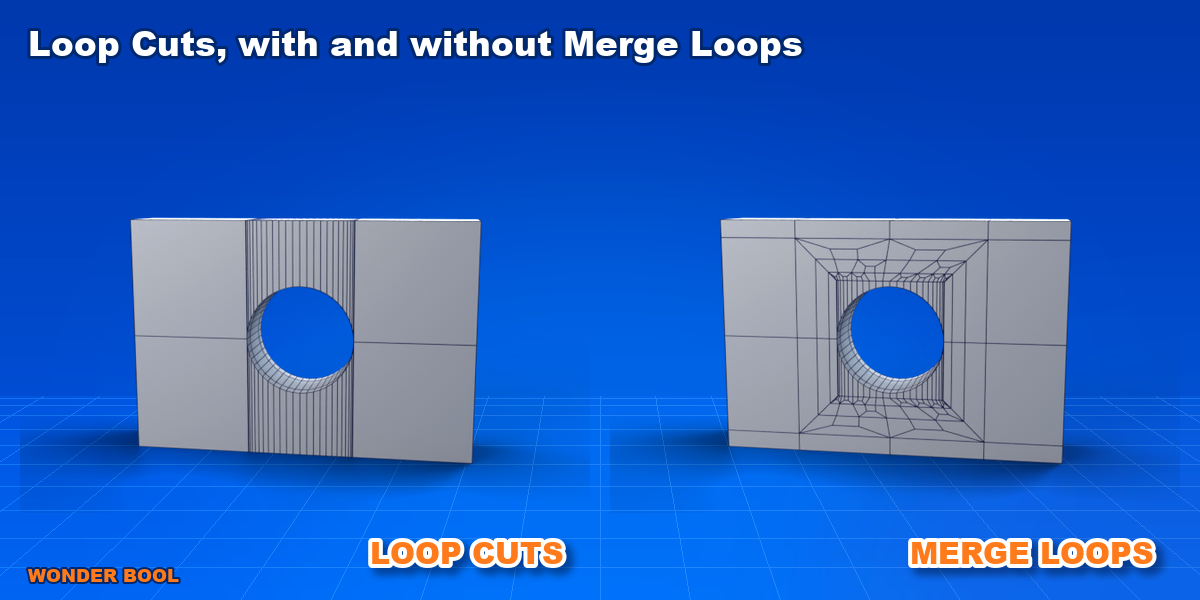
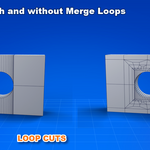
- Loop Cuts: Edge loops through the hole's corners, across the surface. Tick Merge Loops to merge them 3 into 1 away from the cut, so only a few go around the object. Subdivision modelling
- Basic Cleanup: No new loops. Only the boolean's messy faces get fixed. Game assets, low poly
- Plain: Blender's plain boolean. Comparing
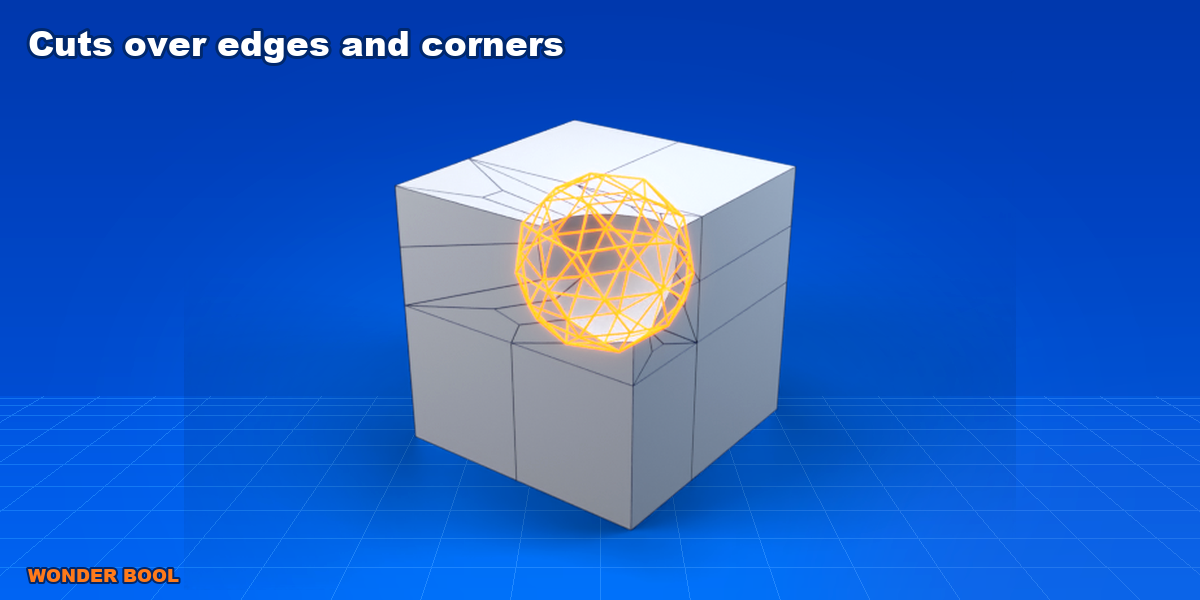
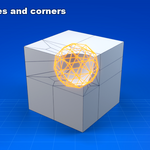
On a flat surface Clean Frame lays a frame around the hole. On a curved surface (a ball, a cylinder) it rebuilds the faces around the hole with a ring of quads that follows the surface, and the shape stays round. Either way it needs some room around the hole. When a cut doesn't have that (a hole running over an edge, a piece kept by Intersect or Slice, an outline the frame can't fill with quads), that cut gets loop cuts or a basic cleanup instead, whichever is cleaner, and the panel tells you which cutter and why. A cut that runs over an edge or a corner (a slanted groove, a sphere poking out of a cube) gets a frame of its own with quads around the cut, even on a plain cube.
Quads wherever possible. When the edge counts on a frame side don't add up, Wonder Bool runs one extra line straight through the hole wall instead of leaving a triangle (a hole that goes all the way through gets it on both sides). A hole side that sits at an angle to its frame (say, a rotated box with Loops per Side 3) gets one such line per frame edge, so the loops run straight through the hole instead of fanning out.
Settings
- Loops per Side: how many loops leave the frame on each side. 1 keeps the mesh lightest (only the frame's 4 lines cross the surface). Higher numbers let more loops through.
- Frame Space: how much room there is between the hole and its frame, compared with the size of the hole.
- Support Loop / Width: one loop of quads that follows the hole exactly. It holds bevels.
- Hole: Sharp Edges: a holding loop just inside the hole at each rim. Together with the support loop, the hole stays round and crisp under Subdivision Surface.
- Inside Loops: extra evenly spaced loops down the inside of the hole.
- Merge Loops (with Loop Cuts): the loops stay straight and dense around the cut, then merge 3 into 1 in rings as they move away, so only Loops per Side lines go around the object. A side close to the object's edge runs straight to the edge. It's off by default, so plain Loop Cuts work as they always did. It's slower, because each cut is also built the plain way to make sure merging really is cleaner.
- Advanced
- Method: Exact (the most reliable, use it unless it's too slow), Manifold (faster, Blender 4.5 and newer, needs closed meshes) or Fast.
- Cutters: Overlap Themselves: turn it on for cutters that overlap themselves.
- Object: Open Mesh: turn it on when the object you cut isn't closed, like a plane or a box with a face missing. Open cutters get this on their own.
- Loop Cuts: Direction / Length: which way the loop cuts run, and whether they cross only the piece of mesh the cut is on or every loose piece too.
- Cut Edges: mark the cut edges Sharp or Seam.
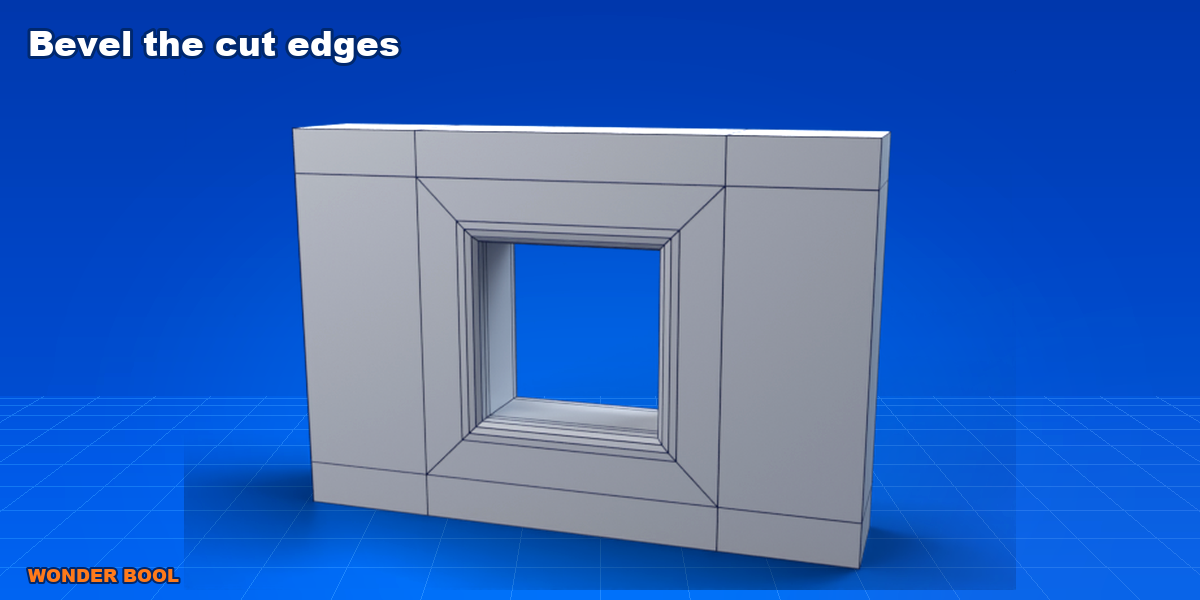
- Bevel / Width / Segments: bevel the edges along the cut. It adds a Bevel modifier that only touches the cut edges and follows the cut live. Untick it and the bevel is gone; your own modifiers are never touched. Select Cut Edges selects the cut edges in Edit Mode.
When the active object has cuts, the settings belong to it, and changing them re-cuts it right away. Otherwise they're the defaults for new cuts.
Live updates
Most models update while you drag. A wall with a window takes about 10 to 40 ms. Heavy objects show a quick plain-boolean preview while you drag, and the clean mesh appears about a quarter of a second after you stop. You can change this in the add-on preferences (Live Drag Limit, Wait Before Update). Live updates pause while the object is in Edit Mode.
Wonder Bool keeps the original mesh inside the .blend file, so Refresh and Restore Original still work after you save and reopen. Shape keys aren't supported, because Blender's booleans can't keep them.
Good to know
- Materials: the object keeps its materials. Faces made by a cutter that has a material get that material (like the Boolean modifier's Transfer option). No empty slot is added.
- UVs, weights, colours and attributes carry over onto the new faces, including vertex-group weights on Blender 5.1 and newer.
- Cutters that aren't closed (a plane, a mesh with holes) are cut as open shapes, and the panel tells you so. A boolean needs a closed cutter to know what's inside.
- Shapes: boxes, slots, circles, ovals, arches, crosses, L shapes, hexagons, cones, spheres, bevelled cutters, curves, text and arrays all work. Stars and very sharp outlines fall back to loop cuts or a basic cleanup (clean, with a few triangles) rather than making faces that cross. Ring-shaped holes (a torus, letters like O) get the basic cleanup.
- Your own n-gons, on the object or on a cutter (like the cap of a boss), stay as they are. Only the n-gons the boolean made get fixed.
Preferences
Edit › Preferences › Add-ons › Wonder Bool: New Cuts (whether new cuts start Live or Baked), Live Drag Limit, Wait Before Update, Quick Preview While Dragging and its Preview Method, Cutter Display (Wire or Bounds), Cutters Follow the Object, Keep Cutters in 'WB Cutters', and the hotkey.
Have questions about this product?
Login to message
| Blender Extension Compatible | Yes |
| Dev Fund Contributor | |
| Published | about 1 hour ago |
| Blender Version | 4.0 - 5.3 |
| Extension Type | Add-on |
| License | GPL |
Discover more products like this
non-destructive clean-topology live boolean hard surface modeling retopology cutter topology boolean quads