Zap Board — Your Reference Board, Inside Blender
 Farax Creative


INSTALL
1. In Blender, go to Edit > Preferences > Get Extensions / Add-ons > Install from Disk and pick the downloaded zip.
2. Enable Zap Board.
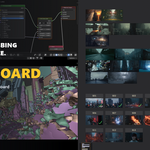
3. Open an Image Editor and click the Zap Board toggle in its header. You can also click the board button in the 3D Viewport header to convert the current area in one click.
GETTING IMAGES ONTO THE BOARD
Drag and drop image files straight from your file browser onto the canvas.
Import Images... (Ctrl+Shift+I) opens a file dialog instead.
Load Folder adds every image in a folder at once.
Paste from clipboard (Ctrl+V) drops in an image you just copied. Windows only - see Requirements below.
ARRANGING
Move, resize and multi-select cards with the board's own tool - pan, zoom, box-select and click-select all work as you expect.
Arrange gives you a best-fit layout, or sorts by name, added order, file path or random.
Align selected cards to their top, bottom, left or right edge, and distribute them with even spacing.
Bring to Front / Send to Back controls which reference draws on top where they overlap.
Lock a card to protect it from accidental drag or resize. Group cards so clicking one moves the whole set together. Solo the current selection to temporarily hide everything else.
EDITING CARDS
Non-destructive crop - toggle crop mode and drag a card's resize handles. The source file is never touched, and you can reset at any time.
Duplicate, flip horizontally or vertically, and apply 90-degree rotation presets.
Opacity is per card - drag the slider on the card, use the sidebar's +/- and Reset buttons, or press Ctrl+Shift+Numpad Plus / Numpad Minus on the selected cards.
NOTES AND DRAWING
Notes are text-only cards you can place anywhere on the board. They are backed by a Blender text datablock, so multi-line notes work. Double-click a note to edit it.
Draw freehand over the board to mark what is done and what still needs work.
FILES ON DISK
The board auto-reloads any image that changes on disk, checked every 2 seconds. You can also reload on demand, or reveal a card's source file in your OS file browser.
Export canvas saves the whole board out as a single image file.
Clear Board removes every card at once, with an optional "also remove image data" toggle.
SAVING AND SHARING
There is no separate save step. The board is stored in your .blend, and nothing is written to the 3D scene or viewport.
Images, however, are stored the way Blender stores any image: as a path to the file on disk. Send the .blend on its own and the person opening it gets your layout with empty cards, because the image files never left your machine.
Before sending a file, press Pack Images for Sharing in the sidebar (N then Zap Board). That embeds the images inside the .blend so the board arrives complete. The trade is file size: packing a set of large references makes the .blend about as large as the references themselves.
If the file never leaves your machine, you do not need to pack anything.
REQUIREMENTS
Blender 4.5 LTS or newer. Tested on 4.5, 5.0, 5.1 and 5.2.
Windows, macOS and Linux. Two convenience commands - Paste Image and Reveal File - are Windows only, because they hand off to a Windows tool. Everything else works the same everywhere.
Have questions about this product?
Login to message
| Blender Extension Compatible | Yes |
| Downloads | 50+ |
| Published | 2 months ago |
| Blender Version | 4.5 - 5.2 |
| Extension Type | Add-on |
| Render Engine Used | Cycles, Eevee |
| License | GPL |
Discover more products like this
moodboard Workflow storyboard previz concept art annotation image editor reference