 Mona-Ghafourian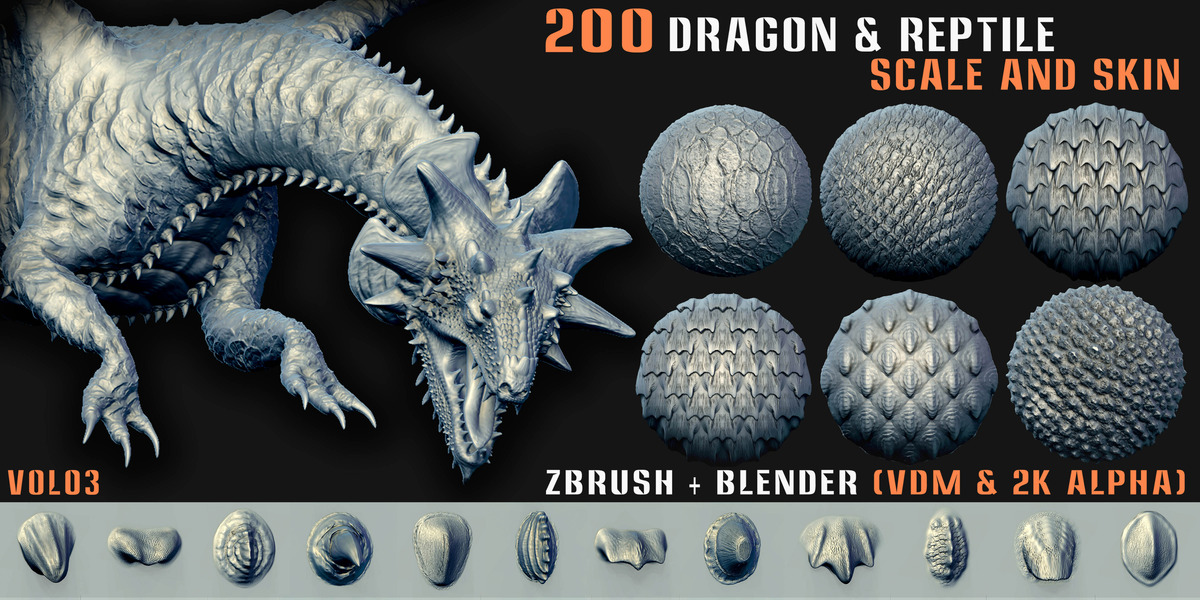






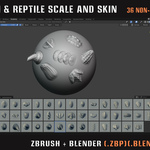
VDM & TILEABLE ASSET BRUSH PACK · DRAGON & REPTILE
200 Dragon & Reptile Scale and Skin (VDM + Alpha) – Vol.03
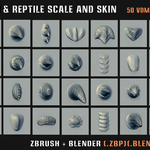
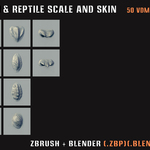
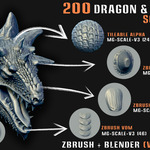
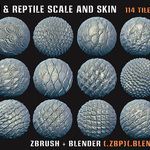
Dragon and reptile scale VDM brushes plus 150 tileable asset brushes and 150 tileable 2K Alphas — built for creature sculpting, skin detailing, and detailed surface design.
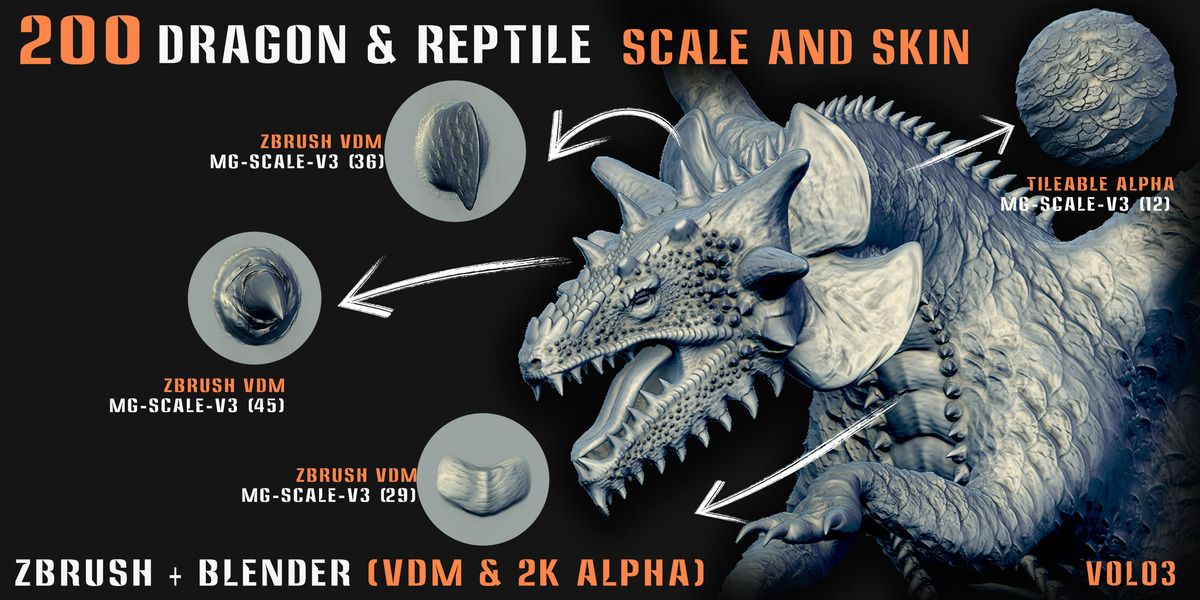
Build detailed dragon, reptile, and creature surfaces with a combination of ZBrush VDM Brushes, Blender VDM Brushes, and 150 Tileable Asset Brushes. The collection is designed to give creature artists a flexible way to create scale patterns, skin structures, and repeating surface details directly inside their sculpting workflow.
🆕 150 TILEABLE ASSET BRUSHES
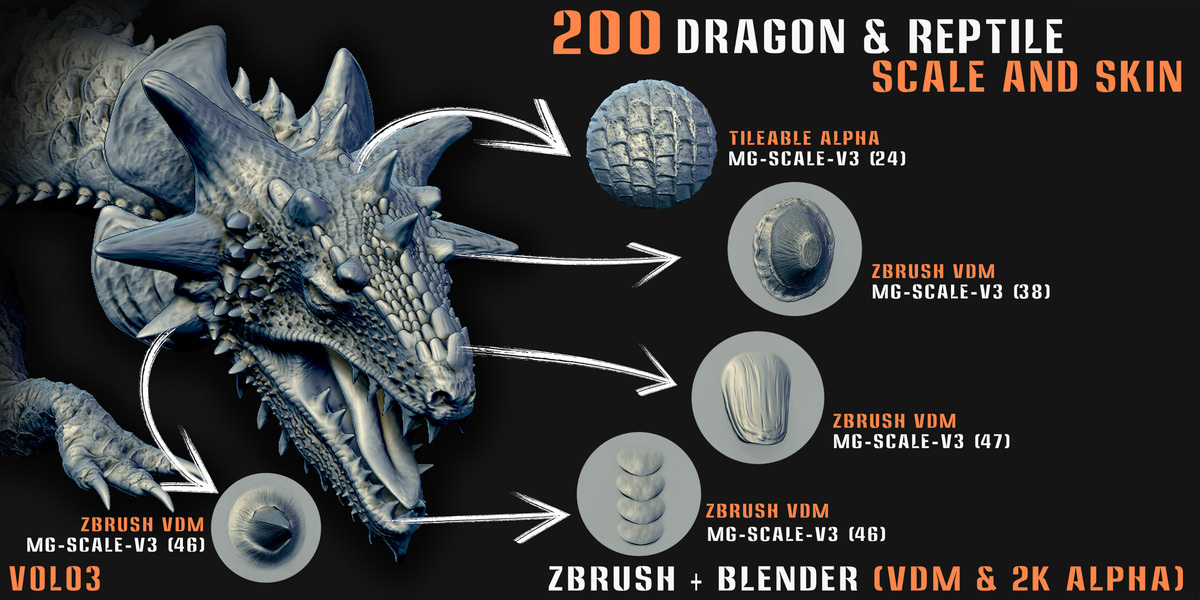
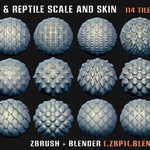
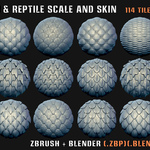
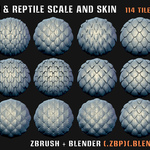
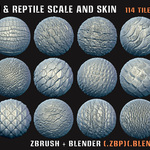
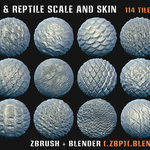
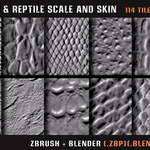
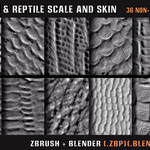
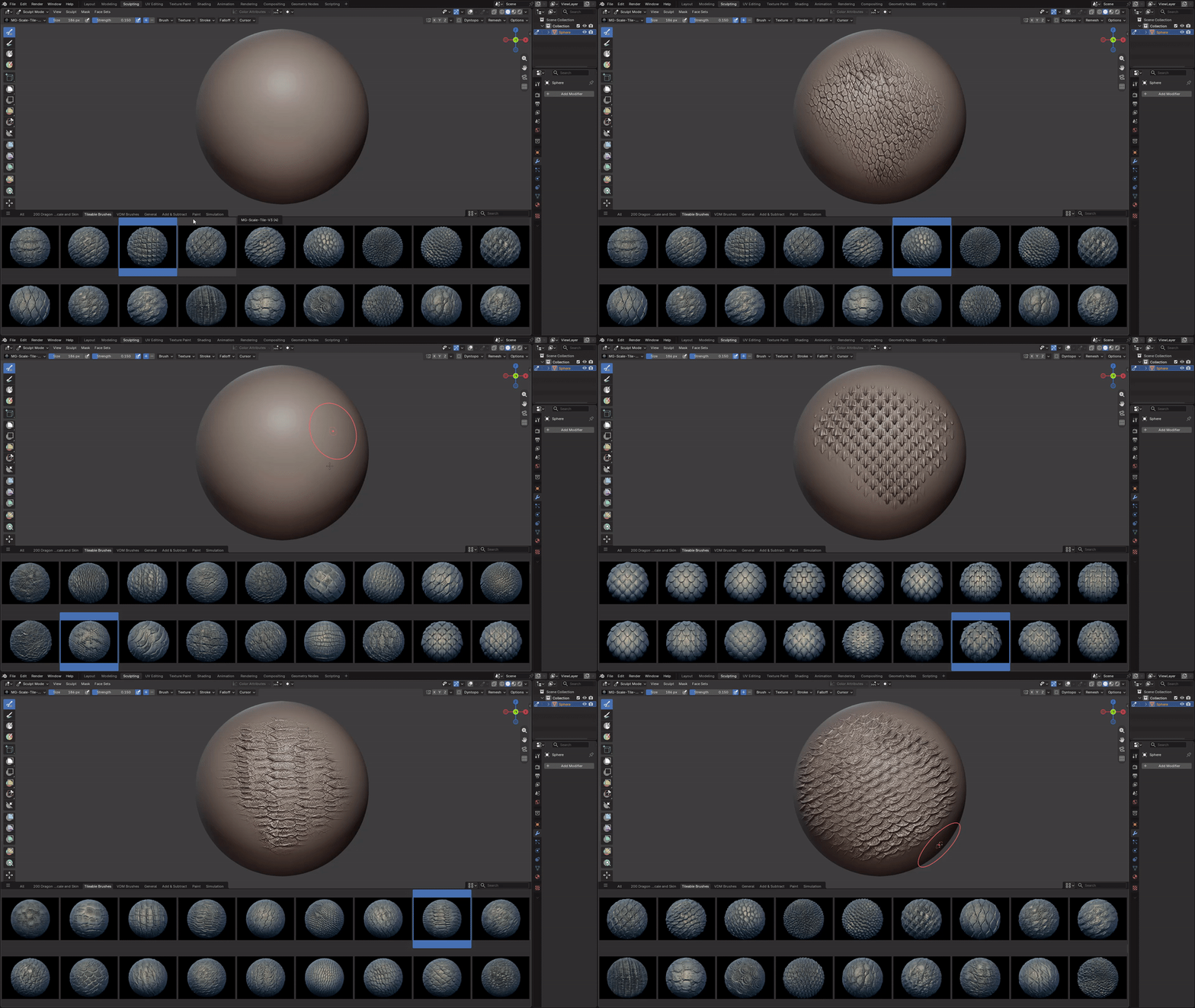
The pack now includes 150 tileable asset brushes covering a wide range of dragon and reptile scale patterns. Their repeating structure makes them suitable for building consistent surface detail across larger creature areas while keeping the sculpting workflow flexible.
150 Tileable Asset Brushes
Explore the full collection of 150 tileable asset brushes, created for repeating dragon and reptile scale patterns and detailed creature surface work.
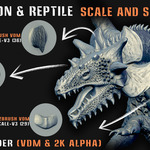
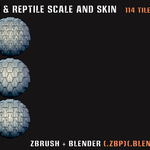
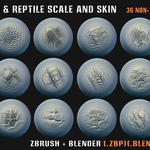
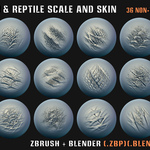
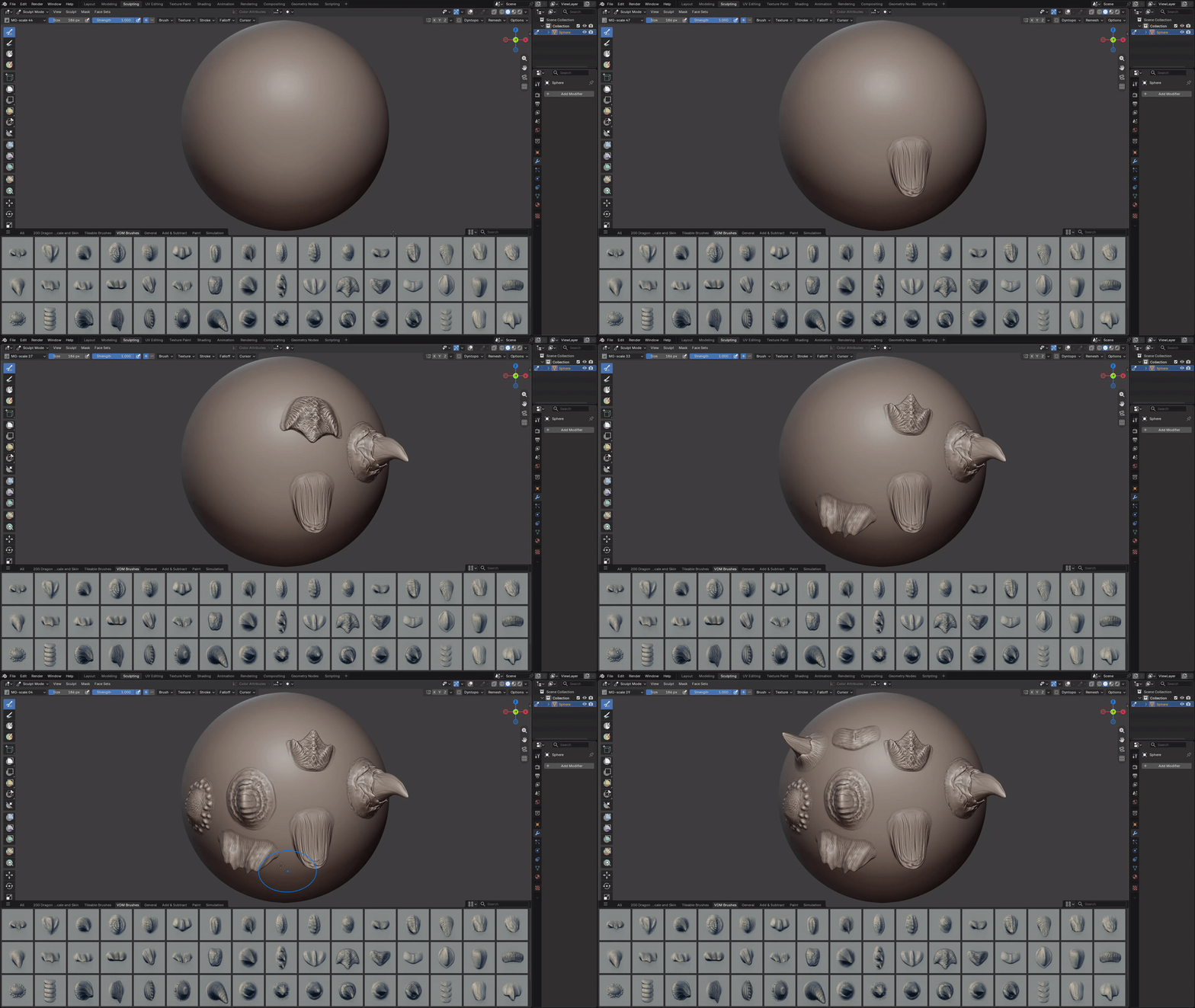
VDM Brushes in Action
Sculpt dragon and reptile scale detail directly onto your mesh with 50 Blender VDM Brushes.
Features
✓ 50 ZBrush VDM Brushes (.ZBP)
✓ 50 Blender VDM Brushes (.blend)
✓ 150 Tileable Asset Brushes (.blend)
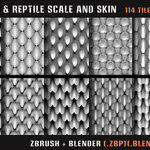
✓ 150 Tileable 2K Alphas (PNG + JPG previews)
✓ Preview Images
✓ 2 Short Tutorials for the VDM brush and Asset Brush workflow
Compatibility
ZBrush: ZBrush 2018.1 or later.
Blender: Blender 4.5 and above for the Blender VDM Brush Asset Library.
Creature Sculpting Workflow
Use the VDM brushes when you want to directly sculpt scale forms onto your mesh, then use the tileable asset brushes for broader and more consistent surface coverage. The collection is suitable for dragon design, reptile skin, monster design, character sculpting, and digital creature sculpting.
Installation
Blender
- Go to Edit → Preferences → File Paths.
- Click Add and select the Blender Asset folder.
- Press Save Preferences.
ZBrush
- Copy all .ZBP brushes.
- Paste them into the ZBrushes folder inside your ZBrush installation directory.
Example: C:\Program Files\Pixologic\ZBrush [Your Version]\ZBrushes - Restart ZBrush. The brushes will appear in the Brush palette / LightBox.
Note: The ZBrush installation path may be different depending on your ZBrush version and installation location. Use the ZBrush [Your Version] folder that is installed on your computer.