3D Data Comparison Addon
 3D COMPARISON


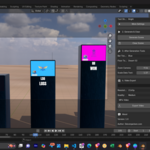
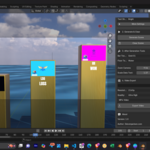
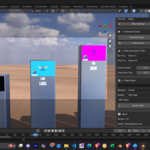
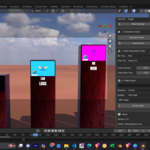
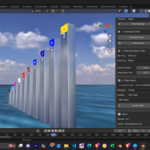
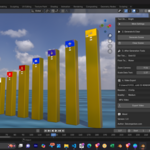
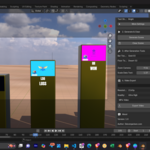
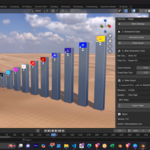
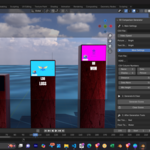
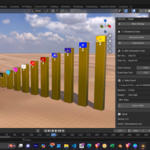
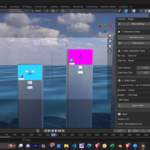
🚀 Features:
-
📊 CSV to 3D Bars: Import your data and watch it come to life as animated bars with names, values, and images.
-
🎥 Auto Camera Animation: Smooth camera movement with zero manual setup.
-
🖼️ Multiple Bar and Floor Textures & a Default and Custom HDRI: Personalize visuals with your own Hdri, fonts, and lighting.
-
📤 One-Click Video Export: Instantly render in MP4 or JPEG sequences.
-
✅ Works with Blender 3.0 and above.
🧠 Who is this for?
Perfect for YouTubers, educators, analysts, and designers who want to turn boring spreadsheets into engaging 3D visuals.
💡 Make your data stand out. Impress clients. Grow your audience.
No Blender expertise needed — just import, customize, and export!
💾 Installation
Download the latest version of the addon as a
.zipfile. Do not unzip it!-
Open Blender and go to
Edit>Preferences. -
Navigate to the
Add-onssection. -
Click the
Install...button at the top-right. Find and select the
.zipfile you downloaded.-
Enable the addon by ticking the checkbox next to its name ("3D Comparison Video Generator").
You will now find the tool in the 3D Viewport. Press the 'N' key to open the sidebar, and you'll see a new tab called Comparison Tool.
🚀 How to Use
Follow these steps to create your first comparison video!
Step 1: Prepare Your Data (CSV File)
The addon reads data from a CSV (Comma-Separated Values) file. You can create this file using any spreadsheet software like Excel, Google Sheets, or a simple text editor.
Your CSV file must have a header row (the first row with column titles). The addon will then read the data from the rows below it.
You can edit or prepare your csv file using this website--
If you have excel file you can also convert it to CSV file--
Or if you have EXCEL Software you can ready your file and Save as CSV--
Name Column: The name of the entity (e.g., "GT"). This text appears on the bar.
Data Column: The numerical value that determines the bar's height (e.g., 100). This must be a number!
Display Data Column: The text you want to display for the value (e.g., "WON"). This gives you formatting freedom.
-
Picture Column: The full path to the image you want to display on the bar.
🚨 IMPORTANT: Use the full absolute path to your image files to avoid issues.
Windows Example:
C:\Users\YourName\Documents\project\images\pic1.pngMac/Linux Example:
/Users/YourName/Documents/project/images/pic1.png
You can tell the addon which column is which in the "More Settings" section. By default, it uses columns 2, 3, 4, and 5.
Step 2: Configure the Scene in Blender
Once your CSV is ready, head to the Comparison Tool panel in Blender's sidebar.
1. Main Settings
CSV File: Click the folder icon and select the
.csvfile you created.Video Speed: Adjust how fast the camera moves between bars (1 = Slow, 10 = Fast).
Picture Shading: "Bright" makes your pictures glow (good for logos), while "Natural" makes them look like part of the scene.
Text Shading: Choose if your text should be bright and glowing or look like a natural 3D object.
2. More Settings (Optional)
Font File: Use your own
.ttfor.otffont file.HDRI World: Load a custom HDRI image for realistic lighting and reflections.
CSV Column Numbers: If your CSV is structured differently, tell the addon which column number to use for Name, Data, etc.
Distance, Norm, Min Height: These settings control the spacing and scaling of the bars.
Step 3: Generate the Scene
Click the big Generate Scene button.
The addon will read your CSV and build the entire 3D scene, including objects, materials, and camera animation. The view will automatically switch to the camera's perspective.
Step 4: Fine-Tune After Generation
After generating, you can adjust the look of the scene without having to regenerate everything.
Bar/Floor Texture: Instantly swap the textures on the bars and the floor.
Zoom Camera: Change the
Camera Distanceslider to zoom in or out.Scale Data Text: Make the "Display Data" text bigger or smaller using the
Scaleslider.
Step 5: Export Your Video
Output Path: Choose where you want to save your final video.
Resolution & Quality: Select your desired video size and render quality. Higher quality will take longer to render.
Export Format: Choose
MP4for a video file orJPEGfor a sequence of images.Click Export Video. A render window will pop up and show the progress. Be patient, as this can take some time!
🚨 The Protection System
To prevent you from accidentally breaking the scene, the addon protects a few key objects:
Camera_WatermarkCameraControl_Cameraanim_empty_tracker
If you delete, hide, or select any of these objects, the addon will automatically run the "Clear Scene" process. This is designed to protect the integrity of the animation and the final video output. If this happens, simply click Generate Scene again.
🤔 Troubleshooting
"Watermark file is missing" error on installation: The
assetsfolder (containingwatermark.pngand other textures) must be in the same location as the__init__.pyscript inside the addon's.zipfile. Please re-download the addon and reinstall.Pictures don't appear on bars: The most common reason is an incorrect file path in your CSV. Double-check that you are using the full absolute path to your images.
"No valid data read from CSV" error: Ensure your "Data" column contains only numbers. Also, check that your CSV is saved with
UTF-8encoding, which is standard.
Have questions about this product?
Login to message
| Blender Extension Compatible | Yes |
| Dev Fund Contributor | |
| Published | about 1 year ago |
| Blender Version | 4.0 - 4.5 |
| Extension Type | Add-on |
| Render Engine Used | Cycles, Eevee |
| License | GPL |