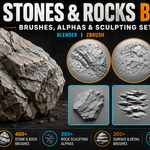
900+ Stones & Rocks Sculpting Bundle
 VK Gamedev
in Ground
VK Gamedev
in Ground


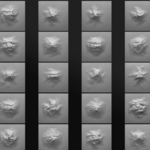
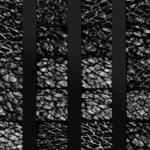
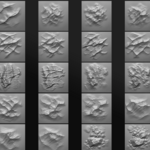
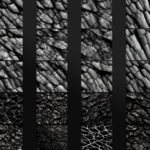
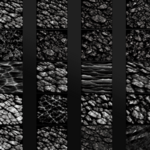
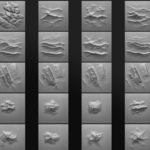
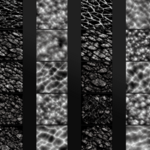
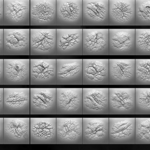
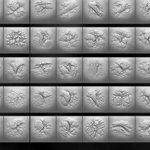
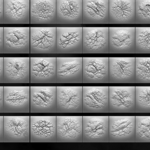
Blender Setup
- Download and unzip the product files.
- Move the Blender brush folders to a permanent location on your computer.
- Open Blender.
- Go to Edit > Preferences > File Paths.
- In Asset Libraries, click + and add the folder that contains the brush library.
- Click Save Preferences.
- Open Asset Browser or Sculpt Mode.
- Select the rock brushes and start sculpting.
ZBrush Setup
- Copy the included
.ZBPbrush files. - Place them in your ZBrush brushes folder.
- You can also import the included alpha maps through the Alpha palette.
- For permanent alpha access, copy the alpha maps to:
C:\Program Files\Pixologic\ZBrush 2021\ZStartup\Alphas
Restart ZBrush after copying files into startup folders.
Recommended Workflow
Start with large rock forms first. Use broader brushes to define cliffs, boulders, or terrain shapes. Then add mid-scale cracks, chipped edges, erosion, and fracture lines. Finish with fine alpha details for surface breakup, pores, noise, and weathering.
For more natural results, rotate and layer different alphas instead of stamping the same detail repeatedly.
-
$0
-
$19.99
1 User - Commercial Use: unlimited projects
-
$99.99
Up to 10 users - Commercial Use: unlimited projects
-
$199.99
For art institutions and studios under 100 users
Have questions about this product?
Login to message
| Sales | 10+ |
| Downloads | 60+ |
| Published | about 2 months ago |
| Blender Version | 4.3 - 5.2 |
| License | Royalty Free |

Discover more products like this
terrain Rock Alphas zbrush-brushes Blender-Brushes sculpting brushes stone rocks cliffs environment art displacement 2k alphas game assets