 Toni3DArt





Installation
Blender 4.2 and later – drag and drop Add_Remove_Bevel_Tools_2.1.1.zip into Blender, or Edit › Preferences › Get Extensions › ⌄ › Install from Disk…
Blender 3.6 – 4.1 – Edit › Preferences › Add-ons › Install…, choose the zip and enable Add & Remove Bevel Tools.
The tools are in 3D Viewport › Sidebar (N) › Bevel Tools.
Updating: uninstall the old version first (add-on preferences › Uninstall, or Add-ons › Remove on 3.6 – 4.1), restart Blender, install the new zip. Presets are backed up and restored automatically.
Quick start
- Select an object, Tab into Edit Mode, face select (3).
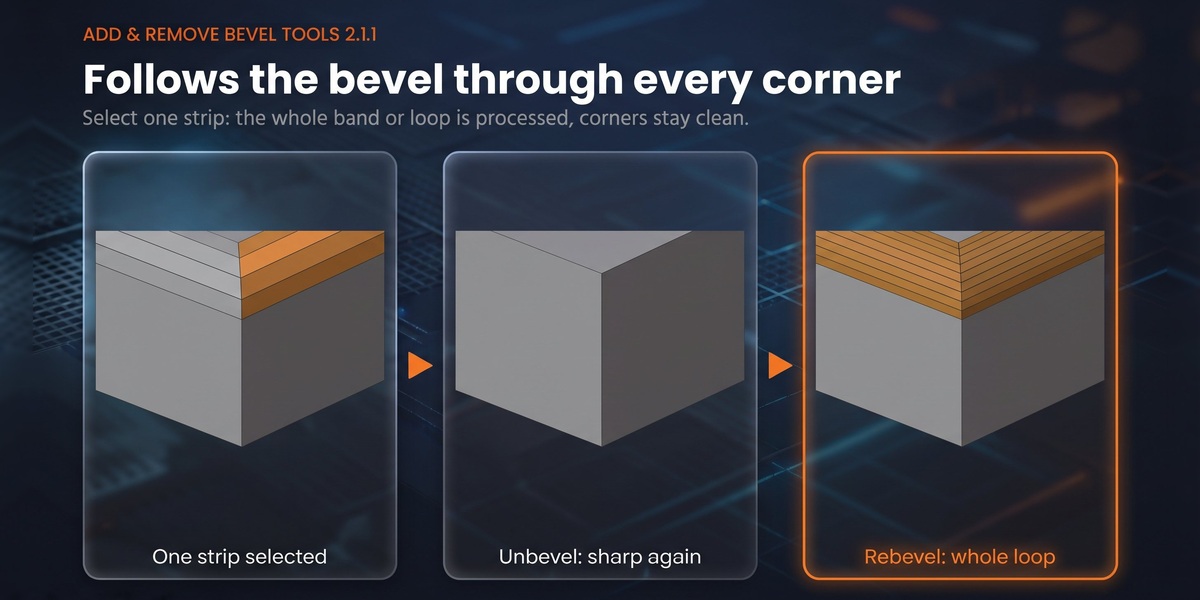
- Select one row of faces across a bevel (the 3 faces of a 3-segment bevel, for example).
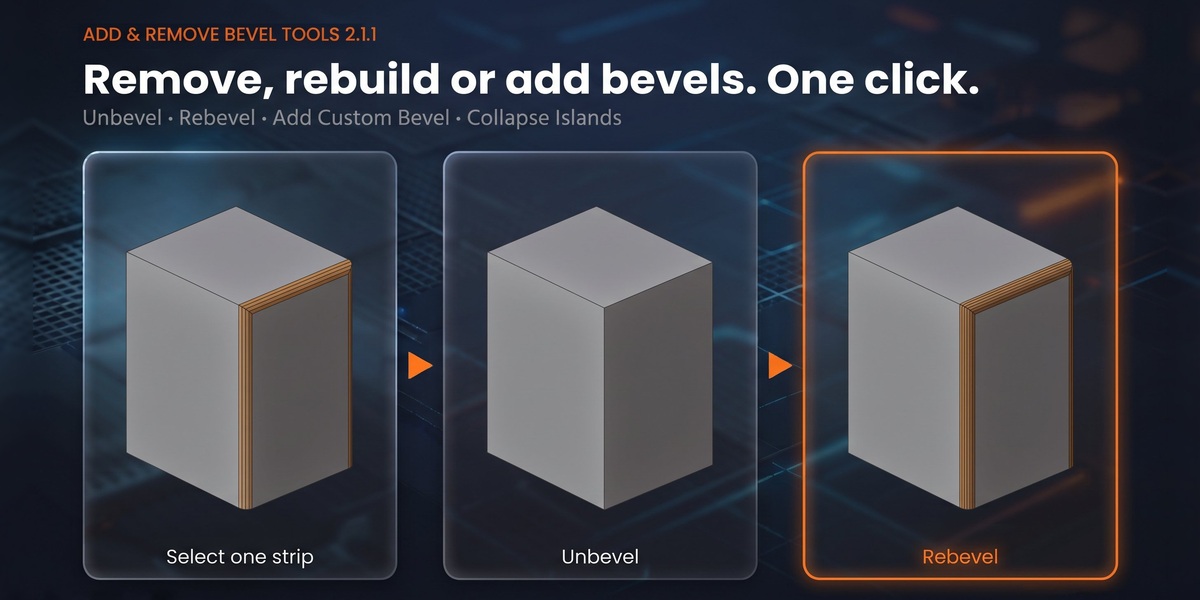
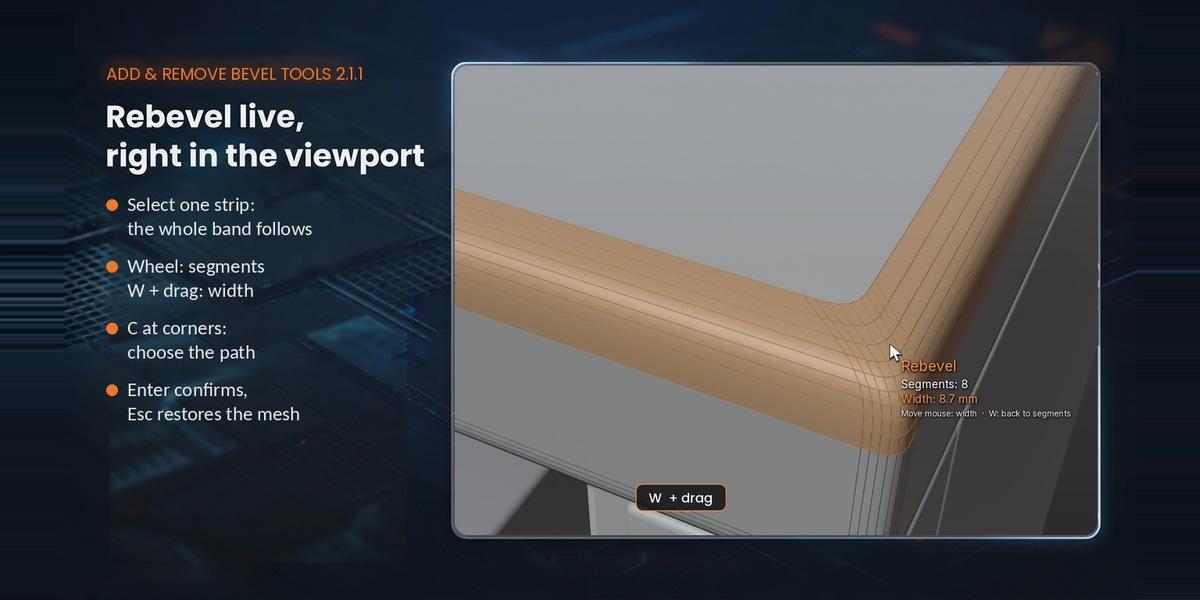
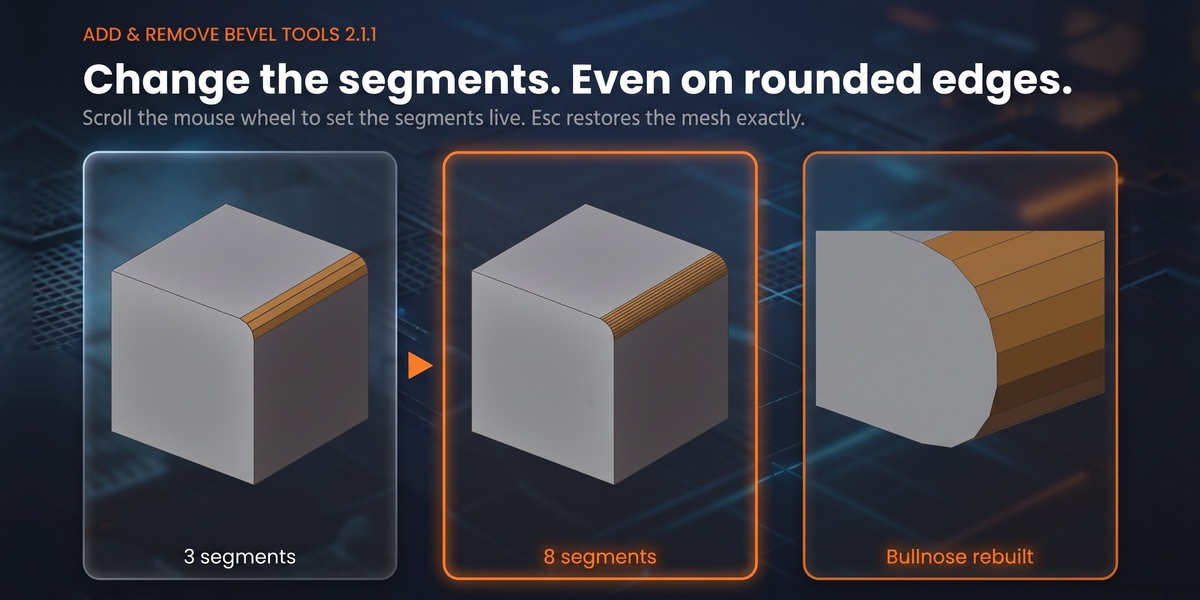
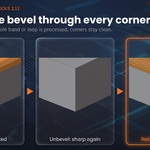
- Ctrl Shift R – Rebevel. Mouse wheel: segments. W + drag: width. C: corners. Enter to confirm, Esc to cancel.
- Ctrl Shift U – Unbevel (back to the sharp edge). At corners: C to choose, Enter to confirm.
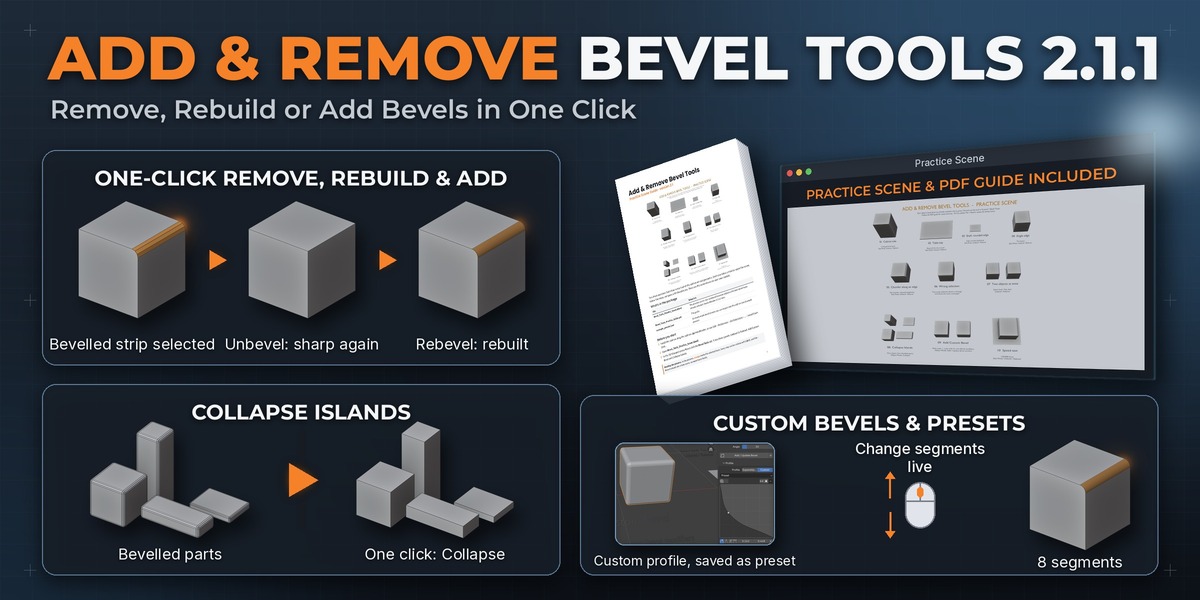
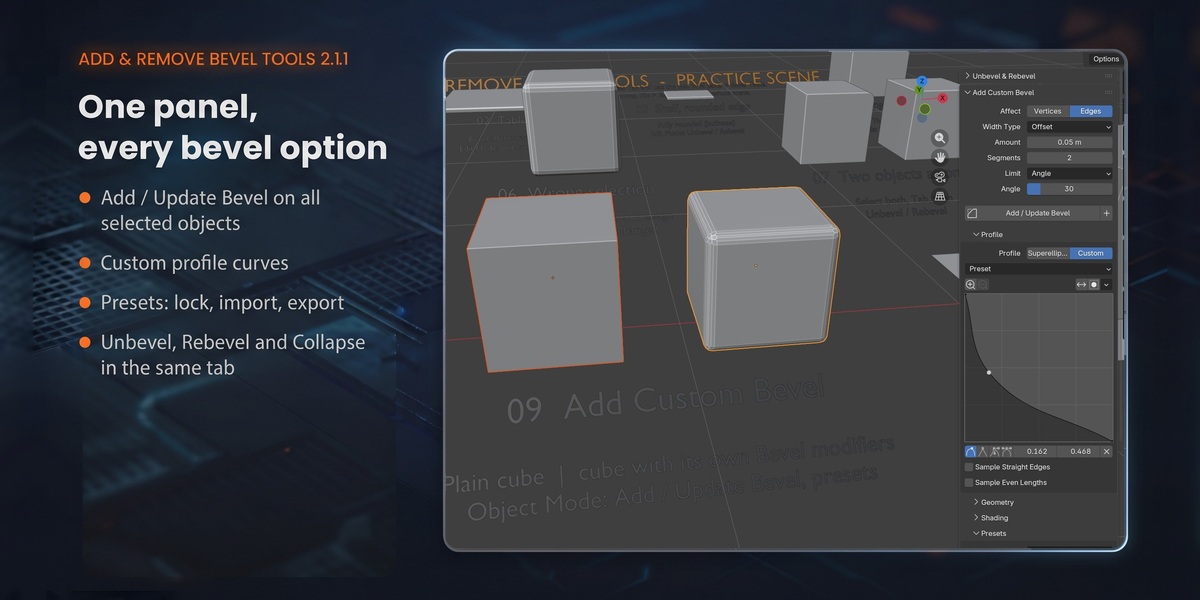
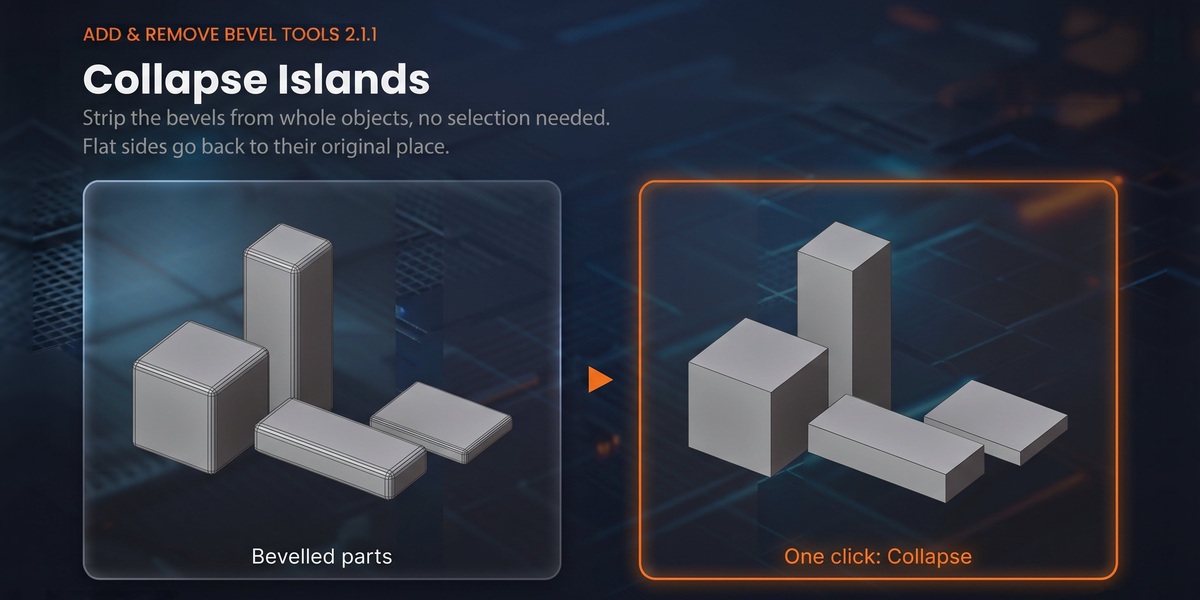
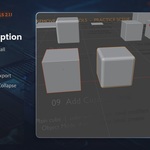
- Whole objects: Object Mode › select the objects › Collapse.
Rebevel
| Input | Action |
|---|---|
| Mouse wheel / Numpad + − | More / fewer segments |
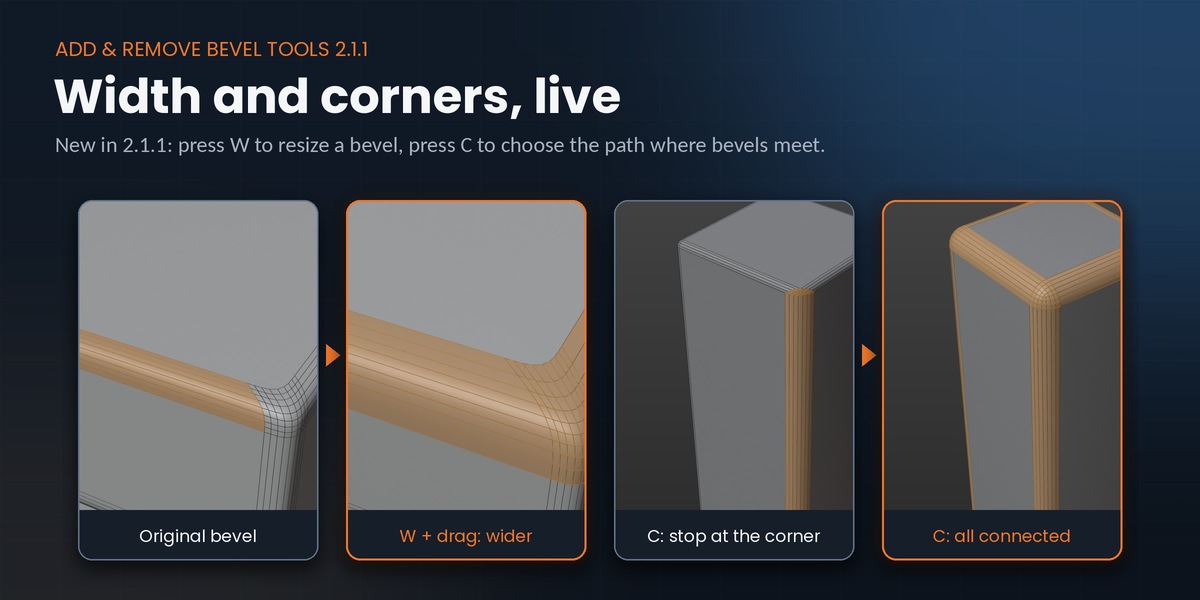
| W, then move the mouse | Wider (right / up) or narrower (left / down). The cursor wraps at the edges of the view. W again: back to segments |
| C | Corners: Stop → Follow Side 1 → Follow Side 2 → All Connected |
| Enter, Left-click, Space | Confirm |
| Esc, Right-click | Cancel (mesh restored exactly) |
| Middle mouse, trackpad | Navigate while adjusting |
F9 options: Segments (0 = flat chamfer), Width (distance from the original sharp corner, like Blender's bevel Offset), Profile (starts at the shape of the original bevel; 0.55 ≈ circular arc), Corners.
Corners
Where three or more bevels meet (the corner of a box):
| Corners | What is processed |
|---|---|
| Stop | Only the selected bevel; the corner is rebuilt to join the others |
| Follow Side 1 / Side 2 | Carries on through the corners into the bevels on one side |
| All Connected | Every bevel joined through corners |
Unbevel
Collapses the band back to the sharp edge; sharp edges and bevel weights are kept, fully rounded edges are squared off. At corners Unbevel stays active: C to choose the path, Enter to confirm, Esc to cancel. F9: Corners, Reverse Borders.
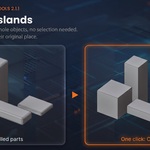
Collapse Islands
Object Mode: every selected object. Edit Mode: only the parts that contain selected elements. - Auto Threshold – detects the bevel width of each part (recommended). - Threshold – merge distance when Auto Threshold is off. - Preserve Silhouette – pushes vertices back onto the flat sides so parts don't shrink.
Vertices closer than the threshold are merged, so tiny details next to a bevel can be merged too; for precise work on one edge use Unbevel.
Add Custom Bevel and presets
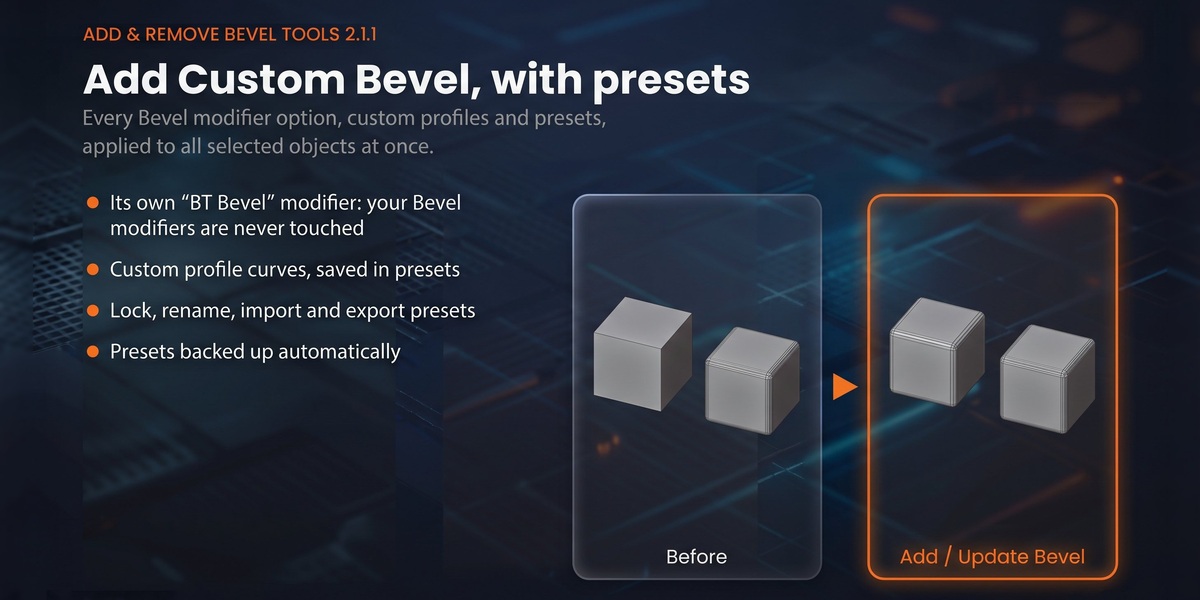
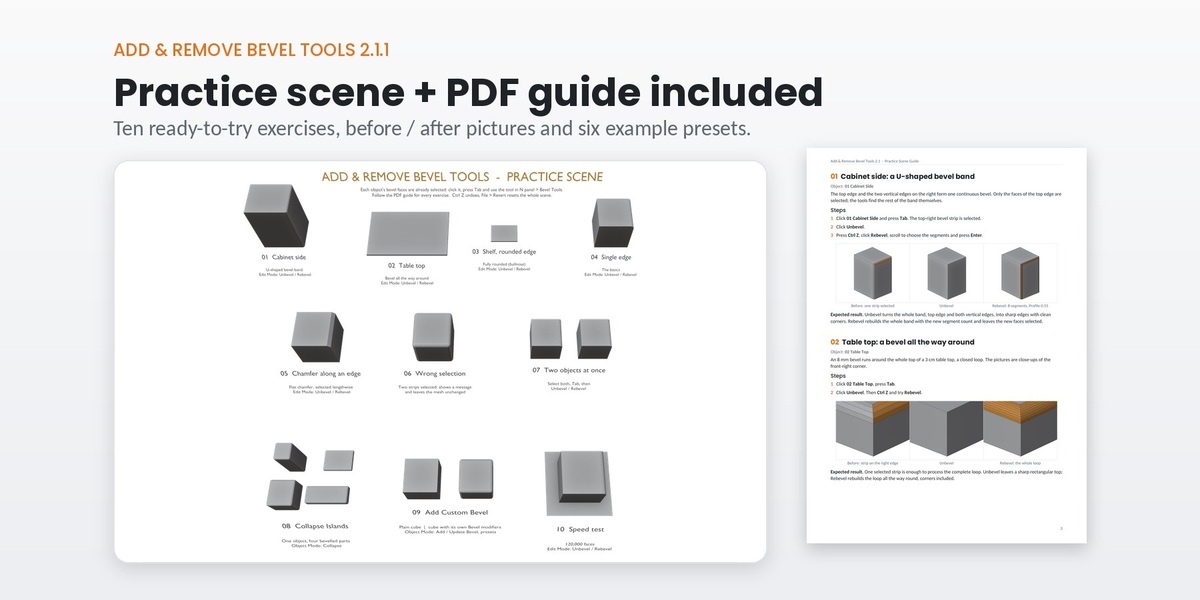
Adds the add-on's own BT Bevel modifier to the selected objects (or updates it); + stacks another one. Superellipse or custom profile, miters, intersections, clamp, shading. Presets: + save, file icon load, − delete, double-click rename, lock icon, ⌄ menu Export / Import, Load & Add Bevel. The practice download includes example_presets.json (six presets).
Messages
| Message | What to do |
|---|---|
| Selection does not form a strip | Select one row of quads, not a grid |
| The selection is not a single strip of quads | Select only one strip |
| Strip contains a triangle / an n-gon | Only quads can be part of the strip |
| The dissolved strip contains an n-gon / a triangle | Unusual corner layout: use Collapse Islands or clean that corner |
| The result would break the mesh… | Nothing was changed |
Everything can be undone with Ctrl Z. Full details in the PDF manual. Support: [email protected]
Have questions about this product?
Login to message
| Blender Extension Compatible | Yes |
| Published | about 1 hour ago |
| Blender Version | 3.6 - 5.2 |
| Extension Type | Add-on |
| Render Engine Used | Cycles, Eevee |
| License | Mit |
Discover more products like this
cad mesh cleanup hard surface remove bevel presets modeling furniture bevel rebevel unbevel chamfer bevel width