Advanced Blendshape Editor
 parimakWORKS
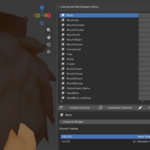
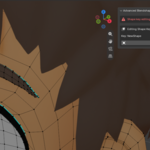
Advanced Blendshape Editor
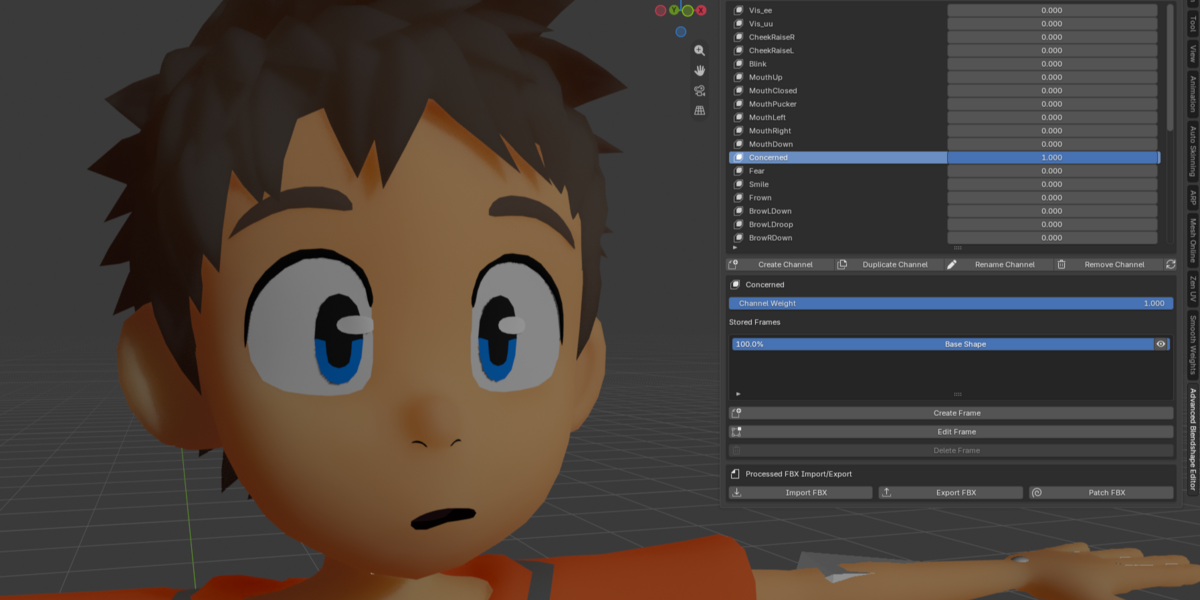
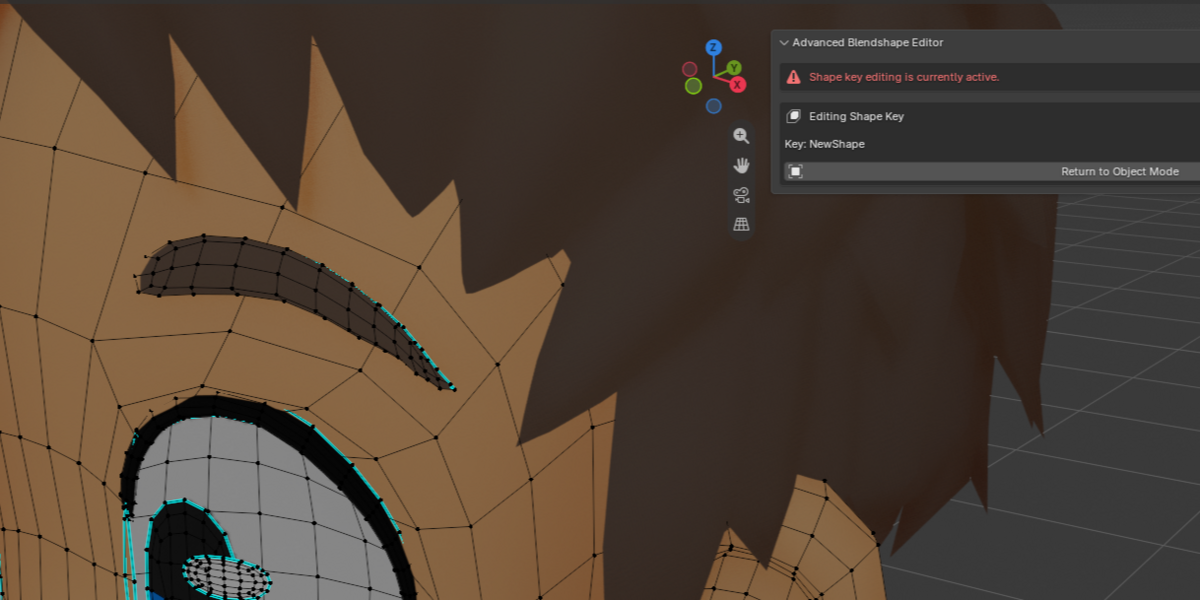
Advanced Blendshape Editor is a Blender extension for authoring, organizing, animating, importing, and exporting progressive blendshapes.
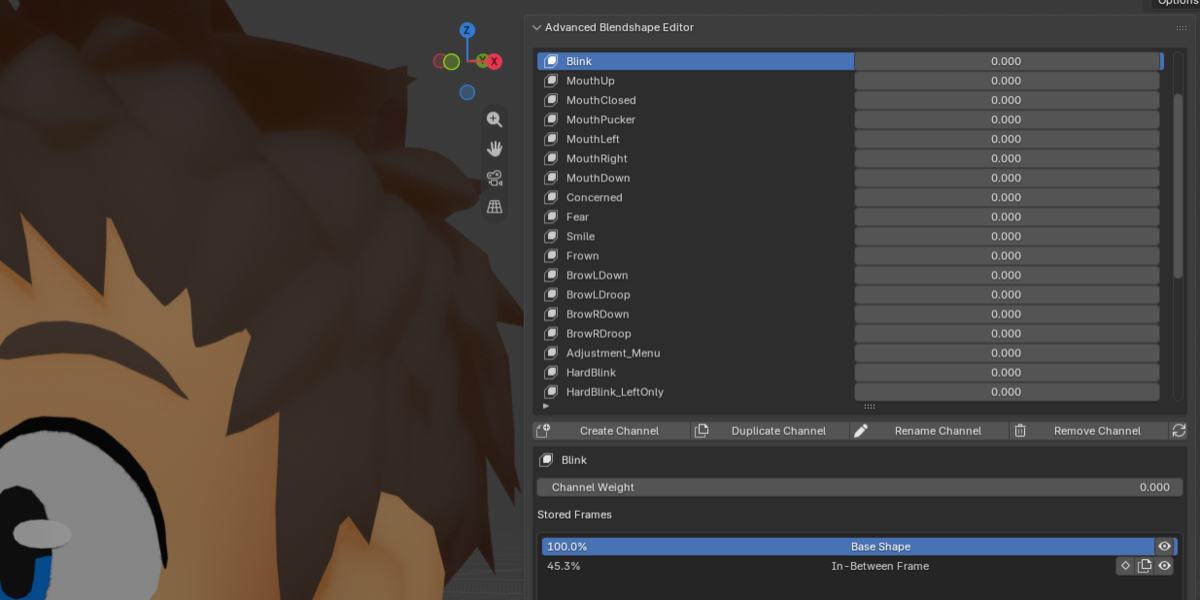
Instead of animating every in-between shape key separately, or going through the rigamarole of setting up drivers, this extension groups related shape keys into a single channel. A channel weight then drives the appropriate base or in-between shape key automatically, and unlike any other driver setup, preserves this functionality upon export to other engines like Unity.
The extension is designed for facial animation and other deformation systems that use progressive targets, such as:
- A mouth that gradually opens through several sculpted poses
- An eyelid with corrective shaping as it opens and closes as to not clip through the eyeball
- A corrective expression with artist-authored intermediate targets
Contact
If you have any additional questions, bug reports, or feature requests, you may email me at [email protected]
Requirements
-Blender 4.2 or newer (earlier versions could be compatible but none have been tested.)
Installation
1. Install or copy the `advanced_blendshape_editor` extension into Blender's extensions or addons directory.
2. Open Blender Preferences and enable Advanced Blendshape Editor.
3. Select a mesh object.
4. Open the 3D Viewport sidebar by pressing `N`.
5. Open the Advanced Blendshape Editor tab.
Basic workflow
The majority of the functions of the addon are totally self explanatory with tool-tips for every button you may hover over, but here's a quick overview of how everything works.
1. Select a mesh object with the ABE addon tab open.
2. Click Create Channel.
3. Enter a unique channel name, such as `mouth_open`.
4. The extension creates a Basis key if one does not exist.
5. A base shape key with the same name is created at weight `1.0`.
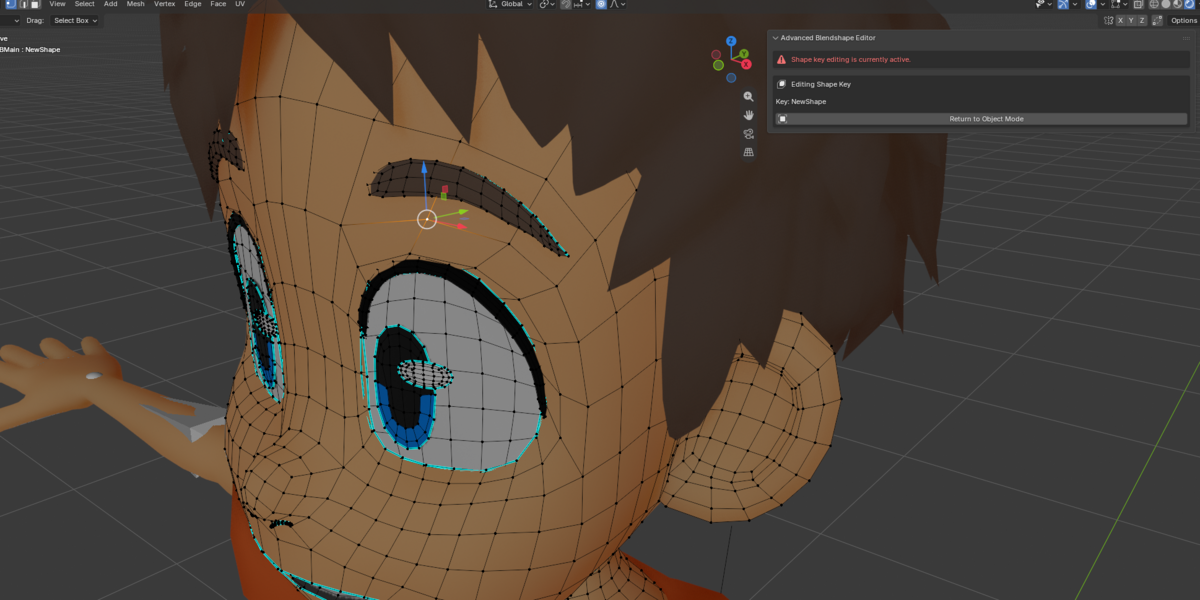
6. Scrub the "channel weight" slider to your desired position for editing, then hit "create frame" to add your new in-between
7. Repeat the above as many times as necessary
Animation
To animate a channel's weight, simply right click on the channel weight slider and hit "add keyframe". As you scrub the timeline, the addon will update the viewport with the respective channel weights for that frame.
Export and Import
This addon includes an external binary that runs with the FBX SDK embedded into it, the export, import and patch functions within the addon UI all make calls use the external library to edit FBX files. Know that a patch to an FBX file cannot be undone, so use with care and make sure you have backups. Although as previously stated, the import function does rely on the external FBX SDK, it does not edit your FBX file but instead it non-destructively makes a copy of it, processes the copy, imports, and then deletes the copy, so rest assured that importing is fully non-destructive and will not edit any of your files. If importing for some reason fails, there may be a YourFbxName_patched.fbx file left behind. This can be deleted no problem.
Additionally, this addon optionally hooks into the Better FBX Importer/Exporter plugin by Mesh Online addon. Best used when importing with the standard FBX importer produces wacky results. (This addon and author bear no affiliation with the Better FBX Importer/Exporter addon or its creators. It just comes highly recommended for both FBX import and export, and this addon hooks into it for extra convenience)
License and distribution
This addon is licensed under GPL 3.0
Additonal licensing notice from Autodesk for using their SDK:
“This software contains Autodesk® FBX® code developed by Autodesk, Inc. Copyright 2019 Autodesk, Inc. All rights, reserved. Such code is provided “as is” and Autodesk, Inc. disclaims any and all warranties, whether express or implied, including without limitation the implied warranties of merchantability, fitness for a particular purpose or non-infringement of third party rights. In no event shall Autodesk, Inc. be liable for any direct, indirect, incidental, special, exemplary, or consequential damages (including, but not limited to, procurement of substitute goods or services; loss of use, data, or profits; or business interruption) however caused and on any theory of liability, whether in contract, strict liability, or tort (including negligence or otherwise) arising in any way out of such code.”
Have questions about this product?
Login to message
| Blender Extension Compatible | Yes |
| Published | about 1 month ago |
| Blender Version | 4.2 - 5.2 |
| Extension Type | Add-on |
| License | GPL |

Discover more products like this
52 blendshapes fbx 52-shapekeys blender shape keys blendshapes character